
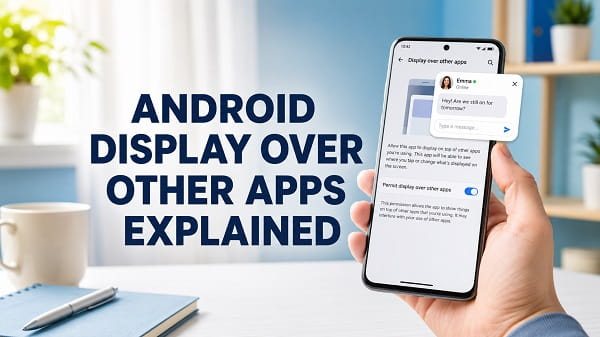
The Android display over other apps permission allows one app to place part of its interface on top of another app. It is what makes chat bubbles, floating video players, caller ID pop-ups, screen filters, floating toolbars, and some accessibility tools remain visible while you use something else.
On most Android phones, you can manage this permission through Settings > Apps > Special app access > Display over other apps. Samsung usually calls it Appear on top, while some manufacturers use names such as Draw over other apps, Display over other apps, or Apps that can appear on top.
The permission can be useful, but it is also powerful. An app with overlay access can cover buttons, imitate a login screen, display advertisements, or make it difficult to tell which app you are interacting with. You should enable it only for applications you trust and only when the feature genuinely requires it.
This guide explains what display over other apps means, how to turn it on or off on different Android phones, which apps need it, why the option may be unavailable, and how to fix screen overlay errors.
What Does Display Over Other Apps Mean?
Display over other apps is a special Android permission that allows an application to create a window above another application.
Normally, each Android app stays inside its own screen. When you switch from one app to another, the first app moves into the background.
An app with overlay permission can keep selected content visible in front of the app you are currently using.
Examples include:
- A Messenger chat bubble floating above Chrome
- A caller identification box appearing during an incoming call
- A video playing in a movable floating window
- A screen-dimming or blue-light filter covering the display
- A password manager showing an autofill panel
- A floating calculator or note window
- A screen recorder displaying recording controls
- An accessibility tool placing buttons around the edge of the screen
Android developers refer to this capability through the SYSTEM_ALERT_WINDOW permission. Android requires the app to declare the permission and the user to approve it from a special settings page.
Display over other apps is not the same as a normal permission such as Camera, Contacts, or Location. It belongs to Android’s Special app access category because it gives the application more control over how it interacts with the screen.
Is Display Over Other Apps the Same as Picture-in-Picture?
No.
Picture-in-picture allows supported video and navigation apps to continue in a small window after you leave the app. Android manages that window through a separate Picture-in-picture permission.
Display over other apps is broader. It can be used for chat heads, floating controls, screen filters, caller ID windows, and other interface elements.
The settings are normally separate:
Settings > Apps > Special app access > Picture-in-picture
and:
Settings > Apps > Special app access > Display over other apps
An app may support one, both, or neither.
Is Display Over Other Apps the Same as Notification Bubbles?
Not exactly.
Notification bubbles are an Android notification feature that lets supported conversations appear as movable icons. Bubbles may rely on notification permissions and system bubble settings rather than the general overlay permission.
Some messaging apps use Android notification bubbles. Others use their own floating interface and request display over other apps.
If a chat bubble is missing, check both:
- The app’s notification and bubble settings
- Display over other apps or Appear on top
Do not enable overlay access automatically if the application works through normal Android bubbles.
How to Find Display Over Other Apps on Android
The exact path varies by phone manufacturer and Android version.
On many Google Pixel, Motorola, Nokia, and stock-style Android phones:
- Open Settings.
- Tap Apps.
- Tap Special app access.
- Tap Display over other apps.
- Select an app.
- Turn Allow display over other apps on or off.
If Special app access is not immediately visible:
- Open Settings > Apps.
- Tap See all apps if necessary.
- Open the three-dot menu.
- Look for Special app access.
You can also use the Settings search box and enter:
display over other apps
Try these alternatives if no result appears:
appear on top
draw over other apps
special app access
How to Enable Display Over Other Apps
Use these general steps:
- Open Settings.
- Tap Apps.
- Open Special app access.
- Tap Display over other apps.
- Select the application.
- Turn on Allow display over other apps.
- Return to the application.
- Test the feature that required the permission.
Some apps open the correct settings page automatically when you tap an Allow, Enable, or Grant permission button inside the app.
Read the app’s explanation before approving it. A calculator does not normally need to appear over other apps unless it provides a floating calculator. A wallpaper app should not need overlay access simply to apply a wallpaper.
How to Turn Off Display Over Other Apps
Turn off the permission when an app displays unwanted pop-ups, floating buttons, full-screen advertisements, or controls that interfere with the phone.
- Open Settings.
- Tap Apps.
- Tap Special app access.
- Select Display over other apps.
- Choose the application.
- Turn off Allow display over other apps.
- Close and reopen the affected apps.
Disabling the permission does not uninstall the app or delete its data. It only prevents that app from placing overlay windows over other applications.
Features that depend on the permission may stop working. For example, a caller ID app may no longer show information above the incoming-call screen.
Display Over Other Apps on Samsung Galaxy
Samsung normally calls the permission Appear on top.
To manage it:
- Open Settings.
- Tap Apps.
- Tap the three-dot menu.
- Tap Special access.
- Tap Appear on top.
- Find the application.
- Turn the switch on or off.
On some One UI versions, the wording may be:
- Apps that can appear on top
- Draw over other apps
- Appear on top
Samsung confirms that apps using overlays can cause a screen overlay warning and recommends reviewing Settings > Apps > Special access > Appear on top when the problem occurs.
If the overlay has frozen buttons, menus, or the Home screen, how to fix System UI has stopped on Android includes additional steps for removing problematic screen overlay, theme, cleaner, and customization apps.
Display Over Other Apps on Google Pixel
On a Google Pixel:
- Open Settings.
- Tap Apps.
- Tap Special app access.
- Tap Display over other apps.
- Select the application.
- Turn Allow display over other apps on or off.
You can also open the app’s information page:
- Touch and hold the app icon.
- Tap App info.
- Look for Display over other apps or open the relevant special access page.
- Change the permission.
The option appears only when the application declares that it can request overlay access.
Display Over Other Apps on Motorola
Motorola phones generally use a stock-style Android menu:
- Open Settings.
- Tap Apps.
- Tap Special app access.
- Tap Display over other apps.
- Select the app.
- Enable or disable the permission.
On some versions, open:
Settings > Apps & notifications > Advanced > Special app access
Use the Settings search box if the Advanced section is not visible.
Display Over Other Apps on Xiaomi, Redmi, and Poco
MIUI and HyperOS menu names vary by model and region.
Try:
- Open Settings.
- Tap Apps.
- Tap Permissions.
- Tap Other permissions or Special permissions.
- Select the application.
- Find Display pop-up windows while running in the background, Display over other apps, or a similar option.
- Allow or deny it.
Another possible path is:
Settings > Privacy protection > Special permissions > Display over other apps
Xiaomi may separate:
- Pop-up windows
- Background pop-ups
- Lock-screen display
- Floating windows
An application may require more than one of these settings for its floating feature to work.
Display Over Other Apps on OnePlus
On newer OxygenOS versions:
- Open Settings.
- Tap Apps.
- Tap Special app access.
- Tap Display over other apps.
- Select the app.
- Turn the permission on or off.
Some versions place it under:
Settings > Apps > Special app access > Display over other apps
or:
Settings > Privacy > Special permissions
Search for Display over other apps if the menu path differs.
Display Over Other Apps on Oppo and Realme
On Oppo and Realme phones, try:
- Open Settings.
- Tap Apps.
- Tap Special app access or Special app permissions.
- Tap Display over other apps.
- Select the application.
- Change the permission.
Some ColorOS and Realme UI versions use Display over other apps, while others place floating-window permissions under privacy or app-management settings.
Battery and background restrictions can also stop the overlay even when permission is enabled.
Display Over Other Apps on Vivo and iQOO
Try:
- Open Settings.
- Tap Apps or Apps & permissions.
- Tap Special app access.
- Tap Display over other apps or Floating window.
- Select the app.
- Turn the permission on or off.
Some Vivo software versions call the feature Floating windows rather than display over other apps.
Display Over Other Apps on Tecno, Infinix, and Itel
HiOS and XOS menus vary considerably.
Common paths include:
Settings > Apps > Special app access > Display over other apps
or:
Settings > App management > Special access > Display over other apps
You may also find a separate Floating window setting.
If the option is missing on an Android Go model, the manufacturer may have restricted overlays to protect performance and memory.
Which Apps Need Display Over Other Apps?
Legitimate examples can include:
- Chat and messaging apps with floating conversations
- Caller ID and spam-identification apps
- Screen recorders with floating controls
- Accessibility tools
- Floating calculators
- Screen filter and dimmer apps
- Password managers
- Automation apps
- Gaming toolbars
- Parental-control apps
- Remote-support applications
- Navigation tools
- Clipboard managers
- Floating translation tools
The permission should have a clear connection to the advertised feature.
For example, a screen recorder may need a floating Stop button. A caller ID app may need to show a caller’s name over the phone screen.
An unrelated application asking for overlay access without a clear explanation deserves closer review.
Is Display Over Other Apps Safe?
The permission is safe when it is granted to a trustworthy app for a legitimate feature. It is risky when given to an unknown, deceptive, or unnecessary application.
A malicious overlay can:
- Cover a real sign-in page with a fake one
- Place a fake button over a legitimate button
- Display advertisements above other apps
- Trick you into granting another permission
- Hide security warnings
- Interfere with banking or payment screens
- Make it difficult to close the app
- Imitate a system alert
- Observe how you interact with screen elements when combined with other permissions
This type of trick is sometimes called overlay abuse or tapjacking.
Android includes protections that allow sensitive applications to block third-party overlays. Banking, payment, permission, and security screens may refuse to work while an overlay is active.
Grant the permission only when:
- You installed the app from a trusted source
- The developer is identifiable
- The overlay feature is part of the app’s main purpose
- The app explains why it needs the permission
- Recent reviews do not report aggressive ads or scams
- You understand how to turn the permission off
Can Display Over Other Apps See Your Passwords?
The overlay permission alone does not give an app direct access to the text stored inside another application.
However, an overlay can imitate or cover another screen. A malicious app could display a fake login form and convince you to type a password into it.
The risk becomes greater when the application also has:
- Accessibility access
- Notification access
- Screen capture permission
- Device administrator access
- Usage access
- Keyboard or input-method access
Review combinations of powerful permissions rather than evaluating overlay access in isolation.
Why Do Banking Apps Block Screen Overlays?
Financial and security-sensitive apps may block overlays to prevent another app from covering buttons, changing what you see, or tricking you into approving an action.
You may see messages such as:
- Screen overlay detected
- Close apps that can appear on top
- Turn off screen overlay
- Another app is displaying over this app
- For your security, close floating apps
- Unable to continue while an overlay is active
Turn off floating bubbles, screen filters, edge panels, screen recorders, password-manager overlays, and any other app appearing above the banking screen.
Do not disable the banking app’s security warning through unofficial modifications.
How to Fix Screen Overlay Detected
A screen overlay error usually appears when Android or an app refuses to accept a permission request while another app is covering part of the screen.
Try these steps:
- Close chat bubbles and floating windows.
- Turn off a blue-light filter or screen dimmer.
- Stop screen recording.
- Close floating accessibility controls.
- Open Settings > Apps > Special app access > Display over other apps.
- Temporarily disable recently used overlay apps.
- Return to the original permission screen.
- Grant the required normal permission.
- Re-enable only the trusted overlay that you still need.
On Samsung:
Settings > Apps > More options > Special access > Appear on top
Samsung specifically identifies bubbles, chat heads, and screen-color-changing apps as common causes of overlay warnings.
Display Over Other Apps Is Missing
The setting may be missing for several reasons.
The App Did Not Request Overlay Permission
Android may show only applications that declare the overlay permission.
If the app does not support overlays, no display-over-other-apps option will appear on its App info page.
The Manufacturer Renamed the Setting
Search for:
- Appear on top
- Draw over other apps
- Floating windows
- Pop-up windows
- Special app access
- Special permissions
The Phone Uses Android Go
Some Android Go devices restrict overlay permission because it can slow down low-memory phones.
Android documentation notes that certain Go edition devices can deny the permission and show that it is unavailable because it slows the phone.
The Phone Is Managed
A work, school, child, or company-managed device may block special permissions.
Check for a work profile, Family Link supervision, device-policy app, or organization account.
The App Is Installed in Private Space or a Secondary Profile
Private Space, work profiles, guest users, and secondary users have separate app and permission settings.
Open Settings from the same profile where the app is installed.
The App Was Sideloaded
Android may restrict sensitive settings for an application installed from an APK or another untrusted source.
Install the official Play Store version when possible.
Display Over Other Apps Is Greyed Out
A greyed-out switch can indicate:
- Android has restricted the app
- The app came from an APK file
- Device policy blocks the permission
- The phone uses Android Go
- The app has not declared the correct permission
- The manufacturer does not support overlays for that app
- A security feature is preventing approval
- The app is installed in a restricted profile
- The permission is controlled by a system component
Do not use random ADB commands or modified APKs to force the permission.
Start with the official app version, current Android updates, and the app developer’s supported instructions.
Allow Restricted Settings for a Trusted App
On Android 13 and later, apps installed outside a trusted app store can be prevented from accessing certain sensitive settings.
When you completely trust the developer and understand the risk:
- Open Settings.
- Tap Apps.
- Select the application.
- Tap the three-dot menu.
- Tap Allow restricted settings.
- Confirm with your screen lock.
- Return to Display over other apps.
- Try enabling the permission again.
Google warns that restricted settings can expose sensitive information and recommends enabling them only for a trusted developer.
If Allow restricted settings is missing, the restriction may not apply to that app, the manufacturer may use a different interface, or an administrator may control the setting.
Do not enable restricted settings for an app received through an unexpected message, advertisement, email attachment, or unknown download page.
Permission Turns Off by Itself
Try these fixes:
Update the App
An outdated app may not work correctly with the current Android version.
Open Google Play, search for the app, and install an available update.
Restart the Phone
A restart can reload the permission controller and the application.
Reinstall From Google Play
Uninstall the app, restart the phone, and reinstall it from the official Play Store page.
Record app data or account information first.
Check Security and Device Management
A work profile, antivirus product, parental-control system, or device-management policy may revoke the permission.
Check Android Go Restrictions
Low-memory Android Go devices may not permit the overlay.
Clear the App Cache
- Open Settings > Apps.
- Select the app.
- Tap Storage & cache.
- Tap Clear cache.
- Restart the app.
Clearing cache does not normally remove your account or personal data.
If multiple system features are crashing at the same time, use Android System Intelligence keeps stopping to check updates, cache, Google Play system components, and broader Android instability.
The App Still Cannot Appear on Top
The overlay permission may be enabled while another setting prevents the feature from running.
Check:
- The floating feature is enabled inside the app
- Notification permission is allowed
- Battery use is set appropriately
- Background activity is permitted
- The app is not in deep sleep
- Data Saver is not blocking a network-dependent overlay
- A second app is not covering it
- Do Not Disturb is not suppressing the related notification
- The phone is not in Safe Mode
- The app supports your Android version
- The feature is available in your region
Samsung, Xiaomi, Oppo, Vivo, Tecno, and Infinix devices may stop background apps aggressively. Set the app to unrestricted battery use only when continuous background operation is necessary.
Do not remove battery restrictions from every app because that can increase battery drain.
Overlay Appears but You Cannot Touch the Screen
A broken or badly designed overlay can intercept touches, cover navigation, or remain stuck above the Home screen.
Try these steps:
- Press the Home or Recent Apps button.
- Pull down Quick Settings and turn on Airplane Mode if the overlay is ad-related.
- Restart the phone.
- Boot into Safe Mode.
- Uninstall the recently installed app.
- Disable its overlay permission.
- Scan the phone with Google Play Protect.
If touch input remains unreliable without the overlay, follow Android touchscreen not working to separate a software problem from screen damage, moisture, a charger issue, or failing hardware.
Remove Pop-Up Ads Caused by Overlay Permission
Full-screen or floating advertisements outside the browser are often caused by a recently installed app with overlay access.
Review:
- Open Settings > Apps > Special app access > Display over other apps.
- Look for unfamiliar or recently installed apps.
- Turn off their overlay permission.
- Uninstall suspicious apps.
- Open Google Play Store.
- Tap your profile picture.
- Tap Play Protect.
- Run a scan.
- Restart the phone.
Pay particular attention to:
- Cleaner apps
- Free VPN apps
- Flashlight apps
- QR scanners
- Wallpaper apps
- Unknown launchers
- Battery boosters
- Downloaded APK installers
- Apps with generic names and blank icons
A legitimate app should not display aggressive advertisements over unrelated applications without clear consent.
Use Safe Mode to Find a Problem Overlay App
Safe Mode disables downloaded apps temporarily.
If the overlay disappears in Safe Mode, a third-party application is probably responsible.
The exact method varies, but on many phones:
- Press and hold the Power button.
- Touch and hold Power off.
- Tap Safe mode.
- Wait for the phone to restart.
- Check whether the overlay or pop-up returns.
Remove recently installed apps one at a time after returning to normal mode.
If the phone will not leave the diagnostic environment, Android stuck in Safe Mode explains restart methods, notification controls, stuck volume buttons, recent apps, and recovery options.
Should You Turn Off Display Over Other Apps for Every App?
You can turn it off for apps that do not need it, but disabling every overlay may break useful features.
Potentially affected features include:
- Chat bubbles
- Caller identification
- Floating screen recorder controls
- Floating accessibility buttons
- Screen filters
- Automation panels
- Floating calculators
- Password-manager prompts
- Gaming toolbars
A better approach is to review the list and keep permission enabled only for apps you recognize and actively use.
System apps may appear in the list even when the current switch is off. Their presence does not mean they are actively displaying something above the screen.
Can an App Turn Overlay Permission On by Itself?
A normal third-party app cannot silently grant itself the special overlay permission. Android requires explicit user approval through system settings.
However, it may appear that the permission turned itself on when:
- The app was restored with settings from a backup
- A system or manufacturer app controls the feature
- The user approved it during setup
- Another profile has a separate setting
- The app repeatedly opens the permission page
- The phone manufacturer preconfigured the app
If an unknown app seems to regain access, uninstall it, scan with Play Protect, review Accessibility and Device admin apps, and check for a work or device-management profile.
Can You See Which Apps Are Currently Drawing Over the Screen?
Android shows which apps are allowed to display over others, but it does not always provide a simple real-time list of every overlay currently visible.
Open:
Settings > Apps > Special app access > Display over other apps
Review apps marked Allowed.
On Samsung:
Settings > Apps > Special access > Appear on top
When troubleshooting, disable allowed apps in small groups until the unwanted overlay disappears.
Do not disable a critical accessibility tool without ensuring that you have another way to control the phone.
Does Display Over Other Apps Drain Battery?
The permission itself does not continuously drain the battery.
Battery use depends on what the app does with it. An app that keeps a floating window active, tracks calls, records the screen, runs animations, or stays awake in the background may use more power.
Check:
Settings > Battery > Battery usage
If an overlay app consumes excessive power:
- Close its floating feature when not needed
- Reduce its background activity
- Update the app
- Remove unnecessary animations
- Uninstall it if the feature is not useful
Do not install a battery booster to fix another questionable overlay app. Many aggressive cleaner and booster apps create additional problems.
Frequently Asked Questions
What is Android display over other apps?
It is a special permission that lets an app place a window, control, bubble, filter, or other interface element above another application.
Where is display over other apps on Android?
On many phones, open Settings > Apps > Special app access > Display over other apps.
What is display over other apps called on Samsung?
Samsung normally calls it Appear on top.
Is it safe to allow display over other apps?
It is safe for a trusted app with a legitimate floating feature. Avoid granting it to unknown apps or apps that do not explain why they need it.
Should I turn off display over other apps?
Turn it off for unfamiliar apps, apps showing unwanted pop-ups, or apps whose floating feature you do not use.
Why is display over other apps not available?
The phone may use Android Go, the app may not request overlay permission, the manufacturer may use a different name, the device may be managed, or Android may restrict a sideloaded app.
Why is the switch greyed out?
Android or the device administrator may have restricted the app. Reinstall it from Google Play or review Allow restricted settings only when you trust the developer.
Does display over other apps allow an app to read my screen?
The overlay permission lets the app draw above other apps. It does not directly grant full screen-reading access, but it can be abused to imitate or cover another screen. Accessibility or screen-capture access would create additional risks.
Why does my banking app say screen overlay detected?
A bubble, filter, screen recorder, floating toolbar, or another overlay is active. Close it or temporarily turn off the responsible app’s overlay permission.
Can display over other apps cause pop-up ads?
Yes. A malicious or aggressive app can use overlay permission to show advertisements above other apps.
Why do I have many apps in the overlay list?
The list can include every installed app that declares the ability to request overlay access. An app appearing there does not necessarily mean the permission is enabled.
Can I use display over other apps in Safe Mode?
Downloaded apps are disabled in Safe Mode, so their overlays normally will not run.
Is picture-in-picture an overlay?
It creates a floating window, but Android manages it through a separate Picture-in-picture permission.
Can Chrome display over other apps?
Chrome normally uses picture-in-picture and notification features for supported functions. It does not generally need the broad overlay permission for normal browsing.
Does Android automatically revoke this permission?
Security policies, app reinstallations, device management, software changes, or manufacturer restrictions can affect it. Android does not guarantee that every special permission remains enabled permanently.
Keep Overlay Access Limited to Trusted Apps
Display over other apps is useful when a feature genuinely needs to remain visible while you use another application. It enables chat bubbles, floating controls, caller information, filters, and accessibility tools that would otherwise disappear when you switch screens.
The same capability can also be misused to create fake prompts, intrusive advertisements, and confusing screen behavior. Review the list periodically and disable access for applications you do not recognize or no longer use.
When the setting is missing or greyed out, check the manufacturer’s name for the permission, confirm that the application supports overlays, install it from Google Play, and review restricted settings only when the developer is trustworthy. Avoid forcing the permission through unofficial tools or modified apps.
For the underlying Android rules, see Google’s documentation on special app permissions and its safety guidance for restricted settings on Android.
