
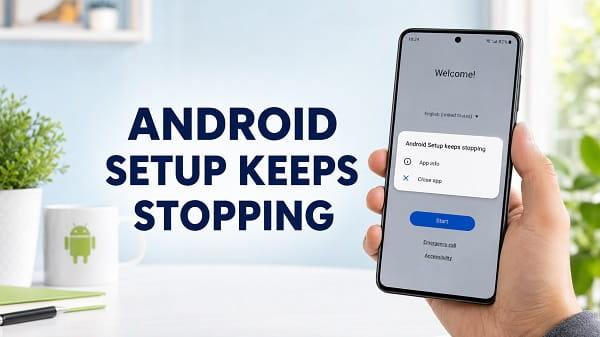
The Android Setup keeps stopping error usually appears while setting up a new phone, completing setup after a factory reset, restoring a backup, or trying to finish an unfinished device setup. The message may disappear when you tap Close app, only to return seconds later and prevent you from reaching the Home screen.
Android Setup is a legitimate system component, commonly associated with the Android Setup Wizard. It helps the phone connect to Wi-Fi, add a Google Account, copy apps and data, restore a backup, configure security, and complete other first-time settings. When the component crashes, the problem is usually caused by corrupted temporary data, an unstable internet connection, a failed restore process, outdated Google system components, or damaged device software.
To fix Android Setup keeps stopping, restart the phone and connect it to a stable Wi-Fi network. If the error returns, tap App info on the pop-up, force stop Android Setup, and clear its cache. Restart setup and choose Don’t copy or skip restoring apps temporarily if the crash happens during data transfer. Once you reach the Home screen, install Android, Google Play system, Google Play services, and app updates before attempting the remaining setup tasks.
Do not disable, uninstall, or delete the Android Setup Wizard. Removing a core setup component can leave the phone without normal navigation, account configuration, or setup-completion functions.
Why Does Android Setup Keep Stopping?
The message can appear for several different reasons.
Common causes include:
- Corrupted cache or stored setup data
- An interrupted factory reset or initial setup
- Weak, unstable, or restricted Wi-Fi
- Problems contacting Google services
- A failed app and data restore
- A backup created on a newer Android version
- Outdated Android or Google Play system components
- Insufficient free storage
- A damaged Google Play services installation
- A SIM or carrier activation conflict
- Incorrect date and time
- A third-party app conflict after setup
- An incomplete or corrupted firmware update
- Problems with a custom ROM or manually installed Google apps
The best fix depends on when the crash occurs.
If it appears before you reach the Home screen, focus on the network, Android Setup cache, account sign-in, and backup-restore process. If it appears after the phone has already been configured, focus on updates, app preferences, Google Play services, storage, and conflicting applications.
Restart the Android Phone
A restart reloads the Setup Wizard and the Google services it depends on.
Try a normal restart first:
- Press and hold the Power button.
- Tap Restart.
- Wait for the phone to turn back on.
- Resume setup slowly.
- Avoid tapping several setup buttons repeatedly while a page is loading.
If the screen is frozen, hold the Power button for approximately 20 to 30 seconds. Some Samsung, Pixel, Motorola, Xiaomi, OnePlus, Oppo, Vivo, Tecno, and Infinix phones use the Power and Volume Down buttons together for a forced restart.
A forced restart does not erase the phone. It only reloads the operating system.
If the phone keeps restarting instead of remaining on the setup screen, the problem may be broader than the Setup Wizard itself. Repeated reboots can point to a failed update, overheating, a stuck button, battery instability, or damaged firmware.
Use a Stable Wi-Fi Connection
Android setup depends on an internet connection for Google Account sign-in, device verification, software checks, backup discovery, app restoration, and security services.
A weak or restricted network can cause Setup to freeze or close unexpectedly.
Try the following:
- Move closer to the Wi-Fi router.
- Restart the router.
- Forget the current network if the option is available.
- Reconnect with the correct password.
- Avoid hotel, airport, school, workplace, and public Wi-Fi that requires a browser sign-in page.
- Disconnect from a VPN or custom Private DNS service if one is active.
- Test another private Wi-Fi network.
A mobile hotspot from another phone can be useful for testing. If the hotspot itself will not provide a stable connection, follow Android hotspot not working before continuing setup.
Do not keep repeating Google Account sign-in attempts on a connection that is dropping. Switch networks first.
Try Setting Up the Phone Without the SIM Card
Some phones run carrier activation, SIM registration, and manufacturer setup processes alongside the Android Setup Wizard. A SIM or carrier service problem can sometimes interfere with the setup flow.
Try this:
- Turn the phone off.
- Remove the SIM card.
- Turn the phone on.
- Connect to Wi-Fi.
- Continue setup.
- Insert the SIM after reaching the Home screen.
If the phone uses eSIM, skip the mobile plan setup when the option is available and add it later.
Removing a SIM does not bypass Google account verification. After a factory reset, Android may still require a Google Account that was previously synchronized with the phone.
Tap App Info and Force Stop Android Setup
When the error pop-up provides App info, use it to restart the failed system app.
- Tap App info on the error message.
- Tap Force stop.
- Confirm the action.
- Open Storage & cache or Storage.
- Tap Clear cache.
- Return to setup.
- Restart the phone if the error returns immediately.
Clearing the cache removes temporary files. It does not erase photos, contacts, or files stored elsewhere on the phone.
The exact app name may be:
- Android Setup
- Setup Wizard
- Device Setup
- Google Setup
- Samsung Setup Wizard
- Setup
Do not tap Disable or attempt to uninstall the app.
Find Android Setup Through Settings
If you can reach the Home screen or pull down Quick Settings:
- Open Settings.
- Tap Apps.
- Tap See all apps or App management.
- Open the menu and enable Show system apps if required.
- Search for Android Setup or Setup Wizard.
- Tap Force stop.
- Open Storage & cache.
- Tap Clear cache.
- Restart the phone.
Manufacturer menus vary. On Samsung, use Settings > Apps, tap the filter or menu icon, and enable Show system apps. On Pixel and many stock Android devices, open Settings > Apps > See all apps, then use the menu to show system components when needed.
Clear Android Setup Storage Only When Cache Clearing Fails
Clearing Android Setup storage is more disruptive than clearing its cache.
It can reset Setup Wizard progress and make the phone repeat Wi-Fi, account, copy-data, permissions, or security screens.
Use it only when:
- Setup remains trapped in a crash loop
- Clearing the cache did not help
- You understand that setup steps may restart
- The phone has not yet been fully configured
- You have recorded any important account and network information
Steps:
- Open Android Setup or Setup Wizard App info.
- Tap Storage & cache.
- Tap Clear storage or Clear data.
- Confirm.
- Restart the phone.
- Begin setup again.
This does not normally erase the entire phone, but it resets the local data belonging to the setup component.
Do not clear data for random system apps in an attempt to stop the message.
Skip Copying Apps and Data Temporarily
The error frequently appears during Copy apps and data, Restoring, Checking info, or a manufacturer transfer process.
A damaged backup, incompatible app, unstable cable, or version mismatch can cause the restore stage to crash.
Restart setup and choose an option such as:
- Don’t copy
- Set up as new
- Skip
- Not now
- Continue without old device
Complete the basic setup first. After reaching the Home screen:
- Install all system updates.
- Update Google Play services and the Play Store.
- Sign in to the correct Google Account.
- Install important apps manually.
- Transfer photos, documents, contacts, and other files after the phone is stable.
Google notes that restoring data can vary by device and Android version. A backup from a higher Android version may not restore correctly to a phone running an older version.
Skipping the initial restore can also mean that some backed-up settings and app data will not be offered later without resetting the new phone again. Keep the old phone and backup available until you confirm that the important information has transferred.
For a safer step-by-step transfer process, use how to transfer data from Android to Android.
Disconnect the Data-Transfer Cable
If the Setup Wizard crashes after you connect the old and new phones:
- Disconnect the USB cable.
- Restart both phones.
- Check the cable and connectors for damage.
- Use the original or a high-quality data cable.
- Unlock the old phone.
- Make sure the old phone has enough battery.
- Try the wireless transfer option.
- Skip the transfer if the crash returns.
Some USB cables support charging but not data transfer. A loose adapter or damaged port can also interrupt the process.
Do not repeatedly connect and disconnect a cable while either phone says that it is copying or preparing data. Cancel the process first when possible.
Check the Date and Time
Google sign-in and secure connections can fail when the phone’s date or time is far from the correct value.
If the setup screen lets you adjust it:
- Open date and time settings.
- Turn on Set time automatically.
- Turn on Set time zone automatically.
- Confirm the displayed date.
- Restart setup.
If automatic settings are unavailable, enter the correct date, time, and time zone manually, then try again.
Finish Setup Without Adding a Google Account
Some phones allow you to skip Google Account sign-in during initial setup.
If the crash occurs on Checking info, Getting account info, or the Google sign-in screen:
- Go back to the previous setup page.
- Select Skip when available.
- Confirm that you want to continue without an account.
- Finish the device setup.
- Update the phone.
- Add the Google Account later through Settings.
This option is not available when Factory Reset Protection requires the previously synchronized Google Account.
Do not follow guides that claim to bypass Factory Reset Protection. If Android requests a previously used Google Account, enter the legitimate account credentials or use Google’s account-recovery process.
Update Android After Reaching the Home Screen
Software updates often include fixes for setup, account, backup, and Google services problems.
On many Android phones:
- Open Settings.
- Tap System, Software update, or About phone.
- Tap System update, Software update, or Download and install.
- Install every available update.
- Restart the phone.
- Check again until no further update is offered.
Keep the phone connected to power and Wi-Fi during installation.
Install the Google Play System Update
Android system updates and Google Play system updates are separate.
To check the Google Play system update:
- Open Settings.
- Tap Security & privacy or About phone.
- Tap System and updates, Software information, or a similar option.
- Tap Google Play system update.
- Install an available update.
- Restart the phone.
- Check again.
Some updates appear in stages and require more than one restart.
Samsung commonly places this under:
Settings > About phone > Software information > Google Play system update
A current Google Play system can fix compatibility problems involving setup, account services, backup, restore, and system applications.
Update Every App From the Play Store
After you reach the Home screen:
- Open the Google Play Store.
- Tap your profile picture.
- Tap Manage apps & device.
- Tap Update all.
- Leave the phone connected to Wi-Fi.
- Restart it when updates finish.
Pay particular attention to updates for:
- Google Play services
- Android System WebView
- Chrome
- Google Play Store
- Device setup or restore components
- Manufacturer account and setup apps
Do not download replacement system APK files from an unknown website. A package built for another model or Android version can make the setup problem worse.
Clear Google Play Services Cache
Google Play services supports account sign-in, backup, device verification, security, location, notifications, and many other Android features.
If Android Setup crashes after the phone has reached the Home screen:
- Open Settings.
- Tap Apps.
- Tap See all apps.
- Select Google Play services.
- Tap Storage & cache.
- Tap Clear cache.
- Restart the phone.
Do not clear Google Play services storage as the first step. Clearing its data can sign services out, reset some device connections, remove certain locally stored service information, and require features to be configured again.
Clear the Google Play Store Cache
A broken Play Store cache can prevent updates required by Android Setup.
- Open Settings > Apps.
- Select Google Play Store.
- Tap Storage & cache.
- Tap Clear cache.
- Tap Force stop.
- Reopen the Play Store.
- Install updates.
If the Play Store cannot open, confirm that Download Manager, Google Play services, and the Play Store have not been disabled.
Free Up Storage Space
Low storage can cause system applications to close because Android needs space for updates, temporary files, app restoration, and background processing.
Check:
Settings > Storage
Remove or move:
- Unneeded downloads
- Large videos
- Duplicate files
- Offline media
- Unused apps
- Failed update packages
- Old transfer files
If the phone was just factory reset, critically low storage may indicate that a restore process filled the device, the storage is reporting incorrectly, or the internal memory has a fault.
Reset App Preferences
Resetting app preferences can restore disabled system components, default applications, notification settings, permissions prompts, and background restrictions without deleting personal files.
Use it after reaching the Home screen:
- Open Settings.
- Tap Apps.
- Open the three-dot menu.
- Tap Reset app preferences.
- Confirm the reset.
- Restart the phone.
This can help when Android Setup, Download Manager, Google Play services, or another required component was disabled.
You will need to reselect some default apps and review permissions afterward.
Check for Disabled System Apps
Android Setup may depend on other system components.
Open Settings > Apps, show system apps, and check that the following have not been disabled:
- Android Setup or Setup Wizard
- Google Play services
- Google Play Store
- Download Manager
- Google Services Framework, where visible
- Android System WebView
- Chrome, when WebView uses it
- Device Policy, on managed devices
- Manufacturer setup and account services
Enable a component only when it is an original system app that you recognize.
Avoid enabling unknown packages based only on a random forum list.
Boot Into Safe Mode After Initial Setup
Safe Mode temporarily disables downloaded applications.
It is useful when the error starts after the phone was already set up or after installing a launcher, cleaner, security app, transfer tool, accessibility service, or device-management app.
A common method is:
- Press and hold the Power button.
- Touch and hold Power off.
- Tap Safe mode.
- Wait for the phone to restart.
- Check whether the error returns.
If Android Setup works normally in Safe Mode, remove recently installed applications one at a time.
Safe Mode is not always accessible during the first-time Setup Wizard. Use it mainly when you can reach the normal Android interface.
Wipe the Cache Partition When Your Phone Supports It
Some Samsung and other Android devices provide a Wipe cache partition option in Recovery Mode. It removes temporary system cache without erasing personal files.
The exact button combination varies by manufacturer and model. Some newer devices require a USB cable to be connected before Recovery Mode opens, while many Google Pixel phones do not provide a separate wipe-cache-partition option.
General process:
- Turn the phone off.
- Enter Recovery Mode using the official method for the model.
- Highlight Wipe cache partition.
- Confirm the selection.
- Select Reboot system now.
Do not choose Wipe data/factory reset by mistake.
Use the manufacturer’s support instructions for the exact model rather than copying an old button combination.
Complete Manufacturer Setup Separately
Samsung, Motorola, Xiaomi, Oppo, Vivo, OnePlus, Tecno, Infinix, and carrier-branded phones may include their own setup applications in addition to Android Setup.
If Google’s Setup Wizard completes but another setup notification crashes:
- Update the manufacturer’s apps from its app store.
- Sign in to the manufacturer account later.
- Skip optional cloud restoration.
- Skip themes, recommendations, and promotional services.
- Complete essential Android setup first.
- Return to the manufacturer setup after updates.
A Samsung Setup Wizard error and an Android Setup error may look similar but involve different system packages.
Android Setup Keeps Stopping After a Factory Reset
After a factory reset, focus on these steps in order:
- Restart the phone.
- Remove the SIM temporarily.
- Connect to a private, stable Wi-Fi network.
- Clear Android Setup cache through App info.
- Skip data restoration.
- Skip optional manufacturer setup.
- Sign in with the previously synchronized Google Account when requested.
- Finish setup.
- Install all updates.
- Transfer data only after the phone is stable.
Google warns that a factory reset erases device data and requires the user to know the Google Account and screen-lock information associated with the phone. It also recommends a charged phone and an internet connection for the post-reset sign-in process.
If you recently changed the Google Account password, wait before resetting again so the account security change has time to take effect.
Android Setup Keeps Stopping While Restoring a Backup
Try setting up without the backup.
The restore can fail because:
- An app in the backup is incompatible
- The backup comes from a newer Android release
- The internet connection is unstable
- Google Play services is outdated
- The old and new phones use different manufacturer software
- The restore was interrupted
- The backup is incomplete
- There is not enough storage
Google explains that a backup cannot be fully restored from a higher Android version to a phone running a lower version and that restore behavior varies by phone and Android release.
Update the new phone first, then install essential apps manually or repeat setup only after confirming the backup is usable.
Android Setup Keeps Stopping on Samsung
On a Samsung Galaxy phone:
- Restart the phone.
- Remove the SIM temporarily.
- Connect to reliable Wi-Fi.
- Tap App info on the error.
- Force stop Android Setup or Setup Wizard.
- Clear its cache.
- Skip Smart Switch restoration temporarily.
- Complete Google setup.
- Open Settings > Software update > Download and install.
- Open Settings > About phone > Software information > Google Play system update.
- Update apps in both Google Play Store and Galaxy Store.
- Wipe the cache partition only if the model supports it and the official instructions are clear.
Samsung recommends checking app updates, resetting the affected app where appropriate, restarting the device, and installing Google Play system updates when apps crash.
Android Setup Keeps Stopping on Google Pixel
On a Pixel:
- Restart the phone.
- Use a different private Wi-Fi network.
- Skip cable transfer and cloud restoration.
- Complete setup as a new phone when possible.
- Install Android and Google Play system updates.
- Clear Android Setup cache if App info is available.
- Clear Google Play services cache after reaching the Home screen.
- Contact Pixel support if the error survives another properly completed reset.
Pixel devices use seamless update partitions and do not normally provide the traditional Wipe cache partition option found on some older phones.
Android Setup Keeps Stopping on a Custom ROM
A custom ROM setup crash often has a different cause from a stock Samsung, Pixel, or Motorola phone.
Possible causes include:
- Incompatible Google apps package
- Wrong package architecture
- Google apps installed in the wrong order
- A ROM and recovery mismatch
- Missing privileged permissions
- A dirty flash over another ROM
- Unsupported device firmware
- An incomplete installation
Use the installation instructions from the ROM maintainer.
Do not delete the Setup Wizard, grant random permissions through ADB, or flash an unrelated package based on a generic video. Back up the device and return to the official stock firmware if you cannot verify the ROM components.
TechWise Zone does not recommend bypassing activation, Factory Reset Protection, or ownership verification.
Do Not Disable or Delete Android Setup
Some online fixes recommend disabling com.google.android.setupwizard, deleting the package, or using ADB to mark setup as complete.
These actions can cause:
- Missing Home and navigation functions
- Repeated setup notifications
- Account and backup problems
- Incomplete permissions
- Broken restore features
- Device-management issues
- Failure to complete ownership verification
- More crashes after restarting
Android Setup is a system component, not unwanted bloatware.
Force stopping it temporarily and clearing its cache are very different from permanently disabling or deleting it.
Factory Reset the Phone Only as a Last Resort
A factory reset may be required when the Setup Wizard remains corrupted and no other method works.
Before resetting:
- Back up accessible data
- Confirm the Google Account email
- Confirm the Google Account password
- Know the previous screen-lock PIN, pattern, or password
- Charge the phone to at least 70 percent
- Remove the SD card if you are concerned about selecting the wrong erase option
- Keep the phone connected to stable Wi-Fi
- Confirm that important authenticator and banking access can be restored
If the phone has not completed initial setup, use the manufacturer’s Recovery Mode reset instructions.
After the reset:
- Do not restore apps and data immediately.
- Set the phone up as new.
- Install every update.
- Test the phone.
- Add apps and data gradually.
If Android Setup crashes during a second clean setup without restoring anything, the device may need firmware repair or professional support.
When to Contact the Manufacturer
Contact the phone manufacturer or an authorized repair center when:
- The error returns after a clean factory reset
- Setup crashes before any account or backup is added
- The phone cannot install official updates
- Internal storage reports errors
- The phone overheats or restarts during setup
- Recovery Mode cannot load
- The device was interrupted during a firmware update
- The error started after an unofficial ROM or manual flash
- The phone cannot pass device verification despite correct credentials
- Hardware damage occurred before the error began
The manufacturer may provide an official recovery tool, firmware reinstallation process, or service-center repair.
Frequently Asked Questions
What is Android Setup?
Android Setup is a system component that guides users through Wi-Fi, Google Account, security, backup, data transfer, permissions, and other first-time device settings.
Is Android Setup a virus?
No. Android Setup and Setup Wizard are legitimate system components on certified Android devices.
Why does Android Setup keep stopping after a factory reset?
The usual causes are corrupted setup data, unstable internet, a failed backup restore, Google services problems, outdated system components, or damaged firmware.
Can I disable Android Setup?
You should not permanently disable it. Force stopping and clearing its cache can help temporarily, but disabling the package can leave setup incomplete.
Will clearing Android Setup cache delete my files?
No. Clearing cache removes temporary setup files. Clearing storage can reset setup progress but does not normally erase the entire phone.
Should I clear Android Setup data?
Use Clear storage only when clearing cache fails and you are prepared to repeat the setup steps.
Why does the error appear when copying data?
The cable, connection, backup, restore app, old-phone software, or Android-version difference may be causing the transfer to fail. Skip the transfer, update the new phone, and try another method later.
Can I restore my backup after skipping it?
Contacts, photos, and other synchronized information may return after you add the Google Account, and apps can be installed manually. Some app data and device settings are offered only during initial setup and may require another reset to restore fully.
Does the error mean the phone is damaged?
Usually not. Most cases are software, network, update, or restore problems. Hardware or storage damage becomes more likely when the error survives a clean reset and official firmware repair.
Can Google Play services cause the error?
Yes. Android Setup depends on Google services for sign-in, backup, device verification, and other functions. Update Google Play services and clear its cache after reaching the Home screen.
Why can’t I get past Google verification?
Factory Reset Protection may require a Google Account previously used on the device. This is an ownership security feature, not the same as a Setup Wizard crash.
Should I download an Android Setup APK?
No. Use official system and Play Store updates. A package from an unknown website may be incompatible or unsafe.
Does Safe Mode fix Android Setup?
Safe Mode can identify a conflicting downloaded app after initial setup. It may not be available or useful while the phone is trapped in the first-time setup flow.
What if other system apps also keep stopping?
Install Android and Google Play system updates, free storage, reset app preferences, and check Google Play services. If several system components crash together, use Android System Intelligence keeps stopping for additional system-app troubleshooting.
Can System UI problems cause setup issues?
A broader Android interface failure can interfere with navigation and setup screens. When the status bar, Home screen, or navigation also crashes, follow how to fix System UI has stopped on Android.
Complete Setup Without Making the Problem Worse
Start with a restart, a reliable private Wi-Fi connection, and the Android Setup App info screen. Force stop the component and clear its cache, then restart the setup process. If the crash happens during backup restoration or cable transfer, skip that stage and complete a clean setup first.
After reaching the Home screen, install Android, Google Play system, Google Play services, Play Store, WebView, and manufacturer updates. Add apps and restore data gradually so you can identify the step that triggers the crash.
Avoid disabling the Setup Wizard, downloading replacement system APKs, or following account-verification bypass instructions. When a clean factory reset still produces the same error before any apps or data are restored, contact the device manufacturer for official firmware recovery or hardware diagnosis.
For general Android app-crash steps, see Google’s official guide to fixing an installed Android app that is not working. Google’s backup and restore documentation also explains Android-version limits and what can be restored during first-time setup.
