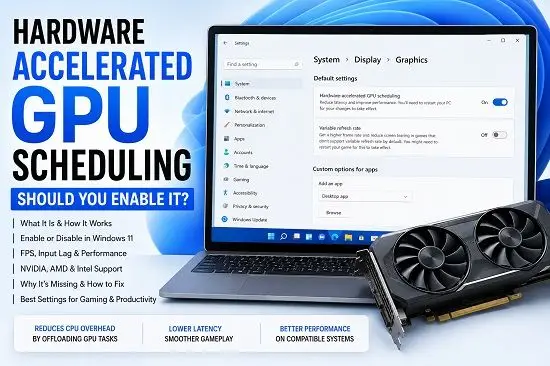
Hardware Accelerated GPU Scheduling (HAGS) is a Windows feature designed to change how graphics work is scheduled between the CPU, Windows, and your GPU.
If you have seen the Hardware-accelerated GPU scheduling option in Windows 11 and wondered whether you should enable it, you are not alone. The setting is frequently discussed by gamers and PC users because it can affect graphics latency, responsiveness, and compatibility with certain GPU drivers and applications.
The short answer is that HAGS is worth testing on a compatible PC, but it is not a guaranteed FPS booster.
Microsoft designed HAGS to move much of the high-frequency GPU scheduling work from the CPU to a dedicated GPU-based scheduling processor. The goal is to reduce scheduling overhead and latency while modernizing the Windows graphics architecture. Microsoft introduced the feature with Windows 10 version 2004 and made it available only when the GPU and graphics driver support it.
For some systems, enabling HAGS can be beneficial. For others, the difference may be too small to notice, and certain driver or application combinations can behave better with it disabled.
This guide explains what Hardware Accelerated GPU Scheduling does, how to enable or disable it in Windows 11, whether it improves gaming performance, why the option may be missing, and how to decide which setting is best for your PC.
What Is Hardware Accelerated GPU Scheduling?
Hardware Accelerated GPU Scheduling is a Windows graphics feature that allows a supported GPU to take over much of the high-frequency scheduling work that was traditionally handled by the CPU.
Normally, the CPU plays an important role in organizing GPU workloads. Windows needs to determine which graphics tasks should run, when they should run, and how GPU resources should be shared among applications.
Microsoft’s architecture for HAGS changes part of this process.
With HAGS enabled, Windows continues to determine priorities between applications, but many high-frequency scheduling operations are moved to a dedicated GPU scheduling processor. This can reduce some of the CPU overhead and shorten the path between submitted graphics work and execution on the GPU.
That sounds like it should automatically make every PC faster.
It does not.
HAGS is a change to the way Windows and the graphics driver manage GPU work. Whether that change produces a measurable improvement depends on the hardware, driver, workload, and application.
How Does Hardware Accelerated GPU Scheduling Work?
The traditional Windows graphics pipeline relies heavily on the CPU to coordinate GPU scheduling.
The CPU has to manage high-frequency scheduling tasks while also handling other work from Windows and applications.
HAGS changes this relationship.
When supported, Windows can offload much of the scheduling workload to a dedicated scheduling processor on the GPU. Windows still controls overall prioritization, but the GPU handles more of the frequent scheduling operations itself.
The basic idea is:
Traditional scheduling:
Application
 |
 v
CPU schedules GPU work
 |
 v
GPU executes the work
Hardware Accelerated GPU Scheduling:
Application
 |
 v
Windows prioritizes the workload
 |
 v
GPU scheduling processor
 |
 v
GPU executes the work
The practical objective is to reduce scheduling overhead rather than dramatically increase the raw processing power of the GPU.
Your graphics card does not suddenly become a faster GPU simply because HAGS is enabled.
Does HAGS Increase FPS?
Sometimes, but you should not enable HAGS expecting a guaranteed FPS increase.
This is one of the biggest misconceptions about the feature.
HAGS does not increase the number of GPU cores, VRAM capacity, memory bandwidth, or clock speed. Instead, it changes how Windows schedules graphics work.
Independent testing has historically found that performance gains can be small, inconsistent, or nonexistent in many games. PCWorld’s review of available testing found mixed results and concluded that the effect depends heavily on the application and system.
More recent Windows 11 coverage continues to describe HAGS as a setting that can reduce scheduling overhead and potentially improve responsiveness, but the real-world benefit varies by system.
Therefore:
HAGS is not an FPS boost switch.
It is better understood as a scheduling optimization that may improve performance or latency in some workloads.
Should You Turn Hardware Accelerated GPU Scheduling On or Off?
For most users with compatible hardware, there is no universal answer.
If your PC is stable and your games perform well with HAGS enabled, there is little reason to disable it simply because another PC performs differently.
If enabling HAGS causes:
- Stuttering
- Game crashes
- Driver instability
- Display problems
- Performance drops
- Unexpected application behavior
then disable it and compare the results.
The best approach is to test the setting with the games and applications you actually use.
Do not rely solely on a benchmark from another person’s PC because GPU model, CPU, driver version, Windows version, game engine, resolution, and settings can all affect the result.
How to Enable Hardware Accelerated GPU Scheduling in Windows 11
If your hardware and driver support HAGS, you can enable it from Windows Settings.
Step 1: Open Windows Settings
Press:
Windows + IThen select:
System > Display > GraphicsStep 2: Open the Advanced Graphics Settings
Look for the option related to default graphics settings.
Depending on your Windows 11 version, the wording and layout may vary slightly.
Look for:
Hardware-accelerated GPU scheduling
Step 3: Turn HAGS On
Switch the setting to:
On
Windows may tell you that you need to restart the computer.
Restart Windows to apply the change.
Microsoft’s original HAGS documentation placed the setting in the advanced graphics settings area and explained that the option appears only when the GPU and driver support the scheduler.
How to Disable Hardware Accelerated GPU Scheduling
If you are experiencing problems after enabling HAGS, you can turn it off using the same settings.
Open:
Settings > System > Display > GraphicsFind:
Hardware-accelerated GPU scheduling
Switch it to:
Off
Then restart Windows.
A restart is important because graphics-driver and scheduler changes may not fully apply until Windows reloads the graphics stack.
Hardware Accelerated GPU Scheduling Missing in Windows 11
If you cannot find the HAGS option, do not assume that Windows is broken.
The setting only appears when Windows detects compatible hardware and a driver that exposes HAGS support.
Microsoft’s documentation states that HAGS requires the appropriate hardware and a compatible WDDM driver.
A Microsoft Q&A discussion also identifies unsupported GPU hardware and outdated graphics drivers as common reasons the setting does not appear.
Possible reasons include:
- Your GPU does not support HAGS.
- Your graphics driver is outdated.
- Windows is using a generic display driver.
- The manufacturer has not enabled the feature for your hardware.
- The system is using a virtualization configuration that does not expose the required capability.
- Windows has not correctly detected the GPU driver.
How to Check Your GPU Driver
Before troubleshooting HAGS, identify the graphics card and driver.
Press:
Windows + XSelect:
Device Manager
Expand:
Display adapters
You should see your GPU.
Right-click it and select:
Properties > DriverCheck:
- Driver provider
- Driver date
- Driver version
If Windows is using a generic Microsoft display driver rather than the manufacturer’s proper driver, HAGS may not be available.
Update Your GPU Driver
If HAGS is missing, updating the graphics driver is one of the first things to try.
For NVIDIA GPUs, use NVIDIA’s official driver resources.
For AMD Radeon GPUs, use AMD Software and the official AMD driver package.
For Intel graphics, use Intel’s official driver resources or the driver supplied by your PC manufacturer.
Avoid third-party driver-download websites.
A graphics driver is a core part of the Windows graphics stack, so using the correct package for the exact GPU is more important than simply installing the newest-looking file.
If you are comparing graphics hardware for a new PC, our guide on AMD GPU vs NVIDIA explains the differences between the two ecosystems.
What Is WDDM and Why Does It Matter for HAGS?
WDDM stands for Windows Display Driver Model.
It is the Windows driver architecture used for graphics hardware.
Hardware Accelerated GPU Scheduling was introduced with the WDDM 2.7 generation of graphics support. Microsoft documents HAGS capability through WDDM 2.7-related driver structures, including flags that indicate whether hardware scheduling is supported and enabled.
This is why the graphics driver matters so much.
Having a modern GPU does not automatically guarantee that the HAGS option will appear.
Windows needs a driver that exposes the required capability.
How to Check Your WDDM Version
You can check the WDDM version through the DirectX Diagnostic Tool.
Press:
Windows + RType:
dxdiagPress Enter.
Open the Display or Render tab, depending on your Windows configuration.
Look for:
Driver Model
You may see a value such as:
WDDM 3.1or:
WDDM 3.2Microsoft’s current WDDM documentation maps WDDM versions to Windows releases and graphics capabilities.
If your driver model is older than the required version, update the graphics driver and Windows before troubleshooting the HAGS setting further.
Hardware Accelerated GPU Scheduling for NVIDIA GPUs
HAGS can be supported on compatible NVIDIA graphics cards and drivers.
NVIDIA has supported hardware-accelerated GPU scheduling in its Windows graphics ecosystem, and Windows 11 includes GPU scheduling improvements for supported configurations.
However, support is not simply determined by the NVIDIA brand.
The exact GPU architecture, driver, Windows version, and configuration matter.
If you have an NVIDIA GPU and HAGS is missing:
- Identify the exact GPU.
- Update the NVIDIA graphics driver.
- Restart Windows.
- Check the Graphics settings again.
- Confirm the driver model using
dxdiag.
Do not assume that every older NVIDIA card supports HAGS.
NVIDIA’s own virtualization documentation, for example, notes that HAGS support varies by GPU architecture and specifically excludes Maxwell-based GPUs in certain virtualized configurations.
Hardware Accelerated GPU Scheduling for AMD GPUs
HAGS is also supported by selected AMD Radeon hardware and drivers.
AMD has expanded HAGS support across Radeon generations over time. For example, AMD’s release notes document HAGS support for the Radeon RX 7600 series on Windows 11 22H2 and newer with a compatible driver.
This is an important reason not to rely on a simple list saying:
“All AMD GPUs support HAGS.”
Support can depend on the GPU generation, driver, and Windows version.
If you have an AMD GPU and the option is missing, install the current official Radeon driver for your exact card and restart Windows.
If you are deciding between AMD and NVIDIA hardware, our AMD GPU vs NVIDIA comparison can help you evaluate the broader differences.
Hardware Accelerated GPU Scheduling for Intel GPUs
Intel graphics support for Windows graphics features depends on the specific GPU generation and driver.
If you have Intel integrated or discrete graphics and HAGS is missing, identify the exact GPU and check the current Intel graphics driver.
On laptops, the PC manufacturer’s driver can sometimes be preferable because laptop manufacturers may customize graphics, power, display, and switching behavior.
Do not install a desktop graphics driver blindly on a laptop simply because the GPU name looks similar.
Does HAGS Reduce Input Lag?
Potentially, but the improvement is not guaranteed.
The architectural purpose of HAGS includes reducing scheduling overhead and latency associated with CPU-based GPU scheduling. Microsoft describes the feature as moving high-frequency scheduling tasks to a dedicated GPU-based scheduling processor.
However, input latency in games depends on many other factors:
- CPU performance
- GPU workload
- Game engine
- Display refresh rate
- V-Sync
- VRR
- Frame rate
- Driver behavior
- Frame-generation technology
- Game settings
- Network latency
If you are already GPU-bound at a high frame rate, changing HAGS may have little visible effect.
If you are sensitive to latency, the best way to evaluate HAGS is to test the same game and settings with the feature enabled and disabled.
Does HAGS Help With Gaming?
It can, but results vary.
HAGS is particularly interesting for gamers because graphics scheduling is happening continuously while games are running.
However, the feature does not directly increase GPU horsepower.
A game that is limited by:
- GPU shader performance
- VRAM
- CPU performance
- Memory bandwidth
- Game-engine limitations
may see little or no benefit from changing the scheduling method.
PCWorld’s review of available benchmark testing found mixed results, with many games showing negligible performance differences while some applications benefited more noticeably.
This is why the correct question is not:
“Does HAGS make gaming faster?”
It is:
“Does HAGS improve performance or latency on my particular system and games?”
HAGS and Stuttering
Some users report smoother performance after enabling HAGS, while others report stuttering or instability.
Both experiences are possible because the feature interacts with the graphics driver and application.
If a game starts stuttering after enabling HAGS:
- Record your average FPS.
- Record frame-time behavior if you have a monitoring tool.
- Test the same game with HAGS disabled.
- Restart Windows after changing the setting.
- Compare the results under identical graphics settings.
- Update the GPU driver if appropriate.
Do not change HAGS, V-Sync, frame rate limits, DLSS/FSR, Game Mode, and several other settings simultaneously.
Changing everything at once makes it difficult to identify the cause.
Can HAGS Cause Crashes?
HAGS itself is not inherently dangerous, but graphics-driver compatibility matters.
Microsoft introduced HAGS as an early-adopter feature and emphasized the importance of testing and reliability data because changing the scheduler represented a fundamental change to the graphics driver model.
Modern Windows and GPU drivers have evolved significantly since the feature was introduced, but individual driver releases can still have compatibility issues.
If crashes begin immediately after enabling HAGS, disable it and test again.
If the crashes stop, check whether a newer graphics driver is available.
HAGS and Frame Generation
Modern gaming technologies such as frame generation add another layer to the graphics pipeline.
Features such as NVIDIA DLSS Frame Generation and AMD’s frame-generation technologies can alter how frames are produced and presented.
HAGS does not replace these technologies.
Instead, it operates at the Windows graphics scheduling level.
If you use frame generation, do not assume that enabling HAGS automatically makes frame generation faster or smoother.
The correct approach is to benchmark the complete configuration you actually use.
For example:
HAGS Off
DLSS/FSR On
Frame Generation On
versus:
HAGS On
DLSS/FSR On
Frame Generation On
Keep everything else the same.
HAGS on Gaming PCs vs Laptops
A desktop gaming PC and a laptop can react differently to the same graphics setting.
A desktop may use a dedicated GPU continuously.
A laptop may use:
- Integrated graphics
- Dedicated graphics
- Hybrid graphics
- Dynamic GPU switching
- Manufacturer-specific power management
This can make graphics scheduling behavior more complicated.
If HAGS causes a problem on a laptop, check the manufacturer’s graphics and chipset drivers before assuming Windows itself is defective.
Also test the setting while the laptop is connected to power.
Power-saving modes can change CPU and GPU behavior and make performance comparisons misleading.
HAGS and Productivity Applications
HAGS is not exclusively a gaming feature.
Graphics-intensive applications can also use GPU resources.
These may include:
- Video editors
- 3D applications
- CAD software
- Rendering applications
- Image-processing software
- GPU compute applications
- Browser-based graphics workloads
The benefit depends on how the application uses the GPU.
Do not assume that a setting that improves one game will improve a professional application.
If you use a workstation for CAD or 3D work, evaluate HAGS with the applications that matter to you.
For example, if you use SOLIDWORKS, our guide on whether the NVIDIA RTX 5060 is good for SOLIDWORKS discusses GPU considerations for that workload.
Does HAGS Reduce CPU Usage?
It can reduce some of the CPU work associated with high-frequency GPU scheduling.
That is part of the purpose of the feature.
However, you should not expect Task Manager to suddenly show a huge drop in CPU usage.
HAGS does not move every graphics task from the CPU to the GPU.
Windows still performs CPU work, applications still use the CPU, and the GPU still needs the CPU for many parts of a typical workload.
The change is specifically related to how GPU scheduling is handled.
Should HAGS Be On or Off for Gaming?
A practical recommendation is:
Leave HAGS enabled if your system is stable and your games perform well.
Consider disabling it if:
- You experience new stuttering after enabling it.
- A specific game performs worse.
- A graphics application becomes unstable.
- Your driver shows compatibility problems.
- You are troubleshooting unexplained display crashes.
If you cannot tell whether HAGS is helping, benchmark it rather than guessing.
Use the same:
- Game
- Scene
- Resolution
- Graphics preset
- Upscaling setting
- Frame-generation setting
- Background applications
- Driver version
Then compare.
How to Test HAGS Properly
A proper test does not require expensive equipment.
Choose one game that you play regularly.
Record:
- Average FPS
- 1% low FPS if available
- Frame-time consistency
- GPU utilization
- CPU utilization
- Any crashes or stutters
Run the game with HAGS disabled.
Record the results.
Then enable HAGS, restart Windows, and repeat the exact same test.
Do not conclude that HAGS is better because one run felt smoother.
Run each configuration several times if possible.
Small variations in game loading, background tasks, and scene behavior can affect the result.
Why the HAGS Setting Is Greyed Out
If the option appears but you cannot change it, possible causes include:
- Unsupported GPU
- Graphics driver limitation
- Windows configuration
- Organization-managed settings
- Virtualized graphics environment
- Driver installation problem
On a company-managed computer, an administrator may control graphics settings through organizational policies.
If this is a work computer, do not modify system settings to bypass management controls.
Should You Change the Registry to Enable HAGS?
You may find guides recommending Registry Editor changes when the HAGS option is missing.
That should not be your first approach.
The Windows setting is exposed when the system and driver report the necessary capability. Microsoft documents the capability at the driver level, including flags that identify whether hardware scheduling is supported and enabled.
If Windows does not show the option, forcing a registry value does not magically add hardware support.
The safer approach is:
- Confirm the GPU.
- Update Windows.
- Install the correct GPU driver.
- Restart.
- Check
dxdiag. - Check the Graphics settings again.
If the feature remains unavailable, the hardware or driver may simply not support it.
HAGS and Windows 11 Updates
Windows graphics behavior can change with major Windows updates and driver updates.
If HAGS suddenly disappears or begins behaving differently after an update:
- Check your Windows version.
- Check the GPU driver version.
- Check whether the manufacturer released a newer driver.
- Restart Windows.
- Test HAGS again.
Avoid assuming that every change is caused by HAGS itself.
If your Windows installation is experiencing broader update problems, see our guide on how to clear the Windows Update cache.
If you are still running an old Windows 11 release, our guide on Windows 11 22H2 won’t update explains why version 22H2 should not be treated like a normal current Windows release.
Is Hardware Accelerated GPU Scheduling Safe?
For supported hardware and drivers, HAGS is a normal Windows graphics feature.
Turning it on does not overclock your GPU.
It does not increase the GPU voltage.
It does not change the physical clock speed.
It changes the way Windows schedules GPU work.
If your system becomes unstable after enabling it, you can turn it off again.
The safest approach is to use supported Windows and graphics drivers rather than forcing the feature through unsupported Registry modifications.
Does HAGS Work With Integrated Graphics?
HAGS support depends on the GPU and driver rather than simply whether the GPU is integrated or discrete.
A modern integrated GPU may support newer Windows graphics features, while an older dedicated GPU may not.
Check the exact GPU and driver capabilities instead of assuming that one category automatically supports HAGS.
Does HAGS Work With AMD and NVIDIA at the Same Time?
If your PC has multiple graphics adapters, Windows may expose different capabilities depending on the drivers and GPU configuration.
For example, a laptop may have integrated Intel graphics and a dedicated NVIDIA GPU.
The important point is that HAGS support is reported by the graphics driver and hardware configuration.
If the setting behaves unexpectedly on a multi-GPU laptop, update both graphics drivers through the appropriate manufacturer channels and check which GPU the application is actually using.
Common HAGS Mistakes to Avoid
Mistake 1: Expecting a huge FPS boost
HAGS is not a performance mode that suddenly makes your GPU more powerful.
Mistake 2: Copying someone else’s settings
A setting that works on an RTX gaming desktop may behave differently on an AMD laptop.
Mistake 3: Changing multiple graphics settings at once
If you change HAGS, V-Sync, DLSS, frame generation, Game Mode, and driver settings together, you will not know what caused the result.
Mistake 4: Forcing HAGS through the Registry
If the hardware or driver does not support it, forcing a Registry value is not a proper solution.
Mistake 5: Ignoring the graphics driver
The driver is a fundamental part of HAGS support.
Mistake 6: Assuming missing means broken
The option can be absent simply because the GPU or driver does not expose support.
Frequently Asked Questions
What is Hardware Accelerated GPU Scheduling?
Hardware Accelerated GPU Scheduling is a Windows graphics feature that moves much of the high-frequency GPU scheduling work from the CPU to a dedicated GPU scheduling processor on supported hardware and drivers.
Should I turn Hardware Accelerated GPU Scheduling on?
If your GPU and driver support it, you can test it. If your system remains stable and your games perform well, leaving it enabled is reasonable. If it causes stuttering, crashes, or lower performance, turn it off.
Does HAGS increase FPS?
It can in some workloads, but it is not guaranteed. Many benchmarks have shown small or negligible differences in games, while some applications can benefit more.
Does HAGS reduce input lag?
It can reduce some scheduling overhead and latency, but the actual effect depends on the GPU, driver, application, frame rate, and other system settings.
Why is Hardware Accelerated GPU Scheduling missing?
The most common reasons are unsupported hardware or a graphics driver that does not expose HAGS support. Updating the GPU driver is one of the first things to try.
Does HAGS work on NVIDIA GPUs?
Yes, supported NVIDIA GPUs and drivers can use hardware-accelerated GPU scheduling. Support varies by GPU architecture and configuration.
Does HAGS work on AMD GPUs?
Yes, selected AMD Radeon GPUs and drivers support HAGS. AMD has expanded support across Radeon generations over time.
Does HAGS work on Intel GPUs?
It depends on the Intel GPU generation and driver. Check the exact GPU and current driver rather than assuming all Intel graphics hardware supports it.
Can HAGS cause stuttering?
It can cause compatibility or performance issues on some system and driver combinations. If stuttering begins after enabling HAGS, disable it, restart Windows, and compare performance.
Should I enable HAGS for gaming?
You can test it, but there is no universal best setting. Benchmark the games you actually play and keep the configuration that provides the best stability and performance.
Does HAGS use more GPU?
HAGS changes scheduling rather than simply increasing GPU workload. The effect on utilization depends on the application and workload.
Does HAGS reduce CPU usage?
It can reduce some CPU overhead associated with GPU scheduling, but it does not eliminate normal CPU work performed by Windows and applications.
Can I enable HAGS without restarting?
Windows may require a restart for the scheduling change to fully take effect. If Windows asks you to restart, do so before evaluating the new setting.
Final Verdict: Should You Enable Hardware Accelerated GPU Scheduling?
Hardware Accelerated GPU Scheduling is worth testing on a compatible Windows PC, but you should not expect it to transform gaming performance.
Microsoft designed HAGS to modernize GPU scheduling by moving much of the high-frequency scheduling work to a dedicated processor on the GPU. The potential benefits include lower scheduling overhead and improved responsiveness, but the real-world impact depends on the system and workload.
For gaming, benchmark results have historically been mixed. Some systems and applications can benefit, while many games show little measurable difference.
A good rule is simple:
If HAGS is available, your GPU driver is current, and your PC is stable with it enabled, leave it on if your own testing shows a benefit or no downside.
If enabling it causes stuttering, crashes, lower FPS, or other problems, turn it off.
Most importantly, do not force HAGS through the Registry when Windows does not provide the option. The setting depends on hardware and driver support, and Microsoft exposes that capability through the graphics driver. The best HAGS setting is ultimately the one that works best on your GPU, driver, games, and applications.
