
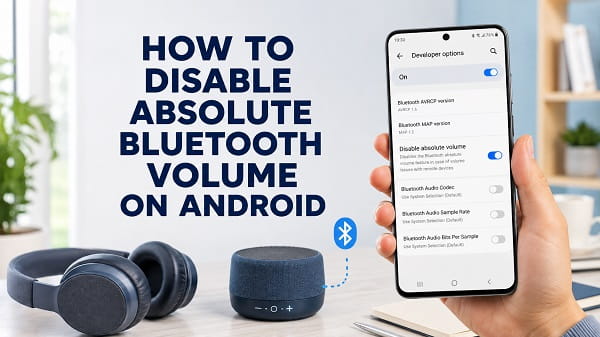
Absolute Bluetooth volume links your Android phone’s media volume to the volume control inside connected Bluetooth headphones, earbuds, speakers, or car audio systems. When it works correctly, both devices behave like one volume control. Pressing a volume button on the phone changes the Bluetooth accessory’s volume at the same time.
The feature can also cause problems. Bluetooth sound may be unusually quiet, jump from soft to painfully loud, become stuck at one level, or refuse to respond correctly to the controls on the connected device. In those situations, separating the phone and accessory volume controls can help.
To disable absolute Bluetooth volume on Android, first enable Developer options by tapping Build number seven times. Return to Developer options, find Disable absolute volume, and turn the switch on. Disconnect and reconnect the Bluetooth device afterward. The wording is confusing, but turning on the Disable absolute volume switch turns the absolute-volume feature off.
Once the feature is disabled, the Android phone and Bluetooth accessory can have separate volume levels. You may need to increase the volume on both devices to reach the desired sound level.
This guide explains what absolute Bluetooth volume does, how to disable it on different Android phones, when the change is useful, and how to fix the setting when it is missing or does not work.
What Is Absolute Bluetooth Volume?
Absolute Bluetooth volume is Android’s system for synchronizing the media-volume level between a phone and a compatible Bluetooth audio device.
Without absolute volume, the phone and accessory can each maintain their own level. For example:
- The phone may be at 70 percent.
- The headphones may be at 40 percent.
- The final loudness depends on both settings.
With absolute volume enabled, Android presents the two devices as one combined volume scale. Raising the phone’s volume should also raise the level reported by the earbuds, speaker, or car stereo.
Android has supported this system since Android 6.0. Google’s Android Open Source Project documentation explains that the Bluetooth source can set an absolute volume and that users can disable it through Developer options when remote-device volume control causes problems.
What Does “Disable Absolute Volume” Mean?
The setting uses negative wording.
- Switch off: Absolute Bluetooth volume remains enabled.
- Switch on: Absolute Bluetooth volume is disabled.
Therefore, when an instruction says to disable absolute volume, you must turn the Disable absolute volume switch on.
Afterward, changing the phone volume may no longer move the accessory’s internal volume in exactly the same way. You can adjust the two controls independently when the accessory provides its own buttons, touch gestures, dial, app, or car-stereo control.
Should You Disable Absolute Bluetooth Volume?
Disable it when the synchronized volume system is causing a specific problem.
It may help when:
- Bluetooth audio is too quiet even at maximum phone volume.
- The first audible volume step is already too loud.
- Volume changes in large jumps.
- The phone’s volume buttons do not control the accessory correctly.
- The accessory volume controls do not affect Android correctly.
- The phone and Bluetooth device report different volume levels.
- Volume becomes stuck after reconnecting.
- A car stereo repeatedly resets to an unsuitable level.
- An older headset or speaker does not support Android’s absolute-volume commands properly.
- A firmware update introduced Bluetooth volume problems.
Leave absolute volume enabled when everything already works normally. Disabling it is not a universal sound-quality upgrade, and it can make volume adjustment less convenient.
What Changes After You Disable It?
The expected behavior is:
- Android maintains its own media-volume level.
- The Bluetooth accessory maintains a separate internal level.
- You may need to adjust both.
- The accessory may no longer mirror every phone-volume change.
- Maximum output may depend on both levels being high enough.
For example, if the phone is at 100 percent but the headphones are at 20 percent, the audio can remain quiet. Raise the headphone level using its physical buttons, touch controls, companion app, or other supported control.
Some devices continue appearing partially synchronized even after the setting changes. Bluetooth behavior depends on the Android manufacturer, audio accessory, Bluetooth profile, firmware, and how the accessory implements volume commands.
Before Changing Developer Options
Try these basic checks first:
- Confirm that the correct Bluetooth device is connected.
- Increase media volume while audio is playing.
- Check the accessory’s own volume control.
- Charge the accessory.
- Restart the phone and Bluetooth device.
- Test a second music or video app.
- Check for earwax, dust, or an incorrectly fitted ear tip.
- Install Android and accessory firmware updates.
- Confirm that a media-volume limit is not active.
- Test the accessory with another phone.
If the Bluetooth device cannot connect, keeps disconnecting, or has no audio at all, the problem may not be absolute volume. Use Bluetooth not working on Android for pairing, connection, permission, cache, codec, and hardware checks.
Step 1: Enable Developer Options
Disable absolute volume is normally inside Android Developer options, which are hidden by default.
Standard Android and Google Pixel
- Open Settings.
- Tap About phone.
- Scroll to Build number.
- Tap Build number seven times.
- Enter the phone’s PIN, pattern, or password if requested.
- Wait for the message confirming that Developer options are enabled.
- Return to Settings.
- Open System.
- Tap Developer options.
If the phone says that you are already a developer, the menu has already been enabled.
Samsung Galaxy
- Open Settings.
- Tap About phone.
- Tap Software information.
- Tap Build number seven times.
- Enter the screen lock.
- Return to the main Settings page.
- Scroll to Developer options.
Xiaomi, Redmi, and Poco
On many MIUI and HyperOS devices:
- Open Settings.
- Tap About phone.
- Tap OS version or MIUI version repeatedly.
- Continue until developer mode is enabled.
- Return to Settings.
- Open Additional settings.
- Tap Developer options.
OnePlus
- Open Settings.
- Tap About device.
- Tap Version.
- Tap Build number seven times.
- Enter the screen lock if requested.
- Open Settings > System settings > Developer options.
Older OxygenOS versions may place the menu under Settings > System > Developer options.
Motorola
- Open Settings.
- Tap About phone.
- Tap Build number seven times.
- Return to Settings.
- Tap System.
- Open Developer options.
Oppo and Realme
- Open Settings.
- Tap About device.
- Tap Version.
- Tap Build number repeatedly.
- Enter the screen lock.
- Return to Settings.
- Open Additional settings or System settings.
- Tap Developer options.
Vivo and iQOO
- Open Settings.
- Tap About phone.
- Open Software information or Software version when required.
- Tap Build number seven times.
- Return to Settings.
- Open System management or More settings.
- Tap Developer options.
Tecno, Infinix, and itel
- Open Settings.
- Tap My phone, About phone, or System.
- Find Build number.
- Tap it seven times.
- Return to Settings.
- Open System.
- Tap Developer options.
The exact labels vary across HiOS, XOS, Android Go, and model-specific software. Search Settings for Developer options after enabling it.
Step 2: Turn On Disable Absolute Volume
After Developer options are available:
- Open Settings.
- Open Developer options.
- Scroll to the Networking section.
- Find Disable absolute volume.
- Turn the switch on.
- Turn Bluetooth off.
- Restart the Bluetooth accessory.
- Turn Bluetooth back on.
- Reconnect the accessory.
- Play audio and adjust both volume controls.
On some phones, the setting may be called:
- Disable absolute volume
- Disable Bluetooth absolute volume
- Absolute volume
- Bluetooth volume synchronization
- Media volume sync
If it is labelled simply Absolute volume, read the on-screen description carefully. Manufacturers sometimes reverse the wording.
Disconnect and Reconnect the Bluetooth Device
The setting may not affect a connection that was already active.
After changing it:
- Open Quick Settings.
- Turn Bluetooth off.
- Power the accessory off.
- Wait 10 seconds.
- Turn Bluetooth on.
- Turn the accessory on.
- Reconnect it.
- Test the phone and accessory controls separately.
If the behavior does not change, unpair and pair the device again.
How to Disable Absolute Volume on Samsung
Samsung Galaxy phones normally include the setting inside Developer options.
- Open Settings.
- Tap About phone.
- Tap Software information.
- Tap Build number seven times.
- Enter your PIN or password.
- Return to the main Settings page.
- Open Developer options.
- Find Disable absolute volume.
- Turn it on.
- Disconnect and reconnect the Bluetooth accessory.
Samsung previously offered a separate feature called Media volume sync on some devices and older One UI versions. On newer devices, the relevant control is usually the Developer options switch.
Samsung also provides a Media volume limit that can restrict headphone and Bluetooth-speaker output. That setting is separate from absolute volume.
To check it:
- Open Settings.
- Tap Sounds and vibration.
- Tap Volume.
- Open the three-dot menu.
- Tap Media volume limit.
- Review the switch and custom limit.
Do not raise a safety limit simply to overcome a defective headset or pairing problem.
How to Disable Absolute Volume on Google Pixel
- Open Settings > About phone.
- Tap Build number seven times.
- Enter the screen lock.
- Go to Settings > System > Developer options.
- Scroll to Networking.
- Turn on Disable absolute volume.
- Reconnect the Bluetooth audio device.
You can use the Developer options search function on supported Android versions to find the word absolute.
How to Disable Absolute Volume on Xiaomi, Redmi, and Poco
- Open Settings > About phone.
- Tap OS version or MIUI version repeatedly.
- Return to Settings.
- Open Additional settings.
- Tap Developer options.
- Find Disable absolute volume.
- Turn it on.
- Disconnect and reconnect the audio device.
Some MIUI and HyperOS versions also include a Bluetooth setting named Absolute volume inside the paired device’s options.
Try:
- Open Settings > Bluetooth.
- Tap the arrow or information icon beside the connected device.
- Look for Absolute volume.
- Turn that setting off when you want separate controls.
Do not change both switches repeatedly without testing. Use the visible Bluetooth-device setting first when the manufacturer provides it.
How to Disable Absolute Volume on OnePlus
- Enable Developer options through Settings > About device > Version > Build number.
- Open Settings > System settings > Developer options.
- Find Disable absolute volume.
- Turn it on.
- Restart Bluetooth and reconnect the device.
The option may be absent on some OxygenOS releases or carrier builds. Update the phone first, then search Developer options for volume or Bluetooth.
How to Disable Absolute Volume on Motorola
- Open Settings > About phone.
- Tap Build number seven times.
- Open Settings > System > Developer options.
- Find Disable absolute volume.
- Turn it on.
- Reconnect the accessory.
Motorola menus generally follow stock Android, although carrier software can change the location.
How to Disable Absolute Volume on Oppo and Realme
- Enable Developer options from the Build number.
- Open Settings > Additional settings or System settings.
- Tap Developer options.
- Search for Disable absolute volume.
- Turn it on.
- Restart the Bluetooth connection.
ColorOS and Realme UI have changed menu paths across versions. Use Settings search if the option is difficult to locate.
How to Disable Absolute Volume on Vivo and iQOO
- Enable Developer options.
- Open Settings > System management or More settings.
- Tap Developer options.
- Find Disable absolute volume.
- Turn the switch on.
- Reconnect the device.
If the setting is unavailable, install the latest stable system update and check whether the paired device has a separate volume-sync option.
How to Disable Absolute Volume on Tecno, Infinix, and itel
- Enable Developer options through the phone information page.
- Open Settings > System > Developer options.
- Scroll through Networking or search for absolute volume.
- Turn on Disable absolute volume.
- Restart Bluetooth and reconnect.
Some Android Go devices or manufacturer builds may omit advanced Bluetooth controls. Do not install an unknown settings app or modified system package to force the feature.
How to Confirm Absolute Volume Is Disabled
Connect headphones or a speaker that has its own volume buttons.
- Start playing audio.
- Set the Android phone to a moderate level.
- Use the accessory’s hardware controls.
- Observe whether its volume changes independently.
- Change the phone volume.
- Compare the behavior.
The controls do not always look completely independent. Some accessories still send volume commands back to the phone or display a synchronized indicator.
The most useful test is whether the original problem has improved:
- Is maximum volume higher?
- Can you make finer adjustments?
- Is the first step less aggressive?
- Do the accessory buttons work?
- Does the volume stay where you set it after reconnecting?
Bluetooth Volume Is Too Low
Absolute volume problems are only one possible cause of low Bluetooth sound.
Try these checks in order.
Raise Both Volume Levels
After disabling absolute volume:
- Set the phone to approximately 70 percent.
- Raise the accessory’s internal level.
- Adjust the phone again.
- Stop before the sound becomes uncomfortable.
Some earbuds hide their internal volume controls behind touch gestures configured in the manufacturer’s app.
Check the Earbud Companion App
Applications from Samsung, Sony, Bose, JBL, Nothing, OnePlus, Xiaomi, Soundcore, and other brands may provide:
- Earbud touch-control assignments
- Equalizer settings
- Hearing profiles
- Volume limits
- Firmware updates
- Channel balance
- Normalization
- Adaptive sound
- Safe-listening features
Install the official app from Google Play and check for updates.
Clean the Speaker Mesh
Earwax or debris can make one or both earbuds sound weak.
Use the manufacturer’s cleaning instructions. Avoid pushing liquid or sharp objects into the speaker mesh.
Check Left and Right Balance
On many phones:
- Open Settings.
- Tap Accessibility.
- Tap Audio adjustment, Hearing enhancements, or a similar option.
- Center the left-right balance slider.
A shifted balance can make one side seem defective.
Disable Audio Normalization Temporarily
Music and video apps may have:
- Normalize volume
- Loudness normalization
- Volume leveling
- ReplayGain
- Sound Check
- Reduce loud sounds
Test with the feature off, then decide which setting sounds more consistent.
Test a Different Bluetooth Codec
Developer options may include Bluetooth codec controls such as SBC, AAC, aptX, or LDAC.
Do not select a codec merely because its name sounds better. The phone and accessory must both support it, and the connection can revert automatically.
Codec changes usually affect quality, latency, and stability more than basic volume. Leave the default when you are not troubleshooting a confirmed compatibility issue.
Bluetooth Is Too Loud at the First Volume Step
This is one of the strongest reasons to test separate volume controls.
After disabling absolute volume:
- Reduce the accessory’s own internal volume.
- Set the Android media level to a low or moderate position.
- Increase them gradually.
- Save the accessory setting if its app supports it.
Also check:
- Equalizer gain
- Hearing enhancement
- Dolby or spatial audio
- Adapt Sound
- Volume booster apps
- Accessibility audio settings
- The music app’s normalization control
Remove volume-booster apps. They can introduce clipping, distortion, aggressive gain, and hearing risk.
Disable Absolute Volume Is Missing
The option can be missing for several reasons.
Developer Options Are Not Enabled
Confirm that you tapped the correct Build number and entered the screen lock.
Search Settings for Developer options.
The Manufacturer Renamed It
Search for:
- Absolute volume
- Disable Bluetooth absolute volume
- Media volume sync
- Bluetooth volume sync
- Volume synchronization
Check both Developer options and the connected Bluetooth device’s settings page.
The Phone Uses a Modified Android Build
Manufacturers and carriers can remove or change Developer options. The hardware may also use a custom Bluetooth implementation.
The Phone Has Not Connected to Bluetooth Audio
Some manufacturers show the option only after a Bluetooth audio device has been paired.
Pair headphones or a speaker, reconnect it, and check again.
The Device Uses Android Go
Low-memory Android Go devices may omit some advanced settings.
The Phone Is Managed
A work, school, child, or company profile can restrict Developer options.
Do not attempt to bypass organization management.
A System Update Moved the Setting
Search the entire Settings app and review the manufacturer’s current support documentation.
Do not install APK files that claim to add hidden Developer options.
The Setting Does Not Work
If turning on Disable absolute volume makes no difference, use the following steps.
Restart Both Devices
Turn the phone and accessory off completely, then restart them.
Forget and Pair Again
- Open Settings > Connected devices or Bluetooth.
- Tap the settings icon beside the accessory.
- Tap Forget, Unpair, or Remove.
- Reset the accessory’s pairing mode.
- Pair it again.
- Test the volume.
Clear the Bluetooth Cache
Menu paths differ by manufacturer.
On many phones:
- Open Settings > Apps.
- Tap See all apps.
- Open the menu and select Show system.
- Find Bluetooth, Bluetooth Legacy, or a related system service.
- Tap Storage & cache.
- Tap Clear cache.
- Restart the phone.
Avoid clearing Bluetooth storage unless necessary. It can remove paired devices and Bluetooth-related settings.
Update Android
- Open Settings.
- Tap System > Software updates or Software update.
- Install available stable updates.
- Restart the phone.
- Reconnect the accessory.
Update the Accessory Firmware
Use the official companion app.
Bluetooth firmware can affect:
- Volume commands
- Touch gestures
- Codec behavior
- Connection stability
- Multipoint connections
- Call and media routing
Reset the Accessory
Use the manufacturer’s instructions. Earbud reset combinations vary and can erase pairing records from the accessory.
Test Another Bluetooth Device
If disabling absolute volume works with one speaker but not another, the original accessory is probably handling the Bluetooth volume commands differently.
Bluetooth Volume Remains Synchronized
Separate volume controls are not guaranteed on every device combination.
Possible reasons include:
- The accessory sends its own volume commands to Android.
- The manufacturer applies another synchronization layer.
- The companion app controls both levels.
- The vehicle head unit uses its own audio protocol.
- The setting did not apply until re-pairing.
- The accessory does not expose an independent volume scale.
- The system update changed implementation behavior.
Forget and re-pair the device after enabling the switch. If synchronization remains but the audio works correctly, there may be no practical problem to fix.
Bluetooth Device Has No Volume Buttons
Some earbuds provide no obvious independent controls.
Check the companion app for touch assignments such as:
- Swipe up or down for volume
- Touch and hold
- Double tap
- Left bud volume down
- Right bud volume up
If the device has no internal volume control at all, disabling absolute volume can reduce convenience and may not solve low sound.
Turn the setting back off when the accessory works better with synchronization enabled.
Absolute Volume and Android Auto
Android Auto audio involves the phone, vehicle head unit, Bluetooth connection, and sometimes Wi-Fi or USB.
Disabling absolute volume may help when:
- Bluetooth media starts at an inappropriate level.
- Phone and vehicle volume controls behave inconsistently.
- Audio becomes quiet after a call.
- Media volume changes when reconnecting.
It will not fix every Android Auto problem. Disconnections, black screens, failed detection, Wi-Fi conflicts, cables, permissions, and battery restrictions require separate troubleshooting.
Use Android Auto keeps disconnecting for repeated connection drops. For a connection that fails completely, see why Android Auto is not working.
Do not make loudness adjustments while driving. Park safely before changing Developer options or pairing settings.
Absolute Volume and Car Bluetooth
Many car stereos have their own amplifier and volume scale.
After disabling absolute volume:
- Set the phone to a moderate level.
- Start audio while parked.
- Increase the vehicle volume slowly.
- Test call volume separately.
- Check navigation-prompt volume.
- Confirm the level after reconnecting.
Media, phone calls, navigation, voice assistant, and ringtone audio may use separate vehicle channels. Absolute volume mainly affects supported Bluetooth audio behavior and does not guarantee identical levels across every channel.
Absolute Volume and AirPods on Android
AirPods can connect to Android as standard Bluetooth audio devices, but Android does not provide every Apple-specific feature.
When AirPods are too quiet or their controls behave incorrectly:
- Charge the AirPods and case.
- Disable absolute volume and reconnect.
- Raise both Android and AirPods volume where possible.
- Check Android’s media-volume limit.
- Test the AirPods with an Apple device.
- Reset the AirPods if the problem follows them across devices.
On some Android and AirPods combinations, absolute volume enabled may work better. Test both states rather than assuming it must be disabled.
Samsung’s current support guidance notes that the Disable absolute volume setting can affect volume-limit behavior with Bluetooth accessories, including non-Galaxy devices connected to AirPods.
Does Disabling Absolute Volume Improve Audio Quality?
Not directly.
Absolute volume controls loudness synchronization. It does not normally change:
- Audio codec quality
- Music bitrate
- Speaker hardware
- Frequency response
- Bluetooth range
- Noise cancellation quality
It may appear to improve quality when the original volume configuration caused clipping, insufficient gain, or an unsuitable level. The underlying purpose remains volume control rather than sound enhancement.
For genuine quality issues, check the audio source, equalizer, codec compatibility, accessory firmware, earbud fit, and physical condition.
Does It Increase Maximum Bluetooth Volume?
It can increase the usable maximum when the phone and accessory were incorrectly synchronized.
After disabling it, you may be able to raise the accessory’s hidden internal volume while keeping Android high.
It cannot make the hardware produce unlimited output. Amplifier power, firmware, hearing-protection rules, battery level, speaker design, and regional safety limits still apply.
Do not use volume boosters to force output beyond safe limits.
Does It Affect Phone Speaker Volume?
No. The setting is designed for Bluetooth absolute-volume behavior.
The built-in phone speaker uses Android’s normal media-volume controls.
Does It Affect Call Volume?
It can affect some Bluetooth-device behavior, but call audio and media audio may be controlled through different Bluetooth profiles.
A headset may have separate levels for:
- Music and video
- Phone calls
- Voice assistant
- Notifications
- Ringtone
Test each type separately.
Does It Affect Battery Life?
The setting itself should not create a meaningful battery-life difference.
Listening at a higher output level can consume more accessory power. A weak or unstable Bluetooth connection may also increase activity, but absolute-volume synchronization is not normally a major battery factor.
Is It Safe to Enable Developer Options?
Enabling the menu alone does not damage the phone.
Developer options contains advanced controls that can affect USB debugging, animation, networking, background processes, Bluetooth, graphics, and app behavior. Change only the specific option you understand.
Do not enable USB debugging, OEM unlocking, or random Bluetooth settings as part of this fix.
You can leave Developer options visible after changing absolute volume. Turning the main Developer options switch off can restore various developer settings to inactive states on some phones.
How to Re-Enable Absolute Bluetooth Volume
To restore synchronized volume:
- Open Settings.
- Open Developer options.
- Find Disable absolute volume.
- Turn the switch off.
- Disconnect the Bluetooth accessory.
- Restart both devices.
- Pair or reconnect them.
- Test the volume.
Remember:
- Disable absolute volume on means synchronization is disabled.
- Disable absolute volume off means synchronization is allowed.
If Bluetooth remains unstable after changing several advanced settings, return the relevant Developer options to their defaults before considering a network reset.
Reset Network Settings as a Later Fix
A network reset can remove corrupted Bluetooth pairing information, but it also removes saved Wi-Fi networks and paired Bluetooth devices.
On Samsung Galaxy, follow how to reset network settings on Samsung and review what will be erased before confirming.
On Pixel and many Android phones:
- Open Settings > System > Reset options.
- Select the option covering Bluetooth and Wi-Fi.
- Review the warning.
- Confirm the reset.
- Restart the phone.
- Pair the audio device again.
Do not use a network reset as the first step for a simple volume problem.
Protect Your Hearing
Separating the controls can make it easier to drive both the phone and accessory to high levels.
Use these precautions:
- Begin at a low level after reconnecting.
- Increase volume gradually.
- Avoid long listening sessions at maximum output.
- Use properly fitting ear tips.
- Take breaks when your ears feel tired.
- Stop if you notice ringing, pain, or muffled hearing.
- Keep media-volume warnings enabled when possible.
- Do not test sudden maximum volume while wearing headphones.
A setting that fixes low Bluetooth output can also remove a level mismatch that previously limited loudness.
Frequently Asked Questions
What is absolute Bluetooth volume on Android?
It synchronizes the phone’s media-volume control with the volume level of a compatible Bluetooth audio device.
How do I disable absolute Bluetooth volume?
Enable Developer options, open it, and turn on Disable absolute volume. Reconnect the Bluetooth device afterward.
Why do I turn on a switch to disable it?
The switch is an instruction. Turning on Disable absolute volume activates the action of disabling the feature.
Should Disable absolute volume be on or off?
Keep it off when Bluetooth volume works normally. Turn it on when synchronized volume causes low, excessively loud, stuck, or poorly controlled audio.
Will disabling it make Bluetooth louder?
It can when a synchronization problem is limiting output. You must adjust both the phone and accessory levels.
Why is Bluetooth quiet after disabling it?
The accessory’s separate internal volume may be low. Raise it using its buttons, touch controls, companion app, or vehicle controls.
Why is the setting missing?
Developer options may not be enabled, the manufacturer may have renamed or removed it, the phone may use Android Go, or device management may restrict it.
Do I need to restart my phone?
A restart is helpful, but disconnecting and reconnecting or unpairing and re-pairing the Bluetooth device is especially important.
Does the option work with every Bluetooth device?
No. Results depend on the phone, Android build, accessory, firmware, profiles, and volume implementation.
Does it improve Bluetooth sound quality?
It changes volume synchronization rather than audio fidelity. Any quality improvement is indirect.
Does it work with AirPods?
It can, but some Android and AirPods combinations work better with absolute volume enabled. Test both states.
Does it work with a car stereo?
It may help with media-volume synchronization. Vehicle systems can maintain separate levels for calls, navigation, and media.
Can I disable it without Developer options?
Some manufacturers provide an Absolute volume or Media volume sync control in Bluetooth settings. Otherwise, Developer options is the standard location.
Is Developer options dangerous?
The menu is safe when used carefully. Do not change unrelated controls you do not understand.
Will resetting network settings restore absolute volume?
A network reset can clear Bluetooth pairings and preferences. The Developer options switch may remain in its current state depending on the phone.
Why does the phone volume still move when I press the earbud controls?
The accessory may continue sending remote volume commands, or the manufacturer may use another synchronization system. Separate controls are not guaranteed.
Use the Setting Only When Bluetooth Volume Is Misbehaving
Absolute Bluetooth volume makes daily use easier when the phone and connected device communicate correctly. One volume scale is simpler than adjusting two separate levels.
Turning on Disable absolute volume is most useful when Bluetooth sound is stuck, too quiet, too loud at the first step, or badly synchronized. Reconnect the accessory after changing it, then adjust the phone and device levels independently.
If the setting makes the audio quieter, removes useful controls, or creates inconsistent behavior, turn it back off. The right state is the one that provides stable, predictable, and safe volume with your particular phone and Bluetooth accessory.
For the technical behavior and current Android setting, see Google’s Bluetooth services documentation for Android. Samsung also explains related Bluetooth headphone limits in its official guide to the media volume limit on Galaxy devices.
