
Charging problems are often connected to battery performance issues. If your device loses power unusually quickly even after charging, it’s worth learning why your Android battery drains fast and how to fix it. Understanding battery-related problems can help you determine whether the issue is with charging, battery health, or overall device performance
Whether your phone isn’t charging at all, charges extremely slowly, or only charges when the cable is positioned a certain way, charging problems can disrupt your daily routine and leave you disconnected when you need your device most.
The good news is that a phone not charging doesn’t always mean the battery is damaged or the device needs replacement. In many cases, the issue is caused by something simple, such as a faulty cable, a dirty charging port, software glitches, or overheating protection.
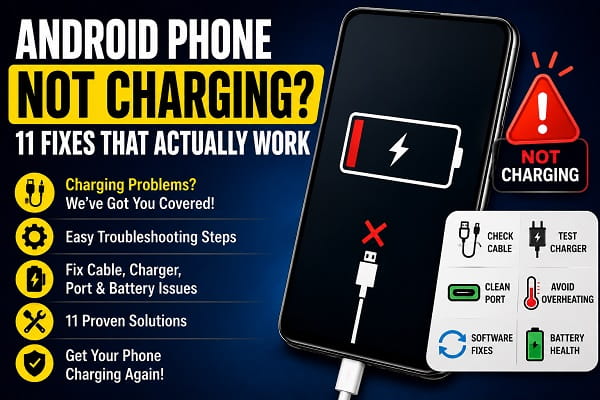
I will be guiding you on the most common reasons Android phones stop charging and the 11 most effective fixes you can try before spending money on repairs.
Why Is My Android Phone Not Charging?
Charging issues can occur for many reasons.
Common causes include:
- Damaged charging cable
- Faulty charger
- Dirty charging port
- Battery overheating
- Software glitches
- Outdated Android software
- Damaged charging port
- Battery degradation
- Moisture detection warnings
- Power management issues
Fortunately, most charging problems can be diagnosed and fixed at home.
1. Check the Charging Cable
Charging cables are one of the most common causes of charging issues.
Even if a cable appears normal from the outside, internal damage may prevent it from delivering power correctly.
Signs of a Faulty Cable
- Frayed wires
- Loose connectors
- Intermittent charging
- Slow charging speeds
What to Do
Try using another certified charging cable.
If your phone starts charging immediately, you’ve found the problem.
2. Test a Different Charger
The charging adapter itself may be defective.
Chargers can fail due to:
- Power surges
- Wear and tear
- Internal component failure
Solution
Use a different charger that is compatible with your device.
If possible, test:
- Another wall adapter
- Another charging brick
- A certified charger from a trusted manufacturer
3. Inspect the Charging Port
Dust and debris frequently accumulate inside charging ports.
Even a small amount of lint can prevent the charging connector from making proper contact.
Common Symptoms
- Charger feels loose
- Charging starts and stops
- Phone charges only at certain angles
Solution
Inspect the port carefully using a flashlight.
If debris is visible, clean it gently using:
- A wooden toothpick
- A soft brush
- Compressed air
Avoid metal objects that could damage the port.
4. Restart Your Phone
Temporary software glitches can sometimes interfere with charging.
A simple restart can refresh system processes and restore normal functionality.
Steps
- Press and hold the power button.
- Select Restart.
- Wait for the phone to reboot.
After restarting, reconnect the charger and check if charging resumes.
5. Check for Overheating
Modern Android devices include safety mechanisms that limit or stop charging when temperatures become too high.
Signs of Overheating
- Device feels extremely hot
- Charging pauses unexpectedly
- Temperature warning appears
Solution
Allow the phone to cool down before charging.
Avoid:
- Direct sunlight
- Heavy gaming while charging
- Thick protective cases
Overheating protection is designed to prevent battery damage. Excessive heat can also interfere with normal charging behavior. If your device becomes unusually warm whenever it’s plugged in, check our guide on phone overheating while charging and how to fix it to identify potential causes and prevent long-term battery damage.
6. Charge from a Wall Outlet
Many users attempt to charge their phones through:
- Laptops
- Desktop computers
- Power strips
- Vehicle USB ports
These sources may not provide sufficient power.
Solution
Connect the charger directly to a wall outlet.
This provides the most stable charging environment.
7. Disable Battery-Draining Apps
Some applications consume large amounts of power in the background.
When battery usage exceeds charging input, the phone may appear not to charge at all.
Check Battery Usage
- Open Settings.
- Tap Battery.
- Select Battery Usage.
Look for apps consuming unusually high amounts of power.
Consider closing or uninstalling problematic applications.
8. Update Android Software
Software bugs can occasionally affect charging performance.
Manufacturers release updates that improve:
- Battery management
- Charging stability
- System performance
To Check for Updates
- Open Settings.
- Tap System.
- Select Software Update.
- Install any available updates.
Restart the device after updating.
9. Boot into Safe Mode
Third-party applications can sometimes interfere with charging processes.
Safe Mode temporarily disables downloaded apps.
Why This Helps
If charging works in Safe Mode, a recently installed application may be causing the problem.
The exact Safe Mode process varies by manufacturer, but most Android devices support it.
Also Read:
- Why Your Android Battery Drains Fast and How to Fix It
- Phone Overheating While Charging? Causes and Fixes
- Google Play Store Download Pending? 10 Fixes That Work
- Apps Keep Crashing After Android Update? 10 Fixes That Work
10. Check Battery Health
Batteries naturally degrade over time.
Older batteries may:
- Charge slowly
- Overheat
- Drain quickly
- Stop charging properly
Warning Signs
- Swollen battery
- Sudden shutdowns
- Significant battery drain
- Device age exceeding three years
If battery health has deteriorated significantly, replacement may be necessary.
11. Seek Professional Repair
If none of the previous fixes work, a hardware issue may be responsible.
Common hardware failures include:
- Damaged charging port
- Faulty charging IC
- Battery failure
- Internal board damage
Professional diagnosis may be required.
What If My Phone Charges Slowly?
Slow charging is often caused by:
- Low-quality chargers
- Damaged cables
- Background applications
- High temperatures
- Battery degradation
Using a certified fast charger compatible with your phone can often improve charging speed significantly.
Wireless Charging Problems
If your device supports wireless charging but isn’t charging correctly:
Check These Factors
- Phone alignment on the charging pad
- Case thickness
- Charger compatibility
- Charging pad temperature
Removing the case may improve charging efficiency.
Frequently Asked Questions
Why is my phone plugged in but not charging?
This is often caused by a faulty charger, damaged cable, dirty charging port, or software issue.
Why does my phone only charge at a certain angle?
A loose charging cable or debris inside the charging port is usually responsible.
Can a damaged charging port be repaired?
Yes. Most repair shops can replace charging ports without replacing the entire device.
Why is my phone charging very slowly?
Slow charging is commonly caused by poor-quality accessories, battery degradation, overheating, or background applications.
How to Prevent Future Charging Problems
To keep your phone charging properly:
Use Quality Accessories
Avoid cheap chargers and cables.
Keep the Charging Port Clean
Regularly inspect and clean the port.
Avoid Excessive Heat
Heat accelerates battery wear.
Don’t Ignore Charging Issues
Small charging problems often become larger problems if left unresolved.
Keep Software Updated
Updates improve battery and charging performance.
Finally, a phone that refuses to charge can be stressful, but the cause is often simpler than it appears.
In many cases, charging problems can be resolved by replacing a faulty cable, cleaning the charging port, restarting the device, or addressing software issues.
Start with the simplest fixes first and work through the solutions in this guide systematically.
If the issue persists despite trying all 11 fixes, professional repair may be necessary. Acting early can help prevent further damage and keep your Android device running reliably for years to come.
