Taking a screenshot is one of the most useful features on any Android device. Whether you want to save an important message, capture a funny social media post, keep a copy of an online receipt, or share information with friends, screenshots make it easy to save exactly what’s on your screen.
While taking a screenshot sounds simple, many Android users don’t realize there are multiple ways to capture their screen. Depending on your phone model, Android version, and manufacturer, you may have access to button shortcuts, gestures, Quick Settings tools, scrolling screenshots, and other advanced options.
If you’ve ever wondered how to take a screenshot on Android, this complete guide will walk you through every method available and help you troubleshoot common screenshot problems.
What Is a Screenshot?
If you’re new to Android, learning basic maintenance tasks can help keep your device running smoothly. For example, knowing how to clear cache on Android without losing data can free up storage space and resolve many common performance issues.
A screenshot is an image of whatever is currently displayed on your screen.
Instead of taking a photo with another device, your phone creates a digital image instantly.
People commonly use screenshots to:
- Save conversations
- Capture receipts
- Record online orders
- Share information
- Save social media posts
- Report technical issues
- Store important documents
Screenshots are one of the fastest ways to save information for future reference.
The Standard Android Screenshot Method
Most Android devices use the same basic button combination.
Step 1
Open the screen you want to capture.
Step 2
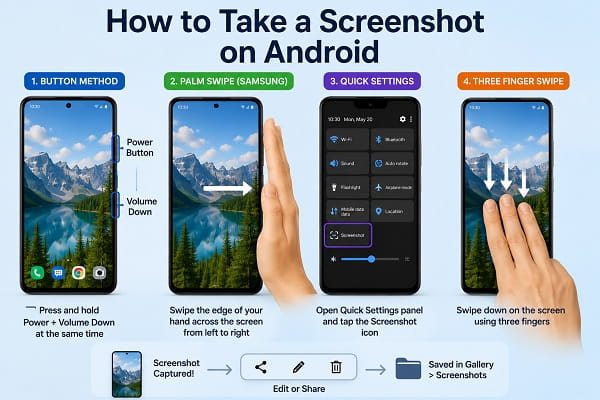
Press and hold:
Power Button + Volume Down Button
at the same time.
Step 3
Hold both buttons for about one second.
Step 4
The screen will briefly flash.
You may also hear a shutter sound depending on your settings.
Step 5
A screenshot preview should appear.
Your screenshot is now saved automatically.
This method works on most Android devices including:
- Samsung Galaxy phones
- Google Pixel phones
- Motorola phones
- Xiaomi devices
- OnePlus phones
- Nokia devices
- Oppo phones
- Vivo phones
How to Take a Screenshot on Samsung Phones
Samsung devices support multiple screenshot methods.
Method 1: Buttons
Press:
Power + Volume Down
simultaneously.
Method 2: Palm Swipe Gesture
Samsung includes a unique gesture feature.
Enable Palm Swipe
- Open Settings.
- Tap Advanced Features.
- Select Motions and Gestures.
- Enable Palm Swipe to Capture.
Use Palm Swipe
Place the edge of your hand on one side of the screen and swipe across.
The phone will automatically capture a screenshot.
Many Samsung users find this method faster than using buttons.
How to Take a Screenshot on Google Pixel Phones
Google Pixel phones use the standard button method.
However, newer Pixel devices also support:
Recent Apps Method
- Swipe up from the bottom of the screen.
- Open Recent Apps.
- Tap Screenshot.
This allows you to capture the current screen quickly without pressing physical buttons.
How to Take a Screenshot Using Android Gestures
Some Android manufacturers include gesture-based screenshot features.
Common gestures include:
Three-Finger Swipe
Available on some devices from:
- Xiaomi
- OnePlus
- Realme
- Oppo
Simply swipe down with three fingers on the screen.
Knuckle Gesture
Some devices allow users to tap the screen using a knuckle.
Smart Sidebar Tools
Certain manufacturers include screenshot shortcuts within side panels.
Because features vary by brand, check your device settings to see which gestures are supported.
How to Take a Scrolling Screenshot on Android
Sometimes a regular screenshot isn’t enough.
For example:
- Long web pages
- Chat conversations
- Articles
- Documents
A scrolling screenshot captures content beyond what is visible on the screen.
Step 1
Take a normal screenshot.
Step 2
Tap the preview image.
Step 3
Select:
- Capture More
- Scroll
- Extended Screenshot
The name varies depending on your device.
Step 4
Drag the capture area downward.
Step 5
Save the final image.
This feature is available on many modern Android devices.
How to Take a Screenshot from Quick Settings
Some Android devices include screenshot tools in Quick Settings.
Step 1
Swipe down from the top of the screen.
Step 2
Open the Quick Settings panel.
Step 3
Look for:
- Screenshot
- Screen Capture
Step 4
Tap the icon.
The device will automatically capture the current screen.
This method is useful if your physical buttons are not working properly.
How to Screenshot Without Using Buttons
If your power button or volume button is damaged, don’t worry.
You still have several options.
Use Gestures
Many Android devices support swipe gestures.
Use Quick Settings
Screenshot shortcuts can often be accessed from the notification panel.
Use Voice Commands
Some devices support screenshot commands through voice assistants.
Use Accessibility Features
Android accessibility tools can provide screenshot shortcuts.
Where Are Screenshots Saved on Android?
Most Android phones save screenshots automatically.
You can usually find them in:
Google Photos
Open Google Photos and check:
Screenshots Folder
Gallery App
Open:
- Gallery
- Photos
- Album
Look for the Screenshots folder.
File Manager
Navigate to:
Pictures → Screenshots
Your screenshots should appear there.
How to Edit a Screenshot
Android provides built-in editing tools.
After taking a screenshot, tap the preview.
Common editing options include:
Crop
Remove unnecessary portions of the image.
Draw
Highlight important information.
Add Text
Annotate screenshots for clarity.
Blur Sensitive Information
Hide personal details before sharing.
Editing screenshots immediately after capture can save time later.
How to Share Screenshots
After capturing a screenshot, Android makes sharing easy.
You can send screenshots through:
- Telegram
- Facebook Messenger
- Google Drive
- Microsoft Teams
- Slack
Simply tap the Share button after capturing the image.
Why Is My Screenshot Not Working?
Sometimes screenshot failures occur because of software glitches or performance problems. If your device feels sluggish or unresponsive, check out our guide on how to speed up a slow Android phone for practical solutions that can improve overall performance.
Sometimes screenshots fail unexpectedly.
Here are common causes.
Buttons Not Pressed Simultaneously
Timing matters.
Try pressing both buttons at exactly the same time.
Storage Is Full
A full storage device may prevent screenshots from being saved.
App Restrictions
Some banking and streaming apps block screenshots for security reasons.
Software Glitches
Temporary Android bugs can interfere with screenshot functionality.
Restarting the phone often resolves the issue.
What to Do If Screenshots Are Not Saving
Low storage space is one of the most common reasons screenshots fail to save properly. If you’re also experiencing download issues, our article on Google Play Store download pending fixes explains how to solve storage-related and download-related Android problems.
Try these fixes:
Check Available Storage
Delete unnecessary files if storage is nearly full.
Restart the Device
Many temporary issues disappear after a reboot.
Update Android
Install available software updates.
Clear Gallery Cache
Occasionally the Gallery app may fail to display screenshots correctly.
Test Another Screenshot Method
Try gestures or Quick Settings instead of buttons.
Screenshot Tips for Students and Professionals
Screenshots can significantly improve productivity.
Save Study Materials
Capture important notes and explanations.
Record Error Messages
Useful when troubleshooting apps or websites.
Save Payment Confirmations
Keep proof of transactions.
Store Important Information
Quickly save addresses, schedules, and instructions.
Capture Online Research
Save useful information for future reference.
Many users take screenshots to document device problems such as charging issues, connectivity problems, or battery drain. If you’ve noticed your phone losing power quickly, learn why your Android battery drains fast and how to extend battery life.
Frequently Asked Questions
How do I take a screenshot on Android?
Most Android devices use the Power and Volume Down buttons pressed simultaneously.
Can I take a screenshot without pressing buttons?
Yes. Many Android phones support gestures, Quick Settings shortcuts, and voice commands.
How do I take a scrolling screenshot?
Take a normal screenshot and select Capture More or Scroll Screenshot if available.
Why won’t my Android phone take screenshots?
Storage issues, software glitches, button problems, or app restrictions may prevent screenshots from working.
If certain apps crash when you attempt to take screenshots or share images, the issue may be related to software updates or corrupted app files. Our guide on apps keep crashing after Android update covers several proven fixes that can help restore normal app behavior.
In conclusion: Knowing how to take a screenshot on Android is a simple but essential skill. Whether you’re saving important information, sharing content with friends, documenting an issue, or storing study materials, screenshots make it easy to capture exactly what’s on your screen.
The standard Power and Volume Down method works on most Android devices, but many phones also support gestures, scrolling screenshots, Quick Settings shortcuts, and accessibility tools.
By understanding all the available methods, you’ll be able to capture, edit, and share screenshots more efficiently no matter which Android device you use.
