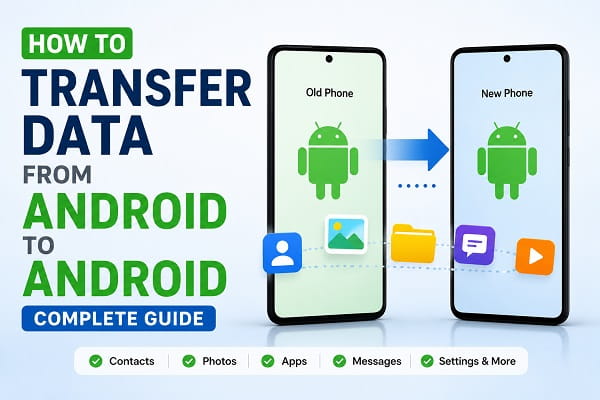
Getting a new Android phone is exciting. Whether you’re upgrading to a faster device, replacing an old phone, or switching to a different Android brand, one of the first things you’ll need to do is transfer your data.
For many people, the thought of moving contacts, photos, videos, apps, messages, and other important files can be stressful. Nobody wants to lose valuable memories, important conversations, or essential documents during the process.
The good news is that modern Android devices make data transfer easier than ever. Most manufacturers provide built-in tools that can move your information safely and efficiently, often within a few minutes.
In this complete guide, you’ll learn how to transfer data from Android to Android using multiple methods, including Google Backup, wireless transfers, USB cable connections, manufacturer tools, and cloud services.
What Data Can Be Transferred?
Before starting, it’s important to understand what information can typically be moved to your new phone.
Most Android transfer methods can copy:
- Contacts
- Photos
- Videos
- Music
- Text messages
- Call history
- Calendar events
- Installed apps
- Wi-Fi passwords
- Device settings
- Documents
Some methods can also transfer:
- WhatsApp chats
- Notes
- App data
- Wallpapers
- Home screen layouts
The exact items transferred may vary depending on your device and Android version.
Things to Do Before Transferring Data
Before moving your files to a new device, it’s a good idea to remove unnecessary temporary files and free up storage space. Our guide on how to clear cache on Android without losing data explains how to safely remove cached files that may be consuming valuable storage.
Preparing both devices properly can prevent problems during the transfer process.
Charge Both Phones
Ensure both devices have at least 50% battery.
Large transfers can take time and consume significant power.
Connect to Wi-Fi
A stable Wi-Fi connection is highly recommended.
Update Android
Install available software updates before transferring data.
Back Up Important Files
Although transfer tools are generally reliable, creating a backup provides extra protection.
Verify Google Account Access
Make sure you know your Google account credentials.
You’ll likely need them during setup.
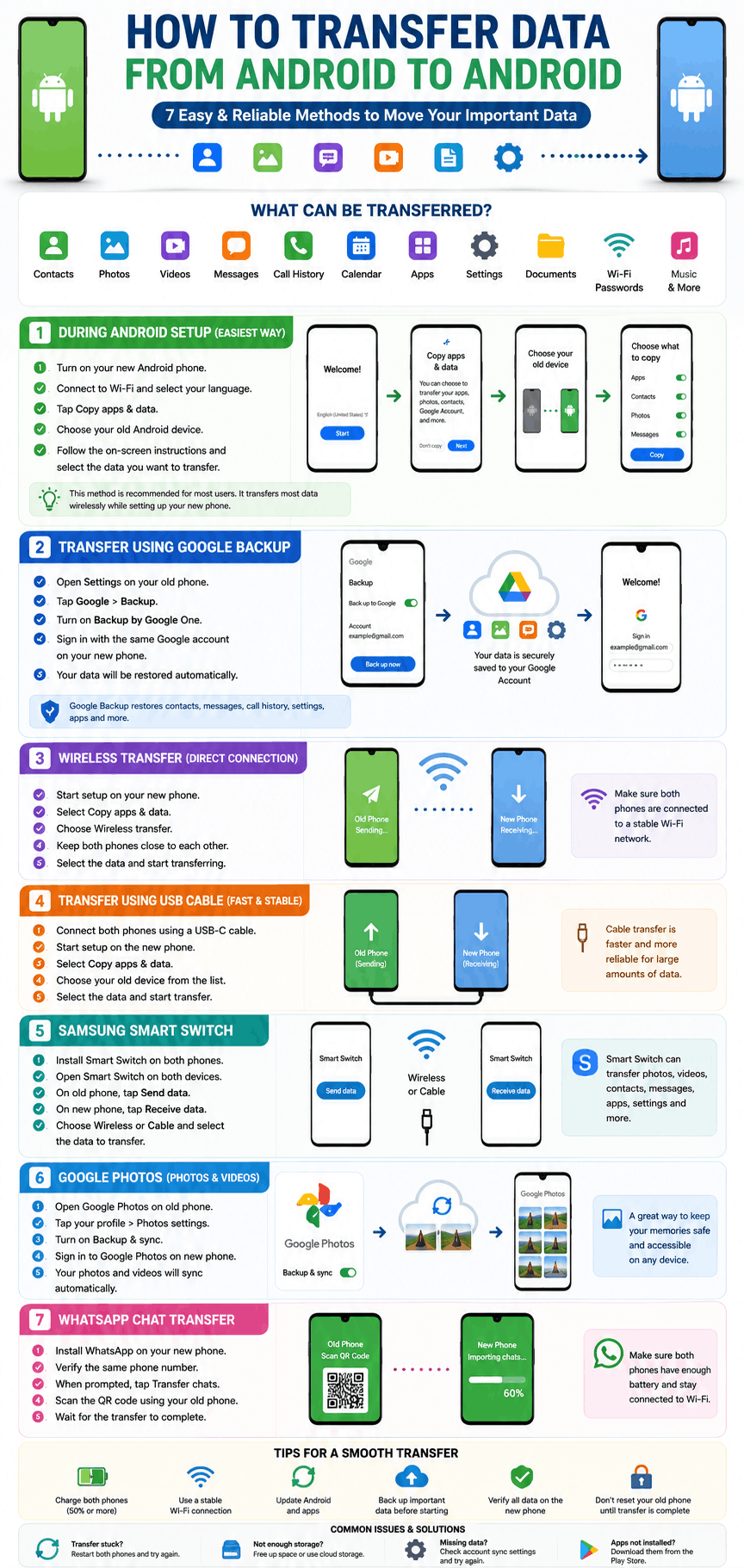
Method 1: Transfer Data During Android Setup
This is the easiest and most recommended method.
When setting up a new Android device, Android offers a built-in migration tool.
Step 1
Turn on your new phone.
Step 2
Select your language and region.
Step 3
Connect to Wi-Fi.
Step 4
Choose:
Copy Apps & Data
Step 5
Select:
Next
Step 6
Choose your old Android device as the source.
Step 7
Follow the on-screen instructions.
Step 8
Select the data you want to transfer.
Step 9
Wait for the process to complete.
Your new phone will begin downloading and restoring your selected data.
Method 2: Transfer Data Using Google Backup
Backing up your information regularly is one of the easiest ways to protect important files before switching phones. You can also capture important settings, receipts, or account information using our guide on how to take a screenshot on Android before beginning the transfer process.
Google Backup is one of the most reliable Android transfer solutions.
How Google Backup Works
Your old phone stores information securely in your Google account.
When you sign in on your new phone, Android restores the backup automatically.
Enable Backup on Old Phone
- Open Settings.
- Tap Google.
- Select Backup.
- Enable Backup by Google One.
Check Backup Status
Verify that:
- Contacts are backed up.
- Photos are synced.
- Device settings are included.
Restore on New Phone
Simply sign into the same Google account during setup.
Android will restore supported data automatically.
Method 3: Transfer Data Wirelessly
Many Android devices support direct wireless transfers.
Advantages
- No cables required.
- Fast setup.
- Easy for most users.
How It Works
The two phones connect directly using Wi-Fi.
Files transfer between devices without additional equipment.
Most modern Android phones support this feature during setup.
Method 4: Transfer Data Using a USB Cable
A cable connection is often the fastest method.
What You’ll Need
- USB-C to USB-C cable
- Compatible ports on both devices
Steps
- Connect both phones.
- Start setup on the new phone.
- Select Copy Apps & Data.
- Follow the prompts.
- Choose the content to transfer.
Cable transfers are often faster and more reliable than wireless transfers.
Method 5: Use Samsung Smart Switch
Samsung users have access to Smart Switch.
This is one of the best migration tools available on Android.
What Can Smart Switch Transfer?
- Contacts
- Photos
- Videos
- Apps
- Messages
- Settings
- Call logs
How to Use Smart Switch
- Install Smart Switch on both phones.
- Open the app.
- Select Send Data on the old phone.
- Select Receive Data on the new phone.
- Choose Wireless or Cable.
- Select the data you want to move.
The transfer process typically takes a few minutes.
Method 6: Transfer Photos and Videos Using Google Photos
If your main concern is preserving photos and videos, Google Photos is an excellent solution.
Enable Backup
- Open Google Photos.
- Tap your profile picture.
- Select Photos Settings.
- Enable Backup.
Access on New Phone
Install Google Photos and sign in.
Your photos and videos will appear automatically.
Method 7: Transfer Contacts Using Google Contacts
Contacts are often the most important information on a phone.
Sync Contacts
- Open Settings.
- Tap Google.
- Select Account Sync.
- Enable Contacts.
Restore Contacts
Sign into the same Google account on the new device.
Your contacts should sync automatically.
How to Transfer WhatsApp Chats
WhatsApp conversations are often a top priority during phone upgrades.
Android-to-Android Transfer
WhatsApp now includes built-in transfer tools.
Steps
- Install WhatsApp on the new phone.
- Verify the same phone number.
- Follow the transfer instructions.
- Scan the QR code if prompted.
- Wait for the transfer to finish.
Your chats, media, and settings should move successfully.
How Long Does Data Transfer Take?
Large transfers can take significantly longer when your device is experiencing performance issues. If your phone feels unusually slow during backups or file transfers, check out our guide on how to speed up a slow Android phone for additional optimization tips.
Transfer time depends on:
- Amount of data
- Connection speed
- Transfer method
Small Transfers
5–15 minutes.
Medium Transfers
15–45 minutes.
Large Transfers
1–3 hours or longer.
Phones containing thousands of photos and videos typically require more time.
Common Problems During Android Transfers
If certain apps fail to transfer correctly or begin behaving unexpectedly afterward, software issues may be the cause. Our article on apps keep crashing after Android update covers several proven solutions that can help restore app stability.
Transfer Stuck or Frozen
Try:
- Restarting both devices
- Reconnecting Wi-Fi
- Using a cable connection
Missing Photos
Check Google Photos synchronization.
Contacts Not Appearing
Verify account synchronization settings.
Apps Not Restoring
Open the Play Store and manually install missing apps.
Insufficient Storage
Delete unnecessary files or insert a larger storage card if supported.
Tips for a Successful Android Data Transfer
Transfer Before Resetting the Old Phone
Never erase the old device until you’ve confirmed everything transferred successfully.
Keep Both Devices Connected
Avoid disconnecting cables or turning off phones during the process.
Use Stable Wi-Fi
Weak connections can interrupt transfers.
Verify Important Files
Check photos, messages, and documents after completion.
Update Apps
Install available updates once the transfer is complete.
Frequently Asked Questions
Can I transfer everything from Android to Android?
Most personal data, apps, settings, and media files can be transferred using modern Android migration tools.
Will I lose my photos during the transfer?
No. If the transfer is completed correctly or backed up through Google Photos, your photos should remain safe.
Can I transfer WhatsApp chats?
Yes. WhatsApp provides official Android-to-Android transfer options.
Do I need a cable?
No. Many Android devices support wireless transfers, although cables are often faster.
A successful transfer often depends on having a stable internet connection, especially when restoring data from Google services. If you’re having connectivity problems during setup, read our guide on WiFi connected but no internet on Android to troubleshoot common network issues.
Conclusion
Learning how to transfer data from Android to Android is an essential skill for anyone upgrading to a new device.
Fortunately, Android now offers several reliable methods for moving your information, including Google Backup, wireless transfers, USB cable connections, and manufacturer-specific tools like Samsung Smart Switch.
By preparing your devices properly and following the steps in this guide, you can safely transfer contacts, photos, apps, messages, and other important files without losing valuable information.
Whether you’re switching to a brand-new flagship phone or simply replacing an older device, these transfer methods make the process easier than ever\
