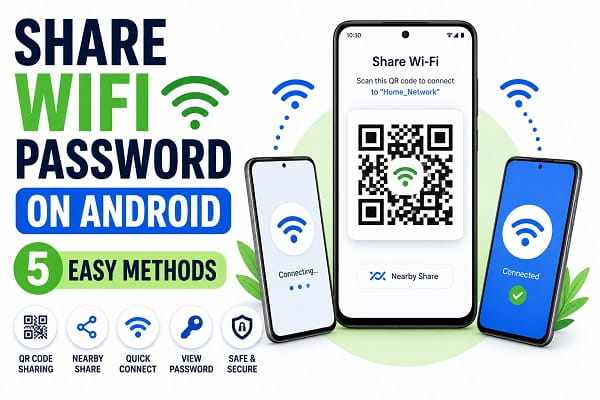
Sharing a WiFi password used to mean reading out a long string of letters, numbers, and special characters or searching through router settings to find the correct password. Fortunately, modern Android phones make the process much easier.
Whether you’re helping a friend connect to your home network, sharing internet access with family members, or connecting a new device, Android offers several quick ways to share WiFi credentials without manually typing the password.
Most Android devices now support WiFi sharing through QR codes, allowing another phone to connect instantly by simply scanning a code. Some manufacturers also include additional sharing features that simplify the process even further.
In this guide, you’ll learn several methods for sharing WiFi passwords on Android devices, including Samsung Galaxy phones, Google Pixel devices, Xiaomi smartphones, Tecno, Infinix, Oppo, Vivo, and other Android models.
Can You Share a WiFi Password on Android?
Yes.
Most Android phones running Android 10 or newer include a built-in WiFi sharing feature.
Instead of displaying the password directly, Android generates a QR code containing the network information. Another device can scan the code and connect automatically without entering the password manually.
This feature is secure, fast, and works on most modern Android devices.
If you haven’t connected to the network yet and need to view the password before sharing it, our guide on how to find saved WiFi passwords on Android explains several methods for locating stored network credentials.
Method 1: Share WiFi Using a QR Code
The easiest way to share a WiFi password is through Android’s built-in QR code feature.
To do this:
- Open Settings.
- Tap Network & Internet or Connections.
- Select WiFi.
- Tap the currently connected network.
- Choose Share.
- Verify your identity using your PIN, fingerprint, or password.
Android will generate a QR code containing the network information.
The person who wants to connect can simply scan the code using their phone’s camera.
Once scanned, their device should connect automatically.
QR codes have become one of the easiest ways to transfer network information between devices. If you’re setting up a new Android phone, you may also find our guide on transfer data from Android to Android helpful for moving your files and settings.
Method 2: Share WiFi Using the Camera App
Most modern Android phones can scan WiFi QR codes directly from the camera app.
To connect:
- Open the Camera app.
- Point it at the WiFi QR code.
- Tap the notification that appears.
- Confirm the connection.
This method eliminates the need to manually enter passwords.
It’s especially useful when connecting guests to your network.
Many Android phones include useful camera features beyond QR code scanning. If you frequently use your phone for productivity tasks, check out our guide on scan documents using Android phone.
Method 3: Use Google Lens
If your phone’s camera app doesn’t recognize WiFi QR codes automatically, Google Lens can often help.
Steps:
- Open Google Lens.
- Scan the WiFi QR code.
- Wait for Android to recognize the network.
- Tap Connect.
Google Lens is available on most Android devices and provides reliable QR code recognition.
Method 4: Share WiFi Between Samsung Devices
Samsung phones include built-in sharing features that make transferring network credentials even easier.
Depending on your One UI version, you may see additional sharing options when viewing your connected WiFi network.
The process generally follows the same QR code method but may include extra device-to-device sharing options.
Samsung’s implementation is particularly useful when connecting multiple Galaxy devices.
Method 5: View and Share the Password Manually
Viewing the password manually can be useful when helping someone connect a device that cannot scan QR codes. If you’re unsure how to access saved passwords on your phone, read our guide on find saved WiFi passwords on Android.
In some situations, you may need to provide the actual password rather than a QR code.
Many Android devices display the WiFi password after authentication.
To check:
- Open Settings.
- Tap WiFi.
- Select the connected network.
- Tap Share.
- Authenticate yourself.
Depending on your Android version, the password may appear below the QR code.
You can then copy and send it manually.
Why Can’t I Share My WiFi Password?
Some sharing features may not work properly when Android is experiencing software issues. If you’ve noticed apps behaving unexpectedly after a recent update, our guide on apps keep crashing after Android update may help.
If the Share option is missing, several factors may be responsible.
Common causes include:
- Older Android versions
- Manufacturer restrictions
- Device administrator policies
- Work-managed devices
- Software bugs
Updating Android often resolves missing sharing features.
Is Sharing WiFi Through QR Codes Safe?
Yes.
The QR code simply contains the information needed to connect to the network.
However, you should only share WiFi QR codes with people you trust.
Anyone who scans the code can potentially access your network.
If you’re sharing access with temporary guests, consider using a guest network when available.
What If the QR Code Doesn’t Work?
Network-related problems can sometimes affect more than WiFi sharing features. If you’re having trouble connecting to the internet through your carrier’s network, check out our guide on mobile data not working on Android.
Occasionally, WiFi QR codes fail to scan properly.
Possible solutions include:
- Increasing screen brightness
- Cleaning the camera lens
- Regenerating the QR code
- Updating the camera app
- Restarting the device
In most cases, generating a new QR code solves the issue.
The Easiest Way to Share WiFi on Android
For most Android users, QR code sharing remains the fastest and most convenient solution. It eliminates typing errors, speeds up connections, and allows friends and family to join your network within seconds.
Whether you’re using a Samsung Galaxy, Google Pixel, Xiaomi, Tecno, Infinix, or another Android phone, modern WiFi sharing tools make connecting devices easier than ever before.
