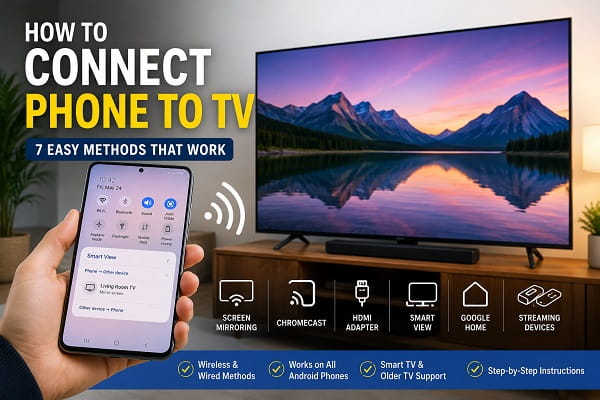
Watching videos, browsing photos, playing games, or even attending online meetings on a smartphone can sometimes feel limiting because of the small screen size. While modern Android phones offer excellent displays, there are many situations where viewing content on a larger screen provides a much better experience.
That’s where connecting your phone to a TV becomes useful.
Whether you want to stream YouTube videos, watch Netflix, share family photos, play mobile games on a bigger screen, or mirror a presentation during a meeting, connecting your Android phone to a television can transform how you use your device.
The good news is that you don’t need to be a tech expert to make it work. Most modern Android phones can connect to Smart TVs wirelessly, while older televisions can still be connected using adapters and cables.
In this guide, you’ll learn how to connect an Android phone to a TV using several different methods, including screen mirroring, Chromecast, Smart View, HDMI adapters, and more.
What Do You Need Before Connecting Your Phone to a TV?
Before connecting your device to a television, it’s important to ensure your phone is properly configured and running smoothly. If your Android device feels sluggish or unresponsive, our guide on how to speed up a slow Android phone can help improve overall performance.
Before starting, it’s helpful to know which type of TV you’re using.
Generally, TVs fall into three categories:
Smart TVs
Smart TVs from Samsung, LG, Sony, TCL, Hisense, and other brands usually support wireless connections.
Android TV and Google TV
These televisions often include Chromecast functionality, making it easy to cast content directly from Android devices.
Older Non-Smart TVs
Older televisions typically require an HDMI adapter or streaming device to connect to a smartphone.
Knowing your TV type will help you choose the best connection method.
Method 1: Connect Phone to TV Using Screen Mirroring
Screen mirroring requires a stable wireless connection between your phone and TV. If your internet connection keeps dropping during setup, check out our guide on phone keeps disconnecting from WiFi for troubleshooting tips.
Screen mirroring is one of the most popular ways to connect an Android phone to a television.
When screen mirroring is enabled, everything displayed on your phone appears on the TV screen in real time.
This includes:
- Photos
- Videos
- Games
- Apps
- Websites
- Presentations
To use screen mirroring:
- Connect your phone and TV to the same WiFi network.
- Swipe down from the top of your phone screen.
- Open Quick Settings.
- Tap Cast, Screen Cast, Smart View, Wireless Display, or Screen Mirroring.
- Select your TV.
- Confirm the connection if prompted.
Within a few seconds, your phone screen should appear on the television.
This method is ideal for presentations, gaming, and sharing content with family or friends.
Method 2: Connect Phone to TV Using Chromecast
Chromecast and other casting technologies rely on both devices being connected to the same wireless network. If you’re unsure how to access your network credentials, learn how to find saved WiFi passwords on Android.
Chromecast is one of the easiest and most reliable ways to stream content from Android devices.
Many modern TVs include Chromecast built-in. If your TV doesn’t, you can purchase a Chromecast device and plug it into an HDMI port.
To connect:
- Make sure both devices are connected to the same WiFi network.
- Open a compatible app such as YouTube or Netflix.
- Tap the Cast icon.
- Select your TV.
- Choose the content you want to play.
Unlike screen mirroring, Chromecast streams content directly from the internet, allowing you to continue using your phone while the video plays on the TV.
Method 3: Connect Phone to TV Using Google Home
Many Android users set up a new phone before using Google Home or Chromecast. If you’re moving to a new device, our guide on how to transfer data from Android to Android explains how to move your apps, photos, and settings safely.
Google Home provides another way to mirror your entire Android screen.
This method works especially well with Chromecast-enabled televisions.
Steps:
- Install Google Home.
- Open the app.
- Select your TV.
- Tap Cast My Screen.
- Confirm the action.
Your entire phone display will immediately appear on the television.
This method works well for apps that don’t include a built-in Cast button.
Method 4: Connect Samsung Phone to TV Using Smart View
Samsung Galaxy phones include a dedicated feature called Smart View.
Smart View simplifies the screen-mirroring process and is one of the easiest methods available for Samsung users.
To use Smart View:
- Swipe down to open Quick Settings.
- Tap Smart View.
- Choose your TV.
- Follow the connection prompts.
Once connected, videos, apps, games, and photos can be displayed directly on the television.
Method 5: Connect Phone to TV Using an HDMI Adapter
Watching videos on a larger screen is one of the best ways to enjoy photos stored on your phone. If you’ve accidentally deleted important pictures, see our guide on recover deleted photos on Android before they’re lost permanently.
If wireless methods aren’t available, an HDMI connection is often the most reliable solution.
You’ll need:
- USB-C to HDMI adapter
- HDMI cable
- Android phone that supports video output
Steps:
- Connect the adapter to your phone.
- Attach the HDMI cable.
- Connect the cable to your TV.
- Switch the TV to the correct HDMI input.
The display should appear automatically.
Many users prefer this method because it provides a stable connection without relying on WiFi.
Method 6: Connect Phone to TV Using a Streaming Device
Streaming devices often include screen-casting features.
Popular options include:
- Chromecast
- Roku
- Amazon Fire TV Stick
- Android TV Boxes
After setup, these devices allow Android phones to cast content directly to the television.
They are especially useful for older TVs that lack built-in smart features.
Method 7: Connect Phone to TV Without WiFi
Many people assume WiFi is always required.
In reality, several methods work without an internet connection.
Options include:
- HDMI adapters
- USB-C video output
- Certain Miracast-supported devices
This can be useful during travel or in areas with limited internet access.
Why Won’t My Phone Connect to My TV?
Connection problems can sometimes be caused by internet-related issues rather than casting settings. If your device connects to WiFi but still won’t access online content, read our guide on WiFi connected but no internet on Android.
If your phone refuses to connect, several issues may be responsible.
Common causes include:
Different WiFi Networks
Both devices usually need to be connected to the same network.
Outdated Software
Older software versions may cause compatibility issues.
Disabled Casting Features
Some TVs require casting options to be enabled manually.
Weak Wireless Signal
Poor WiFi coverage can prevent stable connections.
Unsupported Hardware
Some older TVs simply don’t support modern casting technologies.
Restarting both devices often resolves temporary connection issues.
How to Improve Screen Mirroring Performance
A strong network connection is essential for smooth screen mirroring and video streaming. If your cellular internet is also giving you problems, our guide on mobile data not working on Android covers several proven fixes.
If screen mirroring feels slow or laggy, try these tips:
- Move closer to the router.
- Reduce network congestion.
- Close unused apps.
- Restart your router.
- Update your phone software.
- Update your TV firmware.
These steps can significantly improve performance.
Is Screen Mirroring Safe?
Yes.
Screen mirroring and casting technologies are generally secure when used on trusted networks.
However, avoid casting sensitive information on public WiFi networks or shared devices.
Always disconnect after finishing if you’re using a public or shared television.
Which Method Should You Use?
For most Android users, screen mirroring or Chromecast will be the easiest way to connect a phone to a TV because both methods are wireless and simple to set up. If you use a Samsung phone, Smart View may be the fastest option, especially when connecting to a Samsung Smart TV.
If your TV does not support wireless casting, an HDMI adapter is usually the most reliable alternative. It is also a good choice when you want a stable connection without depending on WiFi.
The best method depends on your phone, your TV, and the features available on both devices. Once you know which connection option your setup supports, sharing your phone screen on a larger display becomes much easier.
