
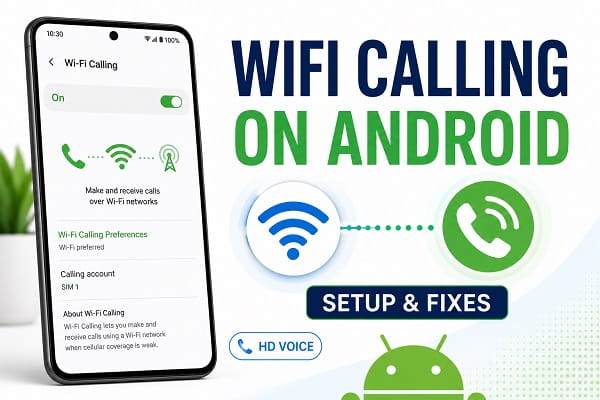
Wi-Fi calling lets an Android phone make and receive ordinary calls through a Wi-Fi connection when the mobile signal is weak or unavailable. It uses your existing phone number and the normal Phone app, so the person you call does not need Wi-Fi calling or a special messaging application.
The feature is especially useful inside buildings, basements, rural homes, and other places where cellular coverage struggles but reliable broadband is available. Once it is activated, a supported Android phone can choose Wi-Fi for a call automatically or according to the calling preference selected in its settings.
To turn on Wi-Fi calling on most Android phones, open Settings > Network & internet > SIMs, select your SIM, tap Wi-Fi calling, and switch it on. On Samsung Galaxy phones, the usual path is Settings > Connections > Wi-Fi Calling. The exact menu depends on the phone manufacturer, Android version, carrier, and country.
The option will only appear when both the phone and mobile network support it. Owning a recent Android phone is not enough by itself because the carrier must activate Wi-Fi calling for that model, SIM, account, and region.
What Is Wi-Fi Calling on Android?
Wi-Fi calling is a carrier service that routes voice calls, and sometimes SMS or MMS messages, through an internet-connected Wi-Fi network instead of a nearby cellular tower. It is also known as Voice over Wi-Fi or VoWiFi.
Although the call travels through Wi-Fi for part of its journey, it remains a normal carrier call. You dial from the standard Phone app, contacts see your regular mobile number, and incoming calls arrive through the same number.
This makes Wi-Fi calling different from WhatsApp, Telegram, Messenger, Signal, Skype, or Google Meet. Those services require an app and generally require the other participant to use a compatible service. Wi-Fi calling connects to the carrier’s calling system and can reach regular mobile and landline numbers.
How Wi-Fi Calling Works
When Wi-Fi calling is enabled, the Android phone establishes a secure connection to the mobile carrier through the internet. Voice traffic can then travel from the phone to the Wi-Fi router, through the broadband connection, and into the carrier’s network.
The carrier still authenticates the subscriber through the active SIM or eSIM. This is why simply connecting an Android phone to Wi-Fi does not create a free mobile service. The phone normally needs an active line, compatible carrier settings, and Wi-Fi calling provisioned on the account.
If both Wi-Fi and cellular service are available, the phone or carrier chooses a route according to signal quality and the selected preference. Some Android phones provide options such as:
- Wi-Fi preferred: Use Wi-Fi when it is suitable and fall back to the mobile network when necessary.
- Mobile network preferred: Use cellular service when it is available and switch to Wi-Fi when coverage becomes poor.
- Wi-Fi only: Offered by some carriers or services, but not universally available.
The wording and availability of these settings vary. A carrier may control the preference automatically and hide the manual choice.
What You Need to Use Wi-Fi Calling
Wi-Fi calling depends on more than the Android version. Before looking for the switch, confirm these requirements:
- An Android phone that supports carrier Wi-Fi calling
- A carrier that offers Wi-Fi calling in your country
- A SIM or eSIM with active mobile service
- A phone model or firmware approved by the carrier
- A reliable Wi-Fi connection with internet access
- Current Android software and carrier configuration
- An emergency service address where the carrier requires one
An unlocked phone can support Wi-Fi calling technically but still lack the feature on a particular network. Some carriers certify only phones purchased from them or only specific regional variants. Two phones with the same model name can behave differently when they use different firmware or carriers.
Dual-SIM phones can add another condition. Wi-Fi calling may be enabled separately for each SIM, and one carrier may support it while the other does not.
How to Turn On Wi-Fi Calling on Android
Android manufacturers organize network settings differently, so there is no single path that applies to every phone. Start with the general method, then use the brand-specific instructions below.
Method 1: Use Android Network Settings
- Connect the phone to a working Wi-Fi network.
- Open Settings.
- Tap Network & internet, Mobile network, or Connections.
- Select SIMs, Mobile network, or the relevant SIM card.
- Tap Wi-Fi calling.
- Turn Use Wi-Fi calling on.
- Enter or confirm an emergency address if requested.
- Choose Wi-Fi preferred or mobile network preferred if the option is available.
The setting may be under Settings > Network & internet > Calls & SMS on some versions of Android. Use the search box at the top of Settings and search for Wi-Fi calling if you cannot locate it manually.
Method 2: Use the Phone App
Some manufacturers and carriers put Wi-Fi calling inside the dialer:
- Open the Phone app.
- Tap the three-dot menu.
- Select Settings.
- Open Calls, Calling accounts, or SIM settings.
- Select the active SIM if asked.
- Tap Wi-Fi calling and turn it on.
If both the system setting and Phone app setting are missing, contact the carrier before assuming the phone is faulty.
How to Turn On Wi-Fi Calling on Samsung Galaxy
Samsung provides more than one path depending on the device and carrier.
Through Samsung Settings
- Open Settings.
- Tap Connections.
- Select Wi-Fi Calling.
- Choose a SIM if the phone has more than one.
- Turn the switch on.
- Add or verify emergency location information when requested.
Through the Samsung Phone App
- Open the Phone app.
- Tap the three vertical dots.
- Select Settings.
- Find Wi-Fi Calling.
- Turn it on.
You may also find a Wi-Fi Calling tile in Quick Settings. Swipe down twice from the top of the screen and look for it. If the tile is not visible, use the edit option to check whether it is available among the hidden tiles.
Samsung notes that the phone must have an active SIM or eSIM and be connected to Wi-Fi. Carrier-specific Galaxy models can use different menus, and some networks require VoLTE to be enabled before Wi-Fi calling can activate.
How to Turn On Wi-Fi Calling on Google Pixel
The menu on a Pixel generally follows the standard Android layout:
- Open Settings.
- Tap Network & internet.
- Select SIMs.
- Tap the SIM or carrier name.
- Select Wi-Fi calling.
- Turn on Use Wi-Fi calling.
Some carriers manage Wi-Fi calling through their own application. Google Fi, for example, provides the setting inside the Google Fi app under the user’s profile and Phone settings.
If the option is absent on a Pixel, verify carrier support for the exact model and IMEI. Do not use hidden dialer codes or unofficial tools to force-enable it. A switch exposed through a workaround will not make the carrier accept calls from an unsupported device.
How to Turn On Wi-Fi Calling on Motorola
Recent Motorola instructions commonly use this path:
- Open Settings.
- Tap Network & internet.
- Select SIMs & mobile network or Mobile network.
- Tap the SIM name if the phone uses two SIMs.
- Select Wi-Fi calling.
- Turn it on.
On some Motorola phones, open Phone > Settings > Calling accounts > SIM > Wi-Fi calling instead. Motorola states that the menu may be absent when the carrier does not support the feature.
How to Turn On Wi-Fi Calling on OnePlus, Xiaomi, and Other Phones
The path changes across OxygenOS, HyperOS, ColorOS, and other Android interfaces. Try:
- Open Settings.
- Select Mobile network, SIM cards & mobile networks, or a similar option.
- Tap the active SIM.
- Look for Wi-Fi calling, Make calls using Wi-Fi, or VoWiFi.
- Turn it on.
If Settings search produces no result, check the Phone app’s calling-account settings. Carrier certification is particularly important on imported and region-specific phones. A model may show Wi-Fi calling in one country but not another.
How to Make a Wi-Fi Call
Once the feature is enabled, make calls normally:
- Connect to Wi-Fi.
- Open the Phone app.
- Choose a contact or enter a number.
- Tap Call.
There is normally no separate Wi-Fi call button. The phone decides which connection to use. Depending on the device, a Wi-Fi handset icon may appear in the status bar, on the call button, or on the active-call screen.
To test Wi-Fi calling in an area with strong mobile coverage, some carriers allow this method:
- Turn on Airplane mode.
- Manually turn Wi-Fi back on.
- Wait for the Wi-Fi calling indicator.
- Place a non-emergency test call.
This test does not work with every carrier. Some networks require access to cellular service during registration, and a Wi-Fi call made in Airplane mode will drop if Wi-Fi disconnects because the phone has no mobile network available for handoff.
How to Know If Wi-Fi Calling Is Working
Look for one or more of these signs:
- A handset with Wi-Fi waves in the status bar
- The words Wi-Fi call, Wi-Fi Calling, or a similar label on the call screen
- A Wi-Fi symbol beside the call button
- The carrier name followed by Wi-Fi Calling in Quick Settings
- A notification that the call is being made over Wi-Fi
The exact icon varies by phone and carrier. The ordinary Wi-Fi icon only proves that the phone is connected to a router. It does not prove that the carrier has registered Wi-Fi calling.
Place a test call while the cellular signal is weak and watch the active-call screen. Do not call an emergency number merely to test the feature.
Is Wi-Fi Calling Free?
Wi-Fi calling does not usually add a separate feature fee, but the calls themselves are not automatically free. The carrier generally bills a Wi-Fi call according to the mobile plan and the number dialed.
For example:
- Domestic calls may use plan minutes or be included in an unlimited plan.
- International calls may be charged at the carrier’s international rate.
- Premium-rate and special-service numbers can retain their normal charges.
- Roaming treatment depends on the carrier, destination, and country where the call is placed.
- The Wi-Fi provider may charge for internet usage.
Never assume that calling another country through hotel Wi-Fi avoids international fees. Wi-Fi is only the connection between the phone and carrier. The carrier still sees the destination number and applies its billing rules.
Confirm current rates with the mobile network before using Wi-Fi calling abroad or dialing international and premium numbers.
Does Wi-Fi Calling Use Mobile Data?
When a call is successfully carried over Wi-Fi, it uses the connected internet service rather than the phone’s normal mobile data allowance. However, the carrier can hand the call to cellular service if Wi-Fi becomes weak and the network supports a seamless transition.
If the phone falls back to the mobile network, normal carrier rules apply. The data used by the voice call is generally handled as carrier voice service rather than an ordinary app consuming mobile data, but billing varies.
Wi-Fi calling consumes some broadband data. The amount for a voice call is usually modest, but it matters on metered satellite, hotel, aircraft, or hotspot connections.
Can Wi-Fi Calling Work Without a Mobile Signal?
Yes, it can work with little or no cellular signal when all of the following are true:
- Wi-Fi calling was activated successfully
- The SIM or eSIM remains active
- The phone is connected to usable Wi-Fi
- The carrier permits registration from the current location
- The Wi-Fi network does not block the required traffic
Some carriers advise enabling Wi-Fi calling before traveling outside their coverage area or home country. Activation can fail if the phone cannot initially verify the line through the mobile network.
A phone without an active carrier line generally cannot use native Wi-Fi calling. It can still make app-based internet calls through services such as WhatsApp or Google Meet, but those are not the same service.
Wi-Fi Calling and Text Messages
Carrier support for SMS and MMS over Wi-Fi varies. Many networks allow ordinary texts through their Wi-Fi calling infrastructure, but others require some mobile coverage or mobile data for certain message types.
RCS messages use an internet connection and can often work over Wi-Fi independently of carrier Wi-Fi calling. SMS, MMS, and RCS are different systems, so success with one does not guarantee that the others will work.
If calls work over Wi-Fi but texts do not, check the carrier’s support policy, confirm the default messaging app, and verify that RCS is connected where relevant.
Wi-Fi Calling With Dual SIM
On a dual-SIM Android phone, open the Wi-Fi calling setting for each line separately. Possible behaviors include:
- Both SIMs support Wi-Fi calling.
- Only one carrier supports it.
- The phone permits it only on the preferred calling SIM.
- One SIM uses the other SIM’s mobile data as a connection on supported devices and networks.
- Wi-Fi calling preference changes when roaming.
Check the SIM name shown beside the Wi-Fi calling icon before assuming a particular line is registered. When placing a call, choose the correct SIM in the dialer.
Wi-Fi Calling While Roaming or Traveling Abroad
Wi-Fi calling can be valuable abroad, but its availability and billing are carrier-specific. A network may:
- Allow calls to the home country at domestic rates
- Charge international rates based on the number dialed
- Block Wi-Fi calling in certain countries
- Require activation before leaving the home network
- Prefer the visited cellular network unless Wi-Fi preferred is selected
- Restrict emergency calling outside the home country
Hotel, office, airport, and public Wi-Fi networks may also block the connection or require browser sign-in before internet access begins.
Read the carrier’s roaming policy before traveling. Airplane mode with Wi-Fi turned back on can prevent accidental cellular roaming, but only use it when the carrier supports Wi-Fi calling in that configuration and you understand that calls can drop if Wi-Fi fails.
Emergency Calls and the Emergency Address
Cell towers can help emergency services estimate a caller’s location. A Wi-Fi connection may not provide the same location information, especially when the router is in a different building or country.
Some carriers therefore require an Emergency Address, sometimes called an E911 address, before enabling Wi-Fi calling. Enter the physical location where the service is most likely to be used and update it after moving.
Important limitations include:
- Emergency location rules differ by country and carrier.
- A saved address may not match the phone’s current location.
- Emergency calls may use cellular service when available.
- Wi-Fi, power, or broadband failure can prevent the call.
- Roaming use may have additional restrictions.
Give the emergency operator your exact current location whenever possible. Do not rely on Wi-Fi calling as the only emergency communication method in a location with unreliable electricity or internet.
Is Wi-Fi Calling Secure?
Carrier Wi-Fi calling normally uses an encrypted tunnel between the phone and the carrier, even when the phone is connected to a public hotspot. This protects the carrier call traffic better than an ordinary unencrypted web session.
That does not make every public Wi-Fi network trustworthy. A malicious or poorly configured network can still interfere with internet access, redirect browser traffic, track connection metadata, or block Wi-Fi calling.
Use reputable Wi-Fi where possible, keep Android updated, avoid installing unknown certificates, and do not enter carrier credentials into unexpected browser pages. A VPN can sometimes interfere with Wi-Fi calling, so test without it if calls fail. Carrier behavior with VPNs varies.
Wi-Fi Calling Option Missing on Android
If Settings search cannot find Wi-Fi calling, check the likely causes in this order.
Confirm Carrier Support
Ask the carrier whether Wi-Fi calling is available for your exact plan, phone model, IMEI, SIM type, and location. A generic list of supported brands is not enough.
Check the SIM and Account
Make sure the SIM or eSIM is active and can make an ordinary cellular call. Some carriers require a newer SIM, account provisioning, VoLTE, or an accepted emergency address.
Install Android and Carrier Updates
Open Settings > System > Software update or the manufacturer’s equivalent. Install pending updates and restart. Carrier configuration can be delivered through system updates, carrier apps, and Google Play system updates.
Check Both Settings and the Phone App
Search Settings, then inspect Phone > Settings > Calls or Calling accounts. The carrier can move or hide the menu.
Consider the Phone’s Region and Firmware
An imported phone can lack the correct carrier profile even if the hardware supports Wi-Fi calling elsewhere. Flashing unofficial firmware or using hidden codes can introduce security, update, and network problems. Use carrier-approved software.
If the switch existed before an update and disappeared afterward, contact the carrier and manufacturer. The feature may need to be reprovisioned rather than force-enabled.
Wi-Fi Calling Not Working on Android
When the switch is present but calls still use cellular service or fail, work through these fixes.
1. Confirm the Wi-Fi Connection Has Internet
Open a website or play a video. A phone can remain connected to a router that has lost broadband access. Sign in through the browser if the network uses a captive portal.
2. Try Another Wi-Fi Network
Public, corporate, school, and hotel networks can block the traffic required for carrier Wi-Fi calling. Test a trusted home connection or another router.
3. Restart the Phone and Router
Restarting refreshes the phone’s network registration and the router’s internet connection. Wait for the Wi-Fi calling indicator before testing again.
4. Toggle Wi-Fi Calling Off and On
Open the feature’s settings, turn it off, wait several seconds, and turn it back on. Reconfirm the emergency address if prompted.
5. Use Airplane Mode as a Test
Enable Airplane mode, turn Wi-Fi back on manually, and wait for registration. Place a normal test call. If it works, the phone may simply have been preferring a strong cellular signal.
Turn Airplane mode off after testing. This method is not supported by every carrier.
6. Change the Calling Preference
Select Wi-Fi preferred if your phone provides the option. A mobile-network-preferred setting can make it appear that Wi-Fi calling is broken while the phone is intentionally using an adequate cellular signal.
7. Disable the VPN Temporarily
A VPN, private DNS configuration, firewall, or ad-blocking network tool can disrupt carrier registration. Pause it briefly, test the call, and then adjust the tool rather than leaving security features disabled permanently.
8. Update the Phone
Install current Android, security, Google Play system, Phone app, and carrier updates. Restart afterward.
9. Reset Network Settings
Use this only after easier fixes because it removes saved Wi-Fi networks and can reset Bluetooth and mobile-network configuration.
On many Android phones, open Settings > System > Reset options > Reset mobile network settings or Reset Wi-Fi, mobile & Bluetooth. Samsung commonly places the controls under Settings > General management > Reset.
Write down Wi-Fi passwords first. If you use a manually configured APN, record it or ask the carrier how it will be restored. For Samsung-specific precautions and paths, follow the instructions to reset network settings on Samsung Galaxy phones.
10. Contact the Carrier
Ask the carrier to verify Wi-Fi calling provisioning, IMS registration, SIM compatibility, emergency-address status, and device eligibility. When the menu is present but registration never completes, the carrier account is often the place to investigate.
For a dedicated diagnostic sequence, use the complete fixes for Wi-Fi calling not working on Android rather than repeatedly resetting the phone.
Wi-Fi Calls Drop or Sound Bad
Wi-Fi calling needs a stable, low-latency connection, not just high advertised speed. Packet loss, congestion, weak signal, and frequent roaming between mesh access points can cause robotic audio, delays, or dropped calls.
Try these improvements:
- Move closer to the router.
- Use 5 GHz or 6 GHz near the router for less interference.
- Use 2.4 GHz when distance and walls make range more important.
- Pause large uploads, cloud backups, and downloads.
- Update the router firmware.
- Restart old or overloaded networking equipment.
- Enable quality-of-service settings when the router supports them.
- Avoid walking between weak Wi-Fi and cellular coverage during an important call.
- Test with the VPN disabled.
A call can hand over between Wi-Fi and cellular networks only when the phone and carrier support the transition. Otherwise, leaving Wi-Fi range can end the call.
How to Turn Off Wi-Fi Calling
To disable it, return to the same menu used for activation:
- Standard Android: Settings > Network & internet > SIMs > SIM name > Wi-Fi calling
- Samsung Galaxy: Settings > Connections > Wi-Fi Calling
- Phone app route: Phone > Settings > Calls or Calling accounts > Wi-Fi calling
Turn the switch off for each SIM. Calls will then use the cellular network unless another calling application is used.
Turning the feature off may help diagnose call-quality problems, but it will not repair a weak cellular signal. Leave it enabled when indoor coverage is poor and the Wi-Fi connection is reliable.
Wi-Fi Calling vs WhatsApp Calling
Both can carry voice over the internet, but they serve different purposes.
| Feature | Wi-Fi Calling | WhatsApp and Similar Apps |
|---|---|---|
| Uses normal phone number | Yes | Uses an app account linked to a number |
| Calls ordinary phone numbers | Yes | Usually no |
| Other person needs the same app | No | Usually yes |
| Uses the standard Phone app | Yes | No |
| Billing | Carrier calling rates | Internet data usage |
| Requires carrier support | Yes | No |
| Can support emergency calls | Carrier and country dependent | Generally not a replacement for emergency calling |
Use carrier Wi-Fi calling when you need ordinary mobile calling in an area with weak signal. Use app-based calling when both participants have the app and internet-based communication is more convenient.
Frequently Asked Questions
Should Wi-Fi calling be on or off on Android?
Leave it on if mobile coverage is weak in places where reliable Wi-Fi is available. Turn it off temporarily when diagnosing call quality, router compatibility, VPN conflicts, or unexpected roaming behavior.
Can I receive calls through Wi-Fi calling?
Yes. Once the phone registers successfully, it can normally make and receive calls through Wi-Fi using the existing mobile number.
Does the person I call need Wi-Fi calling?
No. You can call an ordinary mobile or landline number. The other person’s phone does not need Wi-Fi calling or an internet connection.
Does Wi-Fi calling work when the phone has no airtime or minutes?
Wi-Fi calling still follows the carrier plan. A prepaid line may need airtime, minutes, or an active bundle even though the phone is connected to Wi-Fi.
Can I use Wi-Fi calling without a SIM card?
Native carrier Wi-Fi calling generally requires an active SIM or eSIM. App-based calls can work without a SIM when the app account and internet connection are available.
Does Wi-Fi calling drain the battery?
The effect depends on signal conditions. It may save battery when the alternative is constantly searching for a weak cellular signal. Poor Wi-Fi or frequent switching between networks can use more power.
Why does my phone still use cellular service?
The phone may be set to mobile network preferred, the cellular signal may be considered strong enough, or the carrier may control network selection. Choose Wi-Fi preferred if available and use Airplane mode with Wi-Fi re-enabled as a temporary test.
Can Wi-Fi calling work through a mobile hotspot?
It can on some carriers because a hotspot provides an internet connection, but performance and policy vary. The hotspot’s own cellular quality, latency, data limits, and carrier restrictions can affect the call.
Is Wi-Fi calling the same as VoLTE?
No. VoLTE carries voice over the carrier’s 4G LTE network. Wi-Fi calling carries it through Wi-Fi. Both are part of modern IP-based calling, and some carriers require VoLTE to be active before Wi-Fi calling works.
Why is there no Wi-Fi calling option on my Android phone?
The carrier may not support the feature, the phone may not be certified, the SIM may need activation, or the firmware may be from an unsupported region. Confirm eligibility with the carrier using the exact model and IMEI.
Wi-Fi calling works best when it is treated as a carrier feature rather than a general Android internet call. The phone, software, SIM, account, and network all need to support it. Once those pieces are in place, it can make an Android phone far more reliable in buildings and locations where cellular coverage is poor without changing how you dial or receive ordinary calls.
