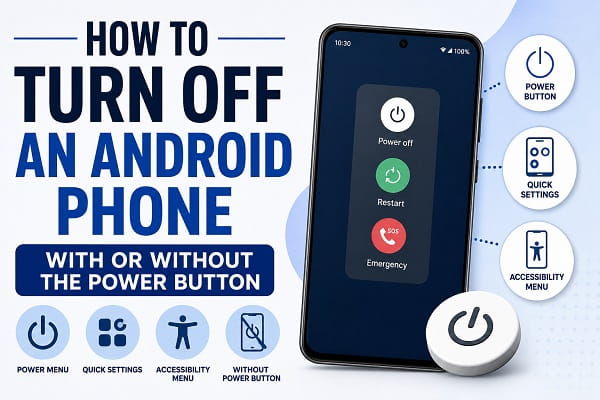
Turning off an Android phone sounds simple, but it has become surprisingly confusing in recent years. Depending on the device you own, pressing and holding the power button may open Google Assistant instead of showing the power menu. Some Android phones place the shutdown option inside Quick Settings, while others use different button combinations to power off the device.
The situation becomes even more frustrating when the power button is broken, unresponsive, or the phone becomes frozen and refuses to respond to normal shutdown methods.
Fortunately, Android provides several ways to turn off your phone, even if the traditional power button method isn’t working. Whether you use a Samsung Galaxy, Google Pixel, Xiaomi, Tecno, Infinix, Oppo, Vivo, Motorola, OnePlus, or another Android device, this guide explains every practical method you can use to power down your phone safely.
Why Would You Need to Turn Off Your Android Phone?
Many common Android problems can be resolved with a simple restart or shutdown. If your device has become sluggish or unresponsive, check out our guide on how to speed up a slow Android phone for additional optimization tips.
Most people rarely turn off their phones completely. However, there are situations where powering down the device can be useful.
Common reasons include:
- Fixing temporary software glitches
- Improving performance
- Troubleshooting app problems
- Conserving battery life
- Installing updates
- Fixing network issues
- Cooling down an overheating phone
- Preparing for repairs
In many cases, simply turning the phone off and back on can resolve problems without requiring advanced troubleshooting.
Method 1: Turn Off Your Android Phone Using the Power Button
If your touchscreen isn’t responding and you can’t navigate normally, you may need alternative shutdown methods. Read our guide on Android touchscreen not working for more troubleshooting solutions.
This is the traditional method that works on most Android devices.
Steps
- Press and hold the Power button.
- Wait for the Power Menu to appear.
- Tap Power Off.
- Confirm if prompted.
The phone will begin shutting down and eventually turn off completely.
If this method works, there’s no need to try the other options.
Method 2: Turn Off Android Using the Power and Volume Buttons
Modern Android phones use different button combinations for system functions. If you’re learning more about Android features, don’t miss our collection of hidden Android features that many users overlook.
Many modern Android phones have changed how the power button works.
Instead of showing the power menu, holding the power button may launch:
- Google Assistant
- Gemini
- Bixby (Samsung)
If that happens:
- Press and hold the Power button and Volume Up button together.
- Continue holding for a few seconds.
- Wait for the Power Menu.
- Tap Power Off.
This method works on many Samsung Galaxy and Google Pixel devices.
Method 3: Turn Off Android from Quick Settings
Many newer Android phones allow users to shut down directly from the Quick Settings panel.
Steps
- Swipe down from the top of the screen twice.
- Open the Quick Settings panel.
- Look for the Power icon.
- Tap it.
- Select Power Off.
This method is especially common on recent Android versions.
Method 4: How to Turn Off a Samsung Phone
Samsung devices sometimes confuse users because the Side Key may activate Bixby instead of showing the power menu.
Option 1
Press and hold:
- Side Key
- Volume Down
simultaneously.
The power menu should appear.
Option 2
- Swipe down from the top of the screen.
- Open Quick Settings.
- Tap the Power icon.
- Select Power Off.
Both methods work on most modern Samsung Galaxy phones.
Method 5: How to Turn Off a Google Pixel Phone
Many Google Pixel devices use the power button for Google Assistant by default.
To access the power menu:
- Press and hold the Power and Volume Up buttons together.
- Wait for the power menu.
- Tap Power Off.
You can also access shutdown options through Quick Settings.
Method 6: Turn Off an Android Phone Without the Power Button
A faulty power button is not the only hardware issue Android users encounter. If your device is also experiencing audio problems, see our guide on phone speaker not working.
If the power button is broken, you can still turn off your phone using software controls.
Quick Settings Method
- Open Quick Settings.
- Tap the Power icon.
- Select Power Off.
Accessibility Menu Method
Some Android phones offer an Accessibility Menu with power controls.
To enable it:
- Open Settings.
- Tap Accessibility.
- Enable Accessibility Menu.
- Open the menu.
- Tap Power.
- Select Power Off.
This method is particularly useful when physical buttons are damaged.
Method 7: Force Shut Down a Frozen Android Phone
Frozen devices are often linked to software glitches, overheating, or system instability. If your phone repeatedly restarts on its own, check out Android keeps restarting.
Sometimes the phone becomes completely unresponsive.
You may experience:
- Frozen screen
- Apps not responding
- Touchscreen not working
- Device stuck on a logo screen
In these situations, a force shutdown may be necessary.
How to Force Shut Down
Press and hold:
- Power button
- Volume Down button
for approximately 10–20 seconds.
Most Android phones will force a restart automatically.
The exact timing may vary depending on the manufacturer.
What If My Android Phone Won’t Turn Off?
Some shutdown problems occur after major Android updates introduce bugs or app conflicts. If you’ve noticed apps crashing frequently, our guide on apps keep crashing after Android update may help
If your phone refuses to shut down, several factors may be responsible.
Possible causes include:
Software Glitches
Temporary Android bugs can interfere with shutdown functions.
Frozen Applications
Apps may prevent normal system operations.
System Updates
Updates occasionally cause temporary shutdown issues.
Hardware Problems
Damaged buttons can prevent the power menu from opening.
Malware or Corrupted Software
Rarely, malicious or corrupted software can affect power functions.
Restarting the phone or booting into Safe Mode often helps identify the problem.
Why Does the Power Button Open Google Assistant Instead?
Many Android settings have changed over the years, making common tasks more confusing than they used to be. If you’re exploring useful Android features, learn how to connect your phone to a TV for a bigger-screen experience.
This is one of the most common Android complaints.
Recent Android versions often assign the power button to:
- Google Assistant
- Gemini
- Bixby
instead of the traditional power menu.
Fortunately, this behavior can usually be changed.
On Many Android Phones
- Open Settings.
- Tap System.
- Select Gestures.
- Open Press and Hold Power Button.
- Change the setting to Power Menu.
After making the change, holding the power button should display shutdown options again.
Can I Schedule My Android Phone to Turn Off Automatically?
Automation features can make Android devices more convenient to use. You can also learn how to transfer data from Android to Android when setting up a new phone or upgrading devices.
Some manufacturers include scheduled power on/off features.
Availability varies by brand.
If supported:
- Open Settings.
- Search for Scheduled Power On/Off.
- Set the desired shutdown time.
- Save the settings.
This feature is commonly found on certain Xiaomi, Oppo, Vivo, and other Android devices.
Is It Good to Turn Off Your Phone Regularly?
You don’t need to power off your phone every day.
However, occasionally shutting down your device can:
- Clear temporary system processes
- Improve stability
- Fix minor glitches
- Reduce overheating
- Refresh network connections
Many experts recommend restarting or shutting down a smartphone at least once every few days.
Does Turning Off a Phone Save Battery?
Yes.
When a phone is completely powered off, battery consumption becomes minimal.
This can be useful when:
- Traveling
- Storing a device
- Conserving power during emergencies
However, frequent shutdowns are generally unnecessary unless you’re troubleshooting or preserving battery life.
Common Mistakes to Avoid
When turning off an Android phone, avoid:
- Repeatedly pressing buttons aggressively
- Removing the battery on modern devices
- Using unofficial shutdown apps
- Force shutting down unnecessarily
- Interrupting software updates
These actions can sometimes cause additional problems.
Which Shutdown Method Is Best?
The best method depends on your situation.
- Working phone: Use the normal power menu.
- Samsung phone: Use Side Key + Volume Down.
- Pixel phone: Use Power + Volume Up.
- Broken power button: Use Quick Settings or Accessibility Menu.
- Frozen phone: Use a force shutdown.
Having multiple options ensures you can turn off your Android phone regardless of the problem you’re facing.
Many Android troubleshooting techniques start with a simple restart or shutdown. If your phone display is experiencing unusual behavior, check out our guides on phone screen flickering and phone screen black but phone is on
Turning Off an Android Phone Is Easier Than You Think
Modern Android phones offer several ways to power down, even when the power button isn’t working correctly. Whether you’re using a Samsung Galaxy, Google Pixel, Xiaomi, Tecno, Infinix, Oppo, Vivo, or another Android device, knowing these methods can save time and frustration when troubleshooting your phone.
By learning how to access the power menu, use Quick Settings, force a shutdown, or work around a broken power button, you’ll always have a reliable way to turn off your Android phone whenever the need arises.
