
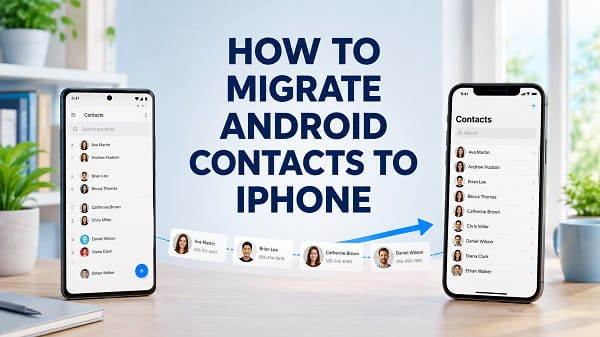
Moving from Android to iPhone does not mean you have to type every phone number into the new device manually. Your contacts can be transferred through Apple’s Move to iOS app, your Google Account, a VCF file, or a SIM card, depending on where the contacts are stored and whether the iPhone has already been set up.
If you want to know how to migrate Android contacts to iPhone, the easiest method for a new or erased iPhone is Move to iOS. During iPhone setup, select From Android, connect both phones, and choose Contacts from the data you want to transfer. If the iPhone is already set up, add the Google Account used on the Android phone under Settings > Apps > Contacts > Contacts Accounts, then turn on Contacts.
Before choosing a method, check where the contacts are stored. Contacts saved to Google can sync directly to the iPhone, while contacts saved only to the Android phone, SIM card, Samsung Account, or another service may need to be moved or exported first.
This updated guide explains every reliable method, including how to migrate contacts after iPhone setup, move them without Google, avoid duplicates, and fix contacts that do not appear after the transfer.
Check Where Your Android Contacts Are Stored
Android contacts are not always kept in one place. A contact may be stored in:
- A Google Account
- The phone’s internal storage
- A SIM card
- A Samsung Account
- Xiaomi Cloud
- Microsoft Outlook or Exchange
- A work or school account
- Another contact-provider app
The storage location determines which migration method will work.
Check the Account in the Contacts App
Open the Contacts app on the Android phone and look for an account selector, profile picture, menu, or Contacts to display option.
Depending on the phone, you may be able to:
- Open Contacts.
- Tap your profile picture or menu.
- Select an account or contact list.
- Compare the contacts stored under Google, Device, SIM, Samsung, or another account.
On the Google Contacts app, tap the profile picture to switch between Google Accounts. You can also open Organize and review available import, export, and sync options.
Verify Google Contacts Online
If you believe the contacts are synced to Google:
- Open a browser.
- Go to Google Contacts.
- Sign in with the Google Account used on the Android phone.
- Check whether the expected contacts appear.
If the contacts are visible there, you can add the same Google Account to the iPhone without exporting a file.
If only some contacts appear, the missing entries may be stored locally, on the SIM, or under a different account.
Back Up the Contacts Before Migrating
Contact migration is normally safe, but a separate backup protects you if an account is removed, the wrong list is selected, or the old phone is reset too soon.
On an Android phone using Google Contacts:
- Open Contacts.
- Tap Organize or the menu.
- Tap Export to file or Settings > Export.
- Select the account or contacts you want to export.
- Save the
.vcffile. - Copy the file to a safe location.
The file can be saved to Google Drive, another cloud service, a computer, or external storage.
Do not reset, trade in, or sell the Android phone until you have opened Contacts on the iPhone and verified several important numbers.
If contacts were deleted before the migration started, use how to recover deleted contacts on Android before creating the export.
Prepare Both Phones
Before starting:
- Charge both phones to at least 50 percent.
- Install available Android and iOS updates.
- Connect to a stable private Wi-Fi network.
- Turn off battery saver temporarily.
- Keep the Android phone unlocked.
- Make sure the iPhone has enough free storage.
- Confirm the Google Account password.
- Disable a VPN temporarily if it interferes with setup.
- Keep both devices close together.
Move to iOS may create a temporary private Wi-Fi network between the phones. The Android device can warn that the connection has no internet access. Stay connected until the transfer finishes.
You may also need the old Wi-Fi password after switching devices. Find saved Wi-Fi passwords on Android explains how to view or share a saved network before resetting the old phone.
Method 1: Migrate Contacts With Move to iOS
Move to iOS is Apple’s official migration app for Android users. It is the best option when the iPhone is new, has been erased, or has not completed setup.
The app can transfer more than contacts, including supported messages, photos, videos, calendars, mail accounts, call history, files, accessibility settings, and some free apps.
Install Move to iOS on Android
- Open the Google Play Store.
- Search for Move to iOS.
- Confirm that the developer is Apple.
- Install the app.
- Open it and accept the required permissions.
Apple also provides a way to install the app outside Google Play in regions or devices where the Play Store is unavailable. Use only Apple’s official download source.
Start the iPhone Setup
- Turn on the iPhone.
- Select the language and region.
- Follow the setup prompts.
- When the transfer screen appears, choose From Android.
The wording can vary slightly by iOS version. It may also appear under a page labelled Transfer Your Apps & Data.
Connect the Android Phone
- Open Move to iOS on Android.
- Tap Continue.
- Agree to the terms.
- Allow the permissions needed for the transfer.
- On the iPhone, tap Continue on the Move from Android screen.
- Wait for the six-digit or ten-digit code.
- Enter the code on the Android phone.
- Join the temporary network if prompted.
Some newer iPhone and Android combinations can also use a compatible USB-C cable for a faster direct transfer. Follow the on-screen instructions if the cable option appears.
Select Contacts
When the transfer list appears:
- Select Contacts.
- Select any other data you want to migrate.
- Tap Continue.
- Leave both devices alone while the transfer runs.
Even if the Android phone reports that it has finished, wait until the loading bar on the iPhone is complete.
Complete the Setup
- Tap Done on the Android phone.
- Tap Continue on the iPhone.
- Finish Apple Account, Face ID, passcode, and other setup steps.
- Open the Contacts app.
- Confirm that the names and numbers migrated.
Apple’s current Move from Android to iPhone instructions confirm that contacts are among the supported data types.
Can You Use Move to iOS After Setting Up the iPhone?
Move to iOS is designed for the initial iPhone setup process.
If setup is already complete, you have two choices:
- Use Google Contacts or a VCF file without erasing the iPhone.
- Erase the iPhone and run Move to iOS during setup.
Do not erase the iPhone only to migrate contacts unless you have a current backup and also need to transfer other supported Android data.
To erase an iPhone:
- Back up any existing iPhone data.
- Open Settings.
- Tap General.
- Tap Transfer or Reset iPhone.
- Tap Erase All Content and Settings.
- Follow the prompts.
- Choose From Android during setup.
Erasing removes existing apps, accounts, photos, messages, settings, and other local information. Google Sync or a VCF import is normally easier when contacts are the only data you need.
Method 2: Sync Google Contacts to the iPhone
This is usually the fastest method when the iPhone has already been set up.
The contacts remain stored in Google and appear in Apple’s Contacts app. Changes can continue syncing between Google Contacts and the iPhone while the account remains connected.
Confirm Contact Sync on Android
On many Android phones:
- Open Settings.
- Tap Google.
- Tap All services.
- Tap Settings for Google apps.
- Tap Google Contacts sync.
- Tap Status.
- Make sure sync is enabled.
- Tap Refresh if available.
The path can vary by Android version and manufacturer.
You can also open the Google Contacts app, switch to the correct Google Account, and verify that the contacts appear under that account.
Move Device and SIM Contacts to Google
Contacts stored only on the phone or SIM may not appear in Google Contacts automatically.
In the Google Contacts app, look under:
Organize > Settings > Google Contacts sync
Then open the option for syncing device and SIM contacts automatically, if available.
Alternatively, export the contacts to a VCF file and import that file into the Google Account.
After moving them, check Google Contacts in a browser to confirm that the complete list is available.
Add the Google Account to iPhone
On a current iPhone:
- Open Settings.
- Tap Apps.
- Tap Contacts.
- Tap Contacts Accounts.
- Tap Add Account.
- Select Google.
- Sign in to the same Google Account used on Android.
- Turn on Contacts.
- Tap Save or return to the previous screen.
- Open the Contacts app.
Google’s current contact-sync instructions for iPhone confirm that adding the Google Account and enabling Contacts makes the synced list available on the device.
If the Google Account Is Already on the iPhone
- Open Settings > Apps > Contacts.
- Tap Contacts Accounts.
- Select the Google Account.
- Turn on Contacts.
- Open Contacts and allow time for synchronization.
Do not remove and re-add the account as the first step. Turning Contacts off and back on is less disruptive.
Are Google Contacts Copied to iCloud?
Adding a Google Account displays its contacts on the iPhone, but the contacts remain managed by Google. They do not automatically become iCloud contacts.
This is not a problem if you want to continue using Google Contacts. They can appear in Phone, Messages, Mail, FaceTime, and supported apps like other contacts.
If you want the migrated contacts stored in iCloud instead, use a VCF export and import or move them through a computer.
Method 3: Migrate Contacts With a VCF File
A VCF or vCard file contains contact records. It is useful when:
- The iPhone is already set up.
- You do not want to add a Google Account.
- Contacts are stored locally on Android.
- You want an offline backup.
- Only selected contacts should be transferred.
- Google sync is not working.
- You want to import the contacts into iCloud.
Export Contacts From Android
Using Google Contacts:
- Open the Contacts app.
- Tap Organize.
- Tap Export to file.
- Choose the account or contact list.
- Tap Export.
- Save the
.vcffile.
On some Samsung and other phones, the path may be:
Contacts > Menu > Manage contacts > Import or export contacts > Export
The menu wording varies, but the resulting file should end in .vcf.
Send the VCF File to the iPhone
You can use:
- Google Drive
- OneDrive
- Dropbox
- A private messaging service
- A computer
- A USB storage device and the Files app
Avoid posting the file publicly. A VCF can contain names, phone numbers, email addresses, home addresses, notes, birthdays, and other private information.
Import the VCF on iPhone
- Open the email, message, or Files location containing the VCF.
- Tap the
.vcfattachment. - Review the contacts.
- Tap Add All Contacts or the available import option.
- Choose the account if the iPhone asks where to save them.
- Open Contacts and verify the imported list.
Apple’s current iPhone guide confirms that a vCard can be imported by tapping a .vcf attachment in an email or message.
Method 4: Import Contacts From a SIM Card
SIM migration can work when the contacts were actually saved on the SIM and the physical card fits the iPhone.
It is less complete than Google or VCF migration because SIM cards may store:
- Only one number per name
- Shortened names
- A limited number of contacts
- Few or no email addresses
- No contact photos
- No notes, birthdays, or custom fields
Export Android Contacts to the SIM
Not every Android phone can copy contacts to a SIM.
On supported devices:
- Open Contacts.
- Open the menu.
- Tap Manage contacts.
- Tap Import or export contacts.
- Choose Export to SIM card.
- Select the contacts.
- Confirm.
If the option is missing, use Google Contacts or a VCF file.
Import SIM Contacts on iPhone
- Turn off the Android phone.
- Remove the SIM card.
- Insert it into the iPhone if it is physically compatible.
- Open Settings on the iPhone.
- Tap Apps.
- Tap Contacts.
- Tap Import SIM Contacts.
- Choose a destination account if prompted.
- Wait for the import to finish.
- Open Contacts and check the list.
The iPhone does not normally save new contacts to the SIM. The import copies supported contact information from the card into a contacts account on the iPhone.
An eSIM cannot carry a traditional SIM contact list between phones.
Method 5: Move Contacts to iCloud Through a Computer
Use this method when the contacts are in Google but you want them managed by iCloud rather than continuously synced from Google.
Export From Google Contacts
- Open Google Contacts on a computer.
- Sign in to the correct account.
- Select the contacts.
- Click the export option.
- Choose vCard when available.
- Save the file.
Import Into iCloud
- Open iCloud Contacts in a desktop browser.
- Sign in with the Apple Account used on the iPhone.
- Open the contacts settings or action menu.
- Choose Import vCard.
- Select the exported VCF file.
- Wait for the import to finish.
On the iPhone:
- Open Settings.
- Tap your name.
- Tap iCloud.
- Tap See All beside Saved to iCloud.
- Turn on Contacts.
- Open Contacts and allow time for synchronization.
Keep the Android phone and the exported VCF until you confirm that all important contacts are present in iCloud.
Which Contact Migration Method Is Best?
| Situation | Recommended method |
|---|---|
| New or erased iPhone | Move to iOS |
| iPhone already set up | Google Contacts |
| Contacts stored locally on Android | VCF export |
| No Google Account wanted on iPhone | VCF export |
| Contacts already saved on SIM | Import SIM Contacts |
| Contacts should be managed by iCloud | VCF to iCloud |
| Moving other Android data too | Move to iOS |
| No reliable internet | VCF or SIM |
For most users, Move to iOS is best during setup, while Google Contacts is best afterward.
How to Migrate Samsung Contacts to iPhone
Samsung phones can store contacts under Google, Samsung Account, Device, or SIM.
Open Samsung Contacts and check the account shown for the contacts.
If Contacts Are in Google
Add the same Google Account to the iPhone and turn on Contacts.
If Contacts Are in Samsung Account or Device Storage
- Open Contacts.
- Tap the menu.
- Tap Manage contacts.
- Tap Move contacts or Import or export contacts.
- Move them to Google or export them as a VCF.
- Sync Google to the iPhone or import the file.
Samsung Smart Switch is mainly designed for moving data to Samsung devices. It is not the preferred method for transferring contacts from Samsung to an iPhone.
How to Migrate Contacts From Pixel to iPhone
Google Pixel phones normally save new contacts to a Google Account when configured that way.
- Open Google Contacts on the Pixel.
- Tap the profile picture.
- Confirm the correct Google Account.
- Check sync status.
- Add that account to the iPhone.
- Enable Contacts.
If some contacts are listed under Device or SIM, move or export them first.
How to Migrate Xiaomi, Redmi, or Poco Contacts to iPhone
Contacts may be stored under Google, Xiaomi Cloud, the device, or SIM.
The simplest option is to move them into Google Contacts:
- Open the Contacts app.
- Check the current storage account.
- Export local contacts to VCF if necessary.
- Import the VCF into the Google Account.
- Add that Google Account to the iPhone.
You can also export from Xiaomi Cloud through its web service when the contacts are available there.
Contacts Are Not Showing on the iPhone
Try these checks in order.
Check the Contact Lists
- Open Contacts.
- Tap Lists in the upper-left corner.
- Select All Contacts.
- Make sure the Google, iCloud, or imported list is enabled.
The contacts may have transferred but remain hidden because only one account list is selected.
Turn Contacts On for the Account
- Open Settings > Apps > Contacts.
- Tap Contacts Accounts.
- Select the Google, Outlook, or other account.
- Turn on Contacts.
Refresh the Contacts App
Open Contacts and pull down on the list to refresh it.
Check the Internet Connection
Google and iCloud contacts need internet access for the initial synchronization.
Switch between Wi-Fi and mobile data. Restart the router or phone if necessary.
Restart the iPhone
A restart can refresh Contacts, account, and synchronization services.
Check the Correct Account
The Android phone may use more than one Google Account. Sign in to each relevant account online and check which one contains the missing contacts.
Allow Time for Sync
A large contact list with photos and many fields can take longer to appear. Leave the iPhone connected to Wi-Fi and power for several minutes.
Only Some Contacts Migrated
Partial migration usually means the contacts were stored in different locations.
For example:
- Google contacts transferred, but Device contacts did not.
- SIM contacts were excluded.
- A second Google Account was not added.
- Work contacts are controlled by an organization.
- Samsung or Xiaomi cloud contacts were not exported.
- Move to iOS was interrupted.
- The VCF included only the selected account.
- Some contacts were read-only directory entries.
Return to the Android Contacts app and review each account or list separately. Export every missing group to its own VCF if necessary.
Do not erase the Android phone until the number of contacts on both devices has been compared.
Why Are There Duplicate Contacts on the iPhone?
Duplicates commonly appear when the same contacts are available from several sources, such as:
- iCloud
- A VCF import
- SIM import
- Outlook
- Move to iOS
Open Contacts and look for a Duplicates Found notice. The iPhone may offer to review and merge matching cards.
You can also tap Lists and identify which account contains each copy.
Before deleting a duplicate, check the account name. Deleting a contact from a synced Google or iCloud account can remove it from other connected devices as well.
A safer approach is to:
- Back up the contact list.
- Choose one primary account.
- Merge confirmed duplicates.
- Turn off Contacts for an unnecessary secondary account.
- Verify the result on the old phone or account website.
Move to iOS Is Stuck or Not Connecting
Try these fixes:
- Restart both phones.
- Keep Move to iOS open on Android.
- Turn off Android mobile data.
- Turn off Smart Network Switch or similar Wi-Fi switching features.
- Disable battery saver.
- Forget other nearby Wi-Fi networks temporarily.
- Keep both phones close together.
- Use a compatible cable if the option is supported.
- Make sure the iPhone has enough free storage.
- Start the iPhone setup again if the transfer was interrupted.
Do not answer calls, open other apps, or switch networks during the transfer.
If the iPhone continues having Wi-Fi problems after ordinary troubleshooting, read how to reset network settings on iPhone before using the reset. It removes saved Wi-Fi networks and related network configuration, so it should not be the first step.
Google Contacts Are Not Syncing to iPhone
Check the following:
- Contacts is enabled for the Google Account.
- The iPhone is connected to the internet.
- The correct Google Account was added.
- The contacts appear at Google Contacts online.
- Screen Time or device management is not restricting accounts.
- Google has not requested another sign-in verification.
- The account password was not recently changed.
- The Contacts app is displaying the Google list.
- Fetch settings are allowed to update the account.
You can turn Contacts off for the Google Account, wait a few seconds, and turn it back on.
When asked what to do with existing Google contacts on the iPhone, read the prompt carefully. Removing them from the iPhone does not necessarily delete them from Google, but deleting individual synced contacts from Contacts can affect the online account.
Contact Names Are Missing in WhatsApp
WhatsApp reads phone numbers from the iPhone Contacts app. After migrating:
- Open iPhone Settings.
- Tap Apps.
- Tap WhatsApp.
- Tap Contacts.
- Allow full contact access if appropriate.
- Open WhatsApp again.
Also check that the phone numbers include the correct country code.
WhatsApp chat migration and contact migration are separate. Moving the contact list does not automatically move WhatsApp chats, media, or account history.
Will Contact Photos and Notes Transfer?
Google Sync and VCF migration can preserve more contact details than a SIM card, including:
- Multiple phone numbers
- Email addresses
- Postal addresses
- Notes
- Organization names
- Birthdays
- Contact photos
The exact result depends on the original account, export format, and supported fields.
SIM migration normally transfers the least information.
Can You Migrate Contacts With Bluetooth?
Direct Bluetooth contact transfer from Android to iPhone is not a reliable standard method.
Android phones may share VCF files over Bluetooth with other Android devices, but iPhone does not provide the same general Bluetooth file-receiving workflow.
Use Move to iOS, Google Contacts, or a VCF file sent through email, cloud storage, or another supported service.
Can You Migrate Contacts Without Internet?
Yes.
Export the Android contacts to a VCF file and move it to the iPhone through a computer, USB storage, or another offline-compatible method. You can also import contacts stored on a compatible physical SIM.
Move to iOS uses a direct connection between the devices for the transfer, but setup and account verification can still require internet access.
Can You Transfer Contacts Without Resetting the iPhone?
Yes.
Use Google Contacts, a VCF file, a contacts account such as Outlook, or SIM import.
A reset is needed only when you specifically want to use Move to iOS after the iPhone has already completed setup.
Will New Android Contacts Continue Appearing on iPhone?
They will if the contacts are stored in Google and the same Google Account remains enabled for Contacts on both devices.
A one-time VCF or SIM import does not create continuous synchronization. Contacts added later on Android will not automatically appear on the iPhone unless they are saved to a synced account.
Choose the Default Account for New iPhone Contacts
After migration, choose where newly created contacts should be saved.
- Open Settings.
- Tap Apps.
- Tap Contacts.
- Tap Default Account.
- Select iCloud, Google, or another available account.
This setting affects new contacts. It does not automatically move existing contacts between accounts.
Choose Google if you plan to use the same list across Android and iPhone. Choose iCloud if the iPhone is now your primary device and you want Apple to manage future contacts.
Verify the Migration Before Resetting Android
Before wiping the old phone:
- Open Contacts on the iPhone.
- Select All Contacts.
- Search for family members, work contacts, and other important people.
- Open several cards.
- Check phone numbers, email addresses, notes, and country codes.
- Compare the total number of contacts where possible.
- Make a test phone call or message.
- Save the VCF backup.
- Confirm that the chosen account syncs online.
If you are moving to another Android phone instead, use how to transfer data from Android to Android for the broader migration process.
Only reset or sell the Android phone after you have verified the contacts and any other important data.
Frequently Asked Questions
What is the easiest way to migrate Android contacts to iPhone?
Use Move to iOS during initial iPhone setup. If the iPhone is already set up, add the Android phone’s Google Account to the iPhone and enable Contacts.
Can I migrate contacts after setting up my iPhone?
Yes. Google Contacts and VCF imports work without resetting the iPhone.
Can I migrate Android contacts to iPhone using Gmail?
Yes. Add the Google Account used on Android under Settings > Apps > Contacts > Contacts Accounts, then turn on Contacts.
Why did only some contacts move?
The missing contacts are probably stored under another Google Account, device storage, SIM, Samsung Account, Xiaomi Cloud, or a work directory.
Do I need a SIM card to transfer contacts?
No. Google Contacts, Move to iOS, and VCF files work without a SIM card.
Can an eSIM transfer contacts?
No. An eSIM provides cellular service but does not function as a traditional storage location for contact records.
Does Move to iOS transfer contacts?
Yes. Contacts are one of the supported data types that can be selected during the migration.
Can I use Move to iOS without erasing my iPhone?
Not after setup has been completed. Use Google Sync or a VCF file, or back up and erase the iPhone before running Move to iOS.
Will Google contacts remain on Android?
Yes. Adding the Google Account to iPhone displays the same synced contacts. It does not remove them from Android.
Will a VCF import create duplicates?
It can if the same contacts already exist through Google, iCloud, Move to iOS, or another account. Review duplicate suggestions after importing.
Does a factory reset delete Android contacts?
It deletes contacts stored only on the device. Contacts already synced to Google or another cloud account can return after sign-in.
Can I transfer one contact instead of the entire list?
Yes. Open the contact on Android, tap Share, and send its VCF card to the iPhone.
Is third-party contact-transfer software necessary?
Usually not. Move to iOS, Google Sync, VCF, and SIM import cover most situations without giving another company access to the contact list.
Why are my contacts on iPhone but not in iCloud?
They may still be stored under Google. Open Contacts, tap Lists, and check the account. Adding Google contacts to iPhone does not automatically copy them into iCloud.
Move the Contacts Without Losing the Original List
Use Move to iOS when the iPhone is new or erased and you want to migrate contacts with other Android data. Use Google Contacts when the iPhone is already set up and the contacts are stored in Google. Use a VCF file when you want a one-time import, need to move device-only contacts, or prefer to store the final list in iCloud.
The most important step is checking the Android contact storage location before starting. Verify the complete list on the iPhone, keep a VCF backup, and do not reset the old phone until the names, numbers, and account synchronization are confirmed.
