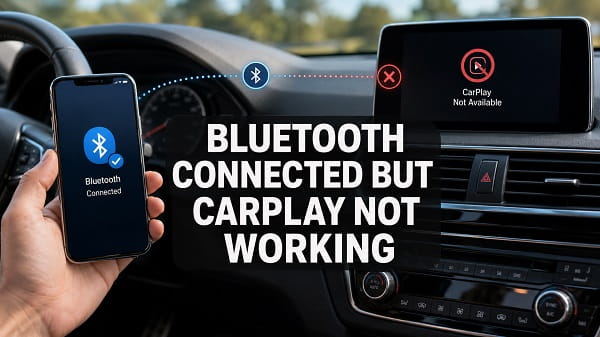
If Bluetooth is connected but CarPlay is not working, make sure Wi-Fi is also enabled on the iPhone. Wireless CarPlay uses Bluetooth to discover and begin pairing with the vehicle, but it relies on Wi-Fi for the main CarPlay connection. A normal Bluetooth connection may handle calls and music without displaying CarPlay on the dashboard.
Open Settings > Wi-Fi, find the vehicle’s CarPlay network and enable Auto-Join. Then go to Settings > General > CarPlay, select the vehicle and complete the setup. If the car is not listed, place its stereo in wireless CarPlay mode, press and hold the steering-wheel voice button, and pair it again.
If your vehicle supports only wired CarPlay, Bluetooth cannot activate CarPlay by itself. You must connect the iPhone to the correct USB port with a data-capable cable.
Why Bluetooth works but CarPlay does not
Bluetooth audio and Apple CarPlay are separate vehicle features.
A basic Bluetooth connection can provide:
- hands-free phone calls;
- contact syncing;
- music streaming;
- audio controls; and
- Siri Eyes Free on compatible vehicles.
CarPlay projects supported iPhone apps, navigation, calls, messages and audio controls onto the vehicle display. Wireless CarPlay normally uses Bluetooth for discovery and initial authentication, then creates a Wi-Fi connection for the main interface and data stream.
Bluetooth may say Connected while CarPlay fails because:
- Wi-Fi is turned off;
- Auto-Join is disabled for the CarPlay network;
- the vehicle supports wired CarPlay only;
- the iPhone is paired as a Bluetooth audio device rather than a CarPlay device;
- Siri is disabled;
- CarPlay is restricted through Screen Time;
- the car’s wireless projection mode is off;
- another phone has connection priority;
- the saved CarPlay profile is corrupted;
- a VPN, hotspot or wireless conflict is interfering;
- the iPhone or head unit needs an update; or
- the vehicle does not support CarPlay.
1. Confirm whether the car supports wireless CarPlay
Some vehicles support Bluetooth and wired CarPlay but not wireless CarPlay. In that case, pairing the iPhone through Bluetooth will never produce the CarPlay dashboard.
Check the vehicle manual, manufacturer’s specification page or Apple’s compatible vehicle list. Pay attention to the exact model year, trim and infotainment package. CarPlay availability can differ between trims that look identical.
If the car supports wired CarPlay only:
- Start the vehicle.
- Unlock the iPhone.
- Connect it to the CarPlay-labelled USB port.
- Use a cable that supports data, not charging only.
- Accept the CarPlay prompt on the iPhone and dashboard.
If the phone charges but CarPlay does not appear, follow phone charging but CarPlay not working for cable and USB-port troubleshooting.
2. Turn on Wi-Fi
Wireless CarPlay requires Wi-Fi even when the iPhone is already connected through Bluetooth.
Open Settings > Wi-Fi and turn Wi-Fi on. Do not manually connect to a public or home network while setting up the car. Let the CarPlay process create or select the vehicle network.
Then open Settings > General > CarPlay and tap the vehicle. If it appears, follow the setup prompt.
Use the Settings switch rather than only Control Centre while troubleshooting. Control Centre can temporarily disconnect a Wi-Fi network without fully restarting Wi-Fi.
3. Enable Auto-Join for the CarPlay network
Apple specifically recommends checking Auto-Join for wireless CarPlay.
- Open Settings > Wi-Fi.
- Find the vehicle’s CarPlay network.
- Tap the information button beside it.
- Enable Auto-Join.
When Auto-Join is off, Bluetooth may reconnect every time you start the car, but the Wi-Fi stage needed for CarPlay may not complete.
If the vehicle network does not appear, put the car into wireless CarPlay setup mode and try again.
4. Put the vehicle into wireless CarPlay mode
Bluetooth pairing mode and wireless CarPlay mode are not always the same setting.
Apple advises pressing and holding the voice-command button on the steering wheel for a vehicle that supports wireless CarPlay. Make sure the stereo is in wireless or Bluetooth mode, then open Settings > General > CarPlay on the iPhone and select the car.
Some infotainment systems require you to open:
- Phone Projection;
- Smartphone Integration;
- Apple CarPlay;
- Device Manager; or
- Connections.
Choose Add Device or Connect New Device, then select Apple CarPlay rather than Bluetooth Audio.
5. Select CarPlay on the dashboard
CarPlay may be connected but not displayed automatically. Look for the CarPlay logo in the vehicle’s Apps, Projection, Phone or Home menu and select it.
Some systems return to their built-in interface after restarting. Others ask whether to launch CarPlay automatically when the phone connects. Enable that preference if you want the dashboard to open without manual selection.
If the CarPlay icon is greyed out, confirm that the vehicle is parked. Some cars block setup changes while moving.
6. Restart the iPhone and car
Restart both systems to clear temporary Bluetooth, Wi-Fi and infotainment processes.
- Turn off the vehicle completely.
- Restart the iPhone.
- Wait for the infotainment screen to shut down.
- Start the car again.
- Unlock the iPhone.
- Reconnect through the vehicle’s CarPlay setup menu.
Some head units remain awake briefly after the engine stops. Locking the car and waiting several minutes may be necessary for a full restart.
7. Turn Bluetooth and Wi-Fi off and back on
Open Settings > Bluetooth, turn Bluetooth off, wait five seconds and turn it on. Repeat under Settings > Wi-Fi.
This refreshes both parts of the wireless CarPlay connection. Do it on the iPhone rather than deleting every network immediately.
If the vehicle has a wireless-services toggle, restart that setting as well.
8. Forget the Bluetooth device and CarPlay profile
A basic Bluetooth record may remain connected while the CarPlay profile is incomplete or corrupted. Delete both sides and start again.
On the iPhone:
- Open Settings > Bluetooth.
- Tap the information button beside the car.
- Tap Forget This Device.
- Open Settings > General > CarPlay.
- Tap the vehicle.
- Select Forget This Car.
Remove the iPhone from the vehicle’s saved devices too. Restart both systems, then pair through the Apple CarPlay menu rather than the ordinary Bluetooth Audio menu.
9. Make sure Siri is enabled
Apple requires Siri for CarPlay. Bluetooth calls and audio can work even when Siri is disabled.
Open Settings > Apple Intelligence & Siri or Settings > Siri, depending on the iOS version. Enable the available options for activating Siri.
Test Siri directly on the iPhone. Then press and hold the vehicle’s voice-command button. If Siri does not respond, check Screen Time and device-management restrictions.
10. Check Screen Time restrictions
CarPlay can be disabled while Bluetooth remains available.
Go to:
Settings > Screen Time > Content & Privacy Restrictions > Allowed Apps & Features
Make sure CarPlay is enabled. The menu may be labelled Allowed Apps on some iOS versions.
A child, school or employer-managed iPhone may require a passcode or administrator approval.
11. Allow CarPlay while the iPhone is locked
If CarPlay works when the iPhone is unlocked but disappears after the screen locks, open:
Settings > General > CarPlay > Your Car
Turn on Allow CarPlay While Locked if the option is available.
Unlock the iPhone during the first setup and accept every CarPlay permission prompt. The Bluetooth relationship alone does not approve the full CarPlay connection.
12. Disconnect other phones
The vehicle may connect to your iPhone for Bluetooth audio while giving CarPlay priority to another saved phone.
Turn off Bluetooth and Wi-Fi on other phones in the car. Remove old or unused devices from the infotainment system, then set your iPhone as the preferred CarPlay device.
If CarPlay begins working after another phone is disconnected, adjust the device priority or automatic connection preferences.
13. Turn off Personal Hotspot
Personal Hotspot uses the iPhone’s Wi-Fi radio and can interfere with the wireless connection required by CarPlay.
Open Settings > Personal Hotspot and turn off Allow Others to Join. Disconnect devices using the hotspot, then reconnect CarPlay.
Read Personal Hotspot not working on iPhone separately if the hotspot itself is the feature you need to repair.
14. Disable VPN and security apps temporarily
A VPN or network-security app may interfere with local wireless communication or CarPlay apps. Disconnect the VPN and test CarPlay again.
If this works, update the VPN app and review its local-network options. Do not remove an employer or school profile without permission.
Open Settings > General > VPN & Device Management to identify managed configuration.
15. Rename the iPhone
Apple recommends trying a different device name when several phones have been connected to a car stereo.
Go to:
Settings > General > About > Name
Choose a short, unique name without unusual symbols. Delete the old pairing from the car and pair again.
This can help when the head unit has duplicate entries named iPhone or confuses an old profile with the current device.
16. Update iOS
Open Settings > General > Software Update and install the latest stable iOS version available.
Updates can correct CarPlay, Wi-Fi, Bluetooth and Siri compatibility problems. Restart the iPhone after installation and recreate the pairing if the old profile still fails.
If the problem began after an iOS update, check for a later maintenance update. Do not overlook the vehicle’s software.
17. Update the infotainment firmware
Apple recommends keeping the vehicle stereo on the latest firmware from its manufacturer.
The update may be installed through:
- the vehicle’s internet connection;
- an official mobile app;
- a USB drive prepared with manufacturer files;
- an authorised dealership; or
- an aftermarket head-unit support page.
Use firmware intended for the exact model, year and region. Do not install unofficial files.
18. Reset the infotainment system’s connections
Deleting one phone may not clear a damaged wireless projection database. Look in the vehicle settings for Reset Connections, Reset Network Settings or Delete All Devices.
This may remove every saved phone, Bluetooth device and Wi-Fi network from the vehicle. Record anything important first.
Avoid a full factory reset of the head unit unless the manual or manufacturer recommends it. A factory reset can remove radio presets, navigation preferences and other custom settings.
19. Reset network settings on the iPhone
Use this after restarting and re-pairing have failed.
Open:
Settings > General > Transfer or Reset iPhone > Reset > Reset Network Settings
Enter the passcode and confirm. The reset removes saved Wi-Fi networks and passwords, cellular settings, and previously used VPN and APN settings.
It does not erase photos or apps, but Wi-Fi networks and Bluetooth-related connections may need to be set up again. Read how to reset network settings on iPhone before proceeding.
20. Test wired CarPlay
If the vehicle supports both wired and wireless CarPlay, connect the iPhone to the CarPlay-labelled USB port with a known-good data cable.
- If wired CarPlay works, focus on Wi-Fi, Auto-Join, pairing and wireless interference.
- If Bluetooth works but wired CarPlay also fails, check Siri, Screen Time, vehicle settings, cable and USB port.
- If neither method works with multiple iPhones, suspect the head unit or its firmware.
Testing wired CarPlay is one of the fastest ways to isolate a wireless-only problem.
21. Check wireless interference
Wireless CarPlay can be affected by crowded Wi-Fi environments, wireless adapters, hotspot devices and strong radio interference.
Test in another location. If CarPlay fails near the same parking garage, toll point, airport or building but works elsewhere, interference is a likely cause.
Remove third-party wireless adapters and USB accessories while testing. Apple notes that some noncompliant USB-C accessories can affect wireless performance.
22. Remove a wireless CarPlay adapter
If the car originally supported only wired CarPlay and you added a wireless dongle, Bluetooth may connect to the adapter while the adapter fails to establish CarPlay.
Disconnect the dongle and test native wired CarPlay. If wired works, update or reset the adapter according to its manufacturer.
Common dongle problems include:
- insufficient USB power;
- outdated firmware;
- pairing to the wrong phone;
- incompatible head-unit software; and
- unstable Wi-Fi.
Troubleshoot the adapter as a separate device rather than assuming the iPhone or car is faulty.
23. Test another iPhone
Pair another compatible iPhone with the same vehicle.
- If the second iPhone gets CarPlay, focus on your iPhone’s settings and software.
- If both phones connect through Bluetooth but neither gets CarPlay, focus on vehicle support, projection settings and firmware.
- If your iPhone works with another CarPlay vehicle, the original car is the likely source.
This test can save time and prevent unnecessary factory resets.
24. Confirm the vehicle has not disabled CarPlay
Some cars allow CarPlay to be disabled for an individual phone. Open the vehicle’s Smartphone Integration, Phone Projection or Device Manager settings.
Select your iPhone and make sure Apple CarPlay is permitted. If prompted to choose Bluetooth Audio or Apple CarPlay, choose CarPlay.
Certain vehicles require the car to be parked before this option can be changed.
25. Check for hardware limitations
Some vehicles have Bluetooth but no CarPlay hardware. Others require an optional USB module, navigation package or dealer activation.
Confirm the exact trim and head-unit version. A CarPlay icon shown in an online manual may apply to a different infotainment package.
An aftermarket stereo must explicitly list Apple CarPlay support. Bluetooth support alone is not enough.
Bluetooth vs wireless CarPlay
| Feature | Standard Bluetooth | Wireless CarPlay |
|---|---|---|
| Main connection | Bluetooth | Bluetooth plus Wi-Fi |
| Calls and music | Yes | Yes |
| Maps on vehicle display | Usually no | Yes |
| CarPlay apps | No | Yes |
| Siri Eyes Free | Sometimes | Full CarPlay Siri integration |
| Requires CarPlay-compatible vehicle | No | Yes |
| Auto-Join Wi-Fi needed | No | Yes |
This is why a Bluetooth Connected message does not prove CarPlay is active.
Diagnose the problem by symptom
| Symptom | Likely cause | Best first fix |
|---|---|---|
| Calls work but CarPlay icon is missing | Paired as Bluetooth Audio only | Pair through the CarPlay menu |
| Bluetooth connects but dashboard stays unchanged | Wi-Fi off or vehicle wired-only | Enable Wi-Fi and verify support |
| CarPlay worked before but stopped | Corrupted profile or update issue | Forget car and pair again |
| CarPlay works only with USB | Wireless pairing or Wi-Fi issue | Enable Auto-Join and re-pair |
| CarPlay works until another phone enters | Device priority conflict | Disconnect other phones |
| CarPlay fails only in certain locations | Wireless interference | Test wired CarPlay |
| Vehicle never appears under CarPlay | Projection mode off or unsupported | Hold voice button and check compatibility |
| CarPlay is missing from iPhone settings | Screen Time restriction | Enable CarPlay under Allowed Apps |
Frequently asked questions
Why is Bluetooth connected but Apple CarPlay not working?
Bluetooth may be connected only for calls and music. Wireless CarPlay also needs Wi-Fi, a compatible vehicle, Siri, CarPlay permission and a completed CarPlay pairing.
Does wireless CarPlay use Bluetooth or Wi-Fi?
It uses both. Bluetooth helps discover and begin pairing with the car, while Wi-Fi carries the main wireless CarPlay connection.
Can a car have Bluetooth without CarPlay?
Yes. Bluetooth has been available in vehicles much longer than CarPlay. A Bluetooth connection does not mean the head unit supports Apple CarPlay.
Why does my car play music but not show CarPlay?
The iPhone is probably connected through the Bluetooth audio profile. Open the vehicle’s Phone Projection or Apple CarPlay menu and complete CarPlay setup.
Why does CarPlay work with a cable but not Bluetooth?
The vehicle may support wired CarPlay only. If it supports wireless CarPlay, enable Wi-Fi and Bluetooth, turn on Auto-Join for the vehicle network and re-pair it.
Does Siri need to be enabled?
Yes. Apple lists Siri as a requirement for CarPlay, even though ordinary Bluetooth audio may work without it.
Will resetting Bluetooth fix CarPlay?
Forgetting the Bluetooth device can help, but also forget the vehicle under Settings > General > CarPlay and remove the iPhone from the car before pairing again.
Will resetting network settings fix wireless CarPlay?
It can fix corrupted Wi-Fi and Bluetooth configuration. Try restarting and re-pairing first because the reset removes all saved Wi-Fi passwords.
Why does CarPlay say it needs Wi-Fi when Bluetooth is connected?
Wireless CarPlay needs a direct Wi-Fi link to the vehicle for the interface and app data. Bluetooth alone does not provide enough bandwidth.
Should I install a CarPlay app from the App Store?
No separate Apple CarPlay app is required. CarPlay is built into iOS and appears under Settings > General > CarPlay. Third-party apps claiming to add CarPlay cannot give unsupported vehicle hardware native CarPlay capability.
When should I contact the vehicle manufacturer?
Contact the manufacturer when multiple compatible iPhones connect to Bluetooth but cannot start CarPlay, the projection option is missing, or the head unit needs firmware or dealer activation.
When Bluetooth is connected but CarPlay does not work, begin by confirming whether the vehicle supports wireless CarPlay. If it does, turn on Wi-Fi, enable Auto-Join for the car’s network and pair through the CarPlay or Phone Projection menu rather than ordinary Bluetooth Audio. If the vehicle supports wired CarPlay only, use the correct USB port and a data-capable cable instead of expecting Bluetooth to launch the CarPlay dashboard.
