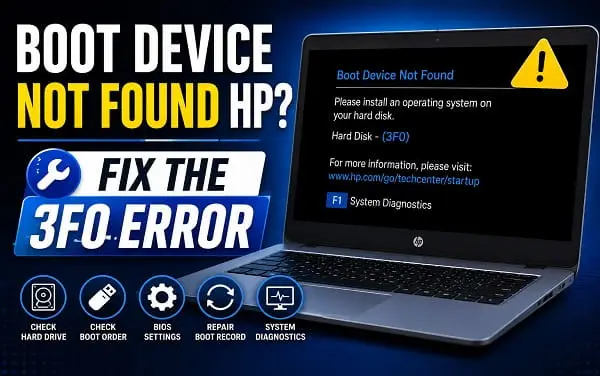
Seeing Boot Device Not Found on an HP laptop or desktop can be worrying because the message usually appears before Windows starts. You may see a black screen with an error such as “Boot Device Not Found”, “Hard Disk Error (3F0)”, or “Please install an operating system on your hard disk.”
The message means the HP computer cannot find a storage device or boot information that it can use to start Windows. That does not always mean the SSD or hard drive has completely failed. A BIOS setting, boot configuration problem, damaged Windows installation, loose storage connection, or failing drive can produce the same symptom.
I recommend checking the storage drive first and avoiding a Windows reinstall until you know whether the drive is healthy. HP’s own troubleshooting guidance for the 3F0 error starts with testing the hard drive or SSD through HP PC Hardware Diagnostics UEFI, then restoring BIOS defaults, with Windows recovery or reinstallation considered later if necessary.
What Does Boot Device Not Found Mean on an HP PC?
A boot device is the storage device that contains the files needed to start the operating system.
On a typical HP computer, Windows is installed on an SSD or hard drive. During startup, the firmware looks for a valid boot device and the required boot information.
When that device cannot be found or cannot be used, HP may display the Boot Device Not Found 3F0 error.
Common messages include:
- Boot Device Not Found
- Boot Device Not Found 3F0
- Hard Disk Error 3F0
- No boot device found
- Operating System Not Found
- Please install an operating system on your hard disk
The exact wording can vary by HP model and firmware version.
Why Does My HP Laptop Say Boot Device Not Found?
Several problems can cause the error.
The most common possibilities include:
- The SSD or hard drive is not detected
- The storage drive is failing
- BIOS settings were changed
- The boot configuration is damaged
- Windows installation files are corrupted
- The storage connection has a problem
- A BIOS update or hardware change affected startup
- The computer is attempting to boot from the wrong device
The important distinction is whether the storage drive is detected by the HP firmware and diagnostics.
If the drive is detected and passes testing, the problem may be related to Windows or the boot configuration. If the drive is missing or fails diagnostics, hardware becomes a much stronger possibility.
1. Run the HP Hard Drive or SSD Diagnostic Test
This should be one of your first steps.
HP provides PC Hardware Diagnostics UEFI, which can run before Windows starts. HP’s documentation says the diagnostics can be accessed by pressing F2 immediately after powering on, and its storage tests can help identify problems with the hard drive or SSD.
To run the test on many HP computers:
- Turn the computer off.
- Press the power button.
- Immediately press Esc repeatedly, about once per second.
- When the Startup Menu appears, press F2.
- Open the available storage or hard-drive diagnostic options.
- Run the quick storage test first.
- If the quick test passes but the problem remains, run the more extensive test if available.
On supported HP systems, you may see options for Hard Drive/SSD Drive Check, SMART Check, Short DST, or an extensive storage test.
HP specifically recommends testing the hard drive through PC Hardware Diagnostics UEFI for the 3F0 error.
What if the diagnostic cannot find the drive?
This is an important result.
If the diagnostic tool cannot detect the SSD or hard drive, the computer may have a storage hardware or connection problem.
Do not immediately reinstall Windows.
A Windows installer cannot fix a drive that the firmware itself cannot detect.
If the drive is missing from diagnostics, the next step is to investigate the storage hardware, connection, or replacement options for the specific HP model.
2. Check Whether the SSD or Hard Drive Appears in BIOS
You can also check the BIOS to determine whether the storage device is being detected.
On many HP computers, press F10 repeatedly immediately after turning the computer on to enter BIOS Setup.
Look for information relating to:
- Storage
- Hard drive
- SSD
- NVMe
- SATA
- Boot options
- UEFI boot devices
The exact menus vary by HP model.
If the internal SSD or hard drive is listed, that is useful information. It means the firmware can see the drive, although it does not prove that the drive is healthy.
If the storage device is completely absent, hardware or connection problems become more likely.
3. Restore the BIOS Defaults
A changed BIOS configuration can interfere with the boot process.
If you recently changed BIOS settings, installed hardware, changed boot options, or performed another firmware-related configuration, restoring the default BIOS settings can be worthwhile.
HP’s official 3F0 troubleshooting procedure specifically recommends restoring BIOS defaults. On the affected HP systems, the process is:
- Turn off the computer and wait about five seconds.
- Turn it on and repeatedly press F10 to enter BIOS Setup.
- Press F9 to load the BIOS Setup defaults.
- Press F10 to save and exit.
- Confirm the changes when prompted.
- Allow the computer to restart.
The exact key labels or menu appearance can vary by model, but HP documents F9 for loading BIOS defaults and F10 for saving and exiting in its 3F0 procedure.
After restoring the defaults, check whether Windows starts normally.
4. Check the Boot Order
If the SSD is detected but the HP computer still reports that no boot device is available, check the boot order.
Enter BIOS Setup and look for the Boot Options or similar menu.
The Windows boot entry should normally be available when Windows is installed in UEFI mode.
If multiple boot devices are present, the computer may be attempting to start from an incorrect device.
Do not randomly change BIOS boot settings if you are unsure what they mean. A change that does not match the way Windows was installed can create additional boot problems.
If restoring the BIOS defaults fixes the issue, leave the configuration at the working settings unless you have a specific reason to change it.
5. Disconnect External Drives and USB Devices
A USB flash drive or external storage device can sometimes affect which device the computer attempts to boot from.
Turn off the HP computer and disconnect unnecessary external devices, including:
- USB flash drives
- External hard drives
- Memory card readers
- USB hubs
- External docking devices
Leave the charger or power cable connected and restart the computer.
If Windows starts normally after removing an external device, reconnect the devices one at a time to identify what was affecting startup.
This is a simple check, but it is worth doing before changing BIOS settings or reinstalling Windows.
6. Use Windows Recovery if the Drive Is Detected
If the SSD or hard drive is detected and passes the HP diagnostic test, the problem may be with Windows rather than the physical drive.
If you can access Windows Recovery Environment, open:
Troubleshoot → Advanced options
Depending on your Windows installation and the available recovery tools, you may see options such as:
- Startup Repair
- System Restore
- Uninstall Updates
- Startup Settings
- Command Prompt
Start with Startup Repair.
Startup Repair can address certain problems that prevent Windows from starting correctly.
If the problem began after an update or configuration change, System Restore or Uninstall Updates may also be appropriate if those options are available.
If Windows recovery does not load normally or you need to start the computer in a diagnostic environment, see my guide on How to Boot Windows 11 in Safe Mode.
7. Check for a Damaged Windows Installation
A storage drive can be healthy while the Windows installation or boot information on it is damaged.
If Windows eventually starts but reports repair or integrity problems, you may also find Windows Resource Protection Error useful for understanding and fixing related system-file issues.
This can happen after:
- An interrupted Windows update
- A failed system update
- Sudden power loss
- Storage errors
- Malware or file corruption
- Manual changes to partitions
- Failed recovery operations
If the drive passes hardware diagnostics but Windows will not boot, concentrate on Windows recovery before assuming the SSD has failed.
Avoid formatting the drive at this stage if you have important files that are not backed up.
8. Reinstall Windows Only After Checking the Drive
Reinstalling Windows can be appropriate when the storage device is healthy but the operating system cannot be repaired.
However, it should not be your first response to a Boot Device Not Found 3F0 error.
HP lists Windows recovery or reinstallation as a later step after storage diagnostics and BIOS troubleshooting. HP also recommends backing up important data before reinstalling Windows because the process can result in data loss.
If your HP computer still has important files on the drive, try to protect those files before performing a reset or clean installation.
Depending on the model, HP provides recovery options such as the Windows Recovery Environment and HP Cloud Recovery.
9. Consider a Failing or Failed SSD
If the HP diagnostics report a storage failure, take the result seriously.
Warning signs include:
- The SSD or hard drive disappears from BIOS
- HP diagnostics cannot detect the drive
- The storage test fails
- The computer repeatedly reports 3F0
- Windows previously became extremely slow or unstable
- Files became corrupted
- The drive disappeared after a restart
- The problem started after physical damage or another hardware event
HP’s diagnostic procedure provides a failure ID when a storage test fails. HP recommends recording the failure ID and product information when contacting support.
If the drive is failing, reinstalling Windows is unlikely to provide a lasting solution. The storage device may need to be replaced.
What to Do if HP Boot Device Not Found 3F0 Keeps Coming Back
If the computer starts after resetting BIOS defaults but the same error returns later, do not assume the problem is permanently fixed.
A recurring 3F0 error can indicate an underlying storage problem.
Run the HP storage diagnostics again and check whether the SSD or hard drive is consistently detected.
If the drive repeatedly disappears, fails testing, or produces a failure ID, focus on the storage hardware rather than repeatedly changing Windows settings.
If the drive passes diagnostics but the error continues, investigate Windows boot configuration and recent system changes.
What If the HP SSD Is Detected but Windows Still Will Not Boot?
This is a different situation from an SSD that cannot be detected.
If BIOS and HP diagnostics can see the SSD, the computer is at least communicating with the storage device.
Next, try:
- Restoring BIOS defaults.
- Checking the boot options.
- Entering Windows Recovery Environment.
- Running Startup Repair.
- Trying System Restore if an appropriate restore point exists.
- Uninstalling a recent update if the problem began after one.
- Checking the Windows installation for corruption.
- Reinstalling Windows only after protecting important files and confirming that the storage drive is healthy.
The goal is to distinguish a drive detection problem from a Windows boot problem.
What If the HP Computer Says No Boot Device After an SSD Upgrade?
If you recently replaced or upgraded the SSD, check the physical installation and compatibility before changing Windows settings.
Make sure:
- The SSD is properly installed.
- The correct drive is being detected in BIOS.
- The drive is compatible with the HP model.
- Windows is installed on the replacement drive if you are trying to boot from it.
- The correct UEFI boot configuration is being used.
A new SSD that appears in BIOS but has no bootable Windows installation can produce a boot-device error even though the SSD itself is functioning correctly.
What If the Error Appears After a BIOS Update?
If the 3F0 error began immediately after a BIOS update, check the BIOS configuration first.
Restoring BIOS defaults can be appropriate, particularly if the update changed configuration settings.
Do not install an unrelated BIOS version simply to try to fix the problem. HP warns that BIOS updates should come from HP and that an incorrect BIOS installation can prevent the computer from starting or being recovered.
If the problem started after a BIOS update and restoring the defaults does not help, use the exact recovery and support instructions for your HP model.
What If You Have Important Files on the Drive?
Be careful before choosing Reset, formatting the drive, or reinstalling Windows.
If the drive is still detected and your files are important, prioritize data recovery or backup.
If the drive is failing, repeated attempts to boot it can potentially make a deteriorating storage device less reliable.
If you cannot access your files and they are important, professional data recovery may be safer than experimenting with repairs.
Boot Device Not Found vs Operating System Not Found
These messages are related but are not necessarily identical.
Boot Device Not Found generally means the computer cannot find a usable boot device.
Operating System Not Found means the computer has reached a different point in the boot process and cannot find an operating system it can start.
Both can be associated with storage detection, boot configuration, or Windows installation problems.
The exact message and diagnostic results are therefore useful when troubleshooting an HP computer.
What Not to Do When You See Boot Device Not Found
Avoid jumping directly to destructive solutions.
I would not recommend:
- Immediately formatting the SSD
- Reinstalling Windows before checking the drive
- Randomly changing BIOS settings
- Installing an unrelated BIOS version
- Repeatedly forcing the computer to restart without testing the storage
- Assuming the SSD has failed without running diagnostics
- Downloading recovery files from unknown websites
The first priority is to determine whether the HP computer can actually detect and test the storage device.
Frequently Asked Questions
What does Boot Device Not Found 3F0 mean on an HP laptop?
It means the HP computer cannot find a usable boot device containing the information needed to start Windows. The cause can be a storage detection problem, failing drive, BIOS configuration issue, damaged boot information, or Windows problem.
How do I fix Boot Device Not Found on an HP laptop?
Start by running HP PC Hardware Diagnostics UEFI on the hard drive or SSD. Then restore BIOS defaults and check whether the storage device is detected. If the drive passes testing, use Windows recovery tools before considering a reinstall.
How do I run the HP hard drive test?
Turn on the HP computer and repeatedly press Esc to open the Startup Menu. Press F2 to enter HP PC Hardware Diagnostics UEFI, then select the available hard drive or SSD test.
What does HP error 3F0 mean?
HP error 3F0 is associated with Boot Device Not Found or a hard disk error. It can occur when the computer cannot find or use the storage device needed for startup.
Can BIOS settings cause Boot Device Not Found?
Yes. An incorrect BIOS configuration can interfere with the computer’s ability to boot from the installed storage device. HP includes restoring BIOS defaults among its recommended troubleshooting steps for the 3F0 error.
Does Boot Device Not Found mean my SSD is dead?
No. The error does not automatically mean the SSD has failed. Run HP’s storage diagnostics first. If the SSD passes the tests and remains visible in BIOS, investigate boot configuration and Windows recovery.
Should I reinstall Windows when HP says Boot Device Not Found?
Not immediately. First test the SSD or hard drive and restore BIOS defaults. If the storage device is healthy but Windows cannot be repaired, reinstalling Windows may eventually be appropriate.
Can I recover my files from an HP laptop with error 3F0?
Possibly, especially if the SSD or hard drive is still detected and functioning. Avoid formatting or reinstalling Windows until you have protected important files. If the drive is failing, consider professional data recovery for valuable data.
The most important thing to remember with an HP Boot Device Not Found error is that the message is a symptom, not a diagnosis. Start by finding out whether the SSD or hard drive is visible and healthy.
Run HP PC Hardware Diagnostics UEFI, check the drive in BIOS, and restore the BIOS defaults if necessary. If the drive passes the hardware tests, move on to Windows recovery. If the drive cannot be detected or fails diagnostics, focus on the storage hardware instead of repeatedly reinstalling Windows.
That approach gives you a much better chance of fixing the 3F0 error without unnecessarily losing your files or replacing a component that is still working.
