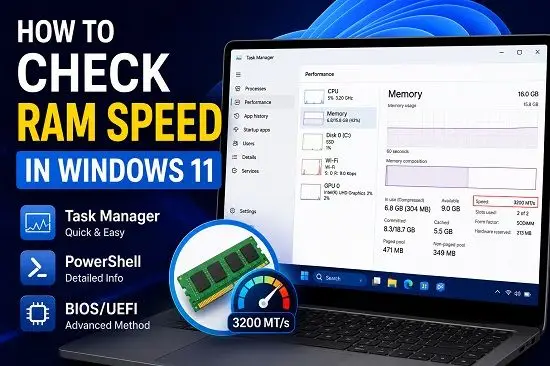
Knowing your RAM speed can be useful when upgrading your computer, troubleshooting performance problems, or checking whether newly installed memory is running at its expected speed.
Windows 11 provides several ways to check your RAM speed without opening your computer or installing third-party software. The easiest method is through Task Manager, but you can also use PowerShell, Command Prompt, or your computer’s BIOS/UEFI settings.
In this guide, you’ll learn how to check RAM speed in Windows 11 step by step and how to understand the number Windows reports.
What Is RAM Speed?
RAM speed refers to how quickly your computer’s memory can transfer data.
You may see memory advertised with specifications such as:
- DDR4-2666
- DDR4-3200
- DDR4-3600
- DDR5-4800
- DDR5-5600
- DDR5-6000
Modern DDR memory is commonly specified using MT/s, which means megatransfers per second. You may still see RAM speed described as MHz by retailers and manufacturers.
For example, DDR4-3200 has an effective data-transfer rate of 3200 MT/s, while its underlying memory clock is approximately 1600 MHz.
For most Windows 11 users, however, the number displayed in Task Manager is the easiest figure to use when checking how fast the RAM is currently operating.
Method 1: Check RAM Speed Using Task Manager
Task Manager is the easiest way to check your RAM speed in Windows 11.
You do not need to download any software, and the process only takes a few seconds.
Step 1: Open Task Manager
Press the following keys at the same time:
Ctrl + Shift + Esc
Windows will open Task Manager.
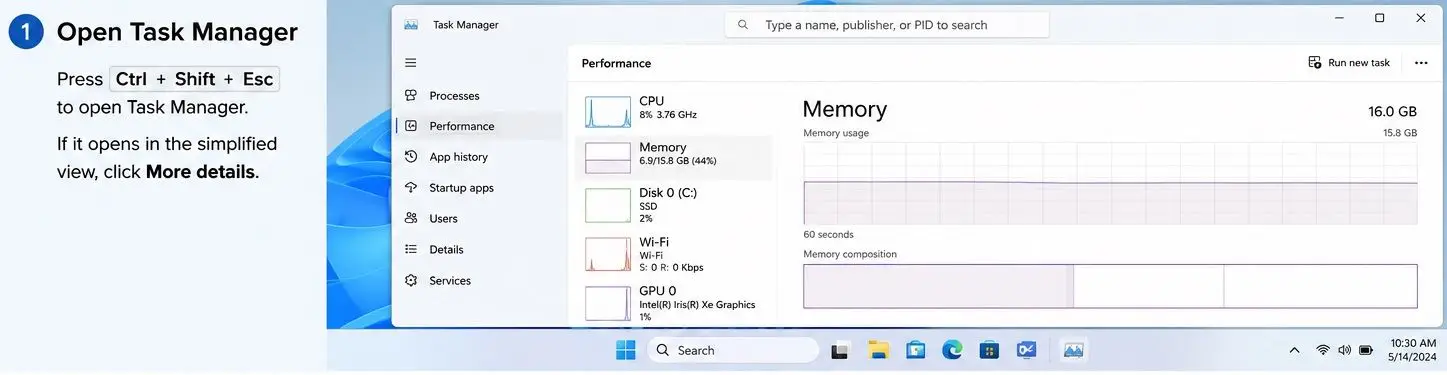
If Task Manager opens in a simplified view, click More details to display the full interface.
Step 2: Open the Memory Section
After opening Task Manager:
- Click Performance from the left-hand menu.
- Select Memory.
Windows will display information about the memory installed in your computer.
You should see details such as:
- Total RAM
- Memory currently in use
- Available memory
- Memory speed
- Slots used
- Form factor
- Hardware reserved
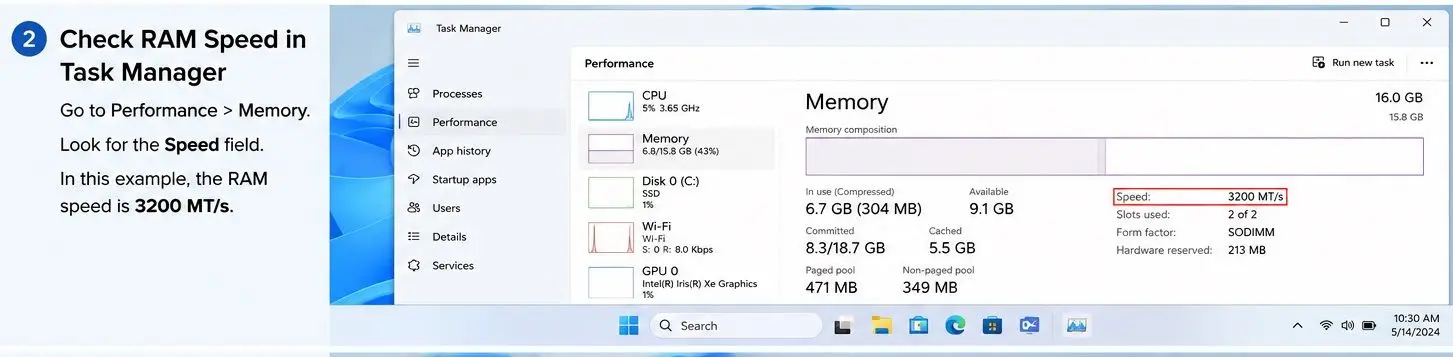
Step 3: Find the RAM Speed
Look for the Speed entry on the Memory page.
For example, your computer might display:
Speed: 3200 MT/s
This means Windows is reporting an effective memory data rate of 3200 MT/s.
The same screen may also show information such as:
Memory: 16.0 GB
Speed: 3200 MT/s
Slots used: 2 of 2
Form factor: SODIMM
The exact information displayed depends on your computer and memory configuration.
Method 2: Check RAM Speed Using PowerShell
PowerShell provides another built-in method for checking RAM speed.
This method is particularly useful if you want to see the reported speed of individual memory modules.
Step 1: Open PowerShell
Click the Windows Search button and type:
PowerShell
Right-click PowerShell and select Run as administrator.
Step 2: Run the RAM Speed Command
Enter the following command:
Get-CimInstance Win32_PhysicalMemory | Select-Object DeviceLocator, Speed
Press Enter.
Windows will return information about the installed memory modules.
For example:
DeviceLocator    Speed
-------------    -----
DIMM A1          3200
DIMM A2          3200
The exact output will depend on the number of memory modules installed in your computer.
This method can be particularly useful if you have multiple RAM sticks and want to see the speed reported for each module.
Method 3: Check RAM Speed Using Command Prompt
You can also use Command Prompt to retrieve RAM speed information.
Open Command Prompt and run:
wmic memorychip get devicelocator, speed
Windows may return something similar to:
DeviceLocator    Speed
DIMM 1           3200
DIMM 2           3200
The number represents the reported memory speed.
However, there is an important reason why this method is not our first recommendation.
WMIC is a deprecated Windows component, so PowerShell is a better option for a modern Windows 11 guide. If Task Manager already provides the information you need, there is also little reason to use Command Prompt.

Method 4: Check RAM Speed in BIOS or UEFI
Another way to check your RAM speed is through your computer’s BIOS or UEFI firmware.
This can be useful when Windows reports a speed that is lower than the specification printed on your RAM packaging.
How to Check RAM Speed in BIOS
- Restart your computer.
- During startup, press the BIOS or UEFI key used by your manufacturer.
- Look for a section such as Memory, DRAM, Advanced, Overclocking, Tweaker, or Memory Settings.
- Find the memory frequency or data-rate information.
- Check whether an XMP, EXPO, DOCP, or similar memory profile is enabled.
The exact menu names and keyboard shortcuts vary between manufacturers and motherboards.
Why Is My RAM Running Slower Than Advertised?
One of the most common reasons people check RAM speed is because Windows reports a lower speed than the specification advertised by the RAM manufacturer.
For example, you may have purchased:
DDR4-3200
but Windows reports a lower value.
This does not necessarily mean that your RAM is defective.
XMP or EXPO May Be Disabled
Performance RAM often requires a memory profile such as XMP or EXPO to operate at its advertised specification.
If the profile is not enabled, the motherboard may use a safer default memory setting.
Depending on your hardware, enabling the appropriate memory profile in BIOS or UEFI may allow the RAM to operate closer to its rated specification.
Your CPU or Motherboard May Limit the Speed
The maximum supported memory speed is not determined by the RAM alone.
It can depend on:
- Processor
- Motherboard
- BIOS version
- RAM configuration
- Number of installed modules
- Memory type
Therefore, buying DDR5-6000 memory does not automatically mean every computer will run it at 6000 MT/s.
Different RAM Modules Can Affect Performance
If you mix memory modules with different specifications, the system may operate them at a lower common setting.
For the best compatibility, matched RAM kits are generally preferable to combining unrelated memory modules.
How to Check If Your RAM Is Running at Full Speed
If you recently upgraded your RAM, follow these steps:
- Open Task Manager.
- Select Performance.
- Select Memory.
- Check the Speed value.
- Compare it with the advertised specification of your RAM.
- If the value is lower, check your BIOS or UEFI settings.
- Look for XMP, EXPO, DOCP, or another memory profile.
- Restart Windows and check the speed again.
Do not change memory settings simply because you want to see a higher number. Make sure the selected setting is supported by your processor, motherboard and RAM.
How to Check RAM Speed Without Opening Your Computer
You do not need to remove the RAM from your computer to check its speed.
The easiest method is:
Ctrl + Shift + Esc
Then go to:
Performance > Memory
and look for:
Speed
This method is especially useful for laptops because opening a laptop to access the RAM may be difficult or may void certain warranties.
How to Check RAM Speed on a Windows 11 Laptop
The process is the same on most Windows 11 laptops.
- Press Ctrl + Shift + Esc.
- Click Performance.
- Select Memory.
- Look for Speed.
Depending on your laptop, Task Manager may also show the number of slots being used and the memory form factor.
For example:
Memory: 16.0 GB
Speed: 3200 MT/s
Slots used: 2 of 2
Form factor: SODIMM
If your laptop uses soldered memory, you may not be able to upgrade or replace the RAM even though Windows can still report its speed.
How to Check RAM Speed Before Buying More RAM
If you are planning a RAM upgrade, checking speed alone is not enough.
You should also check:
- Current RAM capacity
- RAM generation
- Current speed
- Number of occupied slots
- Available slots
- Memory form factor
- Maximum supported memory
- Maximum supported speed
Task Manager can provide some of this information, while PowerShell, BIOS/UEFI and your computer manufacturer’s specifications can provide additional details.
For example, if Task Manager shows:
16 GB
3200 MT/s
SODIMM
you should still confirm that your laptop supports the type and capacity of RAM you intend to purchase.
Can Windows 11 Show the RAM Type?
Windows 11 does not always display every detail about your RAM in Task Manager.
If you need information such as the memory manufacturer’s name, part number or individual module details, PowerShell can provide additional information from the Win32_PhysicalMemory class.
You can also check your motherboard or laptop manufacturer’s specifications.
RAM Speed vs RAM Capacity
RAM speed and RAM capacity are two different things.
RAM capacity tells you how much memory your computer has.
Examples include:
8 GB
16 GB
32 GB
64 GB
RAM speed describes the effective data-transfer rate.
Examples include:
2666 MT/s
3200 MT/s
4800 MT/s
5600 MT/s
6000 MT/s
A computer can therefore have 16GB of RAM running at 3200 MT/s, or 16GB running at 5600 MT/s, depending on the memory technology and hardware.
More RAM does not automatically mean faster RAM, and faster RAM does not automatically mean more RAM capacity.
Common RAM Speeds
The following are examples of common memory specifications:
| RAM Specification | Effective Data Rate |
|---|---|
| DDR4-2666 | 2666 MT/s |
| DDR4-3200 | 3200 MT/s |
| DDR4-3600 | 3600 MT/s |
| DDR5-4800 | 4800 MT/s |
| DDR5-5200 | 5200 MT/s |
| DDR5-5600 | 5600 MT/s |
| DDR5-6000 | 6000 MT/s |
Your computer may support only certain memory types and speeds, so these numbers should not be treated as universal compatibility recommendations.
Which Method Should You Use?
For most Windows 11 users, Task Manager is the best option.
Use Task Manager if you simply want to know how fast your RAM is currently running.
Use PowerShell if you want to inspect individual RAM modules.
Use BIOS or UEFI if you are troubleshooting memory configuration or checking whether a memory profile such as XMP or EXPO is enabled.
Command Prompt can also provide the information, but PowerShell is the better choice for a modern Windows 11 system.
You might like to read:
- Hardware Accelerated GPU Scheduling: Should You Enable It?
- Boot Device Not Found HP? 9 Ways to Fix 3F0 Error
- How to Check BIOS Version on Windows 11 (6 Easy Methods)
Frequently Asked Questions
How do I check RAM speed in Windows 11?
Press Ctrl + Shift + Esc, open Performance, select Memory, and look for the Speed value.
How do I check RAM speed without Task Manager?
You can use PowerShell. Open PowerShell and run:
Get-CimInstance Win32_PhysicalMemory | Select-Object DeviceLocator, Speed
Is 3200 MHz RAM actually 3200 MHz?
DDR4-3200 refers to an effective data-transfer rate of 3200 MT/s. The underlying memory clock is approximately 1600 MHz because DDR memory transfers data twice per clock cycle.
Why does Task Manager show a lower RAM speed?
Possible reasons include a disabled XMP or EXPO profile, processor or motherboard limitations, BIOS settings, or the use of different memory modules.
Can I check RAM speed on a Windows 11 laptop?
Yes. Open Task Manager > Performance > Memory and look for Speed.
Can I check RAM speed from BIOS?
Yes. Restart your computer, enter BIOS or UEFI, and look for memory or DRAM settings. The exact location depends on the computer or motherboard manufacturer.
Does faster RAM make a computer faster?
Faster RAM can improve performance in certain workloads, but the actual benefit depends on the processor, applications, memory configuration and other hardware.
How do I know if my RAM is running at its advertised speed?
Check the Speed value in Task Manager and compare it with the specification of your RAM. If Windows reports a lower value, check your BIOS or UEFI memory settings and verify whether the appropriate memory profile is enabled.
Can I check RAM speed without installing software?
Yes. Windows 11 includes built-in tools such as Task Manager, PowerShell and BIOS/UEFI that can help you check memory speed.
What is the easiest way to check RAM speed?
Task Manager is the easiest method. Press Ctrl + Shift + Esc, select Performance, choose Memory, and look for Speed.
Final Answer
For most people, you can check your RAM speed in Windows 11 in less than a minute:
Ctrl + Shift + Esc
        ↓
Performance
        ↓
Memory
        ↓
Speed
If you need more detailed information about individual RAM modules, PowerShell is the better option.
If Windows reports a lower speed than your RAM’s advertised specification, check your BIOS or UEFI settings and make sure your memory configuration is supported by your motherboard and processor.
