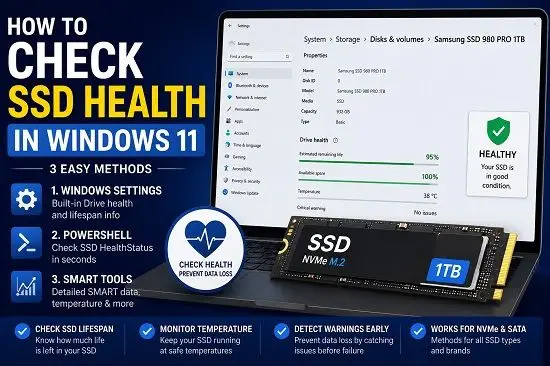
Your SSD stores Windows, applications, documents, photos, videos, and other important files. When an SSD starts developing problems, you may notice slow performance, file errors, crashes, or unexpected Windows issues.
Windows 11 provides built-in tools that can help you check the condition of your SSD without immediately installing third-party software. You can also use PowerShell or a SMART monitoring utility when you need more detailed information.
In this guide, you’ll learn how to check SSD health in Windows 11 using Windows Settings, PowerShell, and SMART monitoring tools. We’ll also explain estimated remaining life, available spare, temperature, critical warnings, and what to do if Windows reports a problem.
Can Windows 11 Check SSD Health?
Yes, but Windows 11 does not provide the same health information for every type of SSD.
Windows has a built-in Drive health section under:
Settings > System > Storage > Advanced storage settings > Disks & volumes
On supported NVMe drives, Windows can report information such as estimated remaining life, available spare capacity, temperature, and critical warnings.
If you have a SATA SSD and Windows does not show the same Drive health information, that does not automatically mean the SSD is failing. In that situation, a manufacturer diagnostic tool or SMART monitoring application may provide more useful information.
Method 1: Check SSD Health Using Windows 11 Settings
The first method is the easiest because it uses a tool already included with Windows 11.
Step 1: Open Windows Settings
Press:
Windows + IThis opens Windows Settings.
Step 2: Open Storage Settings
Go to:
System > Storage
Then select:
Advanced storage settings > Disks & volumes
Step 3: Select Your SSD
Find the SSD you want to check, select it, and click Properties.
Step 4: Look for Drive Health
If Windows supports health monitoring for your SSD, you should see a Drive health section.
Depending on the drive, it can show:
- Estimated remaining life
- Available spare
- Temperature
- Critical warning information
[INSERT SCREENSHOT 1 HERE — Windows 11 Settings > System > Storage > Disks & volumes > SSD Properties showing Drive health]
What Does Estimated Remaining Life Mean?
Estimated remaining life is an approximate indication of how much usable life the SSD has remaining according to the drive manufacturer’s prediction.
For example:
Estimated remaining life: 95%This is not a guarantee that the SSD will operate for a specific remaining period. It is a manufacturer-based estimate, and it should be interpreted alongside other diagnostic information.
What Does Available Spare Mean?
Available spare represents the normalized percentage of spare capacity remaining on the SSD.
For example:
Available spare: 100%A low value can indicate that the drive’s available spare capacity has fallen below the manufacturer’s threshold.
What Does SSD Temperature Mean?
Windows may also display the SSD temperature.
For example:
Temperature: 38°CTemperature varies by SSD model and workload. A higher temperature during heavy use does not automatically mean the SSD is failing, although unusually high temperatures combined with performance problems deserve investigation.
What Do SSD Critical Warnings Mean?
Windows can report important storage warnings such as low spare capacity, degraded reliability, or a drive becoming read-only.
A degraded-reliability warning can indicate significant media errors or an internal problem. A read-only warning means the drive can still be read but Windows cannot write new data to it.
If you see a critical warning, back up important data immediately.
What Should You Do If Windows Shows a Critical SSD Warning?
1. Back Up Important Files
Copy important documents, photos, videos, projects, and other irreplaceable files to another storage device or trusted cloud-storage service.
2. Check the SSD Manufacturer’s Diagnostic Tool
Use the utility appropriate for your SSD model to check its health, SMART information, firmware, and diagnostic results.
3. Prepare to Replace the SSD
If the manufacturer confirms that the drive is failing or Windows repeatedly reports degraded reliability, replacing the SSD is safer than continuing to depend on it.
Method 2: Check SSD Health Using PowerShell
PowerShell provides another built-in way to check the health status Windows currently reports for physical disks.
Step 1: Open PowerShell
Search for:
PowerShellRight-click it and select Run as administrator.
Step 2: Run the Disk Health Command
Enter:
Get-PhysicalDisk | Select-Object FriendlyName, HealthStatus, OperationalStatus, SizePress Enter.
You may see output similar to:
FriendlyName       HealthStatus   OperationalStatus   Size
------------       ------------   -----------------   ----
Samsung SSD 990    Healthy        OK                  1024209543168
The exact output depends on your hardware.
[INSERT SCREENSHOT 2 HERE — PowerShell showing Get-PhysicalDisk output with FriendlyName, HealthStatus and OperationalStatus]
Understanding HealthStatus
A result such as:
Healthyis generally a positive sign.
However, Healthy does not guarantee that every SMART attribute is perfect. It means Windows currently considers the physical disk healthy according to the information available through its storage-management system.
Understanding OperationalStatus
For example:
HealthStatus: Healthy
OperationalStatus: OK
is generally what you want to see.
If Windows reports an unexpected state, investigate further rather than immediately assuming the SSD must be replaced.
Method 3: Check SSD Health Using SMART Information
If Windows does not provide enough information, use a dedicated SMART monitoring application or your SSD manufacturer’s diagnostic software.
SMART stands for:
Self-Monitoring, Analysis and Reporting TechnologyA commonly used application for viewing SMART information is CrystalDiskInfo.
Step 1: Install a Trusted SMART Utility
Download the utility from its official source or another trusted distribution channel. Avoid unknown download sites.
Step 2: Select Your SSD
Open the application and select the SSD you want to inspect.
Depending on the SSD, SMART software may display:
- Overall health
- Temperature
- Power-on hours
- Total host reads
- Total host writes
- Percentage used
- SMART attributes
- Firmware version
- Drive model
- Interface information
Step 3: Examine the Health Information
Look at the overall health indicator and individual SMART attributes.
Do not make a replacement decision based on one number without understanding what that attribute means for your particular SSD model.
[INSERT SCREENSHOT 3 HERE — SMART monitoring application showing SSD health, temperature and key drive information]
Windows SSD Health vs PowerShell vs SMART
| Method | Best For | Detailed Health Information |
|---|---|---|
| Windows Settings | Quick health check | Good for supported NVMe SSDs |
| PowerShell | Windows health status | Basic |
| SMART utility | Detailed drive diagnostics | Extensive |
For most users, start with Windows Settings. If Windows does not show Drive health, use PowerShell for a basic check and a SMART utility or manufacturer diagnostic tool for deeper information.
Why Can’t I See SSD Health in Windows 11?
If you go to:
Settings > System > Storage > Advanced storage settings > Disks & volumes
and do not see Drive health, it does not automatically mean your SSD is unhealthy.
The built-in Drive health feature has hardware limitations and is primarily useful for supported NVMe storage devices. SATA SSDs may not expose the same information through this interface.
If Windows does not provide the information you need, use the SSD manufacturer’s diagnostic software or a reputable SMART monitoring application.
How to Check Whether Your SSD Is NVMe or SATA
Using Device Manager
Press:
Windows + XSelect Device Manager, expand Disk drives, and note your SSD model.
Search the exact model on the manufacturer’s website to determine whether it is NVMe or SATA.
Using PowerShell
Run:
Get-PhysicalDisk | Select-Object FriendlyName, BusType, MediaType, HealthStatusThis can provide additional information about the physical storage device.
How to Know If an SSD Is Failing
Watch for:
- Repeated storage warnings
- File corruption
- Applications crashing while accessing files
- Unexpected freezes
- The SSD disappearing from Windows
- The drive becoming read-only
- SMART diagnostics reporting serious errors
- Significant deterioration in health indicators
- Unexplained boot problems
A particularly relevant Windows issue is 0xC0000185, which can sometimes involve storage or boot-access problems. See our guide on Windows 11 Error 0xC0000185: How to Fix It.
Do not automatically blame the SSD for every boot problem because storage, boot configuration, firmware, drivers, and other hardware can also cause startup errors.
Does a Slow SSD Mean It Is Failing?
Not necessarily.
Slow SSD performance can be caused by:
- Low free storage space
- Background processes
- Overheating
- Outdated firmware
- Driver problems
- Heavy disk activity
- Windows updates
- File-system problems
SSD health and SSD performance should therefore be treated as related but separate issues.
If the drive reports healthy but Windows remains slow, investigate other possible causes before replacing the SSD.
How Much Free Space Should an SSD Have?
Avoid keeping an SSD completely full.
Windows needs free space for temporary files, updates, caching, applications, and other operations.
Open:
Settings > System > Storage
to see how your storage is being used.
If the drive is nearly full, remove unnecessary files or move large personal files elsewhere.
Does Formatting Fix SSD Health Problems?
No.
Formatting can resolve some file-system problems, but it cannot repair physical NAND wear, a failing SSD controller, or degraded drive reliability.
If a diagnostic tool reports serious physical-health problems, formatting the drive is not a real solution.
Always back up important data before formatting a drive.
Should You Defragment an SSD?
Do not manually treat an SSD like a traditional mechanical hard drive.
Windows handles SSD optimization differently from HDD defragmentation. If you want to access the Windows storage optimization tool, search for:
Defragment and Optimize DrivesAllow Windows to determine the appropriate optimization operation for the selected drive.
How Often Should You Check SSD Health?
You do not need to check your SSD every day.
Periodic checks are useful if:
- The SSD is several years old.
- You use the computer heavily.
- You frequently write large amounts of data.
- The system has started behaving unusually.
- You experience file corruption.
- You see storage-related errors.
- You are preparing to replace or upgrade the computer.
Check the drive immediately if Windows displays a critical storage warning.
SSD Health Is Not a Substitute for Backups
An SSD can report healthy today and still experience an unexpected hardware failure later.
Do not rely on an SSD health percentage as your only protection against data loss.
Keep important files backed up to another physical drive, NAS, or trusted cloud-storage service.
If Windows reports a critical warning, back up important files before attempting extensive troubleshooting.
How to Check SSD Health Before Replacing Your Drive
If you’re considering replacing your SSD because the computer feels slow, check the drive before spending money.
Start with:
1. Windows Drive health
2. PowerShell HealthStatus
3. SMART information
4. Manufacturer diagnostic software
5. SSD temperature
6. Available storage space
7. Firmware status
This gives you a better picture of whether the SSD itself is responsible for the problem.
If you’re checking other PC hardware, you can also read our guide on How to Check RAM Speed in Windows 11.
Frequently Asked Questions
How do I check SSD health in Windows 11?
Open Settings > System > Storage > Advanced storage settings > Disks & volumes, select your SSD, open Properties, and look for Drive health.
How do I check SSD health without installing software?
Use Windows Settings or PowerShell. Supported NVMe drives can expose health information through Windows Settings, while PowerShell provides a basic Windows-reported physical-disk health status.
Why doesn’t Windows 11 show my SSD health?
The built-in Drive health feature does not expose the same information for every storage device. SATA SSDs may not show the same health information available for supported NVMe drives.
How do I check SSD health using PowerShell?
Open PowerShell as administrator and run:
Get-PhysicalDisk | Select-Object FriendlyName, HealthStatus, OperationalStatus, SizeIs 90% SSD health good?
An estimated remaining-life value of 90% generally indicates substantial remaining life according to the drive’s health estimate. It is not a guarantee of how long the SSD will continue working.
Should I replace an SSD at 80% health?
Not automatically. There is no universal replacement threshold based on one percentage. Consider the manufacturer’s specifications, SMART information, errors, performance, and warning conditions.
What does SSD estimated remaining life mean?
It is an approximate indication of remaining drive life based on the manufacturer’s prediction. It should not be interpreted as an exact countdown to failure.
What does available spare mean on an SSD?
Available spare is a normalized percentage representing the remaining spare capacity available on a supported SSD. A low value can trigger a critical warning.
Can an SSD be healthy but slow?
Yes. Low free space, thermal throttling, firmware problems, background activity, Windows issues, and other hardware problems can cause slow SSD performance even when the drive reports a healthy status.
Does formatting improve SSD health?
No. Formatting can fix certain file-system problems but cannot reverse physical NAND wear or repair a failing SSD controller.
How often should I check SSD health?
Periodic checks are sufficient for most users. Check again whenever you notice storage-related problems or Windows displays a critical warning.
The Easiest Way to Check SSD Health in Windows 11
For a supported NVMe SSD, the quickest built-in method is:
Settings
   ↓
System
   ↓
Storage
   ↓
Advanced storage settings
   ↓
Disks & volumes
   ↓
Select your SSD
   ↓
Properties
   ↓
Drive health
If Windows shows estimated remaining life, available spare, temperature, and no critical warnings, that is a useful first indication of the drive’s current condition.
If Windows does not show Drive health, do not assume your SSD is failing. Use PowerShell for a basic health check and a reputable SMART utility or your SSD manufacturer’s diagnostic software for more detailed information.
Most importantly, keep backups of important files regardless of what your SSD health report says.
