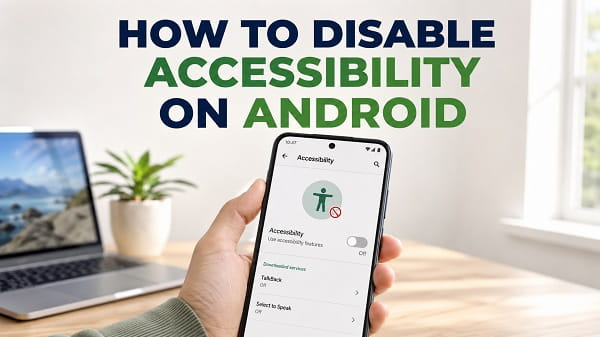
Accessibility features on Android are designed to make phones easier to use for people with vision, hearing, mobility, and interaction needs. Features such as TalkBack, Voice Access, Magnification, Switch Access, Select to Speak, and accessibility shortcuts can be extremely useful when you need them.
The problem starts when one of these features is turned on accidentally, a floating accessibility button suddenly appears on the screen, or an app requests accessibility access and you no longer want it to have that permission.
If you are trying to figure out how to disable accessibility on Android, the first thing to know is that Android does not normally have one master switch that turns off every accessibility feature at once. You need to identify the feature or app that is active and disable it individually.
On many Android phones, start with:
Settings > Accessibility
From there, look for the feature that is currently enabled and turn it off. If a third-party app has accessibility access, open the installed or downloaded apps section inside Accessibility, select the app, and disable its service.
The exact menu names can vary between Google Pixel, Samsung Galaxy, Motorola, Xiaomi, Redmi, OnePlus, Oppo, Realme, Tecno, Infinix, and other Android phones, so I will cover the most common possibilities below.
Quick Way to Disable Accessibility on Android
If you know which accessibility feature is enabled, the fastest method is usually:
- Open Settings.
- Tap Accessibility.
- Find the active accessibility feature or service.
- Tap it.
- Turn off the main switch or its shortcut.
- Confirm the change if Android asks.
For example, if TalkBack is reading everything on the screen aloud, open:
Settings > Accessibility > TalkBack
Then turn TalkBack off.
If a downloaded app has been granted accessibility access, look for a section called Installed apps, Downloaded apps, Installed services, or something similar inside the Accessibility menu. Select the app and turn its accessibility service off.
Do not turn off accessibility services randomly if you rely on them. Some are specifically designed for users who need additional assistance operating the phone.
Why There Is No Single Accessibility Off Switch
Android accessibility is a collection of separate tools rather than one operating mode.
Your phone may include features such as:
- TalkBack
- Voice Access
- Magnification
- Select to Speak
- Switch Access
- Accessibility Menu
- Live Transcribe
- Sound Notifications
- Color correction
- Color inversion
- Extra dim
- Hearing aid support
- Interaction controls
- Accessibility shortcuts
Third-party apps can also offer their own accessibility services.
That means a person who says “accessibility is on” could actually be dealing with several different things.
If your phone is speaking every item you touch, TalkBack is probably active. If you see a person-shaped or floating accessibility icon, an accessibility shortcut is probably enabled. If the screen is enlarged, Magnification may be active. If a banking or security app says another app is using accessibility, a third-party accessibility service may be running.
Finding the specific feature first prevents you from changing unrelated settings.
How to Check Which Accessibility Feature Is Enabled
Open:
Settings > Accessibility
Look through the available sections for anything marked On, Enabled, or Allowed.
Depending on your phone, pay particular attention to:
- TalkBack
- Accessibility Menu
- Voice Access
- Magnification
- Switch Access
- Installed apps
- Downloaded apps
- Installed services
- Accessibility shortcuts
You can also use the search box at the top of Android Settings.
Try searching for:
- accessibility
- TalkBack
- accessibility shortcut
- installed services
- installed apps
- Voice Access
- magnification
If your issue started immediately after installing an app, check whether that app appears under the accessibility services list.
How to Turn Off TalkBack on Android
TalkBack is one of the most common reasons people search for ways to disable accessibility.
When TalkBack is enabled, the phone reads screen content aloud and changes how normal taps and swipes work. A single tap usually selects an item, while a double-tap activates it. Scrolling may also require two fingers.
Turn Off TalkBack With the Volume Buttons
If the TalkBack shortcut was enabled:
- Press and hold Volume Up and Volume Down at the same time.
- Keep holding them for a few seconds.
- Listen for the confirmation that TalkBack has been turned off.
The shortcut only works if it was previously configured for TalkBack.
Turn Off TalkBack Through Settings
If the volume shortcut does not work:
- Open Settings.
- Select Accessibility.
- Tap TalkBack.
- Turn off Use TalkBack or the main TalkBack switch.
- Confirm that you want to stop TalkBack.
Remember that when TalkBack is active, you may need to tap an option once to select it and then double-tap to open it.
Google also allows you to disable the TalkBack shortcut separately. This is useful if TalkBack keeps getting activated accidentally when you press both volume keys.
Go to:
Settings > Accessibility > TalkBack > TalkBack shortcut
Then turn the shortcut off.
Google’s current Android Accessibility documentation confirms both the volume-key method and the Settings method for disabling TalkBack.
How to Disable an App’s Accessibility Service
Some Android apps request accessibility access because they need to observe screen content or perform actions on your behalf.
Examples can include:
- Password managers
- Automation apps
- Screen-control utilities
- Accessibility tools
- Parental-control apps
- App blockers
- Some security applications
- Certain floating control tools
The exact location varies by manufacturer.
On many Android phones:
- Open Settings.
- Tap Accessibility.
- Look for Installed apps, Downloaded apps, or Installed services.
- Select the app.
- Turn off its accessibility service.
- Confirm the change.
On a Samsung Galaxy phone, the usual path on current One UI versions is:
Settings > Accessibility > Installed apps
Select the app and turn its service off.
Samsung’s current support documentation states that installed accessibility apps and services can be reviewed and switched on or off from this screen.
If an app no longer needs accessibility access, disabling the service reduces the amount of control that app has over your device.
If the app also displays floating buttons or content over other apps, accessibility permission may not be the only setting involved. Android treats overlay permission separately. I have explained that distinction in Android Display Over Other Apps Explained.
How to Remove the Accessibility Button From Android
A small accessibility button may appear in the navigation bar or as a floating icon on the side of the screen.
It can look like a person with outstretched arms, although the appearance may differ depending on the Android version and manufacturer.
The button itself does not necessarily mean every accessibility feature is enabled. It usually means a shortcut has been assigned to one or more accessibility services.
To remove it on many Android phones:
- Open Settings.
- Tap Accessibility.
- Select the accessibility feature using the button.
- Open its Shortcut setting.
- Unselect the accessibility button shortcut.
- Tap Save if prompted.
Google currently supports several types of accessibility shortcuts, including the on-screen accessibility button, floating button, volume-key shortcut, swipe gesture, and Quick Settings shortcut.
On Android 14, a floating accessibility button can also be dragged to Remove in supported configurations. Disabling the shortcut from Settings is the better option if you do not want it to return.
How to Disable the Accessibility Shortcut
Sometimes the accessibility feature is already off, but the shortcut remains enabled. This can cause the feature to be activated accidentally later.
To remove an accessibility shortcut:
- Open Settings.
- Tap Accessibility.
- Select the accessibility app or feature.
- Open its shortcut setting.
- Unselect the shortcut you no longer want.
- Tap Save.
Possible shortcut methods include:
- Accessibility button
- Floating accessibility button
- Both volume keys
- Two-finger or three-finger swipe
- Triple tap for Magnification
- Quick Settings tile
If you repeatedly trigger TalkBack when adjusting your volume, removing the volume-key shortcut is particularly useful.
How to Turn Off the Accessibility Menu
Accessibility Menu provides a large on-screen menu for common actions such as volume, brightness, screenshots, lock screen controls, and navigation.
If you enabled it accidentally:
- Open Settings.
- Tap Accessibility.
- Tap Accessibility Menu.
- Turn off Accessibility Menu shortcut.
The accessibility icon associated with the menu should disappear once its shortcut is disabled.
If it remains visible, another accessibility feature may also be using the same shortcut button. Check your other active services.
How to Turn Off Voice Access
Voice Access lets you control an Android device with spoken commands.
If Voice Access is currently listening and you only want to pause it, you can say:
Stop listening
You may also be able to pause it from its notification or activation button.
To disable Voice Access completely:
- Open Settings.
- Tap Accessibility.
- Tap Voice Access.
- Turn Voice Access off.
If you do not want to disable the service completely but keep activating it accidentally, open its shortcut settings and remove the shortcut instead.
How to Turn Off Magnification
If your Android screen suddenly appears zoomed in, Magnification may have been activated.
To stop an active magnification session, use the same magnification shortcut again.
To prevent it from being activated accidentally:
- Open Settings.
- Tap Accessibility.
- Tap Magnification.
- Find Magnification shortcut.
- Turn the shortcut off.
Depending on your Android version, Magnification may support full-screen zoom, partial-screen zoom, triple-tap activation, an accessibility button, or another shortcut.
Do not confuse Android Magnification with zoom controls inside individual apps such as Chrome, Google Maps, Photos, or your camera.
How to Turn Off Switch Access
Switch Access is designed to let a person interact with an Android device using switches instead of standard touchscreen gestures.
If it is enabled and you no longer need it:
- Open Settings.
- Tap Accessibility.
- Find Switch Access.
- Turn the feature off.
The exact wording may differ depending on the Android version and whether Switch Access is installed as part of an accessibility package.
If Switch Access keeps starting through a button combination, also check its accessibility shortcut and disable that shortcut.
How to Disable Accessibility on Samsung Galaxy
Samsung organizes accessibility settings slightly differently from stock Android.
Start with:
Settings > Accessibility
From here you may see categories such as:
- TalkBack
- Vision enhancements
- Hearing enhancements
- Interaction and dexterity
- Accessibility shortcuts
- Installed apps
Disable TalkBack on Samsung
Go to:
Settings > Accessibility > TalkBack
Turn TalkBack off.
Samsung also supports holding Volume Up and Volume Down together for about three seconds when the shortcut has been assigned to TalkBack.
Disable a Third-Party Accessibility App on Samsung
Go to:
Settings > Accessibility > Installed apps
Select the app and turn its service off.
Remove Samsung Accessibility Shortcuts
On recent Galaxy software, go to:
Settings > Accessibility > Accessibility shortcuts
From there, check options such as:
- Accessibility button
- Side and Volume up buttons
- Volume up and down buttons
Remove the accessibility service from any shortcut you do not want to use.
Samsung changes menu wording between One UI versions, so use the Settings search box and search for Accessibility shortcuts if the path looks different on your phone.
How to Disable Accessibility on Google Pixel
Google Pixel phones usually stay close to the standard Android menu layout.
Open:
Settings > Accessibility
Then select the feature you want to disable.
For TalkBack:
Settings > Accessibility > TalkBack
For Magnification:
Settings > Accessibility > Magnification
For Voice Access:
Settings > Accessibility > Voice Access
For a shortcut, open the relevant accessibility feature and disable its shortcut.
If you cannot find the feature manually, search for its name from the main Settings screen.
How to Disable Accessibility on Xiaomi, Redmi, and Poco
Xiaomi, Redmi, and Poco phones may organize third-party accessibility services differently depending on whether the phone uses MIUI or HyperOS.
Start by opening:
Settings > Additional settings > Accessibility
or search for Accessibility directly from Settings.
Look for areas such as:
- Downloaded apps
- Installed services
- Vision
- Physical
- Hearing
Select the active service and switch it off.
Menu names can change between HyperOS versions and device regions, so Settings search is often faster than following a fixed path.
How to Disable Accessibility on OnePlus, Oppo, and Realme
OnePlus OxygenOS, Oppo ColorOS, and Realme UI share some menu similarities, although wording varies between releases.
Start with:
Settings > Accessibility & convenience
or:
Settings > Additional settings > Accessibility
Look for downloaded or installed accessibility services, select the relevant app, and turn the service off.
If those menu names are not present, search Settings for the exact name of the app or feature.
How to Disable Accessibility on Tecno and Infinix
Tecno HiOS and Infinix XOS can place accessibility settings in slightly different locations between models.
The simplest approach is:
- Open Settings.
- Use the Settings search bar.
- Search for Accessibility.
- Open the Accessibility menu.
- Check downloaded or installed services.
- Turn off the unwanted service.
If the problem is TalkBack, search directly for TalkBack.
Why Does Accessibility Keep Turning Back On?
If an accessibility feature returns after you disable it, check how it is being activated.
An Accessibility Shortcut Is Still Enabled
You may have turned off the service but left its shortcut configured.
Check:
Settings > Accessibility > [Feature] > Shortcut
Remove the volume-key, accessibility button, gesture, or Quick Settings shortcut.
An App Keeps Asking for Accessibility Permission
Some apps depend heavily on accessibility access. After you disable the permission, the app may display repeated prompts asking you to enable it again.
Decide whether you actually need the feature that requires the permission.
If not, leave accessibility disabled or uninstall the app.
You Are Triggering TalkBack With the Volume Keys
Holding both volume buttons can activate an accessibility service if the shortcut has been configured.
Disable the TalkBack shortcut if this keeps happening accidentally.
A Floating Button Is Assigned to Another Service
Removing one accessibility service does not always remove the floating accessibility button if another service also uses it.
Review all accessibility shortcuts and remove the assignments you no longer need.
Why Does My Banking App Say Accessibility Is Enabled?
Banking and security apps may warn you when another application has accessibility access because accessibility services can have powerful capabilities.
Do not assume the Accessibility menu itself is dangerous. The important question is which application has been granted accessibility access.
Open:
Settings > Accessibility
Then inspect Installed apps, Downloaded apps, or Installed services.
If you find an unfamiliar app with accessibility access:
- Turn its accessibility service off.
- Check the app’s permissions.
- Uninstall the app if you do not recognize or trust it.
- Run Google Play Protect.
- Restart the phone.
- Open the banking app again.
Some website-blocking and parental-control apps legitimately use accessibility services to monitor which app or page is open. If you use this type of software, understand why it needs the permission before enabling it. My article on how to block internet sites on Android explains some of the different blocking methods and why not all of them require the same permissions.
Is Accessibility Permission the Same as Display Over Other Apps?
No.
Accessibility access and display-over-other-apps permission are separate Android capabilities.
An accessibility service may be able to observe interface events or perform supported actions for the user.
Display over other apps allows an application to place interface elements above other apps.
Some apps request both permissions, which is why the two settings are sometimes confused.
If you are trying to remove a floating bubble, overlay, or persistent pop-up, disabling accessibility may not solve the problem if the app still has permission to appear over other apps.
Should You Disable Every Accessibility Service?
Usually, no.
Built-in Android accessibility features are legitimate tools, and many people rely on them every day.
Instead of trying to disable everything, review what is currently active and turn off only the feature causing the problem.
Be more cautious with third-party accessibility services. If an unfamiliar app has accessibility access and you do not understand why it needs that level of control, disabling the service is a sensible first step.
You can always re-enable a trusted accessibility tool later if you need it.
Frequently Asked Questions
How do I completely turn off accessibility on Android?
Android does not normally provide one universal switch for every accessibility feature. Open Settings > Accessibility, identify the active feature or service, and disable it individually. Also check accessibility shortcuts and installed accessibility apps.
Why is the accessibility icon showing on my Android phone?
The accessibility icon usually appears because one or more accessibility shortcuts are enabled. Open the relevant accessibility feature and turn off its accessibility button or shortcut.
How do I remove the little accessibility person from my screen?
Open Settings > Accessibility, find the feature assigned to the accessibility button, open its shortcut settings, and remove the on-screen accessibility button. If several services use the button, remove each unwanted assignment.
How do I turn off accessibility without using Settings?
If TalkBack is the problem and its volume-key shortcut is enabled, press and hold both volume buttons for a few seconds. Other accessibility features may have their own configured shortcuts.
Why can’t I turn off TalkBack normally?
TalkBack changes touchscreen gestures. Tap an item once to select it, then double-tap to activate it. Scroll with two fingers. You can also use the volume-key shortcut if it is enabled.
How do I stop an app from using accessibility?
Go to Settings > Accessibility, open Installed apps, Downloaded apps, or Installed services, select the application, and turn its accessibility service off.
Is it safe to turn off Android accessibility?
Yes, if you do not need the specific feature you are disabling. Turning off an accessibility service may remove functionality that you or another person using the device relies on, so check what the service does first.
Can an accessibility app control my phone?
Accessibility services can be granted powerful capabilities that help them observe interface events and perform supported actions. Only grant accessibility access to apps you trust and whose purpose clearly requires it.
Why does TalkBack keep coming on by itself?
The TalkBack shortcut may still be assigned to the volume keys or another accessibility shortcut. Disable the TalkBack shortcut in Settings > Accessibility > TalkBack.
Does uninstalling an app remove its accessibility access?
Removing the app also removes the accessibility service provided by that app. If you still use the app but no longer want it to have accessibility access, disable the service from Accessibility settings instead.
Turn Off Only the Accessibility Feature You Do Not Need
When you want to disable accessibility on Android, avoid searching for one global off switch. Start with Settings > Accessibility, find the feature or third-party service that is actually active, and disable that specific item.
If your phone is talking to you, check TalkBack. If the screen is enlarged, check Magnification. If you see a floating accessibility icon, review accessibility shortcuts.
If a banking app is warning about accessibility access, inspect the installed accessibility services and disable any app you do not trust or no longer need. This approach fixes the problem without unnecessarily disabling useful Android accessibility tools.
