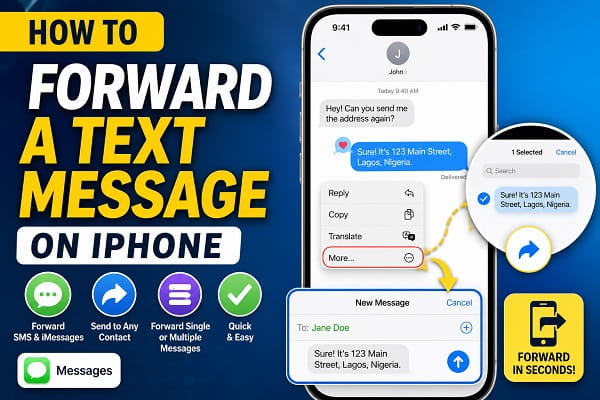
There are many situations where you may need to forward a text message on your iPhone. Perhaps you received an important address that you want to send to a family member, a verification code that needs to be shared with another device, or a message from a colleague that someone else needs to see.
Fortunately, iPhones make it easy to forward both SMS text messages and iMessages without copying and pasting the content manually.
Whether you’re using the latest iPhone 16, an older iPhone model, or any recent version of iOS, this guide will show you exactly how to forward text messages, multiple messages, photos, videos, and even entire conversations.
I’ll also explain what to do if message forwarding isn’t working and answer some of the most common questions iPhone users have.
Can You Forward Text Messages on an iPhone?
Yes.
Apple allows you to forward:
- SMS text messages
- MMS messages
- iMessages
- Photos
- Videos
- Voice messages
- Links
- Contact information
- Location messages
The forwarding process is almost identical regardless of the type of message.
Once forwarded, the recipient receives the original message just as if you had typed it yourself.
What’s the Difference Between SMS and iMessage?
Before getting started, it’s helpful to understand the two types of messages your iPhone supports.
SMS (Short Message Service)
SMS messages are sent through your mobile carrier.
They usually appear as green message bubbles inside the Messages app.
SMS works between:
- iPhone and Android
- iPhone and basic phones
- Most mobile devices
iMessage
iMessage is Apple’s internet-based messaging service.
These messages appear as blue bubbles.
iMessages support:
- High-quality photos
- Videos
- Read receipts
- Message reactions
- Encryption
- Group chats
- Effects
The good news is that both SMS and iMessages can be forwarded using the same method.
Method 1: Forward a Single Text Message on iPhone
This is the fastest way to forward one message.
Follow these steps:
- Open the Messages app.
- Open the conversation containing the message.
- Press and hold the message you want to forward.
- Tap More from the pop-up menu.
- A blue checkmark will appear beside the selected message.
- Tap the Forward arrow in the bottom-right corner.
- Enter the recipient’s name or phone number.
- Tap Send.
The selected message will immediately be forwarded to the new recipient.
This method works for both SMS and iMessages.
Method 2: Forward Multiple Messages at Once
If you need to send several messages together, you don’t have to forward them individually.
Here’s how:
- Open the conversation.
- Press and hold one message.
- Tap More.
- Tap additional messages to select them.
- Each selected message will display a blue checkmark.
- Tap the Forward icon.
- Choose the recipient.
- Tap Send.
All selected messages will be included in a single forwarded message.
This is useful when sharing:
- Conversation history
- Instructions
- Directions
- Appointment details
- Order confirmations
Method 3: Forward Photos and Videos in Messages
Photos and videos can also be forwarded without downloading them first.
To do this:
- Open the conversation.
- Press and hold the photo or video.
- Tap More.
- Select the media you want.
- Tap the Forward button.
- Choose the recipient.
- Tap Send.
Your recipient will receive the original media file.
Method 4: Forward Voice Messages
Voice messages can be shared in much the same way.
Simply:
- Open the conversation.
- Press and hold the voice message.
- Tap More.
- Tap the Forward icon.
- Select the recipient.
- Send the message.
If the forwarding option isn’t available, saving the voice message first may be necessary depending on your iOS version.
Method 5: Forward Messages to Another Apple Device
If you own multiple Apple devices, you can have text messages appear across all of them automatically.
Apple calls this Text Message Forwarding.
To enable it:
- Open Settings.
- Tap Apps.
- Select Messages.
- Tap Text Message Forwarding.
- Turn on the Apple devices you want to receive messages.
After setup, SMS messages received on your iPhone can also appear on your:
- iPad
- Mac
- Other eligible Apple devices signed in with the same Apple ID
This feature is especially useful if you frequently switch between devices throughout the day.
Why Can’t I Forward a Text Message?
Sometimes the Forward option doesn’t appear.
Common reasons include:
The Message Wasn’t Selected Properly
Make sure you press and hold the message until the menu appears, then choose More.
You’re Using an Older iOS Version
Older versions of iOS may display slightly different menus.
Updating your iPhone often resolves missing features.
Temporary Software Glitch
Restart your iPhone and try again.
A simple restart fixes many temporary issues within the Messages app.
The Message Failed to Download
If a photo or attachment hasn’t fully downloaded, forwarding may not work until the download finishes.
If you’re experiencing broader issues with your iPhone, you may also find these guides helpful:
- How to Turn Off Do Not Disturb on iPhone
- How to Turn Off Vibration on iPhone
- How to Find Saved WiFi Passwords on iPhone
Method 6: Forward a Text Message to an Android Phone
One of the most common questions iPhone users ask is whether they can forward a message to an Android device.
The answer is yes.
The forwarding process is exactly the same whether the recipient uses an iPhone or an Android phone.
To forward a message:
- Open the Messages app.
- Open the conversation.
- Press and hold the message.
- Tap More.
- Tap the Forward icon.
- Enter the Android user’s phone number.
- Tap Send.
If the recipient doesn’t use iMessage, your iPhone automatically sends the forwarded message as a regular SMS or MMS through your mobile carrier.
Method 7: Use Text Message Forwarding Across Apple Devices
Apple also includes a feature called Text Message Forwarding, which allows SMS messages received on your iPhone to appear on your other Apple devices.
This is different from manually forwarding an individual message.
To enable it:
- Open Settings.
- Tap Apps.
- Select Messages.
- Tap Text Message Forwarding.
- Enable the devices you’d like to receive messages on.
All selected devices must:
- Be signed in with the same Apple ID.
- Have iMessage enabled.
- Be connected to the internet.
Once enabled, you can continue conversations from your Mac or iPad without reaching for your iPhone.
Why Is Text Message Forwarding Missing?
Some users can’t find the Text Message Forwarding option in Settings.
If this happens, try these fixes.
Sign In with the Same Apple ID
Your iPhone and other Apple devices must use the same Apple Account.
To check:
- Open Settings.
- Tap your name at the top.
- Verify the Apple ID matches your other devices.
Enable iMessage
The forwarding feature won’t appear unless iMessage is turned on.
Go to:
Settings > Apps > Messages
Then make sure iMessage is enabled.
Update iOS
An outdated version of iOS may prevent certain messaging features from appearing.
To update:
- Open Settings.
- Tap General.
- Select Software Update.
- Install any available updates.
Restart Your Devices
Sometimes the option appears after restarting both your iPhone and your other Apple device.
What If the Forward Button Doesn’t Appear?
If you don’t see the Forward button after pressing and holding a message, try the following solutions.
Select “More”
Many users accidentally tap Reply or Copy instead of More.
The Forward option only appears after selecting More.
Update the Messages App
Although the Messages app updates through iOS, installing the latest system update can fix missing features.
Restart Your iPhone
Temporary software glitches can prevent menu options from loading correctly.
Restart your device and try again.
Check Screen Time Restrictions
Some content restrictions may interfere with messaging features.
To review them:
- Open Settings.
- Tap Screen Time.
- Select Content & Privacy Restrictions.
- Review your messaging settings.
Can You Forward an Entire Conversation?
Not directly.
Apple doesn’t provide a one-tap option to forward an entire conversation.
However, you can:
- Select multiple messages using More.
- Copy and paste parts of a conversation.
- Take screenshots.
- Share exported chat history using third-party tools if necessary.
For most users, selecting multiple messages is the quickest and safest method.
Is Forwarding Messages Safe?
Yes.
Forwarding messages through the built-in Messages app is generally safe.
However, remember that forwarded messages may contain sensitive information such as:
- Password reset links
- Verification codes
- Banking information
- Personal addresses
- Medical information
Before forwarding any message, make sure you’re sending it to the correct person.
If you’re forwarding verification codes, be especially careful. Never share one-time passwords or authentication codes with someone you don’t trust.
Tips for Managing Messages on iPhone
If you frequently use the Messages app, these tips can help make managing conversations easier:
- Delete unwanted conversations regularly.
- Pin important chats to the top of the Messages app.
- Enable message filtering for unknown senders.
- Back up your iPhone using iCloud.
- Keep iOS updated for the latest messaging features.
Frequently Asked Questions
How do I forward a text message on an iPhone?
To forward a text message:
- Open the Messages app.
- Open the conversation.
- Press and hold the message you want to forward.
- Tap More.
- Tap the Forward arrow.
- Enter the recipient’s phone number or contact.
- Tap Send.
This method works for both SMS text messages and iMessages.
Can I forward multiple text messages at once?
Yes.
After tapping More, simply tap each message you want to include. Every selected message will display a blue checkmark.
Once you’ve selected all the messages, tap the Forward button and send them together.
Can I forward photos and videos from Messages?
Yes.
Photos, videos, GIFs, and other media attachments can be forwarded using the same process.
Simply press and hold the media, choose More, tap the Forward icon, and select the recipient.
Can I forward an iMessage to an Android phone?
Yes.
If you forward an iMessage to an Android user, your iPhone automatically converts it into a standard SMS or MMS message, depending on the content and your carrier’s capabilities.
Why doesn’t my iPhone show the Forward option?
This usually happens because:
- You selected Copy instead of More.
- The message hasn’t fully downloaded.
- Your iPhone needs a software update.
- A temporary software issue is affecting the Messages app.
Restarting your iPhone and updating iOS often resolves the problem.
Can I forward an entire conversation?
Not directly.
Apple doesn’t provide a feature to forward an entire conversation with one tap.
However, you can:
- Select multiple messages.
- Copy and paste conversations.
- Share screenshots.
- Use Text Message Forwarding to access messages on other Apple devices.
Does forwarding a text message notify the sender?
No.
The original sender isn’t notified when you forward one of their messages to someone else.
Only the new recipient receives the forwarded message.
Can I edit a message before forwarding it?
No.
The built-in forwarding feature sends the original message exactly as it appears.
If you want to make changes, copy the message, paste it into a new conversation, edit the text, and then send it manually.
Tips for Using the Messages App More Efficiently
The Messages app includes several features that can make conversations easier to manage.
For example, you can:
- Pin important conversations to the top of the Messages app.
- Filter messages from unknown senders.
- Delete unnecessary conversations to free up storage.
- Use iCloud to sync messages across your Apple devices.
- Enable Text Message Forwarding if you regularly switch between your iPhone, iPad, and Mac.
These features help keep your messages organized while making it easier to access important conversations whenever you need them.
You may also find these guides useful while customizing your iPhone:
- How to Turn Off Vibration on iPhone
- How to Turn Off Do Not Disturb on iPhone
- How to Find Saved WiFi Passwords on iPhone
- Can WiFi Owner See What Sites I Visit on My Phone? Explained
Together, these tutorials cover some of the most common iPhone settings, messaging features, and privacy questions that users search for.
Forwarding text messages is a simple feature, but it can save you time when sharing important information with friends, family, or colleagues. Whether you’re forwarding a single SMS, multiple iMessages, photos, videos, or voice messages, the built-in Messages app makes the process quick and straightforward. If the forwarding option isn’t available, checking your iOS version, enabling iMessage, and restarting your iPhone will usually resolve the issue so you can continue sharing messages without any hassle.
