
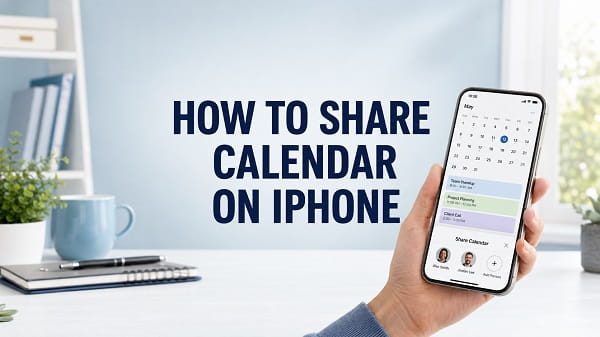
Sharing a calendar on your iPhone makes it easier to coordinate appointments, work schedules, family activities, travel plans, and other events without sending a separate message every time something changes. Once the calendar is shared, invited people can see new events and updates automatically. You can also decide whether they should only view the calendar or be allowed to make changes.
If you want to know how to share calendar on iPhone, the quickest method is to open the Calendar app, tap Calendars, tap the information icon beside an iCloud calendar, and select Add Person. Enter the person’s name or email address, send the invitation, and wait for them to accept it.
The process is simple, but it does not work with every calendar shown on an iPhone. Apple’s private sharing option is designed for calendars stored in iCloud. A Google, Outlook, Yahoo, Exchange, or subscribed calendar may need to be shared through the service that owns it.
This article explains how to share an existing iPhone calendar, create a separate shared calendar, control editing access, share with family members, send a read-only link, and fix common problems when the sharing option does not appear.
How to Share Calendar on iPhone
Follow these steps to share an iCloud calendar with another person:
- Open the Calendar app on your iPhone.
- Tap Calendars at the bottom of the screen.
- Locate the calendar you want to share under the iCloud section.
- Tap the information icon beside the calendar.
- Tap Add Person.
- Enter the person’s name or email address.
- Select the correct contact if suggestions appear.
- Tap Add.
- Tap Done to save the changes.
The person will receive an invitation to join the shared calendar. After the invitation is accepted, the calendar should appear in the Calendar app on their supported device.
If you do not see Add Person, check the account heading above the calendar. The calendar may belong to Google, Outlook, Yahoo, Exchange, or another service instead of iCloud.
Make Sure iCloud Calendar Is Turned On
An iPhone calendar must be connected to iCloud before you can use Apple’s private calendar-sharing feature.
To check the setting:
- Open Settings.
- Tap your name at the top of the screen.
- Tap iCloud.
- Tap See All or Show All if it appears.
- Tap iCloud Calendar.
- Turn on Use on this iPhone.
Return to the Calendar app and tap Calendars. You should now see an iCloud section containing the calendars stored in your Apple Account.
Turning on iCloud Calendar does not automatically move calendars from Gmail or Outlook into iCloud. It only enables access to calendars already stored in your iCloud account and allows newly created iCloud calendars to sync across your Apple devices.
Check Whether the Calendar Belongs to iCloud
Many iPhone users have several calendar accounts connected at the same time. The Calendar app can display iCloud, Google, Microsoft Outlook, Exchange, Yahoo, birthday, holiday, and subscription calendars together, which can make it difficult to tell where a particular calendar is stored.
To identify the account:
- Open Calendar.
- Tap Calendars.
- Look at the account headings on the screen.
- Find the calendar you want to share.
- Confirm that it appears beneath iCloud.
A calendar listed under Gmail or Google must usually be shared through Google Calendar. An Outlook or Exchange calendar may need to be shared through Outlook or your organization’s Microsoft account. A subscribed calendar is generally controlled by its publisher and cannot be privately shared or edited by you.
Create a Separate Calendar Before Sharing
You do not have to share your main personal calendar. In many cases, creating a separate calendar is safer and easier to manage.
For example, you can create separate calendars for:
- Family appointments
- Work projects
- School schedules
- Travel plans
- Content publishing
- Church or community activities
- Household responsibilities
- Medical appointments
A separate calendar prevents invited people from seeing unrelated events stored in your personal calendar.
To create a new iCloud calendar:
- Open the Calendar app.
- Tap Calendars.
- Tap Add Calendar.
- Select Add Calendar again if another menu appears.
- Enter a name for the calendar.
- Choose a color that makes it easy to recognize.
- Make sure it is being created under iCloud.
- Tap Done.
After creating it, tap the information icon beside its name, select Add Person, and invite everyone who needs access.
How to Let Someone Edit a Shared Calendar
When you share an iCloud calendar privately, you can choose whether each participant can make changes.
To change a person’s permission:
- Open Calendar.
- Tap Calendars.
- Tap the information icon beside the shared calendar.
- Tap the participant’s name.
- Turn Allow Editing on or off.
- Tap Done if required.
When Allow Editing is turned on, the participant can add new events and modify events in that shared calendar. Depending on the calendar and device, they may also be able to remove events.
When the option is turned off, the person can view the calendar but cannot change its contents.
Editing access is useful for a family schedule, team calendar, or shared household planner. View-only access is safer when you are sharing a timetable, announcement schedule, class calendar, or other information that should be controlled by one person.
Only give editing permission to people you trust. Anyone with editing access may change important event information, including dates, times, locations, notes, and alerts.
How to Share an iPhone Calendar With Family
You can share an iCloud calendar with family members even when you are not using Apple Family Sharing. Create or select an iCloud calendar, tap Add Person, and invite each family member using the email address connected to their Apple Account.
A family calendar can be used to organize:
- School opening and closing dates
- Children’s activities
- Medical appointments
- Family birthdays
- Travel arrangements
- Work shifts
- Shopping plans
- Bill due dates
- Religious events
- Household tasks
If your household already uses Apple Family Sharing, a shared family calendar may be created automatically for the group. Family members can use it to add events that everyone in the Family Sharing group can see.
Before placing private information in a family calendar, check the participant list. Remove anyone who no longer needs access, especially when the calendar contains home addresses, medical details, travel dates, or information about children.
How to Share Only One Calendar Event
Sharing an entire calendar is not necessary when someone only needs information about one appointment or meeting.
To invite someone to a single event:
- Open the Calendar app.
- Tap the event you want to share.
- Tap Edit.
- Tap Invitees.
- Enter the person’s name or email address.
- Select the correct contact.
- Tap Done.
- Tap Done again to save the event.
The invitee can accept, decline, or respond that they may attend. They will not gain access to the other events in your calendar.
This is the better option for a one-time meeting, birthday party, appointment, interview, or event that does not require ongoing calendar access.
Be careful not to confuse Invitees with Add Person. Invitees receive one event. Add Person shares the entire calendar.
How to Share an iPhone Calendar as a Public Link
Apple also allows you to publish an iCloud calendar as a read-only calendar. This creates a link that can be sent through Messages, Mail, WhatsApp, or another app.
To create a public calendar link:
- Open Calendar.
- Tap Calendars.
- Tap the information icon beside the iCloud calendar.
- Turn on Public Calendar.
- Tap Share Link.
- Choose the app you want to use.
- Send the link to the recipient.
People who receive the link can subscribe using a compatible calendar app. They can view the events, but they cannot add, edit, or delete them.
A public calendar link can be helpful for:
- Event schedules
- School timetables
- Sports fixtures
- Church programs
- Public meeting dates
- Class schedules
- Community activities
- Content publication calendars
Despite its name, turning on Public Calendar does not automatically mean the calendar is easy to find through a web search. However, anyone who obtains the link may be able to view and forward it. Treat the link as shareable information rather than a secure invitation.
Do not place passwords, private addresses, medical details, financial information, confidential meeting notes, travel confirmation numbers, or other sensitive information in a public calendar.
How to Turn Off Public Calendar Sharing
You can stop publishing a calendar when the link is no longer needed.
- Open Calendar.
- Tap Calendars.
- Tap the information icon beside the public calendar.
- Turn off Public Calendar.
- Tap Done if required.
Turning off this setting prevents the calendar from continuing as a public subscription. People who used the previous link may stop receiving updates.
For stronger privacy, review the events inside the calendar and remove any sensitive information that was previously shared.
How to Share an iPhone Calendar With an Android User
Private iCloud calendar sharing works best between people who use Apple Accounts and iCloud. Sharing with an Android user requires a different approach.
Use a Public iCloud Calendar Link
You can turn on Public Calendar and send the subscription link to the Android user.
This allows the person to view the calendar in a compatible service or calendar application. The subscription is read-only, so the Android user will not be able to edit events.
This option works well when the other person only needs to check a schedule.
Use Google Calendar for Two-Way Collaboration
If both people need to add and edit events, Google Calendar is usually more practical for sharing between iPhone and Android.
You can use the Google Calendar app on the iPhone or connect a Google account to Apple Calendar. Share the Google calendar with the Android user and assign the appropriate permission through Google Calendar.
To add a Google account to the iPhone Calendar app:
- Open Settings.
- Tap Apps.
- Tap Calendar.
- Tap Calendar Accounts.
- Tap Add Account.
- Select Google.
- Sign in to the Google account.
- Make sure Calendars is turned on.
The Google calendar can then appear alongside your iCloud calendars in the Apple Calendar app. Remember that sharing permissions are still controlled by Google, not by the iPhone’s iCloud sharing menu.
Using Google Calendar is also useful when a family, workplace, school, or project team uses a mixture of iPhones, Android phones, Windows computers, and Chromebooks.
How the Other Person Accepts the Invitation
After you privately share an iCloud calendar, the invited person must accept the invitation before the calendar becomes available.
They may receive the invitation in Calendar, through an email, or as an account notification.
On an iPhone, the person can check for pending invitations by opening Calendar and tapping Inbox. They should then open the invitation and choose the available option to join or accept the calendar.
If the invitation was sent to an email address that is not connected to the recipient’s Apple Account, it may not appear correctly. Ask the person which email address they use for iCloud and resend the invitation to that address.
The recipient should also confirm that iCloud Calendar is turned on and that they are signed in to the expected Apple Account.
How to Stop Sharing a Calendar With Someone
The calendar owner can remove a participant at any time.
- Open Calendar.
- Tap Calendars.
- Tap the information icon beside the shared calendar.
- Tap the person’s name.
- Tap Stop Sharing or Remove Person.
- Confirm the change.
Once removed, the person should no longer receive new events or updates from that private calendar.
Removing a participant does not delete the calendar for everyone else. Other invited people can continue using it according to their permissions.
You can also turn off Allow Editing instead of removing the person completely. This is useful when someone should still see the schedule but should no longer be able to change it.
How to Stop Sharing the Calendar With Everyone
If you no longer want to maintain a shared calendar, you have several choices.
You can remove each private participant, turn off the public link, or delete the calendar entirely.
Deleting the calendar is the most permanent option because it removes the calendar and its events. Do not use it when you only want to remove one person or stop public access.
Before deleting a calendar, move any events you want to keep into another calendar.
To move an event:
- Open the event.
- Tap Edit.
- Tap Calendar.
- Choose another calendar.
- Tap Done.
After moving the important events, return to the Calendars screen, open the calendar’s information page, and select Delete Calendar.
How to Turn Off Shared Calendar Notifications
Shared calendars can produce frequent notifications when several people make changes.
To adjust shared calendar notifications:
- Open Settings.
- Tap Notifications.
- Tap Calendar.
- Tap Customize Notifications.
- Adjust Shared Calendar Changes.
The wording may vary slightly depending on the iOS version installed on the iPhone.
Turning these notifications off does not stop the calendar from syncing. It only reduces alerts about changes made by other participants.
Keep normal event alerts enabled if you still want reminders for upcoming appointments.
Why Is Add Person Missing From iPhone Calendar?
The missing Add Person option is one of the most common problems people encounter when trying to share a calendar.
Several issues can cause it.
The Calendar Is Not an iCloud Calendar
Open Calendar, tap Calendars, and check the account heading. If the calendar is under Gmail, Outlook, Exchange, Yahoo, or Subscribed, Apple’s iCloud sharing controls may not be available.
Share the calendar through its original provider or create a new iCloud calendar.
You Do Not Own the Calendar
A participant may be allowed to edit events without being allowed to invite other people. Only the calendar owner can normally manage sharing.
Ask the owner to add the new participant.
iCloud Calendar Is Turned Off
Go to Settings > your name > iCloud > See All > iCloud Calendar, then turn on Use on this iPhone.
Reopen the Calendar app after changing the setting.
The Calendar Is Read-Only
Birthday calendars, holiday calendars, subscribed calendars, and some managed workplace calendars cannot be shared or edited like a personal iCloud calendar.
Create a normal iCloud calendar if you need full control.
Why Is the Calendar Invitation Not Received?
If the invitation does not arrive, check the email address first. The recipient needs a valid email address, and private iCloud sharing works most reliably when the invitation is sent to the address associated with their Apple Account.
Remove the participant and send the invitation again:
- Open the shared calendar’s information page.
- Tap the person’s name.
- Remove the person.
- Tap Add Person.
- Enter the correct Apple Account email address.
- Send the invitation again.
Ask the recipient to check:
- The Calendar inbox
- Their email inbox
- Spam or junk folders
- The Apple Account currently signed in
- Whether iCloud Calendar is enabled
A poor internet connection can also delay the invitation. If the iPhone is having network problems, the steps in how to reset network settings on iPhone may help restore access to iCloud services. Resetting network settings removes saved Wi-Fi networks and related network configurations, so it should not be the first step.
Why Is the Shared Calendar Not Showing?
The calendar may have been accepted but hidden from the main Calendar view.
Open Calendar, tap Calendars, and make sure there is a checkmark beside the shared calendar. A calendar without a checkmark remains connected but its events are hidden.
Also confirm that:
- The invitation was accepted
- The correct Apple Account is signed in
- iCloud Calendar is turned on
- The iPhone has internet access
- The calendar has not been removed by its owner
- Calendar syncing is not affected by an Apple service interruption
If Wi-Fi is unavailable or disabled, iPhone Wi-Fi greyed out explains the steps to restore the wireless connection. When the problem happens only on mobile data, check iPhone not connecting to internet using cellular data.
Why Is the Shared Calendar Not Syncing?
A shared calendar may appear on both devices while new events or changes take longer to show.
Try these fixes in order:
Refresh the Calendar App
Open Calendar, tap Calendars, and pull down on the list to refresh it.
Check the Internet Connection
Open a website or another internet-based app. Switch between Wi-Fi and cellular data to determine whether one connection is causing the problem.
Confirm the Calendar Is Selected
Tap Calendars and make sure the shared calendar has a checkmark.
Check iCloud Calendar Settings
Go to Settings > your name > iCloud > See All > iCloud Calendar and confirm that Use on this iPhone is enabled.
Close and Reopen Calendar
Open the App Switcher, close Calendar, and launch it again.
Restart the iPhone
A restart can clear a temporary syncing or app problem. If the device is frozen or not responding normally, follow the correct steps to force restart an iPhone.
Update iOS
Open Settings > General > Software Update and install an available update. Software updates can fix Calendar, iCloud, notification, and syncing problems.
Avoid repeatedly turning iCloud Calendar off and on unless other steps fail. Depending on the options you choose, the iPhone may temporarily remove locally displayed calendar data before downloading it again from iCloud.
Why Can the Other Person View but Not Edit?
Open the shared calendar’s information page, tap the person’s name, and check Allow Editing.
If editing is already enabled, confirm that the participant is opening the correct calendar. They may be trying to change a public subscription, a different calendar, or an event that belongs to another account.
A public calendar link is always intended for viewing. It does not give the subscriber permission to edit events.
Private sharing and public sharing can exist at the same time, so make sure the person accepted the private invitation rather than only subscribing through the public link.
Why Are New Events Going to the Wrong Calendar?
When several accounts are connected to the iPhone, new events may be saved to Gmail, Outlook, or another calendar instead of the shared iCloud calendar.
While creating an event, tap Calendar and select the correct shared calendar before saving it.
You can also change the default calendar:
- Open Settings.
- Tap Apps.
- Tap Calendar.
- Tap Default Calendar.
- Select the calendar you prefer.
Changing the default affects new events. It does not move events that have already been created.
For an event already saved to the wrong calendar, open it, tap Edit, select Calendar, choose the correct calendar, and save the change.
How to Share a Calendar Safely
A shared calendar can reveal more information than expected. Event titles may include names, addresses, medical appointments, work details, travel dates, or notes intended only for you.
Use these practices to protect your privacy:
- Create a separate calendar for shared events.
- Review old events before sharing an existing calendar.
- Give editing permission only when necessary.
- Remove participants who no longer need access.
- Avoid sensitive information in public calendars.
- Turn off the public link when it is no longer required.
- Check the selected calendar before creating a private event.
- Use neutral event titles when details should remain private.
Do not assume that adding a person to one event shares the entire calendar. Likewise, do not assume that an event remains private simply because you did not invite anyone directly. If the event belongs to a shared calendar, participants may still see it.
Can You Share an iPhone Calendar Without iCloud?
You cannot use Apple’s private iCloud sharing controls on a calendar that is not stored in iCloud.
However, you can share a Google Calendar, Microsoft Outlook calendar, Exchange calendar, or another supported calendar through its original service. You can still view many of these calendars inside the iPhone Calendar app after connecting the account.
The sharing method depends on the provider. Google controls Google Calendar permissions, Microsoft controls Outlook and Exchange permissions, and an organization may restrict sharing on managed work or school accounts.
Can You Share an iPhone Calendar by Text Message?
You can send a public calendar link through Messages after turning on Public Calendar. The recipient can use the link to subscribe to the read-only calendar.
Private iCloud calendar sharing is based on an invitation sent to a person identified by an email address. Adding only a phone number may not be enough.
For a single event, you can invite the person using the Invitees option or send the event details through Messages.
Can Multiple People Edit an iPhone Calendar?
Yes. You can privately share an iCloud calendar with multiple people and enable Allow Editing for each participant who should make changes.
Permissions can be different for different people. One participant can have editing access while another has view-only access.
The calendar owner remains responsible for managing participants and deciding who can edit.
Will Someone See All My Events?
A participant sees the events stored in the calendar you shared. They do not automatically gain access to every other calendar on your iPhone.
The important detail is where each event is saved. If personal and shared events are mixed in the same calendar, sharing that calendar may reveal all of them.
Create a separate shared calendar when you want clear separation between personal and collaborative events.
Can I Hide One Event From a Shared Calendar?
The safest approach is to move the event to a private calendar that has not been shared.
Open the event, tap Edit, tap Calendar, and choose your personal calendar.
Do not rely on changing the event title or removing invitees. If the event remains inside a shared calendar, other participants may still be able to see it.
Can Someone Share My Calendar With Another Person?
A participant does not normally receive the same sharing controls as the calendar owner. Even when a person can edit events, the owner remains responsible for adding and removing participants.
A public calendar link is different because anyone who receives it may forward it. Turn off Public Calendar if you need tighter control over who can view the schedule.
Does Calendar Sharing Use Mobile Data?
Calendar invitations, event changes, and syncing require an internet connection. The iPhone can use Wi-Fi or cellular data, depending on its settings and available connection.
Calendar data itself is usually small, but attachments, links, maps, and other connected content may use additional data when opened.
What Is the Best Way to Share a Calendar on iPhone?
Use private iCloud sharing when everyone uses Apple devices or iCloud and some participants need editing access. Create a separate calendar first so personal events remain private.
Use a public iCloud link when people only need read-only access, including recipients who do not use iCloud.
Use Google Calendar or another cross-platform service when iPhone and Android users need to collaborate and edit the same calendar.
Once you choose the right method, sharing a calendar on an iPhone takes only a few taps. The most important step is confirming that you are sharing the correct calendar and assigning only the permissions each person needs.
