
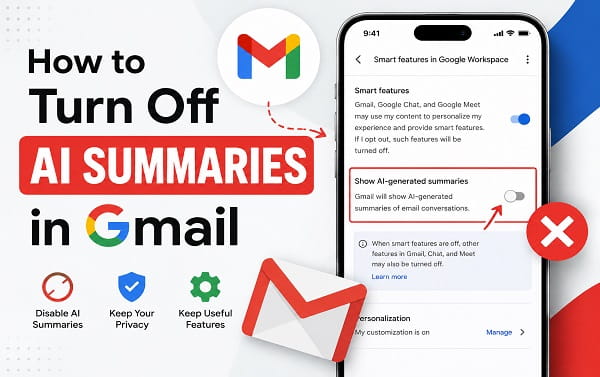
Gmail can now place an AI-generated overview above an email conversation, summarizing the main points and sometimes identifying tasks or deadlines. The feature can be useful when a thread contains many replies, but it can also feel unnecessary, distracting, or intrusive when you simply want to read the original messages.
If you want to know how to turn off AI summaries in Gmail, open Gmail settings, find Google Workspace smart features, select Manage Workspace smart feature settings, and turn off Smart features in Google Workspace. This removes Gemini-powered Gmail summaries and other Gemini features connected to Workspace.
There is currently no separate switch that disables only the AI conversation summary while keeping every other Gemini in Workspace feature active. However, you do not usually need to turn off Gmail’s entire smart-feature system. Disabling the more specific Smart features in Google Workspace setting can preserve ordinary Gmail features such as inbox categories, Smart Compose, Smart Reply, and traditional summary cards when the separate Gmail smart-features setting remains enabled.
The exact menus differ slightly between the Gmail website, Android app, and iPhone app. This article explains each method, what else changes when AI summaries are disabled, and what to do when the summaries continue appearing.
Quick Answer: Turn Off Gmail AI Summaries
On a computer:
- Open Gmail in a web browser.
- Click the Settings gear icon.
- Select See all settings.
- Stay on the General tab.
- Scroll to Google Workspace smart features.
- Click Manage Workspace smart feature settings.
- Turn off Smart features in Google Workspace.
- Click Save.
- Reload Gmail.
On Android:
- Open the Gmail app.
- Tap the menu icon.
- Tap Settings.
- Select the affected Google account.
- Tap Google Workspace smart features.
- Turn off Smart features in Google Workspace.
On iPhone or iPad:
- Open the Gmail app.
- Tap the menu icon.
- Tap Settings.
- Under General, tap Data privacy.
- Tap Google Workspace smart features.
- Turn off Smart features in Google Workspace.
- Tap Done.
Google states that AI Overview conversation summaries require both Gmail smart features and Google Workspace smart features. Turning off the Workspace setting removes access to Gemini-powered summaries, drafting, information retrieval, and related AI tools across supported Workspace applications.
Why Is Gmail Showing AI Summaries?
Gmail’s AI conversation summary is part of Gemini in Google Workspace. It examines the messages inside an email thread and generates a shorter overview of the discussion.
Depending on the conversation, the summary may:
- Identify the main subject of the thread
- Combine important points from several replies
- Highlight a decision or unresolved question
- Recognize a task with a deadline
- Offer to create a reminder
- Reduce the need to open every message separately
The summary normally appears near the top of a supported email conversation. On some accounts, Gmail may display a button such as Summarize this email. On others, an AI Overview may appear automatically for a long thread.
This is different from Gmail’s older summary cards. Traditional summary cards extract structured information such as delivery status, flight details, hotel reservations, bills, events, and purchases. Gemini conversation summaries interpret the contents of a discussion and write a new overview.
That distinction matters because the two features are controlled by different combinations of smart-feature settings.
Can You Turn Off Only AI Summaries in Gmail?
Gmail does not currently provide a dedicated switch labelled AI summaries, Conversation summaries, or Turn off Gemini summaries only.
The most targeted available control is Smart features in Google Workspace. Turning it off disables Gemini-powered Workspace experiences, including AI conversation summaries in Gmail. It also disables other Workspace AI functions, such as Gemini-assisted drafting, proofreading, AI search answers, and the Gemini side panel where available.
The advantage is that you can leave the separate Smart features in Gmail, Chat, and Meet setting turned on. This should allow Gmail’s non-Gemini conveniences to continue working, including:
- Primary, Social, Promotions, Updates, and Forums categorization
- Smart Compose suggestions
- Smart Reply suggestions
- Traditional summary cards for packages, travel, bills, and purchases
- Other app-level personalization in Gmail, Chat, and Meet
If you turn off the broader Gmail smart-features setting instead, you may lose those features as well.
For most people who dislike AI-generated summaries but still want Gmail to organize their inbox normally, the better starting point is:
Turn off Smart features in Google Workspace, but leave the main Smart features in Gmail, Chat, and Meet setting enabled.
Google can change the wording or location of these controls, so review the description beside each setting before saving.
How to Turn Off AI Summaries in Gmail on a Computer
The Gmail website provides the clearest view of the available smart-feature controls.
- Open Gmail in Chrome, Edge, Firefox, Safari, or another supported browser.
- Sign in to the Google account where AI summaries appear.
- Click the Settings gear in the upper-right corner.
- Select See all settings.
- Make sure the General tab is open.
- Scroll down until you find Google Workspace smart features.
- Click Manage Workspace smart feature settings.
- Turn off Smart features in Google Workspace.
- Leave Smart features in other Google products unchanged unless you also want to stop Workspace data from personalizing services outside Workspace.
- Click Save.
- Reload the Gmail tab.
Open an email thread that previously displayed an AI summary. The summary or summarize button should no longer be available after the setting takes effect.
If Gmail asks you to confirm the change, read the notice carefully. It may explain that Gemini and other personalized Workspace experiences will become unavailable.
Do Not Disable Every Smart Feature by Mistake
On the General settings page, you may also see a checkbox or switch for Smart features in Gmail, Chat, and Meet.
Turning off that setting can remove:
- Inbox category sorting
- Smart Compose
- Smart Reply
- Package, travel, and purchase summary cards
- Other Gmail personalization features
You can disable it if you want a more basic Gmail experience, but it is not the most precise first step when the AI conversation summary is the only feature bothering you.
How to Turn Off Gmail AI Summaries on Android
Use the account-specific Gmail settings when AI summaries appear in the Android app.
- Open Gmail.
- Tap the three-line menu in the upper-left corner.
- Scroll down and tap Settings.
- Select the Google account where the summaries appear.
- Scroll to the General section.
- Tap Google Workspace smart features.
- Clear or turn off Smart features in Google Workspace.
- Return to your inbox.
- Close and reopen Gmail if the change does not appear immediately.
When several Google accounts are added to the app, repeat the process for each account where you want AI summaries disabled. Changing the setting for one account may not change it for another.
Google says smart-feature changes apply across devices and applications where the same account is signed in. Therefore, turning off Workspace smart features from an Android phone should also affect Gmail on your computer and other supported devices using that account.
If the settings page looks different, update Gmail through the Google Play Store. Google specifically advises updating the mobile app when smart-feature changes or notices are missing.
Avoid Turning Off the Wrong Android Setting
The Android Gmail app may show two related controls:
- Smart features
- Google Workspace smart features
The first controls Gmail, Chat, and Meet personalization, including inbox categories and Smart Reply. The second controls cross-Workspace features, including Gemini.
To remove AI summaries while keeping Gmail categories, begin with Google Workspace smart features and turn off Smart features in Google Workspace.
How to Turn Off Gmail AI Summaries on iPhone or iPad
The controls are inside Data privacy in the iOS Gmail app.
- Open the Gmail app.
- Tap the menu icon in the upper-left corner.
- Tap Settings.
- Under General, tap Data privacy.
- Tap Google Workspace smart features.
- Turn off Smart features in Google Workspace.
- Tap Done in the upper-right corner.
- Close and reopen Gmail.
When you use more than one Google account, make sure the change applies to the account displaying the AI summaries.
The setting should sync with Gmail on other devices signed in to the same account. If the iPhone app continues showing a summary, update Gmail from the App Store, force-close the app, and open it again.
If Gmail cannot refresh its settings or load messages while using mobile data, follow the troubleshooting steps for an iPhone not connecting to the internet on cellular data.
A frozen Gmail app may also fail to display a recent settings change. Restart the iPhone normally first. When the device itself stops responding, use the correct procedure to force restart an iPhone.
How to Hide a Gmail AI Summary Without Disabling It
You may not need to disable the feature permanently when only one summary is distracting.
Open the email thread and select the upward arrow or Minimize control on the AI Overview card. This collapses the generated summary while leaving Workspace smart features enabled.
This option is useful when:
- You occasionally use AI summaries
- You want Gemini drafting tools to remain available
- You only dislike the summary on one particular conversation
- You share a work account whose settings are controlled by an administrator
- You want to preserve every Workspace AI feature
Minimizing a card is not the same as disabling the feature. Gmail may show another summary when you open a different thread or return later.
What Happens When You Turn Off Smart Features in Google Workspace?
Turning off Smart features in Google Workspace affects more than the summary above an email.
Features that may become unavailable include:
- AI Overview conversation summaries in Gmail
- Gemini in the Gmail side panel
- AI-assisted email drafting
- Gemini proofreading and rewriting
- Suggested Gemini replies
- AI Overview answers in Gmail search
- Gemini assistance across supported Docs, Drive, Sheets, Slides, Meet, Chat, Calendar, and other Workspace products
- Personalized Workspace search and file suggestions
- Automatic use of Gmail information in some Calendar experiences
The exact list depends on your account type, region, language, subscription, administrator settings, and Google’s current rollout.
Turning off Workspace smart features does not delete your emails, contacts, attachments, labels, or Google Account. It changes how your Workspace content is used to provide personalized smart features.
What Can Stay Enabled After You Remove AI Summaries?
Google separates app-level Gmail personalization from broader Workspace personalization.
When Smart features in Gmail, Chat, and Meet stays on, you may continue using:
- Automatic inbox categorization
- Primary, Social, Promotions, Updates, and Forums tabs
- Smart Compose
- Smart Reply
- Package tracking cards
- Travel and reservation cards
- Purchase and bill cards
- Other traditional Gmail smart features
This separation is the reason you should not immediately uncheck every smart-feature option.
If categories disappear after disabling AI summaries, return to Gmail settings and confirm that Smart features in Gmail, Chat, and Meet remains enabled. Also check Inbox type and Categories under the Inbox tab.
Difference Between Gmail’s Three Smart-Feature Controls
The similar names can make the settings confusing.
Smart Features in Gmail, Chat, and Meet
This setting controls personalization inside those specific apps.
Examples include:
- Inbox categorization
- Smart Compose
- Smart Reply
- Summary cards for travel, packages, bills, and purchases
Turning it off creates a more basic Gmail experience and can remove features unrelated to Gemini.
Smart Features in Google Workspace
This controls the use of Workspace content across Workspace products.
Examples include:
- Gemini summaries
- Gemini drafting and proofreading
- AI search answers
- Personalized Workspace search
- Gmail information appearing in Calendar
- Other Gemini in Workspace features
This is the setting to turn off first when your goal is to remove Gmail AI summaries.
Smart Features in Other Google Products
This controls how Workspace information can personalize non-Workspace Google services.
Examples may include:
- Suggestions in Google Wallet
- Reservation information in Maps
- Personal Intelligence in Gemini
- Personalized Search experiences
Turning this off is not normally required just to remove summaries inside Gmail.
Why Are AI Summaries Still Appearing After You Turn Them Off?
The setting may not take effect immediately in every open app or browser session.
Work through the checks below.
1. Confirm You Changed the Correct Google Account
A Gmail app can contain several personal, work, and school accounts.
Open the profile menu and check the email address of the inbox displaying the summary. Return to settings and make sure you disabled Workspace smart features for that account.
2. Reload Gmail
On a computer, refresh the page or close the Gmail tab and open it again.
On Android or iPhone, remove Gmail from the recent-apps screen and reopen it.
3. Update the Gmail App
Open Google Play Store or the Apple App Store and install an available Gmail update.
An old app may use an earlier settings layout or fail to apply a recent account change properly.
4. Sign Out and Back In
Signing out can refresh account settings, but it is rarely necessary as a first step.
On Android, a Google account is linked to many device services. Removing it can temporarily affect Contacts, Calendar, Drive, Play Store, backups, and other synchronized information. Confirm that important data is synced before removing an account.
5. Wait for Account Settings to Synchronize
Google states that changes apply across devices, but an open session may continue displaying an existing card briefly. Allow some time, reload Gmail, and test a different thread.
6. Check Whether You Disabled Only Other Google Products
Turning off Smart features in other Google products does not necessarily disable Gemini inside Gmail. Confirm that Smart features in Google Workspace is off.
7. Check Work or School Account Restrictions
An administrator may control access to Gemini and Workspace smart features for an organization. Some controls may be unavailable, locked, or applied according to company or school policy.
Contact the administrator when the setting is missing from a managed account.
8. Distinguish an AI Summary From a Traditional Summary Card
A package, flight, purchase, hotel, event, or bill card is not necessarily a Gemini conversation summary.
Traditional summary cards are controlled by Smart features in Gmail, Chat, and Meet. If you want those removed too, disable that setting, knowing that Gmail categories and other app-level features may also be affected.
Why Did My Gmail Categories Disappear?
Inbox categories can disappear when the main Gmail smart-features setting is disabled.
To restore them on a computer:
- Open Gmail.
- Click Settings.
- Select See all settings.
- Open the General tab.
- Turn on Smart features in Gmail, Chat, and Meet.
- Open the Inbox tab.
- Select the categories you want.
- Save the changes.
Keep Smart features in Google Workspace off if you still want Gemini summaries disabled.
If the categories do not return immediately, reload Gmail and check that the inbox type is set to Default.
Why Did Smart Compose or Smart Reply Stop Working?
Smart Compose and Smart Reply are controlled by Gmail’s app-level smart-feature setting.
If they disappeared after you tried to disable AI summaries, you probably turned off Smart features in Gmail, Chat, and Meet.
Turn that setting back on while leaving Smart features in Google Workspace off. This should restore ordinary Gmail writing suggestions without restoring Gemini-powered conversation summaries.
Google can change feature dependencies, so test the account after each change rather than adjusting several controls at once.
Can You Disable Gmail Summaries for One Email Only?
Gmail does not currently offer a permanent per-thread opt-out.
You can minimize the summary card on a particular conversation, but that does not prevent summaries on other threads. You can also send feedback when a summary is inaccurate or unhelpful.
Turning off Workspace smart features applies at the account level rather than only to one sender, label, thread, or device.
Can You Disable AI Summaries for One Device Only?
Google says smart-feature settings apply across devices and apps where the same account is signed in.
Therefore, disabling Workspace smart features on your Android phone can also remove the feature from Gmail on your computer and iPhone.
There is no reliable account setting that keeps AI summaries enabled on one device and disabled on another. Minimizing the card may be the better option when you want to hide it temporarily on only one screen.
Does Turning Off Gemini Delete Gmail Messages?
No. Disabling Workspace smart features does not delete emails, drafts, attachments, contacts, labels, filters, or account data.
Your existing messages remain in Gmail. The change controls whether Workspace content and activity are used to provide the affected personalized features.
You can re-enable the setting later if you decide to use Gemini summaries again.
Does Turning Off the Gemini App Disable Gmail Summaries?
Changing the default phone assistant from Gemini to Google Assistant does not necessarily disable Gemini features built into Gmail.
Similarly, disconnecting Gmail from the standalone Gemini app controls whether Gemini Apps can access Gmail as a connected service. It does not always control features generated inside Gmail itself.
Use Gmail’s Google Workspace smart features setting when the unwanted summary appears inside Gmail.
Should You Turn Off Conversation View?
Some users try turning off Conversation View because AI summaries often appear above grouped email threads. This changes how Gmail displays replies, but it is not the official or most reliable control for disabling Gemini summaries.
Conversation View groups related messages together. Turning it off can make a long discussion harder to follow and may not remove every AI-powered Gmail feature.
Use the Workspace smart-feature control instead. Change Conversation View only when you genuinely prefer each reply to appear separately.
AI Summary Versus Gmail Summary Card
The names are similar, but the features serve different purposes.
| Feature | What it does | Main control |
|---|---|---|
| AI conversation summary | Uses Gemini to interpret and summarize an email thread | Smart features in Google Workspace |
| AI Overview in Gmail search | Generates an answer from relevant emails | Smart features in Google Workspace |
| Package or travel summary card | Extracts structured details such as tracking, bookings, or purchases | Smart features in Gmail, Chat, and Meet |
| Smart Reply | Suggests short responses | Smart features in Gmail, Chat, and Meet |
| Smart Compose | Predicts text while you write | Smart features in Gmail, Chat, and Meet |
Understanding the difference prevents you from disabling more Gmail features than necessary.
Gmail Is Not Updating After You Change the Setting
If Gmail stops refreshing or you cannot test the change, make sure the device has a working internet connection.
Android users who are missing both new messages and alerts should check Gmail notifications not working on Android for synchronization, battery, notification, and background-data fixes.
When Gmail works on Wi-Fi but not through another phone’s shared connection, troubleshoot the device providing the connection with Android hotspot not working.
Do not reset your Google account, clear all Gmail data, or factory-reset a phone merely because an AI summary remains visible. Confirm the correct account and smart-feature setting first.
How to Turn Gmail AI Summaries Back On
You can restore the feature at any time.
On a computer:
- Open Gmail.
- Go to Settings > See all settings > General.
- Find Google Workspace smart features.
- Click Manage Workspace smart feature settings.
- Turn on Smart features in Google Workspace.
- Save the change.
On Android:
- Open Gmail.
- Tap Menu > Settings.
- Select the account.
- Tap Google Workspace smart features.
- Turn on Smart features in Google Workspace.
On iPhone or iPad:
- Open Gmail.
- Tap Menu > Settings > Data privacy.
- Tap Google Workspace smart features.
- Turn on Smart features in Google Workspace.
- Tap Done.
A summary will not necessarily appear on every message. Gmail usually shows or offers it only when the account, language, conversation, and rollout support the feature.
Are Gmail AI Summaries Always Accurate?
No AI-generated summary should be treated as a perfect replacement for the original email.
A summary may:
- Miss an important qualification
- Confuse who said something
- Overlook an attachment
- Interpret an informal comment as a decision
- Combine separate topics incorrectly
- Misread a deadline or responsibility
- Leave out context from an older message
Read the original conversation before acting on important medical, financial, legal, employment, security, or account information.
Google also allows users to send positive or negative feedback about AI Overview suggestions. Feedback can help identify incorrect or unhelpful results, but sensitive information should not be added unnecessarily to a feedback report.
Frequently Asked Questions
How do I get rid of the AI summary at the top of Gmail?
Open Gmail settings, find Google Workspace smart features, choose Manage Workspace smart feature settings, and turn off Smart features in Google Workspace. Reload Gmail afterward.
Is there a switch for Gmail AI summaries only?
There is currently no separate control that disables only conversation summaries while preserving every other Gemini in Workspace feature. The nearest control disables Smart features in Google Workspace.
Can I keep Gmail categories after disabling AI summaries?
Yes. Leave Smart features in Gmail, Chat, and Meet enabled and disable only Smart features in Google Workspace. Inbox categories are controlled by the Gmail-level setting.
Will disabling Gmail AI summaries also turn off Gemini?
It disables Gemini-powered Workspace experiences for that account, including Gmail summaries and other supported Gemini features inside Workspace. It does not necessarily remove or disable the standalone Gemini app.
Why can I still see package and travel summaries?
Those are traditional Gmail summary cards, not necessarily Gemini conversation summaries. They are controlled by the separate Gmail, Chat, and Meet smart-features setting.
Can I disable AI summaries for only one Gmail account?
Yes. Change the setting within the affected account. When several accounts are signed in, verify the email address before changing the control.
Can a Workspace administrator disable Gmail AI summaries?
An administrator can manage access to Gemini and Workspace services for organizational accounts. End users may also have personal smart-feature controls, depending on the organization’s configuration.
Will turning off smart features stop Gmail notifications?
The Workspace setting itself should not disable ordinary Gmail notifications. If alerts stop, check sync, notification permission, battery restrictions, and background data.
Why is the smart-feature setting missing?
Update Gmail, check the correct account, and try the Gmail website. A work or school administrator, regional availability, account type, staged rollout, or an outdated app can affect which controls appear.
Can I hide a summary without changing settings?
Yes. Use the arrow or Minimize option on the AI Overview card. This hides that card temporarily but does not disable future summaries.
Keep the Gmail Features You Actually Use
The best way to remove Gmail AI summaries is not to disable every smart option at once. Turn off Smart features in Google Workspace first, then leave the separate Gmail, Chat, and Meet setting enabled if you still want inbox categories, Smart Compose, Smart Reply, and traditional summary cards.
After saving the change, reload Gmail and confirm that you edited the correct Google account. If the summary remains, update the app, reopen Gmail, and distinguish a Gemini conversation summary from a package, travel, or purchase card before changing additional settings.
For Google’s current descriptions of the feature and its controls, see the official guides to AI Overview conversation summaries and Google Workspace smart-feature settings.
