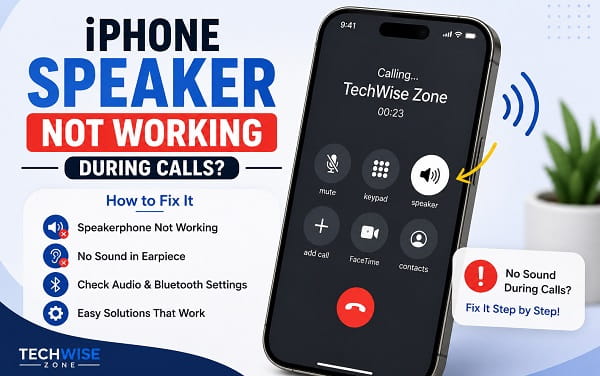
An iPhone can play music and videos normally yet suddenly produce no sound through the speaker during a phone call. In other cases, speakerphone works but the small receiver at the top of the screen is silent, or call audio keeps going to AirPods, a car stereo, or another Bluetooth device instead of the iPhone.
The call speaker iPhone not working problem becomes much easier to troubleshoot once you identify which part of the call-audio path is actually failing.
There are three common patterns:
- Speakerphone does not work, but you can still hear the caller through the top receiver.
- The top receiver does not work, but tapping Speaker lets you hear the caller.
- Neither works correctly, or call audio is being routed somewhere else.
Start by making a test call and checking those three possibilities before changing settings. A working music speaker does not automatically prove that every part of the iPhone call-audio system is working, and a silent call does not always mean the speaker itself is damaged.
Check Where the Call Audio Is Going
During an active phone or FaceTime call, look at the call controls.
Tap Audio or the audio-output button.
Depending on what is connected, you may see choices such as:
- iPhone
- Speaker
- AirPods
- Bluetooth headset
- Car audio
- Hearing device
- HomePod
Choose Speaker if you want hands-free audio from the iPhone.
Apple’s current iPhone call controls allow you to choose an audio destination during a call. This is one of the first things to check because an iPhone can appear silent while the audio is actually playing through another device.
If selecting Speaker immediately restores sound, the iPhone speaker itself is probably fine.
1. Turn Up the Volume During the Call
Call volume is easiest to test while a call is active.
Make a call, wait until it connects, then press the Volume Up button several times.
Do this while the caller is speaking.
The side buttons can adjust the active call volume, so changing volume before the call may not tell you how loud the call audio is set.
Test both modes:
- Listen through the receiver at the top of the iPhone.
- Tap Speaker.
- Press Volume Up again.
If speakerphone is audible but the receiver is extremely quiet, focus on the receiver opening and hardware checks later in this article.
If neither output produces sound, continue with audio routing and restart steps.
2. Tap Speaker Off and On Again
Sometimes the call interface does not switch audio outputs correctly on the first attempt.
During the call:
- Tap Speaker to turn speakerphone on.
- Wait a few seconds.
- Tap it again to return to the receiver.
- Turn Speaker on once more.
Listen for any change.
When toggling Speaker restores sound, the issue was likely a temporary audio-routing glitch rather than a dead loudspeaker.
Test another call afterward to see whether the problem returns.
3. Disconnect Bluetooth Devices
One of the most common reasons call audio seems to disappear is that the iPhone is still connected to another audio device.
Open:
Settings > Bluetooth
Look under My Devices for anything marked Connected.
Possible call-audio destinations include:
- AirPods
- Wireless earbuds
- Bluetooth headphones
- Smart speakers
- Car stereos
- Hearing devices
- Bluetooth receivers
Temporarily turn Bluetooth off from Settings and make another test call.
Use the Settings switch rather than relying only on Control Center while troubleshooting.
If call audio returns to the iPhone speaker after Bluetooth is disabled, reconnect devices one at a time to identify which one was taking over the call.
When the problem happens mainly in your vehicle and Bluetooth works but the full in-car interface does not, see Bluetooth Connected but CarPlay Not Working? Fix It for the separate CarPlay side of the connection.
4. Check Call Audio Routing
iOS has a setting that controls where phone and FaceTime call audio is routed.
Open:
Settings > Accessibility > Touch > Call Audio Routing
For normal troubleshooting, select:
Automatic
Apple currently lets iPhone users route phone and FaceTime calls automatically or toward supported destinations such as the iPhone speaker or Bluetooth devices.
If the setting is forcing calls toward Bluetooth or another destination, Automatic is the safest baseline.
After changing it:
- Close Settings.
- Make a new call.
- Test the receiver.
- Test Speaker mode.
This setting is especially important when call audio repeatedly goes somewhere unexpected even after you manually change the output.
5. Restart the iPhone
A restart clears temporary iOS processes that can affect call audio and Bluetooth routing.
On iPhones with Face ID
- Press and hold the Side button and either Volume button.
- Drag the power-off slider.
- Wait about 30 seconds.
- Turn the iPhone back on.
On iPhones with a Home button
Use the Side or Top button to bring up the power-off slider, depending on the model.
After restarting, make a test call before reconnecting several Bluetooth accessories.
If the speaker works normally after the restart but fails again later, pay attention to what happened immediately before the problem returned, such as connecting AirPods, entering a car, or waking the iPhone from a long idle period.
6. Remove the Case and Screen Protector Temporarily
A badly fitted case can partially cover the lower speaker openings.
A screen protector can also interfere with the receiver at the top of the display if it is misaligned, dirty, or lifting.
Apple’s own no-sound troubleshooting recommends removing cases, films, and screen protectors while checking speaker and receiver problems.
Remove them temporarily and make another call.
Pay particular attention to:
- Thick rugged cases
- Waterproof cases
- Cases with damaged speaker cutouts
- Screen protectors covering the receiver area
- Dust trapped around the top speaker opening
If call audio becomes noticeably clearer after removing the accessory, replace or reposition it.
7. Check the Speaker and Receiver Openings
The iPhone uses different physical openings for loudspeaker and receiver audio.
Speakerphone audio normally comes from the external speaker system near the bottom of the phone and, on supported models, may also use another speaker as part of stereo playback.
The top receiver is the small opening you listen through when holding the iPhone to your ear.
Apple recommends checking both the speaker opening and the receiver for blockage or dirt when sound is missing or distorted.
Use a dry, soft brush to gently clear visible debris.
Do not use:
- Needles
- Pins
- Metal picks
- Excess liquid
- High-pressure air directly against the openings
If the issue began after water exposure, use safer drying methods rather than trying to force liquid out with sharp objects. I have a separate guide on how to remove water from your phone speaker safely that covers that situation in more detail.
8. Test Normal Media Audio
Play a song, video, podcast, or ringtone.
Then increase the volume.
This test helps separate a general speaker problem from a call-only problem.
Media Audio Works Normally
When music and videos sound normal but speakerphone calls are silent, the external speaker hardware is less likely to be completely dead.
Focus on:
- Call audio routing
- Bluetooth
- Temporary iOS glitches
- Phone or FaceTime-specific behavior
Media Audio Is Also Silent or Distorted
The problem is broader than phone calls.
Inspect the speaker openings, remove the case, restart the iPhone, and consider hardware service if the speaker remains silent.
Apple’s current speaker troubleshooting also recommends testing sound through the iPhone’s sound settings before concluding that service is needed.
9. Compare Phone Calls With FaceTime Audio
Make two tests:
- A normal cellular phone call
- A FaceTime Audio call
Use Speaker mode on both.
FaceTime Audio Works but Cellular Calls Do Not
This suggests the loudspeaker itself is capable of producing call audio.
The problem may involve:
- Cellular call quality
- Carrier-side problems
- Phone app behavior
- Network conditions
If normal calls are also failing to connect, dropping immediately, or never reaching the iPhone, that is a different issue from speaker output. See Why Is My Phone Not Receiving Calls? for the network and incoming-call side of the problem.
Both Cellular and FaceTime Calls Fail on Speaker
Focus more strongly on:
- Audio routing
- iOS
- Speaker blockage
- Physical damage
10. Check Whether the Receiver or Speakerphone Is the Real Problem
Do not treat these as the same fault.
Receiver Not Working but Speakerphone Works
Symptoms:
- Caller is silent when the phone is held to your ear
- Tapping Speaker restores the call immediately
- Music and videos may sound normal
Likely areas to investigate:
- Blocked top receiver
- Screen protector covering the receiver
- Receiver hardware damage
- Moisture or debris near the top speaker
- Impact damage
Speakerphone Not Working but Receiver Works
Symptoms:
- You can hear the caller normally at your ear
- Tapping Speaker produces no sound or very low sound
- Media playback may or may not work
Focus on:
- Lower speaker blockage
- Bluetooth/audio routing
- Speaker hardware
- Case interference
Neither Receiver nor Speakerphone Works
Test media playback and another audio destination.
If Bluetooth headphones work but both built-in outputs fail, hardware service becomes more likely.
11. Check Whether the Other Person Can Hear You
Speaker problems and microphone problems are easy to confuse during calls.
If you can hear the caller but they cannot hear you, the speaker is not the main issue.
The problem is on the microphone/input side.
Typical microphone symptoms include:
- Other person hears silence
- Voice sounds muffled
- Voice cuts in and out
- Speakerphone changes how your voice sounds
- Voice Memos record poorly
Apple recommends removing cases or films and clearing debris from microphone openings when iPhone microphones are unclear during calls or recordings.
Do not replace the speaker because the other person cannot hear your voice.
12. Force Restart the iPhone
A normal restart is enough for most temporary issues, but a force restart is useful when the Phone app or audio controls seem frozen.
iPhone 8 and later
- Press and quickly release Volume Up.
- Press and quickly release Volume Down.
- Press and hold the Side button.
- Release it when the Apple logo appears.
This does not erase your data.
After the iPhone restarts, make a call before reconnecting Bluetooth accessories.
If the speaker works normally afterward, the problem was probably software-related.
13. Update iOS
Open:
Settings > General > Software Update
Install the latest stable iOS update available for your device.
Restart afterward.
Software updates can correct bugs affecting the Phone app, Bluetooth, call routing, and audio behavior.
If the problem began immediately after an update, also check whether a newer maintenance update is available.
Avoid installing beta software just to solve a normal call-speaker problem.
14. Test Without AirPods, Car Audio, or Hearing Devices
Some audio problems appear only when a particular accessory is part of the call setup.
Temporarily remove the accessory from the equation.
For AirPods or Bluetooth headphones:
- Open Settings > Bluetooth.
- Tap the information button beside the device.
- Disconnect it.
- Make a test call using only the iPhone.
For a car:
- Turn Bluetooth off temporarily.
- Leave CarPlay disconnected.
- Place a call from the iPhone itself.
For hearing devices:
Check the selected call audio destination and accessibility routing.
If the iPhone speaker works correctly without the accessory, the accessory connection or routing profile is the better target for troubleshooting.
15. Forget and Re-pair a Problem Bluetooth Device
When call audio repeatedly gets stuck on one Bluetooth accessory:
- Open Settings > Bluetooth.
- Tap the information button beside the device.
- Tap Forget This Device.
- Restart the iPhone.
- Pair the device again.
Then place a test call.
This rebuilds the Bluetooth relationship rather than reusing the old pairing record.
Do this only for the device that appears to be causing the problem.
There is no need to remove every Bluetooth accessory when call audio works correctly with them.
16. Reset Network Settings Only When Call Connectivity Is Also Acting Up
A network reset is not a primary speaker fix.
It will not repair a blocked or damaged speaker.
However, it can be reasonable when the call-speaker complaint occurs together with broader connectivity symptoms such as:
- Cellular calls repeatedly failing
- Wi-Fi Calling behaving incorrectly
- FaceTime call connectivity problems
- Bluetooth routing problems that survive re-pairing
- Network behavior changing after an iOS update
Open:
Settings > General > Transfer or Reset iPhone > Reset > Reset Network Settings
This removes saved network configuration and requires you to reconnect to Wi-Fi and Bluetooth devices afterward.
Because it is more disruptive than the earlier fixes, use it late in the process. If you decide to use it, follow How to Reset Network Settings on iPhone first so you know what will be changed.
If music, videos, and every other sound are also silent, a network reset is unlikely to help.
17. Check for Water or Impact Damage
Think about what happened before the speaker stopped working.
Possible hardware triggers include:
- Dropping the iPhone
- Water exposure
- Heavy rain
- Liquid spilled near the receiver
- Cracked frame or display
- Repair work performed recently
Water can temporarily muffle a speaker even when the iPhone still powers on normally.
Impact can damage the speaker, receiver, flex cables, or internal connections without making the phone completely unusable.
If the problem began immediately after a drop or liquid exposure and persists after the basic checks, software resets should not be repeated indefinitely.
Arrange a professional inspection.
18. Test the Speaker With the Case Off and at Different Volumes
A partially blocked or failing speaker may behave differently at low and high volumes.
Remove the case.
Play media and test:
- Low volume
- Medium volume
- High volume
Then repeat the same comparison during a call.
Listen for:
- Crackling
- Buzzing
- Sudden volume drops
- Distortion
- One side sounding weaker
- Audio disappearing at certain volume levels
Persistent distortion across both media and calls points more strongly toward contamination or hardware damage than a Phone app setting.
19. Check Accessibility Audio Settings
Open:
Settings > Accessibility > Audio & Visual
Review the audio settings.
Make sure the balance control is centered unless you intentionally changed it.
Apple also provides options such as Mono Audio and stereo balance.
These settings are more relevant to general audio output than to a completely dead call speaker, but an extreme balance setting can make some output situations sound wrong.
Do not randomly change accessibility settings that you rely on.
Instead, compare them with the normal defaults and test again.
20. Reset All Settings Before Considering a Full Erase
When the speaker and receiver hardware appear functional but call audio still behaves incorrectly after updates, restarts, and routing checks, Reset All Settings can be considered before a factory erase.
Open:
Settings > General > Transfer or Reset iPhone > Reset > Reset All Settings
This resets system preferences without intentionally deleting photos, apps, and personal media, but you will need to configure various settings again.
Use it only after:
- Bluetooth has been ruled out
- Call Audio Routing has been checked
- iOS is updated
- The speakers have been physically inspected
- The issue persists across multiple calls
A full factory erase is usually unnecessary for a call-speaker problem unless Apple Support specifically recommends it after diagnostics.
21. Contact Apple or an Authorized Service Provider
Hardware service becomes more likely when:
- The receiver is silent on every call
- Speakerphone is silent and media audio also fails
- Sound is heavily distorted everywhere
- The problem followed a drop or liquid exposure
- Bluetooth headphones work but built-in outputs do not
- Restarting and updating iOS do not help
- The speaker or receiver is physically damaged
- Audio cuts in and out when the phone is moved
Apple’s official sound troubleshooting recommends service when the sound checks do not resolve the problem.
A technician can test the loudspeaker, receiver, internal connectors, and audio circuitry without relying only on symptoms.
iPhone Speakerphone Not Working but Regular Call Works
This pattern usually means the top receiver is working while the hands-free output path is not.
Start with:
- Tap Audio and explicitly choose Speaker.
- Turn Bluetooth off.
- Increase volume during the call.
- Remove the case.
- Check the lower speaker openings.
- Play music or video.
- Restart the iPhone.
- Update iOS.
If media audio is also missing, the external speaker itself becomes a stronger suspect.
If media works perfectly but only speakerphone calls fail, focus more heavily on routing and iOS before arranging repair.
iPhone Speaker Works but No Sound During Calls
This is another useful clue.
When YouTube, music, alarms, and videos all sound normal but calls are silent:
- Check Audio during the call
- Disconnect Bluetooth
- Set Call Audio Routing to Automatic
- Restart the iPhone
- Compare cellular calls with FaceTime Audio
- Update iOS
A completely failed loudspeaker is less likely when it produces normal media sound.
iPhone Earpiece Not Working but Speaker Does
The receiver at the top of the iPhone is the likely area to investigate.
Remove:
- Screen protector
- Case
- Film around the top edge
Clean the receiver opening gently with a dry, soft brush.
Then raise the volume during an active call.
When Speaker mode works normally but the receiver remains silent or extremely quiet on every call, service may be required.
iPhone Call Speaker Is Very Quiet
Low call volume can result from:
- Call volume set too low
- Blocked receiver opening
- Dirty speaker grille
- Thick case
- Misaligned screen protector
- Water or moisture
- Hardware wear
Raise the volume while the call is active.
Then compare receiver mode with Speaker mode.
If only the receiver is quiet, clean and inspect the top opening.
If Speaker mode is also abnormally quiet during media playback, inspect the external speaker openings.
iPhone Speaker Button Is Grayed Out During Calls
A grayed-out or unavailable speaker control can indicate a deeper software or audio-hardware problem.
Try:
- End the call.
- Restart the iPhone.
- Test media audio.
- Update iOS.
- Disconnect Bluetooth accessories.
- Make another call.
When the Speaker button remains unavailable across repeated calls and the phone also has other audio failures, contact Apple Support or an authorized service provider.
Do not repeatedly factory reset the phone if basic audio functions are already failing.
iPhone Call Audio Keeps Going to Bluetooth
Open:
Settings > Accessibility > Touch > Call Audio Routing
Set it to:
Automatic
Then disconnect unnecessary Bluetooth devices.
If one accessory repeatedly takes over calls even when you do not want it to:
- Forget the device.
- Restart the iPhone.
- Pair it again only if needed.
Also check the audio destination during each test call.
The fastest proof is to turn Bluetooth off in Settings and place one call entirely through the iPhone.
iPhone Speaker Stopped Working After an Update
An update can coincide with temporary audio-routing problems, but do not assume the update physically damaged the speaker.
Try:
- Restart iPhone.
- Check call audio destination.
- Turn Bluetooth off.
- Test media playback.
- Check for a newer iOS update.
- Force restart if necessary.
- Reset All Settings only if the issue remains software-like.
When the speaker also crackles or fails during every type of audio playback, the timing of the update may be coincidental.
Frequently Asked Questions
Why is my iPhone speaker not working during calls?
Common causes include low call volume, call audio being routed to Bluetooth, incorrect Call Audio Routing, a temporary iOS glitch, blocked speaker or receiver openings, water exposure, or hardware failure.
Why can I hear music but not phone calls on my iPhone?
When media works normally, the speaker hardware may still be functional. Check the call audio destination, Bluetooth connections, Call Audio Routing, and whether the problem affects cellular calls, FaceTime Audio, or both.
Why does my iPhone speakerphone have no sound?
During the call, tap Audio and select Speaker. Then increase the volume, disconnect Bluetooth, restart the iPhone, inspect the speaker openings, and test normal media audio.
Why can I hear calls on speaker but not through the earpiece?
The top receiver may be blocked, covered by a screen protector, contaminated, or damaged. Remove accessories, clean the receiver gently, and test another call.
Why can I hear the caller but they cannot hear me?
That is usually a microphone problem rather than a speaker problem. Check the microphone openings, case, and microphone functionality separately.
Can Bluetooth cause no sound during an iPhone call?
Yes. Call audio can be routed to AirPods, a headset, car stereo, hearing device, or another Bluetooth accessory. Tap Audio during the call or temporarily turn Bluetooth off in Settings.
Where is Call Audio Routing on iPhone?
Open:
Settings > Accessibility > Touch > Call Audio Routing
Automatic is the best baseline for normal troubleshooting.
Will restarting an iPhone fix call speaker problems?
It can fix temporary audio-routing or Phone app glitches. Restarting is safe and worth trying before resetting settings.
Should I reset network settings for an iPhone speaker problem?
Not as an early fix. A network reset cannot repair a physical speaker. Consider it only when the speaker complaint occurs together with cellular, FaceTime, Wi-Fi Calling, or persistent Bluetooth connectivity problems.
Will Silent mode stop me from hearing someone during a connected call?
Silent mode mainly affects ringtones, alerts, and other notification sounds. It is not normally the reason an already-connected call has no receiver or speakerphone audio.
Does Do Not Disturb mute an active phone call?
Focus and Do Not Disturb are designed mainly to control incoming calls, notifications, and alerts. Once a call is connected, missing call audio should be investigated through volume, routing, Bluetooth, speaker, and receiver checks instead.
Can water make an iPhone speaker quiet?
Yes. Moisture can muffle audio until it clears and can also cause permanent damage if liquid reaches internal components. Avoid inserting sharp objects into the speaker openings.
When should I get the iPhone repaired?
Service is appropriate when built-in audio remains silent or distorted after routing checks, restarts, iOS updates, cleaning, and accessory tests, particularly after impact or water exposure.
Start by Separating Speakerphone, Receiver, and Routing Problems
The quickest way to solve an iPhone call-speaker problem is to stop treating every no-sound symptom as the same failure.
First check whether the caller can be heard through the receiver, Speaker mode, Bluetooth headphones, or another audio destination. Then test normal media playback.
A speaker that plays music normally but refuses to handle calls points more strongly toward routing or software. A receiver that stays silent while Speaker mode works points toward the top earpiece area. When every built-in audio output is silent or distorted, especially after a drop or water exposure, hardware service becomes much more likely.
Work through the routing, volume, Bluetooth, cleaning, restart, and update steps before resetting settings or arranging repair.
