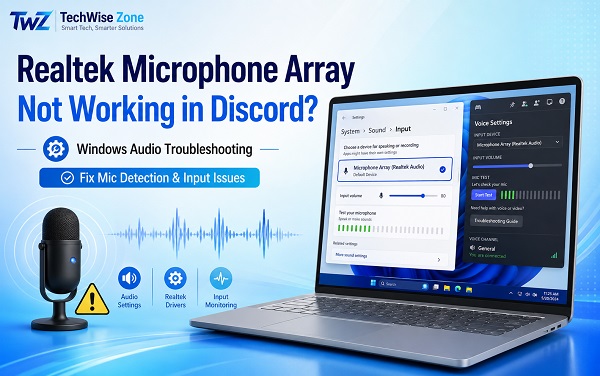
A Realtek Microphone Array can appear normally in Windows and still produce no voice in Discord. You may see Microphone Array (Realtek(R) Audio) under Windows input devices, watch the Windows microphone meter respond when you speak, and then open Discord only to find that Mic Test hears nothing.
That difference is important. The microphone array Realtek not working Discord problem is not always a failed microphone or a bad Realtek driver. Discord may be listening to another input device, Windows may be blocking desktop-app microphone access, Discord’s voice settings may be corrupted, or audio processing from Realtek, Windows, or another utility may interfere with the input stream.
The fastest way to troubleshoot it is to test the microphone in Windows first. That tells you whether to focus on Discord or on the Realtek microphone itself.
This guide focuses on Windows 11 and Windows 10 PCs that use a built-in or connected Realtek Microphone Array.
Test the Realtek Microphone Array in Windows First
Before changing Discord settings, confirm whether Windows can hear the microphone.
On Windows 11:
- Open Settings.
- Go to System > Sound.
- Scroll to Input.
- Select Microphone Array (Realtek(R) Audio) or the equivalent Realtek input.
- Find the microphone test section.
- Start the test and speak normally.
- Stop the test and review the result.
You can also watch the input level meter while speaking.
The result determines what to troubleshoot next.
Windows Hears the Microphone but Discord Does Not
This is the most important scenario for this article.
When the Windows input meter responds but Discord’s Mic Test does not, the physical microphone and Realtek input path are probably working. Focus first on:
- Discord’s selected Input Device
- Discord input volume
- Windows microphone permissions
- Discord Voice & Video settings
- Discord audio subsystem
- Audio enhancements
- Other apps taking control of the microphone
Windows Does Not Hear the Microphone Either
When the Windows microphone test also receives no signal, Discord is unlikely to be the root cause.
Focus more heavily on:
- The selected Windows input device
- Microphone level
- Microphone mute controls
- Realtek audio driver
- Audio enhancements
- OEM audio software
- Device Manager
- Hardware problems
Do this test before repeatedly reinstalling Discord. It can save a lot of unnecessary troubleshooting.
1. Select the Realtek Microphone Array Manually in Discord
Discord can use a different input device from the one Windows is currently testing.
This often happens after connecting:
- A Bluetooth headset
- USB headphones
- A webcam
- A gaming headset
- A USB microphone
- A docking station
- An HDMI or DisplayPort display with audio support
Open Discord and go to:
User Settings > Voice & Video
Under Input Device, do not leave the setting on Default while troubleshooting.
Open the list and explicitly select:
Microphone Array (Realtek(R) Audio)
The exact wording depends on the PC manufacturer and Realtek driver.
After selecting it:
- Increase Input Volume to a reasonable level.
- Find Mic Test.
- Start the test.
- Speak at a normal volume.
- Listen for the playback.
Discord’s current troubleshooting guidance recommends verifying the selected Input Device and using its built-in Mic Test before moving into more advanced fixes.
You can see Discord’s current microphone troubleshooting guidance on its official Voice and Video Troubleshooting Guide.
Why “Default” Can Cause Confusion
The Default option tells Discord to follow the current Windows default input.
That normally works, but Windows can change its preferred input after you connect or disconnect another audio device.
For example, Discord may start listening to:
- A webcam microphone
- A Bluetooth hands-free microphone
- A headset mic
- A virtual audio device
Selecting the Realtek Microphone Array directly removes that uncertainty.
If Discord immediately starts receiving your voice after you choose the Realtek device manually, you do not need to reinstall the driver.
2. Allow Discord to Access the Microphone in Windows
Windows microphone privacy controls can block desktop applications even when the microphone itself works.
On Windows 11, open:
Settings > Privacy & security > Microphone
Make sure these options are enabled:
- Microphone access
- Let apps access your microphone
- Let desktop apps access your microphone
Discord’s desktop application depends on the desktop-app permission.
Microsoft explains these controls on its official microphone permissions page.
After changing the permission:
- Close Discord completely.
- Reopen it.
- Go to User Settings > Voice & Video.
- Select the Realtek Microphone Array.
- Run Mic Test again.
Discord Browser Version
When you use Discord in Chrome, Edge, Firefox, or another browser, you must also allow microphone access for the Discord website.
Click the site permission icon near the browser address bar and make sure:
Microphone > Allow
Then reload Discord.
Browser permission and Windows microphone permission are separate. Both may need to be enabled.
3. Check the Realtek Microphone Level and Mute State
Discord cannot amplify a microphone that Windows is receiving at almost zero level.
Open:
Settings > System > Sound > Input
Select the Realtek Microphone Array.
Check the Input volume setting and raise it gradually.
Speak while watching the Windows input meter.
Do not immediately set every control to 100. Very high microphone gain can introduce:
- Background noise
- Distortion
- Clipping
- Fan noise
- Keyboard noise
- Echo
If your Realtek setup provides microphone boost or gain controls, adjust them in small steps.
My How to Change Gain in Windows 11 guide explains Windows microphone level, microphone boost, and Realtek Audio Console controls in more detail.
Check the Classic Recording Device Controls
Some Realtek drivers expose additional controls through the older Sound interface.
Open Settings > System > Sound > More sound settings.
Then:
- Open the Recording tab.
- Select Microphone Array.
- Choose Properties.
- Open the Levels tab.
- Make sure the microphone is not muted.
- Adjust the level.
- Apply the changes.
The available tabs depend on the Realtek driver and your PC manufacturer.
4. Reset Discord Voice Settings
Discord stores multiple voice-related options, and a bad combination can produce microphone problems even when the selected device is correct.
Open:
Discord > User Settings > Voice & Video
Scroll toward the bottom and find:
Reset Voice Settings
Select it and confirm.
Then return to the top of Voice & Video and configure the microphone again.
Choose:
Input Device > Microphone Array (Realtek(R) Audio)
Set a reasonable Input Volume and run Mic Test.
This can help when the microphone stopped working after:
- Changing headsets
- Switching between USB and built-in audio
- Adjusting noise suppression
- Changing input mode
- Modifying voice processing
- Installing or removing virtual audio software
Resetting Discord voice settings is much less disruptive than reinstalling Discord, so it should come earlier in the troubleshooting process.
5. Check Voice Activity, Input Sensitivity, and Push to Talk
Sometimes Discord can detect the Realtek microphone but never considers your voice loud enough to transmit.
Open:
User Settings > Voice & Video
Look at Input Mode.
Discord normally offers:
- Voice Activity
- Push to Talk
When Using Voice Activity
Make sure Voice Activity is selected.
Check the input sensitivity controls.
If automatic sensitivity is enabled, speak normally and watch whether Discord detects your voice.
When automatic sensitivity behaves poorly, disable it temporarily and adjust the threshold manually.
The microphone input level should cross the sensitivity threshold while you speak.
A threshold that is too high can make Discord behave as if the Realtek microphone is not working even though the microphone is sending audio.
When Using Push to Talk
Make sure the Push to Talk key is configured and actually being held while speaking.
Also verify that another application, game, overlay, or utility is not intercepting the same shortcut.
For troubleshooting, temporarily switch to Voice Activity and run Discord’s Mic Test.
If Voice Activity works but Push to Talk does not, the Realtek microphone itself is not the problem.
6. Temporarily Disable Discord Voice Processing
Discord includes audio processing designed to improve voice quality, but processing can complicate troubleshooting when the raw microphone signal is already weak or unusual.
Available options can change as Discord updates, but the Voice & Video section may include features related to:
- Noise suppression
- Echo cancellation
- Noise reduction
- Automatic gain control
- Voice processing
Temporarily turn off optional processing features and test the Realtek Microphone Array again.
Change one setting at a time.
That is important because disabling everything simultaneously may make the microphone work without telling you which setting caused the problem.
Noise Suppression
Discord’s noise suppression is useful for removing fans, keyboards, and background sounds. However, aggressive processing can sometimes suppress quiet speech or unusual microphone signals.
Turn it off temporarily and test.
Automatic Gain Control
Automatic gain can help normalize voice level, but it is worth disabling during diagnosis if the Realtek microphone level is behaving unpredictably.
Echo Cancellation
This normally should not prevent a microphone from working, but it is another processing layer that can be removed temporarily while testing.
Once the microphone works reliably, re-enable the features you need one at a time.
7. Disable Realtek or Windows Audio Enhancements Temporarily
Realtek and PC manufacturers frequently add audio processing to built-in microphone arrays.
Depending on the laptop or motherboard, you may see features such as:
- Noise suppression
- Acoustic echo cancellation
- Beam forming
- Voice focus
- AI noise removal
- Microphone effects
- Audio enhancements
These effects can be useful, especially on laptops with multiple built-in microphones, but an enhancement or Audio Processing Object can also interfere with recording.
Microsoft recommends testing with microphone audio enhancements disabled when the input signal is not behaving correctly.
On Windows 11:
- Open Settings > System > Sound.
- Select the Realtek Microphone Array under Input.
- Find Audio enhancements if your driver exposes the setting.
- Turn enhancements off temporarily.
- Test the microphone in Windows.
- Test it again in Discord.
Some Realtek systems place these controls in Realtek Audio Console rather than Windows Settings.
If Realtek Audio Console itself will not open or cannot communicate with the driver, use my Realtek Audio Console Not Opening? How to Fix It guide before assuming the microphone hardware has failed.
Do Not Disable the Entire Realtek Device
Audio enhancements are not the same thing as the Realtek audio device.
Do not disable Realtek Audio in Device Manager simply because you want to turn off noise suppression.
Disable only the processing feature you are testing.
8. Stop Other Apps From Taking Exclusive Control of the Microphone
Another application may open the Realtek Microphone Array in a way that interferes with Discord.
Programs worth checking include:
- Microsoft Teams
- Zoom
- OBS Studio
- Voice recording software
- Game launchers
- Streaming software
- Browser tabs using the microphone
- Audio production software
- Voice changers
- Virtual audio mixers
Close other microphone-using applications completely and test Discord again.
You can also check the classic microphone properties:
- Open Settings > System > Sound.
- Open More sound settings.
- Select the Recording tab.
- Double-click Microphone Array.
- Open Advanced.
- Look for exclusive-mode options.
You may see:
Allow applications to take exclusive control of this device
Temporarily turn it off and test Discord.
Not every PC needs exclusive mode disabled permanently. Treat this as a diagnostic step.
If Discord works only after disabling exclusive control, another application or audio component may have been monopolizing the input.
9. Repair the Realtek Audio Driver
Move into driver troubleshooting when the Realtek Microphone Array also fails in Windows, disappears from the Input list, repeatedly disconnects, or produces errors in Device Manager.
Open Device Manager:
- Right-click Start.
- Select Device Manager.
- Expand Audio inputs and outputs.
- Find Microphone Array.
- Also expand Sound, video and game controllers.
- Find the Realtek audio device.
Look for:
- Yellow warning icons
- Missing Realtek devices
- Disabled devices
- Devices that repeatedly appear and disappear
Update the Driver
Right-click the relevant Realtek device and choose:
Update driver
You can let Windows search for a driver, but on laptops and prebuilt PCs I recommend checking the manufacturer’s support page as well.
Realtek audio packages are often customized by Dell, HP, Lenovo, ASUS, Acer, MSI, Microsoft, and other manufacturers.
Those OEM packages can include:
- Realtek Universal Audio drivers
- Audio Processing Objects
- Microphone-array tuning
- Jack detection
- Realtek Audio Console components
- Manufacturer-specific audio services
A generic Realtek package may restore basic audio but remove features the built-in microphone array depends on.
Reinstall the Device
When Device Manager shows the microphone but it behaves incorrectly:
- Right-click the relevant Realtek audio device.
- Select Uninstall device.
- Restart Windows.
- Allow Windows to detect the audio hardware again.
- Install the correct OEM audio package if necessary.
Do not select unfamiliar driver-removal options unless you already have the correct replacement package available.
10. Roll Back a Realtek Driver or Check Windows Update
A microphone that stops working immediately after an audio driver update deserves a rollback check.
Open:
Device Manager > Sound, video and game controllers
Double-click the Realtek audio device.
Open the Driver tab.
If Roll Back Driver is available, consider using it when the microphone worked properly before the latest driver change.
Restart the computer and test:
- Windows microphone test
- Discord Mic Test
Also open:
Settings > Windows Update
Install current Windows updates and restart.
Windows audio components, drivers, and app compatibility can change through updates, so keeping Windows current is useful when the issue began after a system change.
For a laptop or branded desktop, also check the manufacturer’s support utility or support page for a newer Realtek audio package.
Avoid third-party driver updater tools. They may install a generic or mismatched audio package that removes OEM microphone-array features.
11. Reinstall Discord Only After the Microphone Works in Windows
Reinstalling Discord is reasonable when all of these are true:
- Windows detects the Realtek Microphone Array.
- The Windows microphone test hears you.
- Other recording applications hear you.
- Discord still receives no microphone signal.
- Selecting the correct Input Device does not help.
- Resetting Voice Settings does not help.
- Windows microphone permissions are correct.
Before reinstalling, close Discord completely.
Use Task Manager to make sure Discord is no longer running in the background.
Then uninstall Discord through:
Settings > Apps > Installed apps
Restart Windows and install the current desktop version from Discord.
After installation:
- Open Discord.
- Go to User Settings > Voice & Video.
- Select Microphone Array (Realtek(R) Audio) manually.
- Set Input Volume.
- Run Mic Test before changing other voice settings.
Do not restore every old audio setting immediately.
Test the microphone first with a clean configuration.
What to Do When Realtek Microphone Works in Windows but Not Discord
This is the clearest Discord-specific version of the problem.
Use this order:
- Select Microphone Array (Realtek(R) Audio) manually in Discord.
- Run Discord Mic Test.
- Enable Windows microphone access for desktop apps.
- Reset Discord Voice Settings.
- Check Voice Activity and input sensitivity.
- Disable optional Discord voice processing temporarily.
- Close other apps using the microphone.
- Disable microphone enhancements temporarily.
- Reinstall Discord only after the earlier steps fail.
Do not begin by uninstalling the Realtek driver when Windows is already recording from the microphone correctly.
A working Windows microphone test proves that the Realtek input path is functioning at least at the operating-system level.
What to Do When Discord Does Not Show the Realtek Microphone Array
When Microphone Array (Realtek(R) Audio) is missing from Discord’s Input Device menu, check whether Windows can see it.
Open:
Settings > System > Sound > Input
Realtek Microphone Appears in Windows
Close Discord completely and reopen it.
If it remains missing:
- Restart Windows.
- Make sure Discord has microphone permission.
- Install Discord updates.
- Reset Discord Voice Settings.
- Reinstall Discord if necessary.
Realtek Microphone Is Missing From Windows Too
This is no longer primarily a Discord problem.
Check:
- Device Manager
- Windows Update
- OEM Realtek driver
- Realtek Audio Console
- BIOS or hardware microphone settings on applicable PCs
The Realtek Audio Console Not Opening guide is especially relevant when the complete Realtek driver stack appears damaged.
What to Do When Discord Detects the Mic but Nobody Can Hear You
Seeing activity in Discord Mic Test means Discord can access the microphone.
If other people still cannot hear you in a server or call, check:
- Whether you are muted
- Whether a server moderator muted you
- Push to Talk configuration
- Channel permissions
- Input Mode
- Per-user or channel-specific issues
- Whether you joined the correct voice channel
Also test a direct call or another Discord server.
When Mic Test works but only one server or channel fails, reinstalling the Realtek driver is unlikely to help.
What to Do When the Realtek Microphone Is Too Quiet in Discord
First raise Discord’s Input Volume.
Then check the Windows microphone input level under:
Settings > System > Sound > Input > Microphone Array
If the signal remains weak, inspect microphone gain or boost.
Some Realtek systems expose additional microphone controls through Realtek Audio Console.
Use small adjustments and test after each one. Large microphone boost values can make your voice louder while also amplifying fan noise, keyboard clicks, electrical noise, and room echo.
For a detailed walkthrough, see How to Change Gain in Windows 11.
Should You Disable Realtek Audio to Fix Discord?
Usually, no.
Disabling the Realtek audio device removes the microphone input that Discord may need.
There are situations where temporarily disabling one of several audio devices can help identify a conflict, but disabling the entire Realtek stack should not be a standard Discord microphone fix.
If you need to understand exactly what happens when Realtek is disabled, see How to Disable Realtek Audio on Windows 11.
For this problem, selecting the correct microphone in Discord is safer than disabling unrelated audio devices.
Frequently Asked Questions
Why is my Realtek Microphone Array not working in Discord?
Discord may be using the wrong input device, Windows may be blocking microphone access, Discord voice settings may be misconfigured, or Realtek audio processing may interfere with recording. Test the microphone in Windows first, then select the Realtek Microphone Array manually in Discord.
Why does my Realtek microphone work in Windows but not Discord?
When Windows can record from the microphone, the hardware and Realtek input path are probably functioning. Focus on Discord’s Input Device, Mic Test, microphone permissions, Voice & Video settings, input sensitivity, and audio processing.
How do I select Realtek Microphone Array in Discord?
Open User Settings > Voice & Video and use the Input Device menu. Choose Microphone Array (Realtek(R) Audio) or the equivalent Realtek microphone shown on your PC.
Why doesn’t Discord detect my microphone array?
Discord may not have microphone permission, the Realtek device may not be available to Windows, or Discord may need to be restarted after an audio-device change. Confirm that the microphone appears under Settings > System > Sound > Input first.
Should Discord Input Device be set to Default or Realtek Microphone Array?
Default is convenient when Windows always uses the correct microphone. During troubleshooting, explicitly select the Realtek Microphone Array so Discord cannot switch to a webcam, headset, Bluetooth microphone, or virtual audio device.
Can Realtek Audio Console affect Discord’s microphone?
Yes. On supported PCs, Realtek Audio Console can control microphone gain, effects, noise suppression, and other OEM audio features. A broken Realtek driver stack can also prevent some of those controls from working correctly.
Can audio enhancements stop the Realtek microphone from working?
They can contribute to microphone input problems on some systems. Microsoft recommends testing with microphone audio enhancements disabled when the input signal is not behaving correctly.
Do I need to reinstall Discord?
Only after confirming that the Realtek Microphone Array works in Windows and other recording applications. Selecting the correct input device, checking permissions, resetting Voice Settings, and testing processing options should come first.
Do I need a new microphone?
Not when Windows can already hear your Realtek Microphone Array. A replacement microphone becomes more reasonable when the device also fails in Windows, disappears from Device Manager, or has a confirmed hardware problem.
Let the Windows Microphone Test Decide Where to Troubleshoot
The most useful test for this problem happens before you change any Discord setting.
When Windows receives a healthy signal from Microphone Array (Realtek(R) Audio) but Discord does not, concentrate on Discord’s selected input, permissions, voice settings, sensitivity, and processing. Reinstalling the Realtek driver at that point usually adds unnecessary work.
When Windows cannot hear the microphone either, move down a level and troubleshoot the Realtek device itself. Check microphone level, enhancements, Device Manager, Windows Update, and the OEM Realtek driver package.
Keeping those two scenarios separate makes it much easier to fix a Realtek Microphone Array that has stopped working in Discord without changing unrelated audio settings.
