
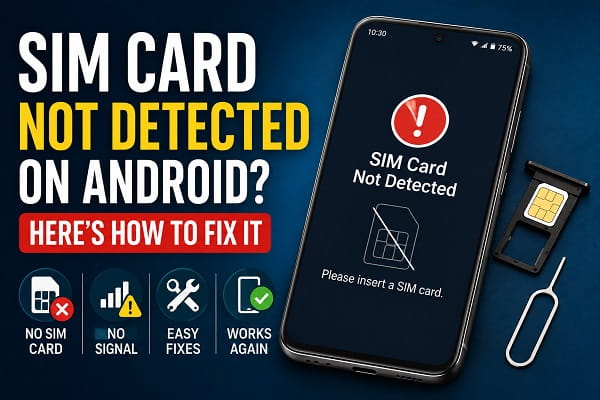
Few smartphone issues are as frustrating as seeing a message that says “SIM card not detected,” “No SIM card,” or “Insert SIM card” when you know your SIM is properly inserted.
Without a working SIM card, your Android phone may be unable to make calls, send text messages, or access mobile data. In some cases, the issue appears suddenly after a software update, accidental drop, or network change.
The good news is that a SIM card detection problem does not always mean the SIM card is damaged. Often, the issue can be fixed with a few simple troubleshooting steps.
In this guide, you’ll learn the most common reasons Android phones fail to detect SIM cards and the most effective solutions to restore network connectivity.
Why Is My Android Phone Not Detecting the SIM Card?
Several factors can prevent Android from recognizing a SIM card.
Common causes include:
- Improper SIM card installation
- Dust or debris in the SIM tray
- Damaged SIM card
- Network configuration issues
- Software glitches
- Outdated Android software
- SIM card tray damage
- Hardware problems
Understanding the cause makes troubleshooting much easier.
1. Restart Your Android Phone
Sometimes, network-related issues can occur alongside internet connectivity problems. If your device connects to Wi-Fi but still struggles to access websites or online services, check our guide on WiFi connected but no internet on Android for additional troubleshooting steps that may help restore proper connectivity.
Before attempting advanced fixes, restart your device.
A simple reboot can resolve temporary software glitches that prevent Android from detecting the SIM card.
Steps
- Press and hold the power button.
- Tap Restart.
- Wait for the phone to reboot completely.
After restarting, check whether the network signal returns.
2. Remove and Reinsert the SIM Card
A SIM card that has shifted slightly inside the tray may lose proper contact with the phone.
How to Reinsert the SIM
- Power off your device.
- Remove the SIM tray using the SIM ejector tool.
- Take out the SIM card.
- Inspect it carefully.
- Reinsert it correctly.
- Turn the phone back on.
Many SIM detection issues are resolved by simply reseating the card.
3. Clean the SIM Card and Tray
Dust and debris can interfere with the connection between the SIM card and the device.
Cleaning Tips
- Use a soft microfiber cloth.
- Gently wipe the SIM card.
- Remove visible dust from the SIM tray.
- Avoid liquids or abrasive materials.
After cleaning, reinsert the SIM and test again.
4. Check for Physical Damage
Inspect the SIM card carefully.
Look for:
- Scratches
- Cracks
- Bent edges
- Worn contact points
A physically damaged SIM card may need replacement.
If possible, test the SIM in another phone.
5. Enable and Disable Airplane Mode
Refreshing network connections can sometimes help Android detect the SIM card.
Steps
- Swipe down from the top of the screen.
- Enable Airplane Mode.
- Wait 30 seconds.
- Disable Airplane Mode.
Your phone will reconnect to available networks.
6. Update Android Software
Software updates can occasionally introduce unexpected bugs that affect various phone functions, including network detection and app stability. If you’ve recently updated your device and started experiencing unusual behavior, our article on apps keep crashing after Android update explains several proven fixes that may help.
Software bugs occasionally affect network connectivity and SIM detection.
Check for Updates
- Open Settings.
- Tap System.
- Select Software Update.
- Install any available updates.
Manufacturers frequently release updates that improve network stability and device performance.
7. Reset Network Settings
Incorrect network configurations can sometimes prevent proper SIM recognition.
Reset Network Settings
- Open Settings.
- Tap System.
- Select Reset Options.
- Choose Reset Network Settings.
This will reset:
- Mobile network settings
- Wi-Fi settings
- Bluetooth settings
You may need to reconnect to Wi-Fi networks afterward.
8. Test the SIM Card in Another Phone
Testing the SIM in another device helps determine whether the issue is with the SIM card or your phone.
Possible Results
SIM works in another phone
- The issue is likely with your Android device.
SIM does not work
- The SIM card may be faulty.
This simple test can save considerable troubleshooting time.
9. Contact Your Mobile Carrier
Sometimes the problem originates with the network provider.
Possible issues include:
- SIM card deactivation
- Network provisioning errors
- Account-related problems
Contact your carrier and ask them to verify the SIM card’s status.
In many cases, they can resolve the issue remotely.
10. Replace the SIM Card
If the SIM card is old or damaged, replacing it may be the easiest solution.
Most carriers offer replacement SIM cards that allow you to keep:
- Your phone number
- Existing plan
- Account information
A new SIM often resolves persistent detection problems.
Can a Software Update Cause SIM Detection Problems?
Yes.
Occasionally, Android updates introduce temporary bugs that affect:
- Mobile network connections
- SIM card recognition
- Carrier settings
If the problem began immediately after an update, check for additional updates or security patches.
In some situations, the manufacturer releases a follow-up update to fix the issue.
Signs of a Hardware Problem
If none of the fixes work, hardware damage may be responsible.
Possible hardware issues include:
- Damaged SIM reader
- Faulty motherboard connections
- Water damage
- Bent SIM tray components
Professional diagnosis may be required if hardware failure is suspected.
Performance issues can sometimes make it difficult to diagnose Android problems accurately. If your device feels sluggish, freezes frequently, or takes a long time to respond, consider reading our guide on how to speed up a slow Android phone to improve overall system performance and responsiveness.
Frequently Asked Questions
Why does my phone say “No SIM card” when a SIM is inserted?
This may be caused by a loose SIM card, software glitch, damaged SIM, or network configuration issue.
Can a damaged SIM card be repaired?
No. Damaged SIM cards generally need replacement.
Why did my SIM stop working suddenly?
Common causes include software updates, network issues, SIM card wear, or accidental movement inside the tray.
Will resetting network settings delete my files?
No. Resetting network settings only affects network-related configurations and does not remove personal data.
In conclusion, a “SIM card not detected” error can prevent you from making calls, sending texts, and using mobile data, but the issue is often easier to fix than many users expect.
Start with simple solutions such as restarting your device, reinserting the SIM card, and checking for dust or physical damage. If the problem continues, resetting network settings or contacting your carrier may help resolve the issue.
By following these 10 proven fixes, most Android users can restore SIM card functionality and regain access to their mobile network without needing major repairs.
