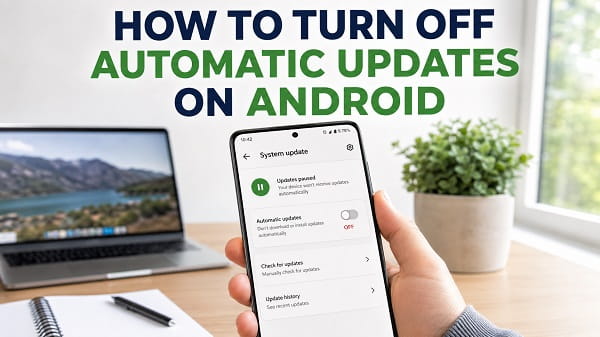
If you want more control over when your Android phone installs updates, you can turn off several types of automatic updates. The important thing is knowing which update setting you are changing.
Android does not use one single switch for every update. Google Play app updates, Android operating system updates, Samsung software updates, Google Play system updates, and some manufacturer-specific components are handled separately. Turning off automatic app updates in the Play Store does not stop Android system updates, and disabling automatic system updates does not stop apps from updating through Google Play.
The easiest place to start is the Google Play Store. If your main goal is to stop apps from updating without your permission, turn off Auto-update apps there. If you also want more control over Android operating system updates, you may need to change a separate system setting or Developer Options, depending on your phone.
This guide explains how to turn off automatic updates on Android, including Google Play apps, individual apps, Google Pixel system updates, Samsung Galaxy software updates, and what you can and cannot disable completely.
Quick Answer
To turn off automatic app updates on most Android phones:
- Open the Google Play Store.
- Tap your profile picture.
- Tap Settings.
- Open Network preferences.
- Tap Auto-update apps.
- Select Don’t auto-update apps.
- Tap OK if prompted.
This stops Google Play from automatically updating normal apps.
It does not necessarily stop:
- Android operating system updates
- Security updates
- Google Play system updates
- Google Play services updates
- Manufacturer firmware updates
- Carrier-related updates
Those are controlled separately.
What Does “Automatic Updates” Mean on Android?
When people search for how to turn off automatic updates on Android, they are usually referring to one of four things.
Google Play App Updates
These update normal apps such as WhatsApp, Chrome, Facebook, Instagram, Spotify, banking apps, games, and Google Maps.
These are controlled mainly through the Google Play Store.
Android System Updates
These can include major Android version upgrades, monthly or periodic security patches, device firmware updates, bug fixes, and stability improvements.
These are controlled by the phone manufacturer and Android system settings.
Google Play System Updates
Google can update some Android system components separately from a normal manufacturer firmware update.
These updates are part of Google’s modular Android security and system-component delivery.
Manufacturer and Carrier Updates
Samsung, Motorola, Xiaomi, OnePlus, Oppo, Realme, Tecno, Infinix, and other manufacturers can add their own software update controls.
Your mobile carrier may also affect when certain updates are offered or installed.
This is why disabling one setting may not stop every update notification.
How to Turn Off Automatic App Updates on Android
This is the method most users need.
Google Play currently provides a setting called Auto-update apps.
Open:
Google Play Store
Then:
- Tap your profile picture in the top-right corner.
- Tap Settings.
- Expand Network preferences.
- Tap Auto-update apps.
- Select Don’t auto-update apps.
- Confirm the change.
Google’s official Android app update instructions describe this setting and also explain how to manage automatic updates for individual apps.
After you turn this off, Play Store apps should normally wait until you manually choose to update them.
How to Update Android Apps Manually
Once automatic app updates are disabled, you should check for updates yourself.
Open:
Google Play Store
Then:
- Tap your profile picture.
- Tap Manage apps & device.
- Look under Updates available.
- Tap See details if needed.
- Tap Update beside an individual app.
Or tap Update all if you want to install every available update.
I recommend checking manually from time to time, especially for browsers, banking apps, password managers, messaging apps, and other security-sensitive apps.
Turning off automatic updates gives you control over timing, but leaving important apps outdated for months can expose you to bugs and security issues.
How to Stop One Android App From Updating Automatically
You do not have to disable updates for every app.
Google Play lets you control automatic updates for individual applications.
Open the Play Store and search for the app you want to manage.
Open its store page.
Tap the three-dot menu in the top-right corner.
Look for:
Enable auto update
If the option is checked, turn it off.
That app should stop updating automatically while other apps can continue using your general Play Store update preference.
This is useful when a new version of one app is causing problems, an app update changes a feature you rely on, or you want to test a new version manually before keeping it.
Do not keep sensitive apps permanently outdated unless you have a strong reason.
How to Turn Automatic Updates Back On
If you later change your mind:
- Open the Play Store.
- Tap your profile picture.
- Open Settings.
- Tap Network preferences.
- Select Auto-update apps.
- Choose an automatic update option.
Google can change the exact wording over time, but Don’t auto-update apps is the important option when you want manual control.
How to Turn Off Automatic System Updates on Android
Android operating system updates are different from Play Store app updates.
On many phones, there is no simple supported switch that guarantees the device will never download or offer another system update.
However, some Android phones provide an Automatic system updates option under Developer Options.
This setting is mainly intended to prevent a downloaded update from being automatically applied when the phone restarts.
It should not be treated as a permanent block on all Android updates.
How to Enable Developer Options
If your phone has the Automatic system updates setting, you first need to enable Developer Options.
On many Android phones:
- Open Settings.
- Tap About phone.
- Find Build number.
- Tap Build number seven times.
- Enter your PIN or password if requested.
- Wait for the message confirming Developer Options are enabled.
The exact location of Build number varies by manufacturer.
On Samsung, it is usually under:
Settings > About phone > Software information > Build number
Do not change unrelated Developer Options unless you understand what they do.
Disable Automatic System Updates in Developer Options
After enabling Developer Options:
- Open Settings.
- Search for Developer options.
- Open it.
- Find Automatic system updates.
- Turn the switch off.
On some devices, the path resembles:
Settings > System > Developer options > Automatic system updates
The wording may differ slightly.
Again, this usually affects automatic application of system updates during a restart. It does not necessarily stop the phone from downloading update files or displaying update reminders.
Can You Completely Stop Android System Updates?
Not reliably on every Android phone.
Android manufacturers and carriers can control how firmware and security updates are delivered.
Depending on your model, an update may download automatically, wait for Wi-Fi, ask you before installation, install after a restart, offer a scheduling option, or become increasingly difficult to postpone.
Google’s Pixel support documentation notes that most system updates and security patches install automatically.
This means you should think of Developer Options as a way to gain more control over automatic installation, not as a guaranteed permanent update blocker.
How to Turn Off Automatic Updates on Google Pixel
Google Pixel phones generally separate Play Store app updates from Android system updates.
Stop Automatic App Updates on Pixel
Use:
Play Store > Profile picture > Settings > Network preferences > Auto-update apps
Choose:
Don't auto-update apps
Reduce Automatic System Update Installation on Pixel
Enable Developer Options:
Settings > About phone > Build number
Tap Build number seven times.
Then go to:
Settings > System > Developer options
Turn off:
Automatic system updates
This can stop the phone from automatically applying a downloaded update during restart.
It may not stop update downloads, notifications, or all security-related system updates.
How to Turn Off Automatic Updates on Samsung Galaxy
Samsung separates application updates and Galaxy software updates.
Turn Off Google Play App Updates on Samsung
Open:
Google Play Store > Profile picture > Settings > Network preferences > Auto-update apps
Select:
Don't auto-update apps
Turn Off Samsung Software Auto Download Where Available
On supported Galaxy devices, open:
Settings > Software update
Look for an option such as:
Auto download
or an automatic download setting.
Samsung’s current Galaxy software update guidance documents automatic download controls on supported devices.
The exact options can vary by country, carrier, Galaxy model, One UI version, and whether the phone is company-managed.
Some Galaxy devices allow you to restrict automatic downloads rather than fully disable every future software update.
Schedule an Update Instead of Installing Immediately
If Samsung has already downloaded an update, you may be given an option to install now, schedule install, or install overnight.
If your goal is only to prevent an update from interrupting work, scheduling it is safer than trying to block updates indefinitely.
How to Turn Off Automatic Updates on Motorola
Motorola phones normally use Google Play for app updates.
To disable those:
Play Store > Profile picture > Settings > Network preferences > Auto-update apps
Select Don’t auto-update apps.
For system updates, search Settings for:
system update
or:
software update
You can also check Developer Options for Automatic system updates.
Motorola menu names can differ by model and Android version.
How to Turn Off Automatic Updates on OnePlus
For Play Store apps, use the same Google Play method:
Play Store > Settings > Network preferences > Auto-update apps
Choose Don’t auto-update apps.
For OxygenOS updates, search Settings for software update or system update.
Depending on the model and OxygenOS version, you may find automatic download or installation options.
You can also check Developer Options for Automatic system updates.
How to Turn Off Automatic Updates on Xiaomi, Redmi, and POCO
Google Play app updates can be disabled using the normal Play Store setting.
For HyperOS or MIUI system updates, open Settings and search for:
system update
or:
HyperOS update
Open the updater and check its settings menu for automatic download options.
Xiaomi software update settings can vary between HyperOS versions, MIUI versions, regions, carriers, and device families.
If a setting from an older tutorial is missing, use the Settings search box instead of assuming your phone does not support manual control.
How to Turn Off Automatic Updates on Oppo and Realme
For Google Play apps:
Play Store > Profile picture > Settings > Network preferences > Auto-update apps
Select Don’t auto-update apps.
For ColorOS or Realme UI system updates, search Settings for:
software update
and inspect the update settings for automatic download or overnight installation options.
Manufacturer settings change across Android releases, so the exact wording can differ.
How to Turn Off Automatic Updates on Tecno and Infinix
Tecno HiOS and Infinix XOS both use Google Play for normal application updates.
Disable those through:
Play Store > Settings > Network preferences > Auto-update apps
For firmware, open Settings and search for:
system update
or:
software update
Look for download-over-Wi-Fi, automatic download, or installation scheduling controls.
If no option exists, the manufacturer may not provide a supported way to completely disable firmware updates.
What About Google Play System Updates?
Google Play system updates are not the same as Google Play Store app updates.
They can update parts of Android without requiring a complete manufacturer firmware package.
On many phones, you can check the current Google Play system update from:
Settings > Security & privacy
or:
Settings > About phone > Android version
The exact path varies.
You may see entries such as:
- Android security update
- Google Play system update
Turning off Auto-update apps in Google Play does not necessarily disable these system-level updates.
I generally do not recommend trying to block Google Play system security updates because they can deliver important security and reliability fixes.
What About Google Play Services Updates?
Google Play services is a core Android component used by many apps.
It handles features such as:
- Google account integration
- Location services
- App authentication
- Push notifications
- Google APIs
- Device security functions
Play services does not behave exactly like a normal third-party app.
Even if you disable automatic updates for ordinary Play Store apps, some Google system components can still be updated through system mechanisms.
Trying to permanently freeze Google Play services can cause:
- Apps to stop working
- Sign-in problems
- Notification problems
- Location failures
- Play Store errors
- Compatibility issues
For normal users, I would leave Google Play services and security components current.
Why Are Apps Still Updating After I Turned Auto-Update Off?
There are several possible reasons.
The App Uses Another App Store
Samsung Galaxy phones can also use the Galaxy Store.
Some manufacturers include their own app stores.
Disabling Google Play auto updates does not automatically disable updates from:
- Galaxy Store
- Amazon Appstore
- Manufacturer stores
- Enterprise app management
Check the app store that originally installed the application.
The Update Was Already Queued
An update may already have been downloaded or queued before you changed the setting.
Cancel pending updates and restart the phone if needed.
A Managed Device Policy Is Updating Apps
Company and school devices can be controlled through enterprise management.
Administrators can enforce application or security updates.
Do not try to bypass organizational security policies on a managed phone.
A System App Uses a Different Update Mechanism
Not every Android component is updated as a normal Play Store app.
System and security components can have separate delivery systems.
Why Did Android Still Install a System Update?
Turning off Automatic system updates in Developer Options is not the same as disabling the Android update service.
Possible reasons include:
- The update was already staged
- The phone manufacturer enforced installation
- Your carrier controls part of the update process
- The device was restarted after an update had been prepared
- The setting controls installation timing rather than download
- The phone is managed by an organization
This is why I would not recommend relying on Developer Options when an older Android version is absolutely required for critical software compatibility.
If a medical, enterprise, or specialized application depends on a particular Android release, contact the app developer and device manufacturer before a major upgrade.
Should You Turn Off Automatic Android Updates?
There are legitimate reasons to do it.
Reasons to Disable Automatic App Updates
You may want to:
- Save mobile data
- Prevent surprise interface changes
- Avoid a known buggy app release
- Control when updates occur
- Keep a particular feature temporarily
- Test updates manually
- Avoid downloads on a slow connection
Reasons to Keep Updates Enabled
Automatic updates can provide:
- Security patches
- Bug fixes
- Compatibility improvements
- Performance fixes
- New features
- Stability improvements
For most people, a good compromise is to disable automatic app updates but check manually every week or two.
That gives you control without letting important apps become extremely outdated.
Does Turning Off Automatic Updates Save Mobile Data?
It can.
App updates can consume a significant amount of data, particularly for large games, social apps, browsers, streaming apps, video editors, and navigation apps.
However, you do not always need to disable automatic updates completely.
If your only concern is cellular data, configure the Play Store to update apps only under appropriate network conditions.
That lets updates continue when you are on Wi-Fi.
If your goal is broader data savings, my How to Turn Off 5G on Android guide explains how to switch supported phones back to LTE or 4G when you do not need 5G.
Does Turning Off Updates Improve Battery Life?
Usually not by much.
Automatic downloads and app installation can temporarily use CPU, storage, network data, and battery.
But updates do not normally run constantly.
Disabling updates is not a strong long-term battery optimization strategy.
If your battery is draining unusually fast, investigate the actual background apps, screen usage, network conditions, and battery health rather than relying on disabled updates.
Can Turning Off Updates Fix Android Problems?
Sometimes temporarily.
If a specific app update causes crashes, freezing the known-working version can be useful while you wait for a fix.
But if Android itself is already unstable, leaving everything outdated can make troubleshooting harder.
For example, if Android System Intelligence repeatedly crashes, updating its related components can be one of the useful fixes. My Android System Intelligence Keeps Stopping guide covers that problem in more detail.
Can You Roll Back an Android App Update?
Sometimes.
For a preinstalled system app, Android may provide:
Uninstall updates
inside the app information screen.
This returns the app to the version originally included with the phone.
For normal Play Store apps, Android does not usually provide a simple built-in rollback button.
Installing an older APK manually introduces compatibility and security considerations, so I would not recommend downloading random old app packages from untrusted websites.
Will Disabling Automatic Updates Stop Android Notifications?
Not necessarily.
You can still receive notifications saying:
- Update available
- Software update ready
- Restart to finish update
- Security update available
Stopping automatic installation does not always stop update reminders.
I recommend leaving update notifications enabled so you know when an important security patch is waiting.
Automatic Updates Setting Is Missing
If you cannot find a setting mentioned in this guide, use the Settings search box.
Try searching for:
update
software update
automatic system updates
developer options
Phone manufacturers often move settings between Android versions.
Also remember that some carriers remove or modify update controls.
A missing switch does not necessarily mean your phone is faulty.
Should You Disable Automatic Updates in Developer Options?
Only if you understand what the option does.
Developer Options can contain settings that affect background processes, graphics rendering, USB behavior, networking, Bluetooth, debugging, and system update installation.
Avoid changing several Developer Options at the same time.
If your phone begins behaving unusually after experimenting with system settings, returning unnecessary options to their defaults is safer than making more changes.
If you are troubleshooting a phone that unexpectedly entered a diagnostic state, my How to Turn Off Safe Mode on Android guide can help you return to normal operation.
Frequently Asked Questions
How do I turn off automatic updates on Android?
For normal apps, open Google Play Store > profile picture > Settings > Network preferences > Auto-update apps and select Don’t auto-update apps.
How do I stop Android from automatically updating apps?
Disable Auto-update apps in Google Play Store settings.
How do I stop one app from updating automatically?
Open the app’s Play Store page, tap the three-dot menu, and turn off Enable auto update.
How do I turn off automatic system updates on Android?
On supported phones, enable Developer Options and turn off Automatic system updates. This mainly affects automatic installation during restart and may not completely stop downloads or update notifications.
Can Android system updates be permanently disabled?
Not through a reliable universal setting on every Android device. Manufacturers and carriers control firmware delivery, and some updates can only be postponed.
How do I stop automatic updates on Samsung?
Disable Play Store app updates through Google Play. For Galaxy firmware, open Settings > Software update and look for automatic download controls available on your model.
How do I stop updates on a Google Pixel?
Disable Play Store auto updates for apps. For system update installation, you can turn off Automatic system updates under Developer Options, but Pixel devices may still download or offer security and Android updates.
Why is Android still updating after I disabled auto updates?
You may have disabled only Play Store app updates. Android system updates, Google Play system components, another app store, or device-management policies can still update separately.
Can Google Play system updates be disabled?
They are separate from normal Play Store app updates. I do not recommend trying to block security-related Google Play system updates.
Is it safe to turn off automatic updates?
It is generally safe to turn off automatic app updates if you manually update important apps regularly. Permanently avoiding security and system updates can increase security and compatibility risks.
Does disabling updates save data?
Yes, especially if you have large apps or games. If data usage is the only concern, limiting app updates to Wi-Fi may be a better option.
Will apps still work if I stop updating them?
Usually for a while, but very old app versions can eventually stop working because of server changes, security requirements, or Android compatibility changes.
Can I update apps manually after turning automatic updates off?
Yes. Open Play Store > profile picture > Manage apps & device and install the updates you want.
Will turning off automatic updates stop Google Play services?
Not necessarily. Google Play services and other system components can use different update mechanisms.
Should I leave security updates enabled?
Yes. Even if you prefer manual control over feature updates and normal apps, security updates are important for protecting the device from known vulnerabilities.
The Best Way to Control Android Updates
If your main goal is simply to prevent surprise app updates, disable Auto-update apps in Google Play and update apps manually when it is convenient.
If you also want control over Android firmware, check your manufacturer’s Software Update settings and, where available, disable Automatic system updates in Developer Options. Just remember that this does not guarantee that every Android system or security update will be permanently blocked.
For most users, the safest balance is to control the timing of updates rather than avoiding them completely. Keep important security components current, manually review app updates, and install major Android upgrades when you have time to back up your phone and confirm that your essential apps are compatible.
You might like to read:
- How to Disable Absolute Bluetooth Volume on Android
- Android Setup Keeps Stopping? How to Fix It
- How to Turn Off Safe Mode on Android (Easy Fixes)
- Android Screen Mirroring: How to Mirror Your Phone
- Mobile Network Not Available on Android? 11 Fixes That Work
- Android System Intelligence Keeps Stopping? Ways to Fix It
