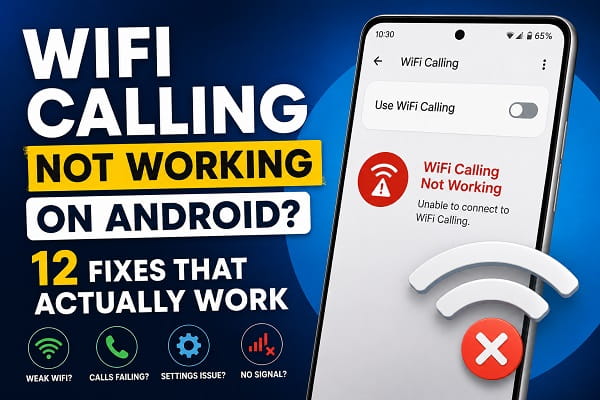
WiFi Calling lets an Android phone route supported calls over a Wi-Fi connection when mobile signal is weak or unavailable. When it stops working, the problem is usually not the Wi-Fi radio itself. Carrier provisioning, an incomplete emergency-address setup, the wrong calling preference, SIM issues, network settings, or an Android update can all prevent WiFi Calling from activating.
If Android WiFi Calling is not working, start by confirming that your carrier and phone support the feature, then check whether WiFi Calling is actually enabled for the correct SIM. After that, test the Wi-Fi network, refresh the phone’s carrier connection, and reset network settings only if the simpler fixes fail.
Google’s current Phone app guidance says Wi-Fi Calling depends on carrier support. On supported Android phones, the setting is commonly found under Settings > Network & internet > SIMs > [carrier SIM] > Wi-Fi calling. Samsung Galaxy phones commonly place it under Settings > Connections > Wi-Fi Calling.
1. Confirm Your Carrier Supports WiFi Calling
WiFi Calling is not enabled by Android alone.
Your mobile carrier must support WiFi Calling for:
- Your account
- Your SIM or eSIM
- Your phone model
- Your region
- Your current plan
Google’s official Phone app documentation notes that the Wi-Fi Calling option may not appear when the carrier does not support the feature for the device or account.
Before changing Android settings, check your carrier’s support page or contact its customer service.
This is especially important when:
- WiFi Calling has never worked on the phone
- The option is completely missing
- You recently changed carriers
- You moved a SIM to another phone
- You imported an unlocked phone from another region
- WiFi Calling disappeared after a SIM or eSIM change
For a broader explanation of how the feature works, see WiFi Calling on Android: How It Works and How to Use It.
2. Turn WiFi Calling Off and Back On
A temporary carrier-registration or Android settings problem can prevent WiFi Calling from registering.
On many Pixel and stock-style Android phones:
Settings > Network & internet > SIMs > [your carrier] > Wi-Fi calling
Turn WiFi Calling off.
Wait about 10 seconds.
Turn it back on.
On Samsung Galaxy phones, try:
Settings > Connections > Wi-Fi Calling
If you use two SIMs or a SIM and eSIM, make sure you are enabling WiFi Calling for the line you actually use for calls.
Google documents the current Pixel/Phone app route in Make calls over Wi-Fi.
3. Complete or Update the Emergency Address
This is one of the most overlooked causes of WiFi Calling not activating.
U.S. carriers such as AT&T, T-Mobile and Verizon use an emergency address for WiFi Calling so emergency services have location information when a Wi-Fi call is placed.
Depending on the carrier, you may be asked to enter or confirm an E911 address when you first enable WiFi Calling.
If the address is:
- Missing
- Rejected
- Incomplete
- Outdated
- Not accepted by the carrier
WiFi Calling may fail to activate even though the switch is visible.
Open the WiFi Calling settings and look for:
- Emergency address
- Update emergency address
- E911 address
You can also check the carrier’s account app or website.
T-Mobile currently states that a valid E911 address is required for its WiFi Calling service, and Verizon and AT&T also provide emergency-address controls for WiFi Calling.
If activation keeps returning to the same emergency-address screen, contact the carrier instead of repeatedly resetting Android.
4. Check That Wi-Fi Actually Has Internet Access
A phone can show the Wi-Fi icon while the connection itself has no usable internet.
Open a browser and load several websites.
Then test another online app.
If websites do not load reliably, WiFi Calling cannot be expected to work consistently.
Try:
- Turn Wi-Fi off.
- Wait 10 seconds.
- Turn Wi-Fi back on.
- Reconnect to the network.
- Test internet access.
If the phone says it is connected to Wi-Fi but cannot reach the internet, fix that problem first with WiFi Connected but No Internet on Android? How to Fix It.
5. Restart the Phone
Restarting the Android phone refreshes:
- Carrier registration
- SIM services
- IMS-related services
- Wi-Fi networking
- The Phone app
- Background carrier components
Restart normally.
After the phone boots:
- Connect to Wi-Fi.
- Wait about a minute.
- Check that WiFi Calling is still enabled.
- Make a test call.
Do not jump to a factory reset for a WiFi Calling problem. Most failures can be fixed without erasing the phone.
6. Turn Airplane Mode On, Then Re-enable Wi-Fi
This is a useful diagnostic when WiFi Calling works inconsistently because the phone keeps preferring a weak cellular connection.
Turn on Airplane mode.
Then manually turn Wi-Fi back on.
Wait for the phone to connect.
Try a call.
If WiFi Calling works in Airplane mode with Wi-Fi enabled, the phone and carrier can probably use WiFi Calling, but the normal network preference may be choosing cellular service first.
Do not leave Airplane mode enabled permanently if you need normal mobile connectivity.
On some carriers and phones, WiFi Calling settings include a preference such as:
- Wi-Fi preferred
- Mobile network preferred
If the option exists, choose the preference that fits your coverage situation.
The exact wording varies by carrier.
7. Update Android and Carrier Components
Carrier and Android updates can change WiFi Calling behavior.
Check:
Settings > System > Software update
Samsung commonly uses:
Settings > Software update > Download and install
Install available stable updates.
Also update apps such as:
- Phone
- Carrier Services, where installed
- Google Play system components
Restart after updating.
Samsung’s current WiFi Calling troubleshooting guidance includes restarting the phone and installing current phone software before moving to deeper network resets. See Samsung’s Wi-Fi Calling troubleshooting.
8. Remove and Reinsert the SIM Card
A SIM registration problem can interfere with carrier features such as:
- WiFi Calling
- VoLTE
- Mobile network registration
- SMS
- Carrier configuration
If the phone uses a physical SIM:
- Turn the phone off.
- Remove the SIM tray.
- Inspect the SIM for obvious damage.
- Reinsert it correctly.
- Turn the phone back on.
Wait for the carrier name and mobile signal to appear.
Then reconnect to Wi-Fi and test WiFi Calling.
If the SIM is damaged, very old, or recently moved between incompatible phones, contact the carrier for a replacement.
For broader carrier-registration problems, see Mobile Network Not Available on Android? How to Fix It.
9. Refresh or Re-enable an eSIM
For an eSIM, do not delete the profile as your first troubleshooting step.
Instead:
- Open Settings.
- Go to the SIM or mobile network section.
- Select the eSIM.
- Turn the SIM off temporarily if Android provides that option.
- Wait several seconds.
- Turn it back on.
Restart and test again.
Deleting an eSIM can require a new QR code, activation flow, or carrier intervention.
Only remove an eSIM when the carrier specifically instructs you to.
10. Test Another Wi-Fi Network
Some networks can interfere with WiFi Calling even when normal browsing works.
Test the phone on:
- Home Wi-Fi
- Another trusted Wi-Fi network
- A personal hotspot from another device
If WiFi Calling works on one network but not another, the phone and carrier are probably not the main problem.
The original network may be affected by:
- Router firewall rules
- VPN configuration
- Corporate Wi-Fi restrictions
- Captive portals
- Network filtering
- Poor Wi-Fi stability
Public Wi-Fi networks that require a browser sign-in can also behave unpredictably until authentication is complete.
11. Disable a VPN Temporarily
A VPN changes how network traffic is routed.
Some carrier WiFi Calling implementations may have problems when a VPN or security filter interferes with the connection.
Disconnect the VPN temporarily.
Restart Wi-Fi.
Try WiFi Calling again.
If it works, review the VPN provider’s split-tunneling, local-network, or carrier-call settings.
Do not permanently disable a VPN that you need for work or security without understanding the tradeoff.
12. Reset Network Settings
Use this after the easier fixes.
Resetting network settings can repair corrupted:
- Wi-Fi settings
- Mobile network settings
- Bluetooth configuration
- Carrier-related connection state
On Pixel and many Android phones:
Settings > System > Reset options > Reset Wi-Fi, mobile & Bluetooth
On Samsung Galaxy:
Settings > General management > Reset > Reset Wi-Fi and Bluetooth settings
or the equivalent option for the One UI version.
Samsung also provides a separate Reset mobile network settings option on some current models.
After the reset, you may need to:
- Reconnect to Wi-Fi
- Re-pair Bluetooth devices
- Recheck mobile network settings
- Re-enable WiFi Calling
For Samsung-specific instructions, see How to Reset Network Settings on Samsung Galaxy Phones.
WiFi Calling Option Missing on Android
A missing WiFi Calling option is different from a visible option that refuses to work.
When the setting is completely absent, check:
- Carrier support
- Phone model compatibility
- SIM/eSIM provisioning
- Current Android software
- Carrier account activation
Google’s current help states that carrier support controls whether Wi-Fi Calling is available.
Contact your carrier and ask specifically:
Is WiFi Calling provisioned for my line and this exact phone model?
That wording is more useful than simply asking whether the carrier “supports WiFi Calling.”
A carrier may support the feature generally but not enable it for every device or account.
WiFi Calling Not Activating
When the switch is visible but activation fails:
- Confirm the emergency/E911 address.
- Restart the phone.
- Toggle WiFi Calling off and back on.
- Check carrier provisioning.
- Update Android.
- Test another Wi-Fi connection.
- Reset network settings.
If the phone sends you to a carrier activation page that repeatedly fails, the carrier account is the most likely place to investigate.
WiFi Calling Keeps Turning Off
Possible causes include:
- Carrier profile refresh
- Android update
- SIM change
- Dual-SIM configuration
- Account provisioning
- Phone restart after a failed activation
- Carrier settings problem
Turn it on again and restart.
If the switch repeatedly turns itself off, contact the carrier and ask whether WiFi Calling remains provisioned on the line.
WiFi Calling Works Only in Airplane Mode
This often means the phone prefers the cellular network when it detects usable mobile service.
Check whether your carrier provides a calling preference such as Wi-Fi preferred.
If no preference exists, the carrier and phone may automatically choose between Wi-Fi and cellular based on signal conditions.
A successful call in Airplane mode with Wi-Fi manually enabled proves that the basic WiFi Calling path can work.
WiFi Calling Not Working After an Android Update
Use this order:
- Restart the phone.
- Check whether WiFi Calling was turned off.
- Update the Phone app and carrier-related components.
- Check the emergency address.
- Test another Wi-Fi network.
- Reinsert or refresh the SIM.
- Reset network settings.
- Contact the carrier if provisioning appears to have been lost.
Do not immediately factory-reset the phone after an Android update.
WiFi Calling Not Working on Samsung
On Samsung Galaxy:
- Open Settings > Connections > Wi-Fi Calling.
- Confirm the correct SIM is enabled.
- Restart the phone.
- Install current Samsung software updates.
- Test another Wi-Fi network.
- Reset network settings.
- Boot into Safe Mode if a third-party app may be interfering.
- Contact the carrier if the option is missing or activation fails.
Samsung’s official troubleshooting process also emphasizes Wi-Fi connectivity, restart, software updates, network reset, app conflicts, and carrier support.
WiFi Calling Not Working on Google Pixel
On Pixel:
- Open Settings > Network & internet > SIMs.
- Select the carrier SIM.
- Open Wi-Fi calling.
- Turn it off and back on.
- Check any calling preference.
- Restart.
- Update Android and the Phone app.
- Test another Wi-Fi network.
- Contact the carrier if WiFi Calling is missing.
Carrier support remains important even on an unlocked Pixel.
WiFi Calling Not Working With Dual SIM
Dual-SIM phones can make troubleshooting confusing.
Confirm:
- Which SIM is the default for calls
- Which SIM has WiFi Calling enabled
- Whether both carriers support the feature
- Whether WiFi Calling is enabled separately for each line
Disable the second SIM temporarily and test the affected line by itself.
If WiFi Calling starts working, review the dual-SIM settings before assuming there is a hardware problem.
Incoming WiFi Calls Not Working but Outgoing Calls Work
Check:
- Do Not Disturb
- Call forwarding
- Carrier account status
- Phone app permissions
- SIM registration
- Whether normal cellular calls can reach the phone
If the phone is not receiving normal calls either, troubleshoot the wider incoming-call problem.
TechWise Zone’s Why Is My Phone Not Receiving Calls? covers call blocking, forwarding, network registration, Do Not Disturb, and SIM problems.
WiFi Calling Connected but Calls Still Use Mobile Network
Some Android phones display WiFi Calling only when the cellular signal is weak enough for the carrier’s routing rules to prefer Wi-Fi.
Check for a Wi-Fi preferred setting if your carrier exposes one.
You can also test with:
- Airplane mode on.
- Wi-Fi manually turned back on.
- A stable Wi-Fi connection.
- A test call.
If the call succeeds, WiFi Calling works.
The normal mode may simply be preferring cellular service.
WiFi Calling Not Working Abroad
International WiFi Calling behavior varies significantly by carrier.
Before relying on it outside your home country, check:
- Whether your carrier permits WiFi Calling abroad
- Rates for calls to international numbers
- Roaming rules
- Emergency-calling limitations
- VPN/network restrictions
Do not assume a call is free simply because it is using Wi-Fi.
Billing rules are controlled by the carrier.
Why WiFi Calling Can Fail Even With Fast Internet
WiFi Calling does not depend only on download speed.
A fast connection can still have:
- High latency
- Packet loss
- Network filtering
- VPN interference
- Firewall restrictions
- Unstable roaming between access points
That is why testing another Wi-Fi network is often more useful than running one speed test.
Should You Clear Carrier Services Data?
Some troubleshooting discussions recommend clearing Carrier Services storage.
I would not make that an early fix.
Carrier Services and carrier-related components can affect calling and messaging behavior, but clearing their data is more invasive than:
- Restarting
- Updating the app
- Rechecking WiFi Calling
- Re-registering the SIM
- Resetting network settings
Use carrier-specific reset instructions only when your carrier or phone manufacturer recommends them for your model.
Should You Factory Reset the Phone?
A factory reset should be one of the last steps.
Consider it only when:
- WiFi Calling previously worked
- Carrier provisioning is confirmed
- The SIM works correctly
- Multiple Wi-Fi networks were tested
- Android is fully updated
- Network settings were reset
- The carrier and phone manufacturer cannot resolve the software problem
Back up the phone first.
A factory reset cannot fix a carrier account that is not provisioned for WiFi Calling.
Frequently Asked Questions
Why is WiFi Calling not working on my Android phone?
Common causes include missing carrier support, incomplete carrier provisioning, an invalid emergency address, WiFi Calling being disabled, poor Wi-Fi connectivity, SIM problems, outdated Android software, or corrupted network settings.
Why did WiFi Calling disappear from Android?
The option can disappear after a SIM change, carrier provisioning change, software update, account change, or when the carrier does not support the feature for that phone.
Why is WiFi Calling enabled but not being used?
The phone or carrier may prefer cellular service when the mobile signal is strong enough. Check for a Wi-Fi preferred setting or test WiFi Calling with Airplane mode enabled and Wi-Fi turned back on.
Do I need mobile signal for WiFi Calling?
Some carriers allow WiFi Calling when cellular signal is weak or unavailable, but activation and carrier requirements vary. A valid SIM/eSIM and carrier provisioning are normally required.
Does WiFi Calling work without a SIM?
Standard carrier WiFi Calling normally depends on a carrier line and SIM or eSIM. Internet-calling apps such as WhatsApp or Google Voice are separate services.
Why does my carrier ask for an emergency address?
Carriers use an emergency/E911 address to help route emergency calls placed through WiFi Calling when normal cellular location information may be unavailable.
Will resetting network settings delete my photos?
No. A network reset does not erase your photos or normal personal files. It can remove saved Wi-Fi networks, Bluetooth pairings, and network-related settings.
Should I replace my SIM if WiFi Calling does not work?
Only after checking carrier provisioning and the other fixes. An old or damaged SIM can contribute to carrier-feature problems, but the carrier should confirm whether a replacement is necessary.
Can a VPN stop WiFi Calling?
It can on some networks or carrier implementations. Temporarily disconnect the VPN and test again.
Why does WiFi Calling work on one Wi-Fi network but not another?
The failing network may have firewall, filtering, captive-portal, VPN, or stability problems. If another network works, the phone and carrier are less likely to be the root cause.
Start With the Carrier, Then the Phone
WiFi Calling sits between Android, your Wi-Fi network, the SIM, and your mobile carrier. That is why changing random phone settings is often ineffective.
Use this order:
- Confirm the carrier supports WiFi Calling for your line and phone.
- Enable WiFi Calling for the correct SIM.
- Complete or update the emergency address.
- Verify that Wi-Fi has working internet.
- Restart the phone.
- Test Airplane mode with Wi-Fi re-enabled.
- Update Android and carrier components.
- Refresh the SIM or eSIM.
- Test another Wi-Fi network.
- Temporarily disable a VPN.
- Reset network settings.
- Contact the carrier if activation or provisioning still fails.
When WiFi Calling is missing entirely or repeatedly refuses to activate, carrier provisioning is often more important than another Android reset. When it works on one Wi-Fi network but not another, focus on the network instead.
That distinction usually tells you where the real problem is.
