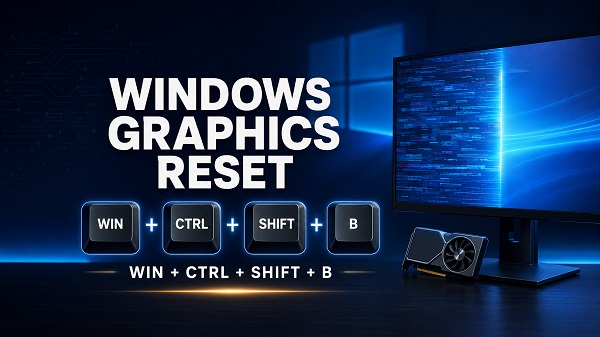
The fastest Windows graphics reset is the keyboard shortcut Windows key + Ctrl + Shift + B. Pressing these four keys together tells Windows to reset the graphics driver. The screen may blink or turn black briefly, and you may hear a beep before the desktop returns.
This shortcut can help when the display freezes, turns black, flickers, or stops updating while the computer remains powered on. It does not restart Windows, delete files, reinstall the graphics driver, or return NVIDIA, AMD, or Intel settings to their defaults.
Because “graphics reset” can mean several different things, the correct method depends on the problem. Use the shortcut for a temporarily unresponsive display. Update, roll back, or reinstall the driver when the problem keeps returning. Reset app graphics preferences when only one program is using the wrong GPU.
Quick answer: Windows graphics reset shortcut
Press:
Windows key + Ctrl + Shift + B
Press all four keys at the same time, then release them. If Windows processes the command successfully, you may notice:
- A short beep
- A brief black screen
- One or more displays flickering
- Open windows redrawing
- The desktop returning after a few seconds
Wait several seconds before pressing anything else. If the display remains black, do not keep repeating the shortcut indefinitely. Check the monitor and cable, try the display-mode shortcut, or restart the PC using the steps below.
What does Windows + Ctrl + Shift + B do?
The shortcut asks Windows to reset its graphics driver and refresh the display path. Microsoft recommends it as a troubleshooting step for blank screens, screen flickering, and external-monitor problems.
It can recover the screen when the computer is still running but the graphics system has temporarily stopped responding. For example, audio may continue, keyboard lights may react, or a voice call may remain connected even though the picture is frozen.
The shortcut does not:
- Reset the whole PC
- Erase documents, games, or applications
- Restart Windows
- Uninstall or reinstall the GPU driver
- Clear NVIDIA Control Panel settings
- Reset AMD Software settings
- Reset Intel Graphics settings
- Restore resolution, scaling, or color profiles to defaults
- Repair a damaged graphics card or monitor
Think of it as a quick driver refresh, not a permanent repair or factory reset.
When should you reset the graphics driver?
The keyboard shortcut is worth trying when:
- The screen suddenly turns black but the PC appears to remain on.
- The desktop freezes while audio continues.
- A monitor wakes but shows no image after sleep.
- The display flickers after launching or closing an app.
- An external monitor suddenly stops updating.
- The image is corrupted after changing display modes.
- Windows remains responsive to keyboard input but does not redraw the screen.
It is less likely to help when:
- The monitor has no power.
- A cable is loose or connected to the wrong port.
- The computer has shut down completely.
- Windows is stuck before the operating system loads.
- The graphics card is not detected.
- The problem is physical screen damage.
- The display says No Signal because the selected input is wrong.
The shortcut is safe to try for a temporary display fault, but repeated need for it points to a driver, temperature, power, application, cable, monitor, or GPU problem.
How to tell whether Windows is still running
Before assuming the entire computer has crashed, check for signs that the operating system is active:
- Press Caps Lock or Num Lock and watch the keyboard indicator.
- Listen for music, game audio, notifications, or a call.
- Move the mouse and listen for interface sounds.
- Press Ctrl + Alt + Delete and wait for the security screen.
- Check whether the PC responds over Remote Desktop or another authorized remote connection.
If Windows responds but the picture does not, try Windows + Ctrl + Shift + B once. If the entire machine is locked, a normal restart is more appropriate.
What to do if the graphics reset shortcut does not work
Use the following sequence rather than pressing the shortcut over and over.
1. Wait and try Ctrl + Alt + Delete
Give Windows up to a minute to recover, especially after starting a game, waking from sleep, connecting a display, or applying a graphics setting.
Press Ctrl + Alt + Delete. If the security screen appears, open Task Manager and close the app that stopped responding, or use the power icon to restart Windows.
2. Cycle through display modes
Windows may be sending the desktop to another screen. Press Windows key + P, then press P again and press Enter. Wait a few seconds. Repeat carefully to cycle through PC screen only, Duplicate, Extend, and Second screen only.
This is particularly useful after disconnecting a dock, projector, TV, or external monitor.
3. Check the monitor and cable
Confirm that the monitor is powered on and set to the correct HDMI, DisplayPort, USB-C, or other input. Reseat both ends of the cable and test another port or known-working cable.
On a desktop with a dedicated graphics card, the display cable normally belongs in the ports on the graphics card, not the motherboard, unless the system is deliberately configured to use integrated graphics.
Disconnect unnecessary adapters, splitters, docks, and converters for testing. Connect one monitor directly to the computer.
4. Restart Windows
If the security screen appears, restart through its power menu. A full restart resets far more of the operating system than the graphics shortcut.
If nothing responds and you cannot see the screen, press the computer’s power button once and wait for a normal shutdown. Holding the power button should be a last resort because it forces the machine off and can cause unsaved work to be lost.
Fix recurring black screens or graphics freezes
A graphics reset that works only temporarily confirms a symptom, not the cause. Continue with the checks below if the problem returns.
1. Install Windows updates
Microsoft distributes graphics and compatibility fixes through Windows Update.
On Windows 11, open Settings > Windows Update and select Check for updates. Install available updates and restart. Then open Advanced options > Optional updates and review Driver updates.
On Windows 10, open Settings > Update & Security > Windows Update. Check for updates and review optional driver updates where available.
Optional drivers are not always installed automatically. Do not install every optional driver without checking which hardware it targets.
2. Update the graphics driver
Open Device Manager by right-clicking Start and selecting Device Manager. Expand Display adapters. You may see NVIDIA, AMD, Intel, Microsoft Basic Display Adapter, or more than one GPU.
Right-click the relevant adapter and select Update driver > Search automatically for drivers. Restart if Windows installs a driver.
If Windows says the best driver is already installed, check the official support page for the laptop or desktop model. Laptop manufacturers may provide customized drivers for hybrid graphics, power management, brightness, and display switching.
For a custom-built desktop, use the official NVIDIA, AMD, or Intel site after confirming the exact GPU model and Windows version. Avoid third-party driver-download sites and automated driver-updater programs.
If Device Manager shows Microsoft Basic Display Adapter, install the manufacturer driver. Microsoft’s basic driver provides essential display output but may not deliver the GPU’s full performance and features.
3. Roll back a recently updated driver
If flickering, black screens, crashes, or artifacts began immediately after a graphics-driver update, restore the previous driver:
- Open Device Manager.
- Expand Display adapters.
- Right-click the GPU and select Properties.
- Open the Driver tab.
- Select Roll Back Driver.
- Choose a reason and restart Windows.
The button is greyed out when Windows has no previous package available. In that case, obtain a known stable driver from the PC or GPU manufacturer’s official site.
4. Reinstall the graphics driver
Reinstallation can replace damaged driver files and rebuild the device configuration.
Before uninstalling anything, download the correct replacement driver. This is especially important if the computer depends on the affected display adapter.
- Open Device Manager.
- Expand Display adapters.
- Right-click the GPU and select Uninstall device.
- On the first attempt, leave any option to remove the driver package unchecked unless the replacement is ready.
- Select Uninstall.
- Restart the computer.
- Install the official downloaded driver if Windows does not restore a suitable one.
Our how to reinstall NVIDIA drivers on Windows article provides a more focused process for NVIDIA systems, including preparation and clean-install considerations.
Do not use an aggressive third-party driver-removal utility as the first troubleshooting step. Such tools can be useful in specialized cases but add risk and are rarely necessary for a simple temporary black screen.
5. Check Device Manager for an error code
In the GPU’s Properties window, read Device status. A yellow warning symbol or a Code 43, Code 31, Code 10, or other error changes the troubleshooting direction.
- Code 10: The device cannot start. Update, reinstall, or roll back the driver and check hardware.
- Code 31: Windows cannot load the required driver. Reinstall a compatible package.
- Code 43: Windows stopped the graphics device after it reported a problem. Driver, firmware, power, overheating, or hardware failure may be involved.
Record the code before changing the driver. If it returns with multiple known-good driver versions, contact the PC or GPU manufacturer.
6. Test whether an app is causing the problem
Microsoft notes that screen flickering is commonly caused by either a display driver or an incompatible app. Open Task Manager with Ctrl + Shift + Esc and observe it during the flicker:
- If Task Manager flickers with everything else, the display driver is more likely involved.
- If Task Manager remains stable while another part of the screen flickers, an incompatible app is a stronger possibility.
Update or temporarily uninstall recent screen-recording tools, overlays, RGB utilities, remote-display software, wallpaper apps, tuning tools, and programs that inject graphics overlays.
If an NVIDIA overlay is the trigger, follow how to turn off NVIDIA Overlay instead of repeatedly resetting the driver.
7. Disable hardware acceleration in the affected app
If black screens or flickering occur only in one browser, chat app, media player, or office program, its hardware-acceleration feature may be interacting badly with the driver.
Open that application’s settings, turn hardware acceleration off temporarily, restart the app, and test again. The setting name and location vary. Re-enable it after a driver update to determine whether the conflict has been resolved.
Disabling hardware acceleration may increase CPU use or reduce performance, so treat it as a diagnostic step or app-specific workaround.
8. Reset an app’s graphics preference
Windows lets users assign apps to power-saving or high-performance GPUs. An incorrect assignment can cause poor performance or launch problems on systems with integrated and dedicated graphics.
In Windows 11, open Settings > System > Display > Graphics. Select the affected app, open Options, and choose Let Windows decide. Save the change and restart the app.
Depending on the Windows build, desktop apps may be added by browsing to their executable file, while Microsoft Store apps can be selected from a list.
This resets the Windows preference for that app. It does not reset the entire graphics driver or erase the app’s own video settings.
9. Restore NVIDIA 3D settings
If the problem started after changing NVIDIA Control Panel options:
- Open NVIDIA Control Panel.
- Select Manage 3D settings.
- Open Global Settings.
- Select Restore.
- Apply the change.
Program Settings can contain separate overrides for individual apps, so review those when only one game or program is affected.
This action resets NVIDIA 3D-control preferences. It is separate from Windows + Ctrl + Shift + B, and it does not reinstall the NVIDIA driver.
If the control panel is missing, see install NVIDIA Control Panel rather than downloading an unofficial replacement.
10. Restore AMD or Intel graphics settings
AMD Software and Intel graphics utilities include their own options for returning settings to defaults. Names and locations vary by version.
Use the reset option only after noting custom color, scaling, game, performance, and multi-display settings. A factory-reset option inside a GPU installer or control utility may remove more configuration than the Windows graphics shortcut.
Download the control software only from Microsoft Store, the PC manufacturer, or the GPU manufacturer’s official site.
11. Check temperature and power
A driver reset cannot correct overheating or unstable power. Use the manufacturer’s monitoring software or a reputable hardware tool to observe temperature under load.
Check that:
- Desktop GPU fans spin normally under load.
- Air vents are not blocked by dust or fabric.
- The GPU’s required power connectors are fully seated.
- The power supply is adequate for the graphics card.
- A laptop is using a compatible charger.
- Overclocking and undervolting are returned to stable defaults for testing.
Stop using the system if there is a burning smell, smoke, sparking, liquid exposure, or abnormal heat.
12. Test one display at a time
Multi-monitor setups add cables, ports, refresh rates, docks, and adapters to the problem.
Disconnect every secondary display and test the primary monitor directly. If it works, reconnect displays individually. Use a supported resolution and refresh rate for each monitor.
If only one port, cable, monitor, or dock triggers the black screen, a Windows graphics reset may temporarily recover the desktop but will not repair the faulty connection.
Windows graphics reset versus other reset options
| Action | What it does | Erases personal files? |
|---|---|---|
| Windows + Ctrl + Shift + B | Refreshes the graphics driver and display path | No |
| Restart Windows | Reloads the operating system and drivers | No |
| Reset app graphics preference | Lets Windows or the user choose which GPU an app uses | No |
| Restore GPU control-panel settings | Returns selected NVIDIA, AMD, or Intel preferences to defaults | No |
| Reinstall graphics driver | Replaces driver files and device configuration | No, but custom GPU settings may change |
| Reset this PC | Reinstalls Windows and may remove apps or files depending on the option | Potentially |
The phrase “reset graphics card” is misleading. Software can reset a driver or settings, but it cannot factory-reset a physical GPU in the way a phone can be factory-reset.
Why does the screen flash after the shortcut?
The flash or brief black screen is an expected result of the graphics driver and display path refreshing. Open windows may redraw and multiple monitors may reconnect.
If the picture does not return after several seconds, try Ctrl + Alt + Delete, Windows + P, and a normal restart. Check the monitor input and cable before assuming the GPU has failed.
Why is there no beep when I press the shortcut?
The absence of a beep does not always prove the command failed. System audio may be muted, unavailable, or routed through the affected display. Watch for a screen flicker or redraw.
Confirm that the Windows key works and that you pressed all four keys together. Some remote sessions, gaming keyboards, keyboard-remapping tools, virtual machines, or accessibility configurations may intercept the combination.
Can the shortcut damage a game or PC?
The shortcut is a built-in Windows recovery command and should not damage the hardware or delete files. However, resetting the graphics driver while a game or GPU-accelerated program is running can make that application freeze, close, or display an error. Unsaved work inside an affected program may be lost.
Use it when the display is already malfunctioning, not as a performance boost or routine maintenance step.
When to get hardware help
Arrange diagnostics when:
- Black screens or artifacts appear before Windows loads.
- The GPU repeatedly reports Code 43 with known-good drivers.
- Multiple monitors and cables show the same failure.
- The computer crashes under graphics load despite stable temperatures and default settings.
- The GPU disappears from Device Manager.
- The problem began after impact, liquid exposure, electrical damage, or hardware installation.
- You see colored blocks, lines, checkerboard patterns, or corruption in BIOS/UEFI.
- Fans stop, power connectors overheat, or there is a burning smell.
Pre-Windows corruption is especially important because the Windows driver reset shortcut cannot operate before Windows is running.
Frequently asked questions
What is the Windows graphics reset shortcut?
Press Windows key + Ctrl + Shift + B. The screen may flicker or turn black briefly, and Windows may play a beep as the graphics driver resets.
Does Windows graphics reset delete anything?
No. The shortcut does not delete files, applications, accounts, or Windows settings. An open graphics-heavy app may crash, so unsaved work in that app can still be lost.
Does the shortcut reinstall my graphics driver?
No. It refreshes the active driver. Use Device Manager, Windows Update, or the GPU manufacturer’s official installer to update or reinstall the driver.
Will it reset NVIDIA Control Panel settings?
No. NVIDIA settings remain unchanged. Use Restore under Manage 3D settings if you want to reset those preferences.
Why does my screen keep going black after the reset?
The underlying issue may be a faulty or incompatible driver, problematic app, overlay, cable, monitor, dock, overheating, unstable overclock, power problem, or failing GPU. Update or roll back the driver and isolate the hardware and apps.
Does Windows + Ctrl + Shift + B work on Windows 10 and 11?
Yes. Microsoft recommends the shortcut in its blank-screen, flickering, and external-display troubleshooting for current Windows versions.
Can I use the shortcut on a laptop?
Yes, provided Windows is running and the keyboard combination reaches the operating system. Laptop function-key modes normally do not affect this shortcut because it does not use an F-key.
What if my keyboard has no Windows key?
Try an external Windows-compatible keyboard, restart the PC normally, or use Device Manager after the display returns. Keyboard remapping may also provide a Windows-key equivalent, but the built-in command requires the Windows-key input.
Is restarting the graphics driver the same as restarting the PC?
No. The shortcut refreshes the graphics system while Windows and applications continue running. Restarting the PC reloads the operating system, services, applications, and all device drivers.
The right reset for the problem
Use Windows + Ctrl + Shift + B when the display suddenly freezes, flickers, or goes black while Windows appears to remain active. If the screen returns but the issue happens again, update or roll back the graphics driver, test the affected app, remove overlay conflicts, and check cables, monitors, heat, and power. Use control-panel restore options only when you need to undo NVIDIA, AMD, or Intel preferences, since they are separate from the Windows graphics reset.
