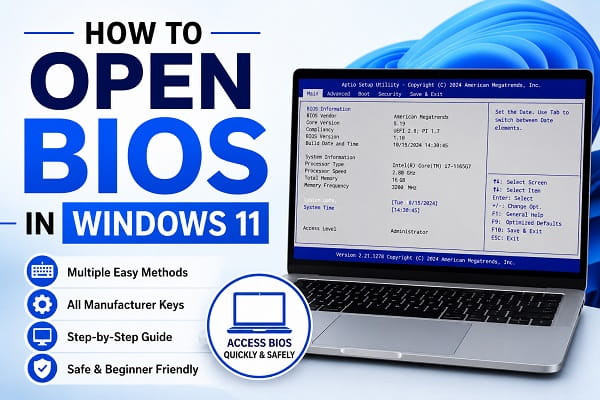
The BIOS is one of the most important parts of your computer because it controls how your hardware starts before Windows loads. Whether you want to change the boot order, enable virtualization, update your firmware, or troubleshoot hardware problems, you’ll usually need to access the BIOS first.
Many Windows 11 users struggle to open the BIOS because modern computers boot much faster than older systems, leaving very little time to press the correct key during startup. In addition, different laptop and motherboard manufacturers use different BIOS shortcut keys, making the process confusing if you don’t know which one your device uses.
Fortunately, Windows 11 provides several reliable ways to enter the BIOS, and you don’t always have to press a keyboard shortcut during startup.
This guide explains every safe method to open the BIOS in Windows 11, including manufacturer-specific shortcut keys and solutions if your computer refuses to enter the BIOS.
What Is BIOS?
BIOS stands for Basic Input/Output System. It is firmware stored on your computer’s motherboard that initializes hardware components before Windows starts.
On most modern computers, the traditional BIOS has been replaced by UEFI (Unified Extensible Firmware Interface). Although they’re technically different, most people still refer to UEFI settings as the BIOS.
Inside the BIOS, you can:
- Change the boot order.
- Enable or disable Secure Boot.
- Turn virtualization on or off.
- Configure CPU and memory settings.
- Enable TPM.
- Check hardware information.
- Update BIOS firmware.
- Restore factory settings.
Unless you know what you’re changing, avoid modifying advanced settings because incorrect configurations may prevent Windows from starting properly.
When Should You Access the BIOS?
You don’t need to enter the BIOS during everyday computer use. However, there are situations where it’s necessary.
If you’re planning to boot from a USB drive to repair or reinstall Windows, our How to Reinstall Windows 11 (Step-by-Step Guide) explains the complete process from start to finish.
Common reasons include:
- Installing Windows from a USB drive.
- Enabling virtualization for virtual machines.
- Troubleshooting startup problems.
- Resetting BIOS settings.
- Changing the boot device.
- Enabling TPM for Windows 11.
- Updating motherboard firmware.
- Checking hardware information.
For most users, entering the BIOS is only an occasional task rather than something you’ll do regularly.
Method 1: Open BIOS from Windows Settings (Recommended)
This is the easiest and safest method because Windows takes you directly to the firmware settings without requiring you to press any keys during startup.
Follow these steps:
- Press Windows + I to open Settings.
- Select System.
- Click Recovery.
- Under Recovery options, locate Advanced startup.
- Click Restart now.
- Confirm the restart.
After your computer restarts:
- Select Troubleshoot.
- Click Advanced options.
- Choose UEFI Firmware Settings.
- Click Restart.
Your computer will restart again and automatically open the BIOS.
For most Windows 11 users, this is the quickest and most reliable method.
Method 2: Use the BIOS Shortcut Key During Startup
You can also enter the BIOS by pressing a specific key immediately after turning on your computer.
The key depends on your computer manufacturer.
| Manufacturer | BIOS Key |
|---|---|
| Acer | F2 or Delete |
| ASUS | F2 or Delete |
| Dell | F2 |
| HP | Esc then F10 |
| Lenovo | F1 or F2 |
| MSI | Delete |
| Samsung | F2 |
| Toshiba | F2 |
| Gigabyte | Delete |
| ASRock | F2 or Delete |
To use this method:
- Completely shut down your computer.
- Turn it back on.
- Immediately begin pressing the correct BIOS key repeatedly.
- Continue until the BIOS screen appears.
If Windows starts normally, restart and try pressing the key earlier during startup.
Method 3: Use Shift + Restart
If you can’t access the Settings app, Windows also allows you to reach the Advanced Startup menu using a simple keyboard shortcut.
Here’s how:
- Click the Start button.
- Select the Power icon.
- Hold the Shift key.
- While holding Shift, click Restart.
Keep holding Shift until the recovery screen appears.
Then navigate to:
Troubleshoot → Advanced options → UEFI Firmware Settings → Restart
Windows will reboot directly into the BIOS.
Method 4: Access the BIOS Using Windows Terminal
If you prefer using commands, Windows 11 allows you to restart directly into the Advanced Startup menu through Windows Terminal or Command Prompt.
Follow these steps:
- Right-click the Start button.
- Select Windows Terminal (Admin).
- Enter the following command:
shutdown /r /o /f /t 0- Press Enter.
Your computer will restart immediately and display the Advanced Startup screen.
Next, select:
- Troubleshoot
- Advanced options
- UEFI Firmware Settings
- Restart
This method is especially useful if you’re comfortable using Windows commands or need to automate the process.
Before deciding to reinstall Windows, it’s worth trying performance optimization first. Many common issues can be resolved by following How to Debloat Windows 11 Safely (Step-by-Step Guide) without performing a full system reinstall.
Method 5: Use Your Laptop’s Dedicated BIOS Button
Some laptop manufacturers include a dedicated hardware button that opens the BIOS without requiring keyboard shortcuts.
For example:
- Lenovo Novo Button
- ASUS Recovery Button (on some models)
- Certain HP business laptops
- Some Dell enterprise laptops
The location of this button varies depending on the manufacturer. It is often found beside the power button or in a small pinhole on the side of the laptop.
If your computer includes one, press it while the device is powered off to access startup options, including the BIOS.
Why Can’t I Open the BIOS?
Sometimes Windows boots normally regardless of which method you try.
This usually happens because of one of the following reasons.
Fast Startup Is Enabled
Fast Startup reduces boot time, leaving almost no opportunity to press the BIOS shortcut key.
You can either:
- Use the Windows Settings method.
- Use Shift + Restart.
- Temporarily disable Fast Startup.
You’re Pressing the Wrong Key
Different manufacturers use different shortcut keys.
For example:
- Dell → F2
- HP → Esc then F10
- ASUS → F2
- MSI → Delete
Always verify the correct key for your specific computer model.
Wireless Keyboard Delay
If you’re using a wireless keyboard, it may not connect quickly enough during startup.
If possible:
- Use a wired USB keyboard.
- Connect the wireless receiver directly to the computer.
- Try another USB port.
Windows Boots Too Quickly
Modern SSDs can boot Windows in just a few seconds.
Instead of trying to time the keyboard shortcut perfectly, use one of the built-in Windows methods explained earlier.
Can You Damage Your Computer in BIOS?
Simply opening the BIOS will not damage your computer.
Problems usually occur only when users change settings they don’t fully understand.
Examples include:
- CPU overclocking.
- Memory timing adjustments.
- Voltage settings.
- Secure Boot configuration.
- Boot mode changes.
If you’re unsure about a setting, it’s best to leave it unchanged.
Most BIOS interfaces also include an option to restore default settings if something goes wrong.
How to Exit BIOS
After making changes, you have two options.
Save Changes
If you modified any settings:
- Press F10 (on most systems).
- Confirm Save and Exit.
Your computer will restart using the new settings.
Exit Without Saving
If you only wanted to look around:
- Select Exit Without Saving.
- Confirm your choice.
Windows will start normally, and none of your settings will be changed.
Common BIOS Shortcut Keys
| Manufacturer | BIOS Key | Boot Menu Key |
|---|---|---|
| Acer | F2 | F12 |
| ASUS | F2 or Delete | Esc |
| Dell | F2 | F12 |
| HP | Esc then F10 | Esc then F9 |
| Lenovo | F1 or F2 | F12 |
| MSI | Delete | F11 |
| Samsung | F2 | Esc |
| Toshiba | F2 | F12 |
| Gigabyte | Delete | F12 |
| ASRock | F2 or Delete | F11 |
This table can save time if you’re unsure which key your computer uses.
Frequently Asked Questions
Is BIOS the same as UEFI?
Not exactly.
BIOS is the older firmware standard, while UEFI is its modern replacement. However, most people still refer to UEFI settings as the BIOS because they serve the same purpose.
Do I need to enter the BIOS to reset Windows 11?
No.
You can reset Windows directly from the Settings app without opening the BIOS.
Can I open the BIOS without restarting my computer?
No.
The BIOS loads before Windows starts, so a restart is always required.
What if the UEFI Firmware Settings option is missing?
This usually means your computer is using Legacy BIOS instead of UEFI, or Windows cannot detect the firmware interface.
In this case, use your computer’s BIOS shortcut key during startup.
Will entering the BIOS delete my files?
No.
Opening the BIOS does not affect your personal files or installed programs.
How long should I press the BIOS key?
Start pressing the correct key immediately after turning on your computer. Repeatedly tapping the key is usually more effective than holding it down.
Can I use the BIOS to speed up my computer?
Some advanced BIOS settings can improve performance, but incorrect changes may also cause instability. Most users should optimize Windows itself rather than modifying BIOS settings.
Why does my PC keep booting into Windows instead of BIOS?
This usually happens because the BIOS key was pressed too late, Fast Startup is enabled, or the wrong shortcut key is being used.
Learning how to open the BIOS in Windows 11 is useful for troubleshooting, installing Windows, changing boot options, and managing hardware settings. Whether you use the Windows Recovery menu, a keyboard shortcut, or a built-in manufacturer button, the process is straightforward once you know the correct method. If you’re troubleshooting persistent Windows startup errors, you may also find Critical Process Died Windows 11? 12 Fixes That Work helpful. As long as you only change settings you understand and leave advanced options untouched, you can safely access the BIOS whenever you need it without risking your computer’s stability
