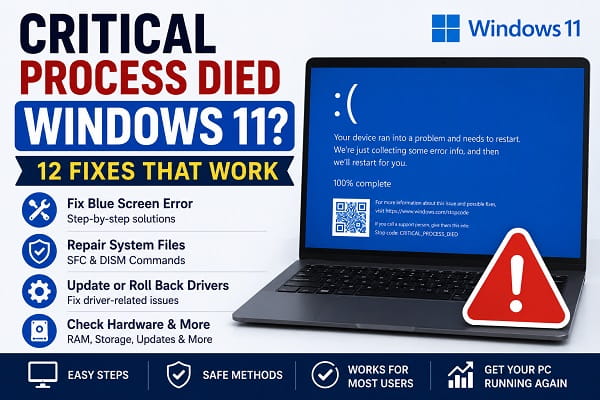
Seeing a blue screen with the message “Critical Process Died” can be frustrating, especially when it appears unexpectedly and prevents Windows 11 from starting normally. This error is one of the most common Blue Screen of Death (BSOD) errors and usually indicates that an essential Windows process has stopped working. When this happens, Windows automatically shuts down to protect your computer from further damage.
The good news is that this error doesn’t always mean your computer has a serious hardware problem. In many cases, it’s caused by corrupted system files, faulty drivers, problematic Windows updates, damaged storage devices, or software conflicts. With the right troubleshooting steps, most users can resolve the issue without replacing any hardware.
Before considering a complete Windows reinstall, try the solutions in this guide. If your computer is still able to boot into Windows, simpler fixes are often enough to restore stability. If performance problems led to this error, it’s also worth reviewing How to Debloat Windows 11 Safely (Step-by-Step Guide) to remove unnecessary software and reduce background processes.
In this guide, you’ll learn what causes the Critical Process Died error in Windows 11, how to identify the underlying problem, and the most effective solutions to get your computer working normally again.
What Does “Critical Process Died” Mean?
Windows relies on hundreds of background processes to keep the operating system running smoothly. Some of these processes are considered critical, meaning Windows cannot function without them.
When one of these essential processes unexpectedly stops because of corruption, driver failure, damaged system files, or hardware problems, Windows immediately displays the Critical Process Died blue screen and restarts the computer.
This safety mechanism helps prevent additional damage to your operating system or data.
Although the error message looks alarming, it usually doesn’t identify the exact cause, which is why troubleshooting is necessary.
Common Causes of the Critical Process Died Error
Several issues can trigger this blue screen error.
The most common causes include:
- Corrupted Windows system files.
- Faulty or outdated device drivers.
- Failed Windows updates.
- Corrupted SSD or hard drive sectors.
- Defective RAM.
- Malware infections.
- Recently installed software conflicts.
- Driver incompatibility.
- Overclocking instability.
- Damaged boot files.
Identifying which of these is responsible is the first step toward fixing the problem.
Before You Start Troubleshooting
Before making major changes, keep these recommendations in mind.
- Disconnect unnecessary USB devices.
- Remove recently connected external hardware.
- Make sure your laptop is connected to power.
- Back up important files if Windows still starts normally.
- Note any recent software or driver installations that happened before the error appeared.
Sometimes the timing of the problem provides an important clue about its cause.
Fix 1: Restart Your Computer
It may sound simple, but a normal restart can resolve temporary software conflicts that trigger a one-time BSOD.
If the error only appeared once and Windows starts normally afterward, monitor your computer for a while before attempting more advanced repairs.
If the blue screen keeps returning, continue with the next solution.
Fix 2: Disconnect External Devices
Faulty USB devices can sometimes interfere with Windows during startup.
Disconnect all unnecessary peripherals, including:
- USB flash drives.
- External hard drives.
- Printers.
- USB hubs.
- Card readers.
- Game controllers.
Restart the computer after disconnecting everything except your keyboard and mouse.
If Windows starts successfully, reconnect each device one at a time until you identify the problematic hardware.
Fix 3: Start Windows in Safe Mode
If Windows keeps crashing before you can reach the desktop, Safe Mode allows you to start the operating system using only essential drivers and services.
To enter Safe Mode:
- Hold the power button to force shutdown if necessary.
- Turn the computer back on.
- Interrupt startup three times to enter Windows Recovery.
- Select Troubleshoot.
- Click Advanced options.
- Choose Startup Settings.
- Click Restart.
- Press 4 or F4 for Safe Mode.
If Windows works normally in Safe Mode, the problem is likely caused by a driver, startup application, or recently installed software rather than Windows itself.
Fix 4: Run the System File Checker (SFC)
Corrupted or missing Windows system files are one of the leading causes of the Critical Process Died error. Fortunately, Windows includes a built-in tool called System File Checker (SFC) that scans protected system files and automatically replaces damaged versions with healthy copies.
To run the SFC scan:
- Open Command Prompt as Administrator.
- Type the following command:
sfc /scannow
- Press Enter.
- Wait for the scan to finish.
The scan may take 10–20 minutes depending on your computer.
If Windows reports that it repaired corrupted files, restart your PC and check whether the blue screen error returns.
Fix 5: Repair the Windows Image Using DISM
If SFC cannot repair all damaged files, Microsoft’s Deployment Image Servicing and Management (DISM) tool can repair the Windows system image.
Open Command Prompt as Administrator and run the following commands one at a time:
DISM /Online /Cleanup-Image /CheckHealthDISM /Online /Cleanup-Image /ScanHealthDISM /Online /Cleanup-Image /RestoreHealthAllow each command to complete before running the next one.
Once finished, restart your computer and run the SFC scan again.
These two tools work well together and often resolve corruption-related BSOD errors.
Fix 6: Update or Roll Back Device Drivers
Drivers allow Windows to communicate with your computer’s hardware. If a driver becomes corrupted, incompatible, or outdated, it can trigger the Critical Process Died error.
To update drivers:
- Press Windows + X.
- Select Device Manager.
- Expand a hardware category.
- Right-click the device.
- Select Update driver.
- Choose Search automatically for drivers.
If the problem started immediately after updating a driver, rolling it back may solve the issue.
To roll back a driver:
- Open Device Manager.
- Right-click the affected device.
- Select Properties.
- Open the Driver tab.
- Click Roll Back Driver if the option is available.
Graphics, storage, and chipset drivers are among the most common causes of BSOD errors.
Fix 7: Uninstall Recent Windows Updates
Although Windows updates improve security and stability, an update can occasionally introduce compatibility issues.
If the blue screen started shortly after installing an update, removing that update is worth trying.
To uninstall recent updates:
- Open Settings.
- Select Windows Update.
- Click Update history.
- Choose Uninstall updates.
- Select the most recent update.
- Click Uninstall.
Restart your computer after removing the update.
If the problem disappears, wait until Microsoft releases a newer version before installing updates again.
Fix 8: Check Your Hard Drive for Errors
Storage problems can also cause Windows to lose access to critical system files.
Windows includes a built-in utility called CHKDSK that scans your drive for file system errors and bad sectors.
Open Command Prompt as Administrator and run:
chkdsk C: /f /rIf Windows asks to schedule the scan during the next restart, type:
YPress Enter and restart your computer.
The scan may take a considerable amount of time, especially on larger hard drives.
Fix 9: Scan for Malware
Some malware attacks essential Windows processes, damages system files, or interferes with drivers.
Running a full malware scan helps rule out malicious software as the cause.
To scan your PC:
- Open Windows Security.
- Select Virus & threat protection.
- Click Scan options.
- Choose Full scan.
- Click Scan now.
Allow Windows Security to complete the scan and remove any detected threats before restarting your computer.
Fix 10: Perform a System Restore
If your computer worked normally a few days ago, restoring Windows to an earlier restore point may resolve the problem without affecting your personal files.
To use System Restore:
- Press Windows + S.
- Search for Recovery.
- Click Open System Restore.
- Select a restore point created before the error appeared.
- Follow the on-screen instructions.
System Restore removes recently installed drivers, applications, and updates while keeping your personal documents intact.
It can be especially useful if the error began after installing new software or changing system settings.
Fix 11: Reset Windows 11
If you’ve tried every troubleshooting method and the Critical Process Died error continues to appear, resetting Windows may be the best solution.
Windows 11 allows you to reinstall the operating system while keeping your personal files.
To reset Windows:
- Open Settings.
- Go to System.
- Select Recovery.
- Click Reset PC.
- Choose Keep my files.
- Follow the on-screen instructions.
Before performing a reset, you may want to review How to Reinstall Windows 11 (Step-by-Step Guide) to understand the available reset and reinstallation options.
Fix 12: Check Your Hardware
If the blue screen still appears after reinstalling Windows or resetting the PC, the problem may be hardware-related.
Possible hardware issues include:
- Failing SSD or hard drive.
- Faulty RAM.
- Overheating CPU.
- Motherboard problems.
- Power supply instability.
To diagnose hardware:
- Run Windows Memory Diagnostic to test your RAM.
- Check your SSD or HDD health using the manufacturer’s diagnostic tool.
- Monitor CPU temperatures while using the computer.
- Listen for unusual clicking noises from traditional hard drives.
If hardware tests report failures, replacing the affected component is usually the only permanent solution.
Quick Troubleshooting Guide
| If this happens… | Try this first |
|---|---|
| Blue screen after a Windows update | Uninstall the latest update |
| Blue screen after installing a driver | Roll back the driver |
| Windows won’t boot | Start in Safe Mode |
| SFC reports corrupted files | Run the DISM commands, then SFC again |
| Error keeps returning | Reset Windows 11 |
| Error appears even after reinstalling Windows | Test your RAM and storage drive |
Frequently Asked Questions
Can the Critical Process Died error fix itself?
Sometimes.
If the error was caused by a temporary software conflict, restarting the computer may resolve it. However, repeated blue screens usually indicate a deeper problem that requires troubleshooting.
Does this error mean my hard drive is failing?
Not always.
Although a failing SSD or hard drive can trigger this error, corrupted system files, faulty drivers, Windows updates, and defective RAM are also common causes.
Can faulty RAM cause the Critical Process Died error?
Yes.
Damaged memory modules can corrupt critical Windows processes, leading to repeated blue screens.
Running Windows Memory Diagnostic is a good way to check for memory-related issues.
Should I reinstall Windows immediately?
No.
A Windows reinstall should be considered one of the last software solutions.
Many users resolve the problem by repairing system files, updating drivers, or uninstalling problematic updates.
Can malware cause this blue screen?
Yes.
Some malware damages Windows system files or interferes with essential background processes.
Running a full Windows Security scan is recommended.
Is Safe Mode useful for fixing this error?
Absolutely.
Safe Mode loads only essential Windows drivers and services, making it easier to remove faulty software or drivers that may be causing the crash.
Will resetting Windows remove my personal files?
Not necessarily.
If you choose Keep my files, Windows removes installed applications while preserving your personal documents, photos, and other files.
Can outdated drivers trigger the Critical Process Died error?
Yes.
Graphics, storage, chipset, and network drivers are among the most common causes of this blue screen.
Keeping drivers up to date helps improve system stability.
Windows 11’s Critical Process Died error may seem alarming, but it’s often caused by software issues that can be resolved without replacing your computer. By working through the fixes in this guide—from repairing system files and updating drivers to checking your storage drive and resetting Windows if necessary—you can identify the root cause and restore your PC to normal operation. If the error continues even after a fresh Windows installation, it’s worth investigating potential hardware problems to prevent future crashes.
