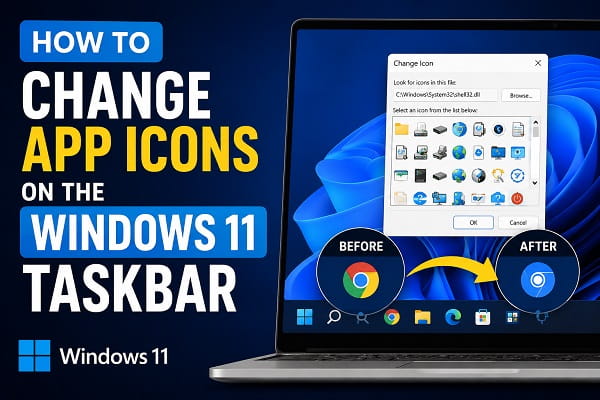
The Windows 11 taskbar gives you quick access to your favorite apps, making it one of the most frequently used parts of the operating system. While the default icons are designed to be clean and consistent, many users prefer to customize them to better match their personal style or make frequently used applications easier to identify.
Whether you want a more colorful desktop, unique icons for work applications, or simply want to replace an old icon with a custom design, Windows 11 allows you to change the icons of most desktop applications pinned to the taskbar.
However, the process isn’t always obvious. Unlike changing a desktop shortcut icon, modifying a taskbar icon requires a few extra steps because Windows pins shortcuts rather than the original applications.
In this guide, you’ll learn how to change app icons on the Windows 11 taskbar, restore the default icons if needed, and understand the limitations of taskbar customization.
Can You Change Taskbar Icons in Windows 11?
Yes, but there are some limitations.
You can easily change the icons of:
- Desktop applications
- Third-party programs
- Custom shortcuts
- Portable applications
However, you generally cannot change the icons for certain built-in Microsoft apps directly through Windows Settings because they use a different shortcut system.
Fortunately, there are simple workarounds for most applications.
Before You Begin
Before changing any taskbar icon:
- Make sure the application is already installed.
- Download the icon you want to use.
- Save the icon in a permanent folder.
- Use an .ICO file whenever possible.
Although Windows supports several image formats in different situations, .ICO files provide the best results because they’re specifically designed for Windows icons.
Method 1: Change the Icon of a Pinned Desktop Application
This is the easiest and most reliable method.
Step 1: Locate the Application Shortcut
If the app is pinned to your taskbar:
- Hold Shift.
- Right-click the application’s taskbar icon.
- Right-click the application name again.
- Select Properties.
This opens the shortcut properties instead of the application itself.
Step 2: Open the Shortcut Tab
Inside the Properties window:
- Select the Shortcut tab.
- Click Change Icon near the bottom of the window.
Windows will display the available icons.
Step 3: Choose a New Icon
You now have two options.
Use a Built-in Windows Icon
Click Browse and navigate to:
C:\Windows\System32\shell32.dllThis file contains hundreds of built-in Windows icons.
Use a Custom Icon
If you’ve downloaded your own icon:
- Click Browse.
- Navigate to the .ICO file.
- Select it.
- Click Open.
- Click OK.
Step 4: Apply the Changes
Click:
- Apply
- OK
The shortcut now uses the new icon.
Method 2: Unpin and Pin the Application Again
Sometimes Windows doesn’t immediately update the taskbar icon.
If that happens:
- Right-click the application on the taskbar.
- Select Unpin from taskbar.
- Open the Start menu.
- Search for the application.
- Right-click it.
- Select Pin to taskbar.
The updated icon should now appear.
Why Didn’t My Taskbar Icon Change?
Several factors can prevent Windows from displaying the new icon.
Common reasons include:
- Windows icon cache hasn’t refreshed.
- The application is still running.
- The shortcut wasn’t edited.
- The icon file was moved or deleted.
- The application is pinned using a different shortcut.
Restarting Windows Explorer often refreshes the taskbar without requiring a full reboot. If your computer is also experiencing slow performance, unnecessary background processes, or general Windows sluggishness, it’s worth following How to Debloat Windows 11 Safely (Step-by-Step Guide) before trying more advanced troubleshooting.
Method 3: Restart Windows Explorer
If the icon still hasn’t changed after applying a new one, Windows Explorer may still be displaying a cached version.
Restarting Windows Explorer forces the taskbar to reload.
Follow these steps:
- Press Ctrl + Shift + Esc to open Task Manager.
- Locate Windows Explorer in the list of running processes.
- Right-click Windows Explorer.
- Select Restart.
Your taskbar will briefly disappear and reload with the updated icon.
Method 4: Clear the Windows Icon Cache
Windows stores icons in a cache to improve performance. Occasionally, this cache prevents newly selected icons from appearing.
To rebuild the icon cache:
- Press Windows + R.
- Type:
%localappdata%- Press Enter.
- Open the Microsoft folder.
- Open the Windows folder.
- Open the Explorer folder.
- Locate files beginning with iconcache.
- Delete those files.
- Restart your computer.
Windows automatically rebuilds the icon cache during startup.
If rebuilding the icon cache doesn’t solve the problem and Windows continues behaving unexpectedly, you may be dealing with corrupted system files. In that case, follow Critical Process Died Windows 11? 12 Fixes That Work for additional troubleshooting steps that can help repair Windows.
Method 5: Change the Icon of a Desktop Shortcut First
Some applications don’t allow their taskbar icon to be changed directly.
In this situation:
- Create a desktop shortcut for the application.
- Change the shortcut icon.
- Remove the existing taskbar shortcut.
- Pin the updated desktop shortcut to the taskbar.
This workaround solves the issue for many third-party applications.
Can You Change Icons for Microsoft Store Apps?
Not always.
Apps installed through the Microsoft Store (also called UWP apps) use a different shortcut system than traditional desktop applications.
Examples include:
- Microsoft Store
- Calculator
- Photos
- Clock
- Mail (legacy versions)
Some Store apps don’t allow their taskbar icons to be customized using the standard Change Icon option.
If customization is important, you may need to create a custom shortcut or use a trusted third-party customization utility.
Where Can You Download Windows Icons?
There are many websites offering free Windows icon packs.
When downloading icons:
- Use trusted websites.
- Download .ICO files whenever possible.
- Scan downloaded files with Windows Security.
- Avoid downloading executable files that claim to “install” icons automatically.
Keeping your icons organized in a dedicated folder also prevents broken shortcuts if files are moved later.
Tips for Choosing Good Icons
Changing icons isn’t just about appearance—it can also improve productivity.
Here are a few tips:
- Choose icons that are easy to recognize.
- Use a consistent design style.
- Avoid icons with too many small details.
- Keep work-related applications visually different from entertainment apps.
- Store your custom icons in a folder that won’t be deleted accidentally.
A consistent icon style makes your taskbar look cleaner and helps you find applications more quickly.
How to Restore the Default Taskbar Icon
If you decide you prefer the original icon, restoring it is simple.
- Right-click the application’s shortcut.
- Select Properties.
- Open the Shortcut tab.
- Click Change Icon.
- Select the original Windows icon or click Restore Defaults if available.
- Click Apply.
- Click OK.
If the taskbar doesn’t update immediately, restart Windows Explorer or restart your computer.
Frequently Asked Questions
Can I change the icons of all taskbar apps?
No.
Most desktop applications support custom icons, but some Microsoft Store apps and built-in Windows applications have limited customization options.
Why does my icon change back after restarting?
This usually happens because the shortcut is pointing to an icon file that has been moved, renamed, or deleted.
Keep custom icon files in a permanent location.
Which icon format works best?
The .ICO format is recommended because it’s designed specifically for Windows icons and supports multiple resolutions for better display quality.
Will changing taskbar icons affect the application?
No.
Changing an icon only affects how the shortcut appears. It doesn’t modify the application itself or change how it functions.
Can I use PNG or JPG images?
Not directly.
Windows expects .ICO files for shortcut icons. If you have a PNG or JPG image, you’ll need to convert it to the ICO format before using it.
Is it safe to use third-party icon packs?
Yes, provided they’re downloaded from reputable sources.
Avoid unknown websites that require you to install additional software just to use an icon pack.
Why can’t I find the Change Icon button?
Some Microsoft Store apps don’t provide this option because of how they’re packaged.
In these cases, creating a custom shortcut or using another supported method may be necessary.
Do I need administrator privileges?
Usually, no.
Most users can change shortcut icons without administrator permission unless the shortcut is located in a protected system directory.
Changing app icons on the Windows 11 taskbar is an easy way to personalize your desktop and make frequently used applications easier to identify. Whether you choose built-in Windows icons or download custom icon packs, the process only takes a few minutes once you know where to find the shortcut settings. If the new icon doesn’t appear immediately, refreshing Windows Explorer or rebuilding the icon cache usually resolves the issue, allowing you to enjoy a cleaner and more personalized Windows experience.
