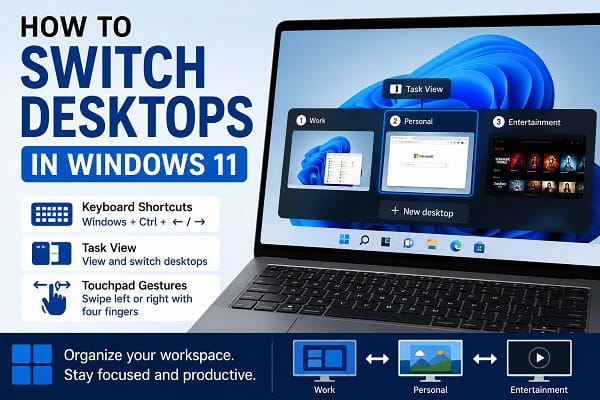
Windows 11 includes a feature called Virtual Desktops that lets you create multiple desktop workspaces on the same computer. Instead of keeping every application open on a single desktop, you can organize your work by separating tasks into different desktops. For example, you might use one desktop for work, another for personal browsing, and a third for entertainment.
Many users either don’t know this feature exists or aren’t sure how to switch between desktops after creating them. Fortunately, Windows 11 makes the process quick using keyboard shortcuts, Task View, or touchpad gestures.
This guide explains how to switch desktops in Windows 11, create new desktops, rename them, rearrange them, and fix common problems if Virtual Desktops aren’t working correctly.
What Are Virtual Desktops in Windows 11?
Virtual Desktops allow you to create multiple desktop environments without needing multiple monitors.
Each desktop can have its own:
- Open applications
- Window layout
- Wallpaper (optional)
- Workflow
This helps reduce clutter and makes it easier to focus on one task at a time.
For example:
- Desktop 1: Office work
- Desktop 2: School projects
- Desktop 3: Video editing
- Desktop 4: Entertainment
Although all desktops use the same Windows installation, they help keep your applications organized.
Why Use Multiple Desktops?
Using multiple desktops offers several advantages.
These include:
- Better organization.
- Less desktop clutter.
- Improved productivity.
- Easier multitasking.
- Faster switching between projects.
- Better separation of work and personal activities.
Instead of minimizing dozens of windows, you can simply switch to another desktop with a keyboard shortcut.
Method 1: Switch Desktops Using Keyboard Shortcuts
The fastest way to switch between desktops is with keyboard shortcuts.
To move to the desktop on the left:
Windows + Ctrl + Left ArrowTo move to the desktop on the right:
Windows + Ctrl + Right ArrowThese shortcuts work instantly and don’t interrupt your workflow.
If you frequently work with multiple desktops, learning these shortcuts can save a significant amount of time.
Method 2: Switch Desktops Using Task View
Task View provides a visual overview of every virtual desktop you’ve created.
To use it:
- Click the Task View icon on the taskbar.
- You’ll see all available desktops at the bottom of the screen.
- Select the desktop you want to open.
If the Task View button isn’t visible:
- Right-click the taskbar.
- Select Taskbar settings.
- Enable Task View.
This method is ideal for users who prefer using the mouse instead of keyboard shortcuts.
Method 3: Use Touchpad Gestures
If you’re using a Windows laptop with a Precision Touchpad, switching desktops is even easier.
Simply place four fingers on the touchpad and swipe:
- Left to move to the previous desktop.
- Right to move to the next desktop.
You can configure these gestures by opening:
Settings → Bluetooth & devices → Touchpad
Touchpad gestures are one of the quickest ways to navigate between desktops on supported laptops.
How to Create a New Desktop
Creating a new virtual desktop takes only a few seconds.
Method 1:
- Open Task View.
- Click New Desktop (+).
Method 2:
Press:
Windows + Ctrl + DWindows immediately creates a new desktop and switches to it automatically.
This is useful when starting a new project or separating work from personal tasks.
How to Rename a Desktop
Giving each desktop a descriptive name makes it easier to stay organized.
To rename a desktop:
- Open Task View.
- Right-click the desktop you want to rename.
- Select Rename.
- Enter a new name.
- Press Enter.
Examples include:
- Work
- School
- Development
- Gaming
- Personal
Using meaningful names makes switching between desktops much more intuitive.
How to Move Apps Between Desktops
One of the best features of Virtual Desktops is the ability to move applications from one desktop to another without closing them.
Here’s how:
- Open Task View by pressing Windows + Tab.
- Locate the application you want to move.
- Right-click the application’s preview.
- Select Move to.
- Choose the destination desktop.
You can also drag and drop an application directly onto another desktop in Task View.
This is especially useful if you accidentally opened a program on the wrong desktop.
How to Rearrange Virtual Desktops
Windows 11 lets you change the order of your desktops to match your workflow.
To rearrange them:
- Open Task View.
- Click and hold the desktop you want to move.
- Drag it to a new position.
- Release the mouse button.
For example, you can place your Work desktop first, Personal desktop second, and Gaming desktop last.
How to Close a Virtual Desktop
When you no longer need a desktop, you can close it without losing your open applications.
To close a desktop:
- Press Windows + Tab.
- Hover over the desktop you want to remove.
- Click the X in the upper-right corner.
Any open applications on that desktop will automatically move to the previous desktop instead of being closed.
How to Show the Same App on All Desktops
Some applications, such as messaging apps or music players, may be useful on every desktop.
To make an app appear on all desktops:
- Open Task View.
- Right-click the application preview.
- Select Show this window on all desktops.
If the application has multiple windows, you can instead choose:
Show windows from this app on all desktops
This allows you to access the application regardless of which desktop you’re currently using.
Customize Each Desktop
Windows 11 allows each virtual desktop to have its own wallpaper, making it easier to distinguish between workspaces.
To change a desktop’s background:
- Switch to the desktop you want to customize.
- Open Settings.
- Go to Personalization.
- Select Background.
- Choose a different wallpaper.
If you’re also interested in personalizing other parts of Windows, How to Change App Icons on the Windows 11 Taskbar explains how to customize taskbar icons for a more personalized desktop experience.
Why Can’t I Switch Desktops?
If Virtual Desktops aren’t working properly, one of the following issues may be responsible.
Task View Is Disabled
Without Task View enabled, switching desktops with the mouse becomes difficult.
To enable it:
- Right-click the taskbar.
- Select Taskbar settings.
- Turn on Task View.
Keyboard Shortcuts Aren’t Working
If the keyboard shortcuts don’t respond:
- Restart Windows Explorer.
- Check that your keyboard is functioning properly.
- Try using Windows + Tab to confirm Virtual Desktops are available.
If Windows is experiencing broader system problems, Critical Process Died Windows 11? 12 Fixes That Work can help you diagnose issues that may affect desktop features and other Windows components.
Touchpad Gestures Don’t Work
Some laptops don’t support Precision Touchpad gestures.
Check your touchpad settings under:
Settings → Bluetooth & devices → Touchpad
If the gesture options are unavailable, your laptop may not support four-finger swipe gestures.
Desktop Switching Feels Slow
Switching between desktops should be almost instant.
If your PC feels sluggish:
- Close unnecessary background applications.
- Restart your computer.
- Install pending Windows updates.
For better overall performance, How to Debloat Windows 11 Safely (Step-by-Step Guide) provides practical optimization tips that can make Windows more responsive.
Virtual Desktops vs Multiple Monitors
Although both features improve multitasking, they work differently.
| Feature | Virtual Desktops | Multiple Monitors |
|---|---|---|
| Requires extra hardware | No | Yes |
| Organizes applications | Yes | Yes |
| Displays everything at once | No | Yes |
| Ideal for laptops | Yes | Limited |
| Easy to create | Yes | Requires another display |
Virtual Desktops are an excellent alternative if you only have one monitor but want a more organized workspace.
Frequently Asked Questions
How many virtual desktops can I create?
Windows 11 doesn’t impose a practical limit for most users. You can create as many desktops as your computer’s resources comfortably support.
Will switching desktops close my programs?
No. Applications remain open when you switch desktops. Windows simply hides them until you return to that workspace.
Can each desktop have a different wallpaper?
Yes. Windows 11 supports different wallpapers for each virtual desktop, making it easier to identify your workspaces.
Can I move files between desktops?
All virtual desktops share the same files and folders because they’re part of the same Windows installation. You can drag files between application windows regardless of which desktop you’re using.
Do virtual desktops improve performance?
Virtual Desktops mainly improve organization rather than performance. They don’t reduce memory usage, but they help keep your workspace cleaner and easier to manage.
Can I delete a desktop without losing my work?
Closing a virtual desktop doesn’t close your applications. Windows automatically moves all open windows to another desktop before removing it.
Are virtual desktops available on Windows 11 Home?
Yes. Virtual Desktops are available on both Windows 11 Home and Windows 11 Pro.
Virtual Desktops are one of the most useful productivity features in Windows 11. Whether you’re separating work from personal tasks, organizing multiple projects, or simply reducing desktop clutter, switching between desktops is quick and easy using keyboard shortcuts, Task View, or touchpad gestures. Once you become familiar with the feature, managing multiple workspaces becomes a natural part of your daily workflow, helping you stay organized and focused while using Windows 11.
