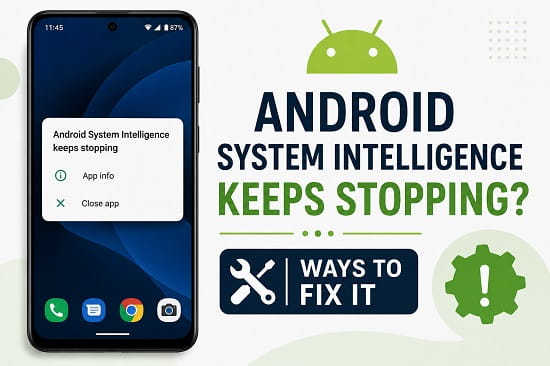
Seeing the “Android System Intelligence keeps stopping” error can be frustrating, especially when it interrupts everyday tasks like using your keyboard, copying text, opening apps, or accessing smart features on your phone. The error often appears repeatedly, making your Android device difficult to use.
The good news is that this problem is usually caused by software issues rather than hardware failure. In many cases, a recent app update, corrupted cache, outdated system software, or temporary glitch is responsible for the error. That means you can often fix it yourself without performing a factory reset or taking your phone to a repair center.
In this guide, I’ll explain what Android System Intelligence is, why it keeps stopping, and walk you through several proven solutions that work on Samsung Galaxy phones, Google Pixel devices, OnePlus, Xiaomi, Motorola, Oppo, Vivo, Realme, and most other Android smartphones.
What Is Android System Intelligence?
Android System Intelligence is a built-in Android system app developed by Google. It powers many of the smart features that make your phone easier to use.
Depending on your Android version, it may handle features such as:
- Live Caption
- Smart Text Selection
- Smart Linkify
- App Predictions
- Copy and Paste Suggestions
- Smart Reply
- Live Translate (supported devices)
- Now Playing on Pixel phones
- Screenshot suggestions
- Context-aware recommendations
Since it operates in the background, most users never notice it until an error message appears saying:
- Android System Intelligence keeps stopping
- Android System Intelligence has stopped
- Android System Intelligence isn’t responding
Although these errors can be annoying, they rarely indicate serious damage to your device.
Why Does Android System Intelligence Keep Stopping?
There isn’t a single cause behind this error. Instead, several factors can trigger it.
Common causes include:
- Corrupted app cache
- Damaged app data
- Faulty Google Play System updates
- Bugs after an Android update
- Outdated Android software
- Conflicts with recently installed apps
- Insufficient storage space
- Corrupted system files
- Battery optimization issues
- Temporary software glitches
The best way to solve the issue is to work through the fixes below one by one.
Signs That Android System Intelligence Is Crashing
Besides the pop-up message, you may notice other symptoms such as:
- Apps suddenly closing
- Smart Text Selection not working
- Copy and paste suggestions disappearing
- Keyboard behaving strangely
- Phone becoming slow
- Frequent freezing
- Random system crashes
- Smart Reply no longer appearing
- Live Caption not functioning
- Increased battery usage
If you’ve also noticed your battery draining unusually fast, I recommend reading my guide on Why Is My Android Battery Draining So Fast?, since background system issues can sometimes contribute to excessive battery consumption.
1. Restart Your Android Phone
Before trying anything complicated, restart your phone.
A restart clears temporary memory, stops background processes, and reloads Android system services.
To restart:
- Hold the Power button.
- Tap Restart.
- Wait for the phone to reboot.
- Check whether the error returns.
This simple step resolves many temporary software glitches.
2. Clear Android System Intelligence Cache
Corrupted cache files are among the most common reasons this app crashes.
To clear the cache:
- Open Settings.
- Tap Apps.
- Select See all apps if necessary.
- Tap the three-dot menu.
- Choose Show system apps.
- Find Android System Intelligence.
- Tap Storage & Cache.
- Select Clear Cache.
Restart your phone afterward.
Since clearing the cache only removes temporary files, your personal data remains safe.
3. Clear Android System Intelligence Storage
If clearing the cache doesn’t help, clear the app’s storage.
Steps:
- Open Settings.
- Go to Apps.
- Show system apps.
- Open Android System Intelligence.
- Tap Storage & Cache.
- Select Clear Storage or Clear Data.
- Restart your phone.
The app will recreate fresh data the next time Android starts.
4. Update Android System Intelligence
Google frequently releases updates to fix bugs and improve stability.
To check for updates:
- Open the Google Play Store.
- Tap your profile picture.
- Select Manage apps & device.
- Tap Updates available.
- Install any update for Android System Intelligence if one appears.
Keeping system apps updated often resolves recurring crashes.
5. Update Google Play System
Many users overlook Google Play System updates, but they are important for Android security and system stability.
To check:
- Open Settings.
- Go to Security & Privacy (or Security).
- Tap Google Play System Update.
- Install any available update.
- Restart your device.
This can fix compatibility problems affecting Android System Intelligence.
6. Install the Latest Android Update
If the issue began after an earlier software version, your manufacturer may already have released a fix.
To update Android:
- Open Settings.
- Tap Software Update or System Update.
- Select Download and Install.
- Install available updates.
- Restart your phone.
Software updates often contain important bug fixes for core system components.
7. Free Up Storage Space
Android relies on free storage for temporary system files.
If your phone storage is nearly full, system apps may begin crashing.
To check storage:
- Open Settings.
- Tap Storage.
- Review available space.
If storage is low:
- Delete large videos.
- Remove duplicate photos.
- Uninstall unused apps.
- Clear downloads.
- Empty the Recycle Bin or Trash.
Aim to keep at least 10 to 15 GB of free space if possible.
8. Update Google Play Services
Android System Intelligence works closely with Google Play Services.
An outdated version can create compatibility problems.
To update:
- Open the Google Play Store.
- Search for Google Play Services.
- Install available updates.
- Restart your phone.
9. Boot into Safe Mode
A recently installed app may be interfering with Android System Intelligence.
Safe Mode temporarily disables third-party apps, making it easier to identify the cause.
To enter Safe Mode on most Android phones:
- Press and hold the Power button.
- Touch and hold Power Off.
- Tap Safe Mode.
- Wait for the phone to restart.
If the error disappears in Safe Mode, a third-party app is likely responsible.
Exit Safe Mode and uninstall apps you installed shortly before the problem began.
10. Reset App Preferences
Incorrect app settings may also trigger crashes.
Resetting app preferences restores default settings without deleting your files.
Steps:
- Open Settings.
- Tap Apps.
- Tap the three-dot menu.
- Choose Reset App Preferences.
- Confirm the action.
This restores:
- Disabled apps
- Permission settings
- Background restrictions
- Default apps
- Notification preferences
11. Reset Network Settings
Although this issue is mainly software-related, network configuration problems can sometimes affect Google services that Android System Intelligence depends on.
Resetting network settings may help.
If you’re using a Samsung device, follow my detailed guide on How to Reset Network Settings on Samsung Galaxy Phones for step-by-step instructions.
On most Android phones:
- Open Settings.
- Tap System.
- Select Reset Options.
- Choose Reset Wi-Fi, Mobile & Bluetooth.
- Confirm the reset.
You’ll need to reconnect to Wi-Fi afterward.
12. Perform a Factory Reset (Last Resort)
If none of the previous fixes work, a factory reset may be necessary.
Before resetting:
- Back up your photos.
- Save important documents.
- Sync contacts.
- Back up WhatsApp chats.
- Remember your Google account password.
To factory reset:
- Open Settings.
- Go to System.
- Tap Reset Options.
- Select Erase All Data (Factory Reset).
- Confirm.
Once your phone restarts, set it up again and check whether the issue has been resolved.
How to Prevent Android System Intelligence from Crashing Again
Once you’ve fixed the problem, these habits can help prevent it from returning:
- Install Android updates regularly.
- Keep Google Play Services updated.
- Update apps from the Play Store.
- Avoid downloading apps from unknown sources.
- Maintain enough free storage.
- Restart your phone occasionally.
- Remove apps you no longer use.
- Install security updates promptly.
- Avoid using aggressive RAM cleaner apps.
- Keep Google Play System updated.
Following these practices reduces the likelihood of future software conflicts.
Frequently Asked Questions
Is Android System Intelligence safe?
Yes. It is an official Google system app that provides several intelligent Android features. It is safe to keep enabled.
Can I disable Android System Intelligence?
Some Android phones allow you to disable it, while others do not. Disabling it may cause features like Smart Text Selection, Live Caption, and Smart Reply to stop working, so it is generally better to fix the underlying issue rather than disable the app.
Does clearing Android System Intelligence data delete my files?
No. Clearing the app’s data only resets its settings and temporary information. Your photos, videos, contacts, and personal documents remain untouched.
Why did the error start after an Android update?
Software updates occasionally introduce temporary bugs or compatibility issues. Manufacturers and Google usually release follow-up updates to address these problems, so checking for the latest updates is one of the first things you should do.
Can low storage cause Android System Intelligence to stop?
Yes. When your device runs low on available storage, Android may struggle to create temporary files needed by system apps, which can lead to crashes and performance issues.
Is a factory reset always necessary?
No. In most cases, users resolve the problem by clearing the app’s cache and data, updating Android, installing the latest Google Play System updates, or removing a conflicting app. A factory reset should only be considered after all other troubleshooting steps have failed.
If the “Android System Intelligence keeps stopping” message continues to appear after trying every solution in this guide, the issue may be related to a device-specific software bug. In that case, check for updates from your phone manufacturer or contact their support team. Most users, however, find that one of the fixes above restores normal operation without needing professional repair.
