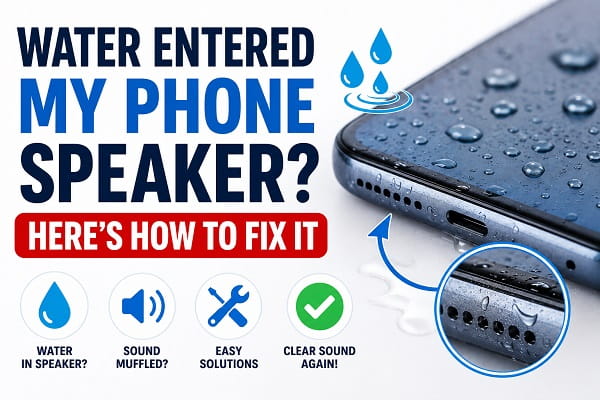
Accidentally dropping your phone into water or exposing it to rain, spilled drinks, or high humidity can quickly affect the speaker. You may notice that the sound becomes muffled, distorted, crackly, or much quieter than usual. In some cases, the speaker may stop working completely until the moisture has dried.
The good news is that water entering your phone speaker doesn’t always cause permanent damage. Modern smartphones often include some level of water resistance, and even phones without an official IP rating can recover if they’re handled correctly after getting wet. The most important thing is to avoid actions that could push water deeper into the speaker or damage internal components.
This guide explains what happens when water enters your phone speaker, the mistakes to avoid, and 10 practical steps you can take to remove moisture and restore normal sound. If your speaker has stopped working completely, you should also read Phone Speaker Not Working? 11 Fixes That Actually Work for additional troubleshooting.
What Happens When Water Gets Into Your Phone Speaker?
Phone speakers produce sound by vibrating a thin diaphragm. When water enters the speaker grille, it interferes with those vibrations, causing the audio to sound quieter or distorted.
Common symptoms include:
- Muffled sound.
- Crackling noises.
- Reduced speaker volume.
- Distorted music or videos.
- Speaker cutting in and out.
- No sound from the loudspeaker.
In many cases, these symptoms improve once the trapped moisture evaporates.
Can Water Permanently Damage a Phone Speaker?
Yes, but not always.
A brief splash of clean water may only cause temporary sound problems, especially if your phone has some degree of water resistance.
Permanent damage is more likely if:
- The phone remained underwater for a long time.
- Salt water entered the speaker.
- Chlorinated pool water entered the device.
- The phone was charged while still wet.
- Water reached the internal circuitry.
The faster you act, the better the chances of preventing permanent damage.
Thing 1: Remove the Phone From Water Immediately
If your phone is still wet, remove it from the water as quickly as possible.
Avoid pressing unnecessary buttons because doing so may force water further inside the device.
If your phone is inside a protective case, remove it immediately to allow trapped moisture to escape more easily.
Thing 2: Turn Off the Phone If Necessary
If your phone was heavily submerged or is behaving unusually, switch it off immediately.
Powering down helps reduce the risk of electrical short circuits while the internal components dry.
If the phone only received a few drops of water and is functioning normally, you can simply avoid using it until it has dried completely.
Thing 3: Dry the Outside of the Phone
Use a clean, dry microfiber cloth to wipe away all visible water.
Pay particular attention to:
- Speaker openings.
- Charging port.
- Microphone holes.
- SIM tray.
- Buttons.
Avoid using tissues that leave lint behind.
Thing 4: Hold the Speaker Facing Down
Gravity can help remove trapped water.
Hold your phone with the speaker facing downward and gently tap the side of the device with your hand.
Do not shake the phone aggressively, as this may spread water to other internal components.
Thing 5: Let the Speaker Dry Naturally
One of the safest methods is simply allowing time for the moisture to evaporate.
Place the phone in a cool, dry, well-ventilated area.
Avoid direct sunlight or placing the phone on very hot surfaces, as excessive heat can damage the battery and display.
Many phones recover within several hours once the speaker has dried completely.
Thing 6: Use a Water Ejection Sound
Some smartphones and third-party apps can play low-frequency sound waves designed to help push water out of the speaker.
These sounds create strong vibrations that may dislodge small amounts of trapped moisture from the speaker grille.
When using a water ejection sound:
- Increase the media volume.
- Place the phone with the speaker facing downward.
- Let the sound play for several minutes.
- Wipe away any water that comes out.
If the speaker sounds clearer afterward, allow the phone to continue drying before using it normally.
Thing 7: Do Not Charge Your Phone While It’s Wet
Charging a wet phone can damage the charging port and internal components.
If your phone displays a moisture warning, disconnect the charger immediately.
Before charging again:
- Make sure the charging port is completely dry.
- Allow the phone to air dry.
- Wait until any moisture warning disappears.
If your phone continues showing a moisture alert after drying, read our guide on Moisture Detected in Charging Port for additional troubleshooting steps.
Thing 8: Avoid Common Drying Mistakes
Many popular “fixes” found online can actually make the problem worse.
Avoid these mistakes:
Don’t Use a Hair Dryer
Hot air can overheat your phone and may push water deeper into the speaker openings.
Don’t Insert Objects Into the Speaker
Never use:
- Needles
- Pins
- Toothpicks
- Cotton swabs
These can damage the protective speaker mesh or the speaker itself.
Don’t Shake the Phone Vigorously
Although it may seem like a good idea, excessive shaking can spread moisture to areas that were previously dry.
Don’t Use an Oven or Microwave
Extreme heat can permanently damage your phone and create a serious safety hazard.
Don’t Charge the Phone Immediately
Even if the phone appears dry on the outside, moisture may still be trapped inside.
Thing 9: Test the Speaker After It Dries
After allowing enough time for the phone to dry, test the speaker using different types of audio.
Try:
- Playing music.
- Watching a video.
- Listening to a voice recording.
- Making a phone call using Speaker mode.
- Playing your ringtone.
If the sound gradually becomes louder and clearer, the remaining moisture is likely evaporating.
However, if the speaker is still unusually quiet, our guide on Phone Speaker Too Quiet? 12 Fixes to Make It Louder Again provides additional solutions that may help.
Thing 10: Seek Professional Repair if the Problem Persists
If your phone has dried completely but the speaker still:
- Produces crackling sounds.
- Sounds distorted.
- Is much quieter than before.
- Doesn’t produce any sound.
the speaker or another internal component may have been damaged.
Professional inspection is recommended if:
- The phone was submerged for an extended period.
- Salt water entered the device.
- Multiple functions stopped working after water exposure.
- The speaker continues getting worse over time.
A technician can inspect the speaker, clean internal corrosion, and determine whether replacement is necessary.
Frequently Asked Questions
Will my phone speaker work again after getting wet?
Yes, in many cases. If only a small amount of clean water entered the speaker, the sound often returns to normal once the moisture has completely evaporated.
How long does it take for a wet phone speaker to dry?
It depends on how much water entered the speaker and the surrounding environment. Light moisture may dry within a few hours, while more significant exposure can take up to 24–48 hours.
Should I put my phone in rice?
No.
Although this has been a popular suggestion for years, rice is generally not recommended. It does little to remove moisture from inside the phone and may introduce dust or small particles into the ports and speaker openings. Air drying in a well-ventilated area is usually the safer option.
Why does my speaker sound muffled after getting wet?
Water trapped inside or around the speaker prevents it from vibrating properly, making the sound quieter or distorted until the moisture dries.
Can I use my phone while the speaker is drying?
It’s best to limit use until the phone has dried completely. If the device was heavily exposed to water, avoid charging it or using power-intensive apps until you’re confident there’s no remaining moisture.
Can salt water damage my phone speaker?
Yes.
Salt water is much more damaging than fresh water because it can cause corrosion inside the phone. If your phone has been exposed to seawater, rinse the exterior gently with fresh water only if the manufacturer recommends it, dry it thoroughly, and seek professional inspection if problems develop.
How do I know if the speaker is permanently damaged?
If the speaker still produces distorted, crackling, or no sound after the phone has dried completely and you’ve tried the fixes in this guide, the speaker or another internal audio component may require repair or replacement.
Can water damage affect other parts of my phone?
Yes.
Besides the speaker, water can also affect:
- The charging port.
- Microphone.
- Display.
- Cameras.
- Buttons.
- Internal circuits.
If you notice additional problems after water exposure, it’s a good idea to have the phone inspected before the damage worsens.
Most phones recover well after minor water exposure if they’re handled correctly from the start. Acting quickly, avoiding common mistakes, and allowing the device to dry properly can often restore normal speaker performance and prevent unnecessary repairs.
