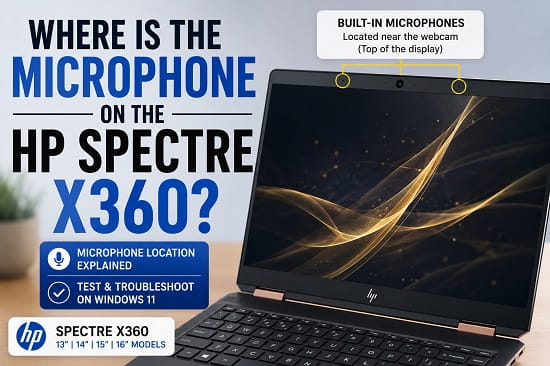
If you are trying to find the microphone on an HP Spectre x360, you may not see an obvious microphone opening on the keyboard or around the sides of the laptop. That is because the built-in microphones are integrated into the display assembly, around the camera area.
On many HP Spectre x360 models, the laptop uses two internal microphones positioned near the top of the display, around the webcam. HP documentation for several Spectre x360 generations identifies the internal microphones in this upper display area, while newer models use camera systems with integrated dual-array digital microphones.
The exact physical layout varies between generations, so the safest way to identify the microphones is to look around the webcam and the top bezel rather than assuming every Spectre x360 has the same microphone openings.
Where Is the Microphone on an HP Spectre x360?
On most Spectre x360 models, look at the top edge of the screen, close to the built-in webcam.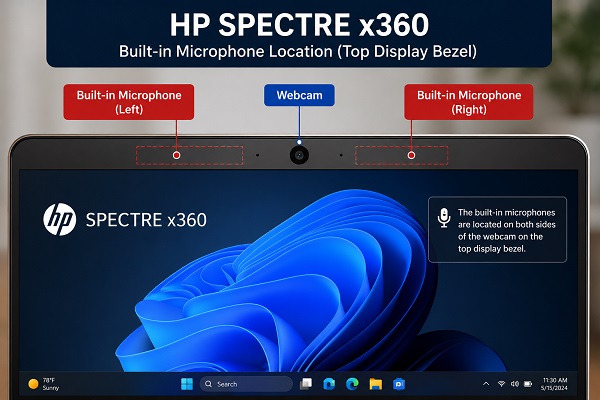 ophones are small openings integrated into the display assembly. Depending on the generation, they may be positioned close to the camera rather than appearing as a clearly labelled microphone port.
This means you generally do not need to look beside the USB ports, next to the headphone jack, under the keyboard, or around the trackpad.
The headphone/microphone combo jack found on some Spectre x360 models is an external audio connector. It is not the location of the laptop’s built-in microphone.
Does the HP Spectre x360 Have More Than One Microphone?
Yes. Many Spectre x360 models use a microphone array rather than a single microphone.
HP documentation for several Spectre x360 generations identifies two internal microphones in the display area. Newer models also use camera systems with integrated dual-array digital microphones.
Using multiple microphones allows the computer to process incoming sound more effectively. Depending on the model and software, the audio system may use features such as noise reduction, echo cancellation, or beam forming.
This is why you may see the device listed in Windows as something like:
Microphone ArrayThe exact microphone hardware and audio processing features depend on the Spectre x360 generation and configuration.
Is the Microphone Beside the Webcam?
Usually, the built-in microphones are located around the webcam area at the top of the display.
However, you should not assume that the microphone openings will be immediately beside the camera lens on every model. HP has produced several Spectre x360 generations with different display and camera designs.
The easiest way to identify the area is to inspect the entire upper bezel around the camera.
Top edge of display
        ↓
[ Microphone area ] [ Camera ] [ Microphone area ]
The exact arrangement can vary by model.
Where Is the Microphone on the HP Spectre x360 13?
The location depends on which Spectre x360 13 generation you have.
HP documentation for older Spectre x360 13 models identifies the internal microphones in the upper display area around the camera.
Later Spectre x360 13 models also use cameras with integrated dual-array digital microphones.
If you have a Spectre x360 13 and cannot find a visible microphone grille, check the area around the webcam at the top of the screen.
You do not need to remove the display bezel to locate or use the microphone.
Where Is the Microphone on the HP Spectre x360 14?
On Spectre x360 14 models, the built-in microphones are also associated with the camera and display assembly.
For example, HP specifications for the Spectre x360 14-ea series identify a webcam with integrated dual-array digital microphones.
On newer Spectre x360 14 models, the camera system can include additional features such as noise reduction, echo cancellation, and beam forming.
The practical answer is the same: look around the camera at the top of the display rather than looking for a microphone port on the side of the laptop.
Where Is the Microphone on the HP Spectre x360 15?
HP service documentation for the Spectre x360 15 identifies two internal microphones near the top center of the display, around the camera.
If you have this larger Spectre x360 model, inspect the upper bezel around the webcam.
The microphones are part of the internal display assembly, so they may be difficult to identify unless you know what you are looking for.
Where Is the Microphone on the HP Spectre x360 16?
The Spectre x360 16 uses a newer camera system with integrated dual-array digital microphones.
Because the camera and microphone hardware is built into the display assembly, you should look around the camera area at the top of the screen.
The exact appearance can differ between configurations, so use the camera area as the reference point rather than looking for a separate microphone jack.
Is the Headphone Jack the Built-In Microphone?
No.
Some HP Spectre x360 models have a headphone/microphone combo jack on the side of the laptop.
That jack is designed for a compatible external headset or microphone.
It is different from the internal microphone array used for video calls, voice recording, Windows voice features, online meetings, and applications that use the laptop’s built-in microphone.
If you are trying to use the Spectre x360 without connecting an external headset, Windows should normally be able to use the built-in microphone array.
How to Check Which Microphone Windows Is Using
If you have found the microphone area but want to confirm that Windows is actually detecting it, check the input device in Windows 11.
Open:
Settings > System > SoundScroll to Input.
You should see an available microphone device. Depending on your model and driver, it may be listed as:
Microphone ArraySelect the microphone and speak normally.
Watch the input level indicator.
If the meter responds when you speak, Windows is receiving audio from the microphone.
How to Test the HP Spectre x360 Microphone
- Open Settings.
- Select System.
- Select Sound.
- Scroll to Input.
- Select the built-in microphone.
- Start the microphone test if the option is available.
- Speak normally for a few seconds.
- Check whether Windows detects your voice.
If the input meter moves, the microphone is working at the Windows level.
If Windows detects no input, continue with the troubleshooting steps below.
What If the HP Spectre x360 Microphone Is Not Working?
Finding the microphone is only part of the problem. If Windows cannot hear you, the cause could be microphone permissions, the selected input device, the audio driver, or audio processing rather than the physical microphone itself.
Start with the simplest checks.
Check the Microphone Permission
Open:
Settings > Privacy & security > MicrophoneMake sure microphone access is enabled.
Also check that applications are allowed to access the microphone.
If you are having microphone problems specifically in Discord, our guide on How to Fix Realtek Microphone Array Not Working in Discord covers input-device selection, Windows microphone permissions, input volume, and Realtek microphone processing.
Check the Selected Input Device
Go to:
Settings > System > SoundUnder Input, make sure Windows is using the Spectre x360’s built-in microphone rather than a Bluetooth headset, USB microphone, external webcam, monitor, docking station, or another audio device.
Check the Microphone Level
Select the microphone under Input and check its volume level.
If the input volume is extremely low, Windows may detect your voice but applications may barely hear it.
Speak while watching the input meter rather than relying only on the microphone volume number.
Check the Audio Driver
Open:
Device Manager > Sound, video and game controllersAlso check:
Device Manager > Audio inputs and outputsLook for the microphone and audio device.
If there is a warning symbol, the driver may need attention.
For Realtek-equipped systems, use the audio driver provided for your exact HP model rather than downloading a random driver package.
If Realtek Audio Console itself is failing, our Realtek Audio Console Not Opening? How to Fix It guide explains how to check the Realtek driver, repair the application, and reinstall the correct OEM audio package.
How to Clean the HP Spectre x360 Microphone
Because the microphone openings are part of the display assembly, be careful when cleaning them.
Do not insert a sharp object into the microphone openings.
Instead:
- Turn off the laptop.
- Disconnect the charger.
- Use a soft, dry microfiber cloth around the display bezel.
- Gently remove visible dust.
- Avoid spraying liquid directly onto the screen or bezel.
If you use compressed air, avoid blasting the microphone openings at very high pressure from close range.
Can You Cover the HP Spectre x360 Microphone?
You can physically cover a microphone opening, but doing so can reduce microphone sensitivity or make your voice sound muffled.
If you use a privacy cover around the webcam, make sure it does not cover the microphone openings.
This is particularly important on Spectre x360 models where the microphones are integrated closely with the camera system.
How to Identify Your Exact HP Spectre x360 Model
Because HP has released many Spectre x360 generations, identifying the exact model is useful if you need to locate a component or install the correct driver.
You can usually find the model information on the bottom of the laptop, on the original packaging, in Windows System Information, in HP Support Assistant, or in the BIOS.
In Windows, search for:
System InformationThen look for the system model.
The full product number is even more useful when downloading drivers or checking HP documentation.
Why You May Not See a Microphone Hole
A common reason users cannot find the microphone is that the microphones are extremely small and integrated into the display assembly.
The Spectre x360 is designed with a compact camera and microphone system rather than a large, obvious microphone grille.
HP documentation for multiple Spectre x360 generations identifies the microphones in the display area, while newer specifications describe them as integrated into the camera system.
So if you have been searching around the keyboard or sides of the laptop, you may simply be looking in the wrong place.
Start at the top of the display around the webcam.
Frequently Asked Questions
Where is the microphone on the HP Spectre x360?
The built-in microphone is generally located in the upper display area around the webcam. Many Spectre x360 models use two internal microphones or a dual-array microphone system integrated with the camera assembly.
Does the HP Spectre x360 have a built-in microphone?
Yes. Spectre x360 models have built-in microphones for applications such as video calls, voice recording, and other audio input functions.
Where is the microphone on an HP Spectre x360 13?
On many Spectre x360 13 models, the internal microphones are located near the top of the display around the camera. The exact arrangement depends on the generation.
Where is the microphone on an HP Spectre x360 14?
The microphone system is integrated into the display and camera area. On several Spectre x360 14 configurations, HP specifies a camera with integrated dual-array digital microphones.
Where is the microphone on an HP Spectre x360 15?
HP’s documentation for Spectre x360 15 models identifies two internal microphones near the top center of the display around the camera.
Where is the microphone on an HP Spectre x360 16?
The Spectre x360 16 uses a camera system with integrated dual-array digital microphones. Look around the camera at the top of the display.
Is the headphone jack the microphone on an HP Spectre x360?
No. The headphone/microphone combo jack is for connecting an external headset or microphone. The laptop also has its own internal microphone array.
How do I test my HP Spectre x360 microphone?
Open Settings > System > Sound, select the microphone under Input, and speak while watching the input meter or running the available microphone test.
Why can’t Zoom or Teams hear my HP Spectre x360 microphone?
First check that Windows microphone access is enabled and that Zoom or Teams is using the Spectre x360’s built-in microphone rather than another input device. Then test the microphone in Windows Sound settings.
How do I find the microphone if I cannot see it?
Look carefully around the top edge of the display near the webcam. The microphone openings are small and can be difficult to distinguish from the surrounding bezel. The exact position varies by Spectre x360 generation.
Can I use an external microphone with an HP Spectre x360?
Yes. Depending on your model, you can use a compatible headset through the headphone/microphone combo jack, USB microphone, Bluetooth audio device, or another supported external audio interface.
