If you want to screen record on an HP laptop, you do not necessarily need to install a third-party recorder. Windows includes several tools that can record what is happening on your screen, and the best option depends on what you want to capture.
For most HP laptops running Windows 11, Snipping Tool is the simplest option because it can record a selected area of the screen without requiring additional software. You can also use Xbox Game Bar to record an application, while PowerPoint and Microsoft Clipchamp provide additional options when you need more control over the recording.
The methods below work on compatible Windows installations regardless of whether your HP laptop is an HP Pavilion, ENVY, Spectre, EliteBook, ProBook, or another model.
Quick Comparison
| Method | Best for | Audio | Extra software |
|---|---|---|---|
| Snipping Tool | Quick screen recordings | Available through the recording workflow | No |
| Xbox Game Bar | Recording an application or game | System audio and microphone options | No |
| PowerPoint | Presentations and instructional recordings | Yes | PowerPoint required |
| Clipchamp | Screen recordings that need editing | Microphone and supported audio options | Clipchamp |
1. Screen Record on an HP Laptop With Snipping Tool
If your HP laptop is running Windows 11, Snipping Tool is the easiest place to start.
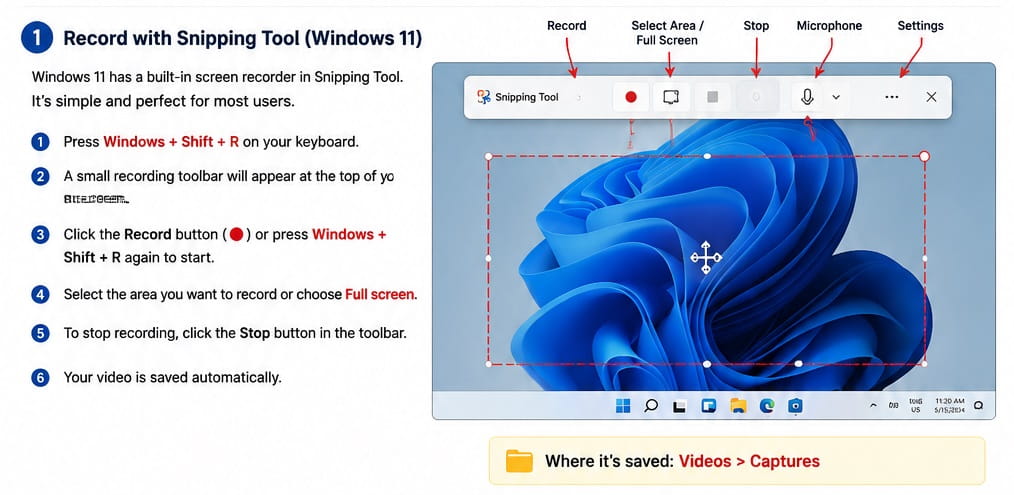
Microsoft added screen recording to Snipping Tool, allowing you to select the part of the screen you want to record before starting the recording.
How to start a screen recording with Snipping Tool
Press:
Windows + Shift + RThis opens the video recording mode in Snipping Tool.
You can also open Snipping Tool from the Start menu and select the recording option.
Follow these steps
- Press Windows + Shift + R.
- Select the area of the screen you want to record.
- Click Start.
- Perform the actions you want to capture.
- Click Stop when you are finished.
- Review the recording.
- Save the video.
This method is particularly useful when you want to demonstrate something on your HP laptop, such as:
- How to change a Windows setting
- How to fix an error
- How to use an application
- How to demonstrate a website
- How to create a short tutorial
You can also send the recording to Clipchamp for additional editing after you finish capturing it.
If Snipping Tool is not working on your laptop, see How to Fix Snipping Tool Not Working on Windows 11.
2. Screen Record an HP Laptop With Xbox Game Bar
Windows also includes Xbox Game Bar, which can record an application or game without requiring a separate screen recorder.
To open it, press:
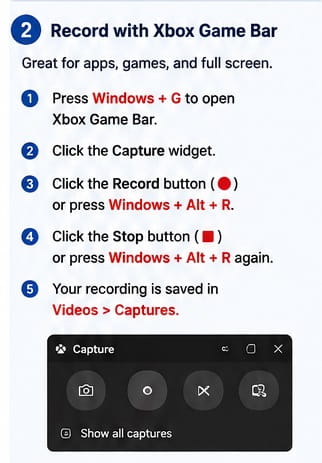
Windows + GThe Game Bar controls will appear over the application you are using.
To start recording, press:
Windows + Alt + RPress the same shortcut again when you want to stop.
How to use Xbox Game Bar
- Open the application or game you want to record.
- Press Windows + G.
- Locate the Capture widget.
- Select the Record button, or press Windows + Alt + R.
- Use the application normally.
- Press Windows + Alt + R again to stop recording.
You can also use:
Windows + Alt + Mto turn the microphone on or off while recording.
Where does Xbox Game Bar save recordings?
Xbox Game Bar saves recordings as MP4 files in:
Videos > CapturesThis makes Game Bar convenient when you want to record a particular application and have the finished video saved automatically.
An important limitation
Xbox Game Bar is designed primarily for recording a game or application. If you need to record arbitrary areas of the Windows desktop, Snipping Tool or Clipchamp may be a better choice.
3. Screen Record on an HP Laptop With PowerPoint
If Microsoft PowerPoint is installed on your HP laptop, it can also record your screen.
This is particularly useful for students, teachers, employees, and anyone creating presentations or demonstrations.
PowerPoint’s screen recording tool allows you to select an area of the screen, record audio and the mouse pointer, and insert the finished recording into a presentation. The recording can also be saved separately as a video file.
How to record your screen in PowerPoint
- Open PowerPoint.
- Open a presentation or create a new one.
- Select the Insert tab.
- Select Screen Recording.
- Choose Select Area.
- Drag around the part of the screen you want to record.
- Select Record.
- Complete the actions you want to demonstrate.
- Stop the recording when finished.
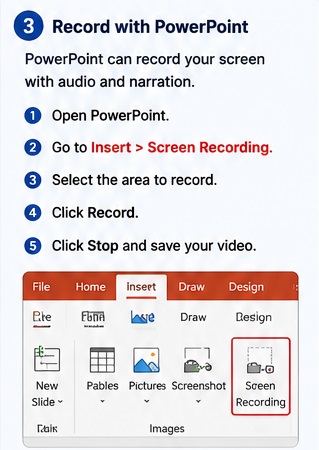
PowerPoint normally records audio and the mouse pointer as part of the screen recording workflow, although these options can be changed before recording.
How to save the PowerPoint screen recording as a video
After recording, the video is placed on your PowerPoint slide.
Right-click the recorded video and select:
Save Media asChoose the location where you want to store the file and save it.
PowerPoint is a good choice when the recording is part of a larger presentation or tutorial because you can keep the recording inside the presentation and edit or position it later.
4. Screen Record an HP Laptop With Microsoft Clipchamp
Microsoft Clipchamp is another option when you want to record your screen and then edit the recording.
It is particularly useful if you want to create a more polished tutorial rather than simply capturing a quick clip.
Depending on the version of Clipchamp and your account, you can record your screen alone or combine the screen recording with your webcam.
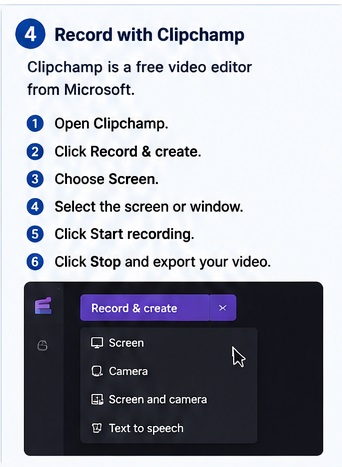
How to screen record with Clipchamp
- Open Clipchamp.
- Start a new project.
- Select the Record & create option.
- Choose the screen recording option.
- Allow microphone or camera access if requested.
- Select whether you want to record a browser tab, window, or entire screen.
- Start the recording.
- Complete the actions you want to capture.
- Stop the recording.
- Review and edit the video.
- Export the finished recording.
Clipchamp can be useful when you need to:
- Trim unwanted sections
- Add text
- Add music
- Add captions
- Combine multiple clips
- Include a webcam recording
- Produce a finished MP4 video
Microsoft’s Clipchamp recorder can also capture your microphone when audio recording is enabled.
How to Screen Record the Entire Screen on an HP Laptop
If you want to capture everything visible on your display, choose a recording method that allows you to select the entire screen.
With Snipping Tool:
- Press Windows + Shift + R.
- Select the recording area.
- Select the entire screen when the option is available.
- Start the recording.
- Stop when finished.
With Clipchamp, you can select Entire screen from the screen-sharing options before starting the recording.
This is useful for demonstrations where you need to move between different applications or areas of Windows.
How to Screen Record Only Part of the Screen
If you do not want to record the entire display, Snipping Tool is one of the simplest choices.
Press:
Windows + Shift + RSelect the area you want to capture and start recording.
This can be better than recording the whole screen because it keeps unrelated information outside the video.
For example, if you are demonstrating how to change a setting in one application, you can record only that part of the screen instead of showing the entire desktop.
How to Screen Record With Audio on an HP Laptop
Whether you can record audio and which audio sources are available depends on the recording method.
Snipping Tool
Snipping Tool supports video snips and can send the finished recording to Clipchamp for additional audio and caption editing.
Xbox Game Bar
Xbox Game Bar can record system audio and provides a microphone control during recording.
Use:
Windows + Alt + Mto toggle the microphone.
PowerPoint
PowerPoint’s screen recording tool can record audio and the mouse pointer.
Clipchamp
Clipchamp can record through your computer’s microphone. Depending on the recording method, it can also capture supported audio from the source being recorded.
If your microphone is not being detected, check:
Settings > System > Sound > Inputand make sure the correct microphone is selected.
If you are using an HP laptop with a microphone problem, you may also find our guide on How to Fix Realtek Microphone Array Not Working in Discord useful when the issue is related to the microphone input or Windows audio configuration.
How to Screen Record on an HP Laptop Without Installing Software
If your HP laptop runs Windows 11, you can screen record without downloading a separate screen recording application.
The easiest built-in options are:
Windows + Shift + Rfor Snipping Tool, and:
Windows + Alt + Rfor Xbox Game Bar.
You can also use PowerPoint if it is already installed.
This means you can start recording without searching for an unknown third-party recorder or giving another application access to your screen.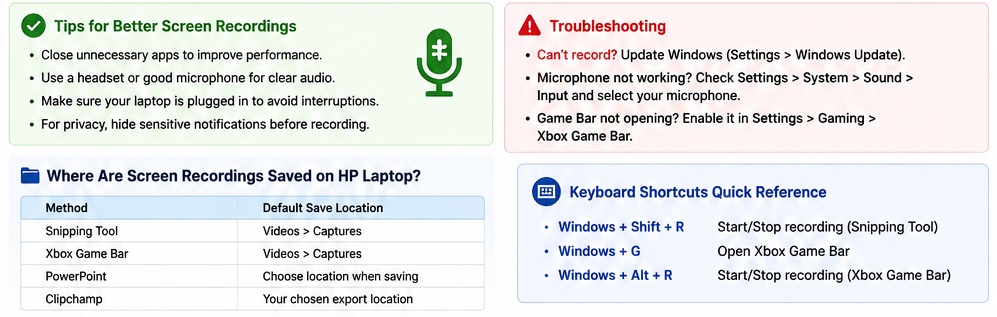
How to Record a Browser on an HP Laptop
If you want to record something happening in Chrome, Edge, or another browser, Snipping Tool can be useful when you only need a particular area of the browser window.
Clipchamp is another option if you want to record a browser tab and then edit the video afterward.
When recording a browser, be careful not to display passwords, private messages, banking information, email addresses, or other personal information in the recording.
Where Are Screen Recordings Saved on an HP Laptop?
The location depends on the tool you use.
Xbox Game Bar
Xbox Game Bar saves recordings in:
Videos > CapturesThe recordings are saved as MP4 files.
Snipping Tool
After completing a video snip, save the recording using the available save option. If you choose to edit the recording in Clipchamp, the resulting video can be exported from there.
PowerPoint
PowerPoint places the recording in the presentation. You can right-click the video and choose Save Media as to save it as a separate file.
Clipchamp
Clipchamp can save or export the recording through its editing interface. Depending on the version and account, the original recording may also be downloaded to your computer.
What to Do If Screen Recording Is Not Working on an HP Laptop
If none of the screen recording shortcuts work, start with the method that does not depend on the same recording component.
Check your Windows version
Snipping Tool’s screen recording feature is available on supported Windows 11 installations.
If you are using an older Windows version, another recording method may be necessary.
Try Snipping Tool
Press:
Windows + Shift + RIf nothing happens, search for Snipping Tool from the Start menu and open it manually.
Check Xbox Game Bar
Press:
Windows + GIf Game Bar does not open, check its Windows settings and make sure it is enabled.
Restart the laptop
A temporary Windows process or application problem can prevent recording tools from responding correctly. Restarting the computer is a simple step worth trying before changing drivers or installing software.
Check available storage
Screen recordings are video files and can become large, particularly when recording for several minutes.
Make sure the drive where your recording will be saved has enough free space.
If Windows or an application becomes completely unresponsive while you are trying to record, see How to Force Quit on Windows: 7 Easy Methods for ways to close the affected application.
How to Screen Record on an HP Laptop With a Webcam
If you want your face to appear while you demonstrate something on the screen, Clipchamp is a convenient option.
Choose the screen-and-camera recording option, allow camera and microphone access when prompted, and select the screen you want to share.
The resulting recording can show both the screen and your webcam feed, which is useful for:
- Tutorials
- Online lessons
- Product demonstrations
- Software walkthroughs
- Video presentations
If you only need the screen and do not want your webcam visible, choose the screen-only option.
How to Stop a Screen Recording
The method used to stop recording depends on the application.
Snipping Tool
Select Stop in the recording controls.
Xbox Game Bar
Press:
Windows + Alt + Ragain.
PowerPoint
Use the recording controls to stop the recording.
Clipchamp
Select the option to stop screen sharing or stop recording, depending on the version you are using.
HP Laptop Screen Recording Keyboard Shortcuts
These are the most useful shortcuts to remember:
| Shortcut | Function |
|---|---|
Windows + Shift + R |
Start a Snipping Tool screen recording |
Windows + G |
Open Xbox Game Bar |
Windows + Alt + R |
Start or stop Xbox Game Bar recording |
Windows + Alt + M |
Turn the Xbox Game Bar microphone on or off |
If you only want to remember one shortcut for general Windows 11 screen recording, start with:
Windows + Shift + RFrequently Asked Questions
How do I screen record on an HP laptop?
On a supported Windows 11 HP laptop, press Windows + Shift + R to open the Snipping Tool recording interface. Select the area you want to record, start the recording, and select Stop when you are finished.
Does HP have a built-in screen recorder?
The screen recording feature comes from Windows rather than HP itself. Windows 11 includes Snipping Tool and Xbox Game Bar, both of which can record screen activity on compatible HP laptops.
What is the shortcut to screen record on an HP laptop?
For Snipping Tool, use Windows + Shift + R. For Xbox Game Bar, use Windows + Alt + R after opening or enabling Game Bar.
Can I screen record on an HP laptop without an app?
Yes. On a supported Windows 11 installation, you can use the built-in Snipping Tool or Xbox Game Bar without installing a separate screen recorder.
How do I screen record with sound on an HP laptop?
The available audio options depend on the recording tool. Xbox Game Bar can record system audio and use the microphone, while PowerPoint and Clipchamp also provide audio recording options.
Where does my HP screen recording go?
Xbox Game Bar recordings are saved under Videos > Captures. Other tools use their own save or export workflows, so the location depends on which recorder you used.
Why is Windows + Shift + R not working?
The shortcut opens Snipping Tool’s video recording function on supported Windows 11 installations. If it does not work, open Snipping Tool manually from Start and check whether the recording option is available.
Can I record only part of my HP laptop screen?
Yes. Snipping Tool lets you select the area you want to record before starting the recording.
Can I record my screen and webcam at the same time?
Yes. Microsoft Clipchamp supports screen-and-camera recording, allowing you to show your screen while your webcam is also recorded.
Can I edit my HP screen recording?
Yes. You can use Clipchamp to trim recordings and add text, captions, music, or other edits. PowerPoint also provides basic options for working with recordings placed in a presentation.
