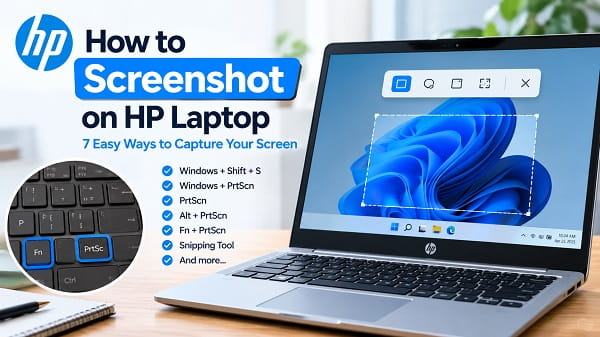
If you need to take a screenshot on an HP laptop, Windows 11 already gives you several ways to do it without installing another screenshot program. The right method depends on what you want to capture: the entire screen, one application window, or only a selected area.
For most people, Windows + Shift + S is the most useful shortcut because it opens Snipping Tool and lets you choose exactly what to capture. If this shortcut stops responding, see our guide on How to Fix Snipping Tool Not Working on Windows 11 for troubleshooting steps. If you want a full-screen image saved automatically, Windows + PrtScn is usually the better option. Microsoft documents both shortcuts as built-in Windows screenshot methods.
On some HP laptops, the Print Screen function is combined with another keyboard function, so you may need to hold Fn while pressing PrtScn. HP specifically notes that some laptops require Fn + PrtSc for screenshots.
The Best HP Screenshot Method for Each Situation
| What you want to captureShortcut or methodWhat happens | ||
|---|---|---|
| Part of the screen | Windows + Shift + S |
Opens Snipping Tool selection |
| Entire screen and save it | Windows + PrtScn |
Saves a screenshot to Pictures > Screenshots |
| Entire screen to clipboard | PrtScn |
Copies the screen so you can paste it elsewhere |
| Active window | Alt + PrtScn |
Copies only the selected window |
| HP laptop where PrtScn needs Fn | Fn + PrtScn |
Uses the Print Screen function |
| Capture and edit | Snipping Tool | Lets you select, annotate, crop and save |
| No working physical Print Screen key | Snipping Tool | Works without relying on PrtScn |
1. Screenshot Part of the Screen With Windows + Shift + S
If you only need a section of your HP laptop screen, this is usually the quickest method.
Press:
Windows + Shift + S
Windows will dim the display and open the Snipping Tool capture overlay. You can then choose a rectangular, freeform, window, or full-screen capture. Microsoft documents these capture modes in Snipping Tool.
Follow these steps
- Open the page or application you want to capture.
- Press Windows + Shift + S.
- Choose the capture mode from the toolbar.
- For a selected area, click and drag around it.
- Release the mouse button.
- Select the notification that appears if you want to edit the capture.
- Save the image with Ctrl + S or the Save button.
[IMAGE 1 — Windows 11 Snipping Tool overlay with the capture modes clearly visible]
When this method is best
Use it when you want to capture:
- A specific section of a webpage
- A settings window
- Part of an application
- An error message
- A screenshot for a tutorial
It is usually faster than taking a full-screen screenshot and cropping it afterward.
2. Take a Full-Screen Screenshot With Windows + PrtScn
If you want a picture of everything currently displayed on your HP screen and want Windows to save it automatically, press:
Windows + PrtScn
Microsoft lists this shortcut as the Windows method for capturing the full screen and saving the image in the Screenshots subfolder of Pictures.
Find the screenshot afterward
Open File Explorer and go to:
Pictures > Screenshots
You can then rename, move, edit, or share the image like any other file.
[IMAGE 2 — Windows 11 File Explorer showing Pictures > Screenshots and the saved screenshot]
If nothing appears to happen
The screen may briefly flash, but you do not necessarily get a visible confirmation. Check the Pictures > Screenshots folder.
If your HP laptop does not respond to Windows + PrtScn, try the HP-specific Fn combination discussed below.
3. Use PrtScn to Copy the Screen
The Print Screen key may be labelled:
PrtSc
PrtScn
PrntScrn
On a standard Windows setup, pressing PrtScn captures the screen to the clipboard. Microsoft notes that Windows 11 can also use the Print Screen key to open screen snipping, depending on the Print Screen setting.
If your screenshot is copied to the clipboard, open Paint or another application and press:
Ctrl + V
Then save the image.
This method is useful when
You want to paste a screenshot directly into:
- Microsoft Word
- Paint
- An email
- A chat
- A document
- An image editor
You do not have to save the screenshot as a file first.
4. Screenshot Only the Active Window With Alt + PrtScn
You can capture only the application window you are currently using instead of the entire desktop.
First, click the window you want to capture.
Then press:
Alt + PrtScn
Windows copies the active window to the clipboard. Microsoft documents Alt + PrtScn as the shortcut for capturing the active window.
Open Paint or another application and press:
Ctrl + V
Example
If you have Chrome, File Explorer and Word open but only want the Word window, click Word first and then press Alt + PrtScn.
This is particularly useful when you want to avoid including other open applications or information visible elsewhere on the desktop.
5. Try Fn + PrtScn on an HP Laptop
This is the HP-specific step to try when the normal Print Screen shortcut does not work.
HP says that some laptops require you to press and hold Fn before pressing Prt Sc.
Try:
Fn + PrtScn
If you are trying to save a full-screen screenshot automatically, also test:
Fn + Windows + PrtScn
The exact behavior depends on the HP keyboard and how its function keys are configured.
[IMAGE 3 — HP laptop keyboard with the Fn and PrtScn keys highlighted]
Why does HP use the Fn key?
Laptop keyboards often assign more than one function to a key to save space. HP notes that secondary key functions may require the Fn key, depending on the keyboard configuration.
If you regularly need the secondary functions, your HP model may also support changing how the function keys behave through its keyboard or BIOS settings.
6. Use Snipping Tool Directly
You do not have to remember any keyboard shortcut.
Open:
Start > type "Snipping Tool" > open Snipping Tool
Then select New and choose the type of capture you need.
Windows 11’s Snipping Tool supports:
- Rectangle snips
- Freeform snips
- Window snips
- Full-screen snips
It also lets you edit and save the captured image.
A useful shortcut
You can pin Snipping Tool to the taskbar so it is always available when you need it.
If Snipping Tool or Windows + Shift + S stops working, see our How to Fix Snipping Tool Not Working on Windows 11 guide. It covers problems such as the capture shortcut doing nothing, screenshots failing to save, the app freezing, and other Snipping Tool issues.
7. Use Snipping Tool if Your Print Screen Key Is Missing or Broken
You do not actually need a working Print Screen key to take screenshots.
Press:
Windows + Shift + S
and use Snipping Tool.
This is the simplest alternative if:
- Your HP keyboard does not have an obvious PrtScn key.
- The Print Screen key is damaged.
- The key is not responding.
- You are using a compact keyboard.
- You want to select only part of the screen.
Windows also provides an On-Screen Keyboard through Settings > Accessibility > Keyboard, which can be useful when a physical keyboard key is unavailable.
Where Does an HP Screenshot Go?
The answer depends on which method you used.
Windows + PrtScn
Windows saves the full-screen capture in:
Pictures > Screenshots
Microsoft documents this as the default location for the Windows + PrtScn shortcut.
PrtScn
The screenshot is copied to the clipboard. Paste it into Paint or another application and save it yourself.
Alt + PrtScn
The active-window screenshot is also copied to the clipboard, so you need to paste it into another application before saving it as a file.
Windows + Shift + S
The capture is copied to the clipboard and opened through the Snipping Tool workflow. Current versions of Snipping Tool can automatically save captures depending on the app’s settings; you can also save the image manually.
How to Screenshot Part of an HP Screen
Use:
Windows + Shift + S
Then choose Rectangle.
Click and drag around the area you want to capture.
This is the best option when you need something specific, such as:
- A paragraph
- An error message
- A browser section
- A settings option
- A particular part of an application
How to Screenshot One Window on an HP Laptop
If you want only the application you are working in, use:
Alt + PrtScn
Make sure the desired application is the active window first.
Then paste the result with:
Ctrl + V
This avoids capturing the rest of your desktop.
What to Do When PrtScn Is Not Working on HP
If the Print Screen key does nothing, work through these checks rather than immediately assuming the keyboard is faulty.
Try Fn + PrtScn
Fn + PrtScn
Some HP laptops require you to hold the Fn (Function) key while pressing PrtScn (Print Screen) to take a screenshot.
Use Windows + Shift + S
Windows + Shift + S
If this works, you can continue taking screenshots without relying on the physical Print Screen key.
Check the Windows Print Screen setting
Open:
Settings > Accessibility > Keyboard
Look for the setting that controls whether the Print Screen button opens screen snipping. Microsoft documents this setting as part of Windows’ keyboard options.
Check whether another application is intercepting the shortcut
Third-party screenshot utilities, gaming overlays, keyboard software, and macro tools can change how screenshot keys behave.
If the problem affects other keyboard shortcuts too, investigate the keyboard itself rather than treating it as a screenshot-specific problem.
If the wider problem is that Windows or another application has stopped responding while you are trying to capture the screen, see How to Force Quit on Windows: 7 Easy Methods for ways to close an unresponsive application.
How to Screenshot on HP Windows 11 Without the Print Screen Key
You can take screenshots without using PrtScn at all.
The simplest method is:
Windows + Shift + S
This opens Snipping Tool and lets you select the part of the screen you want.
You can also open Snipping Tool from Start and select New.
For most users, there is no reason to install a separate screenshot application just because the Print Screen key is unavailable.
How to Screenshot on an HP Desktop
The same Windows shortcuts work on an HP desktop with Windows 11.
For a selected area:
Windows + Shift + S
For a full-screen screenshot saved automatically:
Windows + PrtScn
For the active window:
Alt + PrtScn
The main difference is the physical keyboard. An HP desktop keyboard will often have a dedicated Print Screen key, so you may not need the Fn key.
Which Method Should You Use?
If you only want one shortcut to remember, make it:
Windows + Shift + S
It gives you control over exactly what is captured and works without depending on the Print Screen key.
Use Windows + PrtScn when you want a full-screen image saved automatically.
Use Alt + PrtScn when you want only the active application.
And if the Print Screen key on your HP laptop is not responding, try Fn + PrtScn before assuming something is wrong with the keyboard.
Frequently Asked Questions
How do I screenshot on an HP laptop?
On Windows 11, press Windows + Shift + S and select the area you want to capture. For a full-screen screenshot that saves automatically, use Windows + PrtScn.
What key is screenshot on an HP laptop?
The key is usually labelled PrtSc, PrtScn, or PrntScrn. On some HP laptops, you may need to hold Fn while pressing it.
How do I screenshot on HP Windows 11?
Use Windows + Shift + S for a selected area, Windows + PrtScn for a saved full-screen screenshot, or Alt + PrtScn for the active window.
Where are screenshots saved on an HP laptop?
Full-screen screenshots made with Windows + PrtScn are normally saved in:
Pictures > Screenshots
Why is my HP Print Screen button not working?
Try Fn + PrtScn first. If that does not work, use Windows + Shift + S and check the Windows Print Screen setting under Settings > Accessibility > Keyboard.
How do I screenshot only one window on HP?
Click the window you want to capture, then press:
Alt + PrtScn
The image is copied to the clipboard and can be pasted into Paint or another application.
Can I screenshot only part of an HP laptop screen?
Yes. Press Windows + Shift + S, select the rectangular snip option, and drag around the area you want to capture.
Can I take a screenshot without a Print Screen key?
Yes. Use Windows + Shift + S to open Snipping Tool. You can also open Snipping Tool directly from the Start menu.
