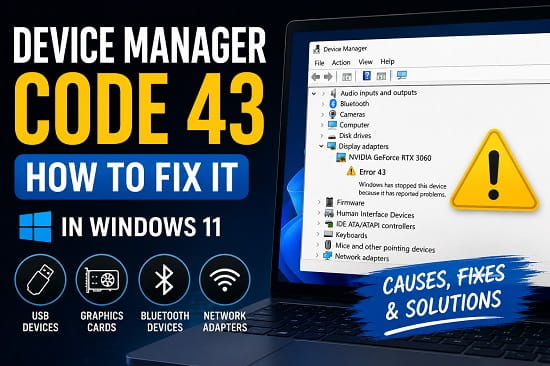
If Device Manager shows “Windows has stopped this device because it has reported problems. (Code 43)”, Windows has detected a problem with the device or one of the drivers controlling it.
Code 43 can affect graphics cards, USB devices, Bluetooth adapters, network hardware, webcams, printers, and other components. The message does not identify one specific fault, so the best fix depends on which device is affected.
This guide explains what Device Manager Code 43 means and the practical steps to troubleshoot it in Windows 11.
What Does Device Manager Code 43 Mean?
Device Manager Code 43 means that a driver controlling a device reported a failure to Windows. Microsoft describes the status as:
Windows has stopped this device because it has reported problems. (Code 43)
The error can be caused by a damaged or incompatible driver, a failed driver update, firmware problems, a temporary hardware state, a connection problem, or failing hardware.
That is why Code 43 can appear on completely different devices.
Common examples include:
- NVIDIA or AMD graphics cards
- USB devices and external drives
- Bluetooth adapters
- Wi-Fi and Ethernet adapters
- Webcams
- Printers
- Docking stations
- Other PCIe devices
The first thing to determine is which device is reporting the error.
How to Check Which Device Has Code 43
- Right-click Start.
- Select Device Manager.
- Look for a device with a yellow warning icon.
- Double-click the device.
- Select the General tab.
- Check Device status.
If Windows is reporting Code 43, the status box will show the error message.
Make a note of the device name before changing anything. A Code 43 graphics-card problem requires a different approach from a Code 43 USB problem.
1. Restart Windows
Start with a normal restart.
Select Start > Power > Restart and allow Windows to boot normally.
A restart can clear a temporary driver or hardware state. If Code 43 returns immediately, continue with the next steps.
2. Disconnect and Reconnect the Device
If the affected hardware is external, disconnect it and reconnect it.
For a USB device:
- Close programs using the device.
- Unplug it.
- Wait several seconds.
- Connect it to another USB port if available.
- Check Device Manager again.
If the device uses a removable cable, try another known-good cable.
For hardware with its own power supply, disconnecting and reconnecting its power can also reset its state.
Microsoft’s USB guidance notes that some USB devices can report Code 43 after an internal device problem and may recover after being disconnected and reconnected.
3. Scan for Hardware Changes
Windows can sometimes recover a device after a hardware rescan.
- Open Device Manager.
- Select Action from the menu.
- Choose Scan for hardware changes.
- Wait for Windows to detect the hardware again.
If the device returns without Code 43, test it normally.
4. Update the Device Driver
A damaged, incompatible, or problematic driver is one of the first things to investigate.
Open:
Settings > Windows Update > Check for updates
Then check:
Settings > Windows Update > Advanced options > Optional updates > Driver updates
Install an appropriate driver if Windows offers one and restart the PC.
For graphics cards, laptops, motherboards, USB adapters, and specialist hardware, the manufacturer’s support page may provide a more appropriate driver than Windows Update.
5. Download the Correct Driver From the Manufacturer
If Code 43 remains, download the correct driver from the official manufacturer.
For laptops and prebuilt PCs, start with the computer manufacturer’s support page. For custom desktops, use the motherboard or device manufacturer’s website.
Check the exact:
- PC model
- Device model
- Windows version
- System architecture
- Driver version
Do not assume that similar-looking devices use the same driver.
If Windows cannot find a suitable network driver, see our guide on Windows Could Not Find a Driver for Your Network Adapter for hardware-ID and manual-driver troubleshooting.
6. Reinstall the Device Driver
If updating the driver does not help, reinstalling it can clear a damaged installation.
Before uninstalling, make sure you have a replacement driver available if the affected device is your only way to access the internet.
- Open Device Manager.
- Right-click the device showing Code 43.
- Select Uninstall device.
- Confirm the removal.
- Restart Windows.
- Open Device Manager again.
- Check whether Windows reinstalls the device.
You can also select Action > Scan for hardware changes after restarting.
If Windows does not install a suitable driver, install the manufacturer’s driver manually.
Should You Delete the Driver Package?
Do not automatically remove the driver package.
If the computer is offline and you remove the only usable driver, recovery can become harder. Download the replacement driver first whenever possible.
7. Roll Back the Driver
If Code 43 appeared immediately after a driver update, rolling back may be better than installing another version.
- Open Device Manager.
- Right-click the affected device.
- Select Properties.
- Open the Driver tab.
- Select Roll Back Driver, if available.
- Follow the prompts.
- Restart Windows.
The option may be unavailable if Windows does not have a previous driver stored.
8. Check for a Recent Windows or Driver Change
Think about what happened immediately before Code 43 appeared.
For example:
- A graphics driver was updated.
- Windows installed an update.
- A new device was connected.
- A BIOS or firmware update was installed.
- Windows was reinstalled.
- A USB cable or port was changed.
- A hardware component was replaced.
If the error started immediately after one of these changes, reversing that change may be more effective than trying unrelated fixes.
9. Check the Device on Another Computer
If the hardware is removable, test it on another compatible computer.
If it works normally elsewhere, the problem may be related to your Windows installation, driver, USB controller, or configuration.
If the same device produces Code 43 on multiple computers, hardware or firmware becomes a stronger suspect.
This is especially useful for USB drives, USB adapters, webcams, Bluetooth dongles, and other external hardware.
10. Check the Hardware ID
If Windows gives the device a generic name such as Unknown device, use its hardware ID to identify the correct driver.
- Right-click the device in Device Manager.
- Select Properties.
- Open the Details tab.
- Select Hardware Ids from the Property menu.
- Copy the first value.
PCI devices often have IDs beginning with PCI\VEN_, while USB devices commonly use USB\VID_.
Use the ID to identify the hardware and locate the appropriate driver through the manufacturer’s official support site.
Avoid third-party driver-download sites that bundle unknown software.
Device Manager Code 43 on an NVIDIA or AMD GPU
Code 43 is particularly frustrating when it appears beside a graphics card.
If an NVIDIA or AMD GPU shows Code 43:
- Restart Windows.
- Check the exact Device Manager status.
- Roll back the display driver if the problem began after an update.
- Install the correct driver from the GPU manufacturer’s official website.
- If the problem persists, check the physical GPU installation on a desktop.
- Verify the card’s power connectors.
- Test the hardware with another compatible system or diagnostic method where possible.
If your problem is specifically that NVIDIA Control Panel will not open, treat that as a separate symptom rather than assuming Code 43 is always the cause.
TechWiseZone’s NVIDIA Control Panel installation guide can help if the Control Panel is missing or needs to be installed.
Do not disable Windows security features or force an unknown driver simply because the GPU shows Code 43.
Device Manager Code 43 on a USB Device
For USB hardware, start with the connection.
Try:
- Another USB port
- Another cable
- Disconnecting other USB devices temporarily
- Restarting Windows
- Reinstalling the device driver
- Testing the device on another computer
- Installing the manufacturer’s driver or firmware, if available
If the device works elsewhere, investigate your PC’s USB controller, driver, or Windows configuration.
If it fails on several computers, the device itself may be defective.
Device Manager Code 43 on a Bluetooth Adapter
If Bluetooth hardware shows Code 43:
- Restart Windows.
- Install the latest Bluetooth driver from the PC manufacturer.
- Uninstall and reinstall the Bluetooth device.
- Check Windows Update and Optional updates.
- If it is a USB Bluetooth adapter, test another USB port.
- Test it on another computer if possible.
For built-in laptop Bluetooth, use the laptop manufacturer’s driver where available.
Device Manager Code 43 on a Wi-Fi or Ethernet Adapter
Code 43 on a network adapter can prevent Wi-Fi or Ethernet from working.
Identify the adapter in Device Manager and install the exact LAN or WLAN driver for your PC model.
If the adapter is missing or Windows cannot find its driver, our Windows network adapter driver troubleshooting guide covers hardware IDs, temporary internet access, manufacturer drivers, and manual installation.
Do not use Network Reset as the first response to Code 43. Network Reset can repair networking configuration, but it cannot repair a physically failing adapter or create a missing hardware driver.
Could Code 43 Mean the Hardware Is Failing?
Yes, but Code 43 does not automatically mean the hardware is dead.
Microsoft explains that Code 43 occurs when a driver reports that the device has failed. That can result from driver or software problems, although hardware faults can also produce the condition.
Hardware becomes more suspicious when:
- Code 43 returns after a clean, correct driver installation.
- The device disappears from Device Manager.
- The device fails on another computer.
- The hardware was recently damaged.
- A GPU or PCIe card is not detected correctly in BIOS.
- A USB device repeatedly disconnects.
- Manufacturer diagnostics report a hardware failure.
At that point, replacing the driver repeatedly is unlikely to solve the underlying problem.
What Not to Do When Fixing Code 43
Do not install random drivers
A driver from the same manufacturer is not necessarily compatible with your exact device.
Do not reinstall Windows immediately
Code 43 usually does not justify wiping Windows as a first step. Investigate the driver, hardware, firmware, and connection first.
Do not disable security features blindly
Driver Signature Enforcement problems are different from a general Code 43 condition. Do not disable security features simply because a device has Code 43.
Do not assume every Code 43 error has the same cause
A GPU, USB device, Bluetooth adapter, and network adapter can all show Code 43 while requiring different repairs.
Frequently Asked Questions
What is Code 43 in Device Manager?
Code 43 means Windows has stopped a device because its driver reported that the device had a problem. It can affect GPUs, USB devices, Bluetooth adapters, network adapters, and other hardware.
How do I fix Code 43 in Windows 11?
Restart Windows, reconnect external hardware, update or reinstall the correct driver, and roll back a recent driver update if necessary. If the error persists, test the device on another computer and investigate hardware or firmware problems.
Does Code 43 mean my device is broken?
Not necessarily. Code 43 can result from driver or software problems, although persistent Code 43 after proper driver and connection troubleshooting can indicate hardware failure.
Can updating the driver fix Code 43?
Yes. If a damaged or incompatible driver is responsible, installing the correct driver can resolve the error. If Code 43 began after an update, rolling back the driver may be more appropriate.
Why does my NVIDIA GPU show Code 43?
An NVIDIA GPU can show Code 43 because of a driver problem, Windows or software changes, firmware issues, a physical connection problem, or failing hardware. Start with the display driver and then investigate the hardware if the error continues.
Can a USB device get Code 43?
Yes. A USB device can report Code 43 after a device or driver failure. Try another port or cable, reinstall its driver, and test the device on another computer.
When Code 43 Will Not Go Away
If Device Manager continues to report Code 43 after you have restarted Windows, reconnected the hardware, installed the correct driver, and tested the device where possible, stop repeating the same driver installation.
The key question is whether the problem follows the device.
If the device fails on multiple computers, hardware or firmware is more likely. If it works elsewhere, focus on the affected Windows installation, drivers, chipset, firmware, or device configuration.
Code 43 is a device-status message rather than one universal fault. Identifying the affected hardware first makes the troubleshooting process much more reliable
