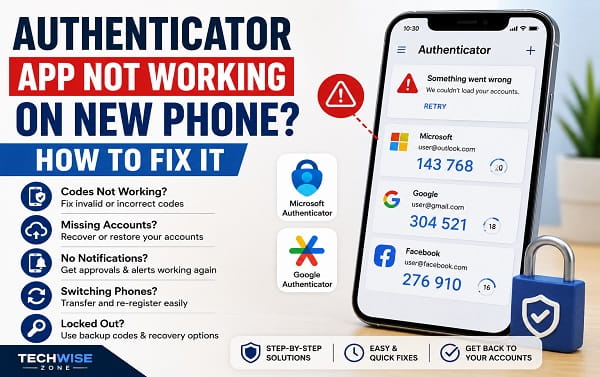
An authenticator app can appear to stop working after you move to a new phone even when the app itself is installed correctly. The new phone may show no accounts, the six-digit codes may be rejected, Microsoft Authenticator may keep sending approval requests to the old phone, or a work account may appear in the app but still refuse to approve sign-ins.
The important thing is to identify what failed during the move.
There are four common situations:
- Your accounts or codes did not transfer to the new phone.
- The codes transferred, but websites say they are incorrect.
- Push approval requests still go to the old phone.
- You no longer have the old phone and are locked out of an account.
The right fix depends on which authenticator app you use and how it was set up before the switch.
Google Authenticator and Microsoft Authenticator do not handle new-phone migration in exactly the same way. Google Authenticator can sync saved codes through your Google Account when sync is enabled, while Microsoft Authenticator relies on its own backup and restore process. Microsoft also treats personal, work/school, and third-party accounts differently during restore.
Do not erase or trade in the old phone until you have confirmed that every important account works on the new device.
First, Identify Which Authenticator App You Use
This article focuses mainly on:
- Google Authenticator
- Microsoft Authenticator
The same general troubleshooting can help with other TOTP authenticator apps, but their backup and transfer methods can differ.
Open the app and check the exact name and developer before following migration instructions.
Do not install a random app with a similar icon or name.
For account-security apps, install only from the official Google Play Store or Apple App Store listing from the real developer.
1. Make Sure You Signed Into the Correct Account
A surprisingly common new-phone problem is signing into the authenticator app with a different cloud account from the one used on the old phone.
Google Authenticator
Google currently allows Authenticator codes to sync to a Google Account.
On the new phone:
- Open Google Authenticator.
- Tap the profile picture in the top-right corner.
- Check which Google Account is selected.
- Switch to another Google Account if you used more than one on the old phone.
Google says that when you sign in to the Google Account that holds your Authenticator codes on a new device, those codes are automatically synced to the new phone.
If your codes appear after switching accounts, the authenticator was working. The wrong Google Account was simply selected.
Microsoft Authenticator
Microsoft Authenticator backup uses a recovery account.
On Android, Microsoft says cloud backup is stored under a personal Microsoft account selected for backup.
On iPhone, Authenticator backup depends on iCloud.
Make sure you restore using the same recovery account and same platform type used for the original backup.
2. Restore Microsoft Authenticator From Backup
If you used Microsoft Authenticator and had cloud backup enabled before switching phones, restore that backup before manually adding every account again.
On the new phone:
- Install Microsoft Authenticator.
- Open the app.
- Choose Restore from backup or Begin recovery before signing into other accounts.
- Sign in using the personal Microsoft account used as the recovery account.
Microsoft warns that backup and restore work only between the same device type:
- Android backup to Android
- iPhone backup to iPhone
Microsoft does not support restoring an iPhone Authenticator backup directly onto Android, or an Android backup directly onto iPhone.
If you changed platforms, you may need to re-add accounts manually.
3. Do Not Assume Every Microsoft Account Is Fully Restored
Seeing an account name in Microsoft Authenticator after restore does not always mean it is ready to use.
Microsoft currently restores different account types differently.
Microsoft Personal Accounts
For accounts using only rotating one-time password codes, the codes can be restored.
For passwordless Microsoft accounts, only part of the registration may be restored and you may need to sign in again.
Work or School Accounts
Microsoft says only the account name is restored.
You must sign in again and complete registration on the new phone.
If you see:
Sign in to restore your account
or:
Action required
tap the affected account and complete the sign-in process.
This is normal after a restore and does not automatically mean the backup failed.
4. Transfer Google Authenticator Codes From the Old Phone
If you use Google Authenticator without cloud sync, you can transfer codes manually while you still have the old phone.
On the old phone:
- Open Google Authenticator.
- Open the menu.
- Select Transfer accounts.
- Choose Export accounts.
- Unlock the phone when prompted.
- Select the accounts you want to move.
- Continue until the QR code appears.
On the new phone:
- Install Google Authenticator.
- Open the menu.
- Select Transfer accounts.
- Choose Import accounts.
- Scan the QR code shown on the old phone.
Google notes that transferring multiple accounts may create more than one QR code.
Do not post or share these migration QR codes.
They contain sensitive information that can allow another authenticator to generate the same verification codes.
5. Check Whether Google Authenticator Sync Is Enabled
Google Authenticator now supports account-based code sync.
If the old phone is still available:
- Open Google Authenticator.
- Tap the profile icon.
- Check whether you are signed into a Google Account.
- Confirm the account contains the codes you expect.
If you were using Authenticator without an account, the codes were stored only on the device unless you manually transferred them.
Google specifically says that choosing Use Authenticator without an account stores codes on the device and makes them unavailable on other devices through sync.
That distinction explains why some users install Google Authenticator on a new phone, sign in, and still see nothing.
6. Make Sure the Phone Date and Time Are Correct
Authenticator codes based on TOTP depend on accurate time.
A phone that is even significantly out of sync can generate codes that look normal but are rejected by the website.
On Android
Open:
Settings > System > Date & time
or the equivalent menu on your phone.
Turn on:
- Set time automatically
- Set time zone automatically
The exact wording can vary by manufacturer.
On iPhone
Open:
Settings > General > Date & Time
Turn on:
Set Automatically
Then reopen the authenticator app and wait for a fresh code.
Google’s current Authenticator guidance specifically tells users to check that device time is synchronized and correct when codes are rejected.
7. Wait for a Fresh Code Before Trying Again
Most authenticator codes expire quickly, commonly every 30 seconds.
If a code has only a few seconds left:
- Wait for it to refresh.
- Enter the new code immediately.
- Make sure you are using the code for the correct account.
Do not repeatedly enter an expired code.
Also verify the account label carefully.
It is easy to select the wrong entry when you have:
- Personal and work accounts with similar email addresses
- Multiple Microsoft tenants
- Several Google accounts
- Old duplicate authenticator entries
8. Remove Duplicate or Old Authenticator Entries Carefully
After moving phones, you may see multiple entries for the same service.
Do not delete them blindly.
First test which entry actually works.
For a third-party service:
- Sign into the service using a working method.
- Open its security or 2FA settings.
- Confirm which authenticator registration is active.
- Remove obsolete entries from the service account if it supports multiple methods.
- Delete the old local authenticator entry only after confirming the new one works.
Deleting an authenticator entry from the app does not necessarily disable two-factor authentication on the website.
You can lock yourself out if you remove the only working code generator before changing the account’s security settings.
9. Update the Authenticator App
Open the Google Play Store or Apple App Store.
Search for your authenticator app.
Install any available update.
This is especially important when:
- The new phone is running a newer Android or iOS version
- The app was restored from a phone backup
- Push approvals fail
- The app crashes
- Cloud restore options are missing
For Microsoft Authenticator, Microsoft also recommends updating the app when sign-in or restore behavior is abnormal.
After updating:
- Restart the phone.
- Open Authenticator again.
- Test one account.
10. Restart the New Phone
A restart can fix temporary issues involving:
- Push notification registration
- Background services
- Google Play Services
- iCloud
- Account synchronization
- App restore state
Restart the new phone normally.
Then open the authenticator app before attempting another login.
Do not clear app data yet.
Authenticator app data can contain account registrations that are difficult or impossible to recreate without recovery methods.
11. Turn On Notifications for Microsoft Authenticator
This step matters for push approvals, not ordinary six-digit TOTP codes.
On Android:
Settings > Apps > Microsoft Authenticator > Notifications
Allow notifications.
On iPhone:
Settings > Notifications > Authenticator
Turn on Allow Notifications.
Microsoft says Authenticator push notifications require notifications to be enabled and the phone to have network connectivity.
If six-digit codes work but approval prompts never appear, notification permission is a strong place to look.
12. Check Internet Access for Push Approvals
Rotating authenticator codes can often be generated offline.
Push approvals are different.
Microsoft Authenticator needs network access to receive sign-in requests.
Test the new phone’s internet connection.
Open a webpage or another online app.
If the phone is connected to Wi-Fi but has no usable internet, fix that network connection before troubleshooting Authenticator further.
Do not reset network settings simply because a six-digit code is rejected. Time-based codes are not normally dependent on live internet access once the account is configured.
13. Check Google Play Services on Android
Microsoft says Authenticator push notifications for work or school accounts on Android depend on Google Play Services being available and enabled.
On Android:
- Open Settings.
- Open Apps.
- Find Google Play Services.
- Make sure it is enabled.
- Check the Play Store for updates.
Also install available Google Play system updates.
If your Android device does not support normal Google Play Services, some Microsoft Authenticator push features may not work as expected.
14. Turn Off Aggressive Battery Restrictions
Some Android phones restrict background apps aggressively.
That can delay or block push approval notifications.
Open:
Settings > Apps > Microsoft Authenticator > Battery
Look for an option such as:
- Unrestricted
- Allow background activity
- Not optimized
The wording varies by manufacturer.
On Samsung, also check:
Settings > Battery > Background usage limits
Make sure Microsoft Authenticator is not inside Deep sleeping apps.
This step is relevant to notifications and push approvals. It does not normally fix incorrect six-digit codes.
15. Re-register Microsoft Authenticator for Push Sign-In
A restored account may still point push authentication toward the old device.
For a personal Microsoft account, open the Microsoft account security settings and add Authenticator as a sign-in method again.
Microsoft’s current instructions allow users to add a new sign-in or verification method and scan a new QR code with Microsoft Authenticator.
For work or school accounts, use your organization’s Security info page when available.
Add Microsoft Authenticator as a new sign-in method and complete the setup on the new phone.
Do not remove the old method until you have successfully tested the new one.
16. Fix Microsoft Authenticator Work or School Account Not Working on New Phone
Work and school accounts often require more than restoring the app.
Microsoft says those accounts restore only the account name.
You normally need to sign in again.
If your organization allows self-service security management:
- Sign in to the Microsoft Security info page.
- Use an existing backup verification method.
- Add Microsoft Authenticator.
- Scan the QR code on the new phone.
- Complete the test approval.
- Remove the old device only after the new one works.
If you cannot access Security info because the only MFA method is the old phone, contact your IT administrator.
Microsoft Entra administrators can require a user to re-register multifactor authentication.
That is the proper recovery path for an organization-managed account.
17. Check Device Registration for Microsoft Passwordless Sign-In
Microsoft Authenticator passwordless sign-in has extra device requirements.
If passwordless sign-in stopped working after moving to a new Android phone, open:
Microsoft Authenticator > Settings > Device Registration
Check that the work or school account is registered appropriately.
Microsoft’s current troubleshooting guidance also says the device may need:
- Screen lock
- PIN or biometric protection
- Hardware encryption
- Correct device registration
This is different from ordinary six-digit authenticator codes.
Do not change enterprise device registration without following your organization’s instructions.
18. Fix Google Authenticator Codes Missing on the New Phone
If Google Authenticator is installed but the account list is empty:
- Tap the profile picture.
- Confirm the correct Google Account is selected.
- Switch through any other Google Accounts you used previously.
- Check whether you used Authenticator without an account.
- If the old phone is available, use manual Transfer accounts.
- If you still have access to the protected websites, reconfigure their authenticator method.
Google says missing codes can occur when you are signed out or when the codes were stored under another Google Account.
If the old phone is gone and the codes were never synced or transferred, the authenticator app itself cannot reconstruct secrets it does not have.
You must recover access through each protected service’s approved recovery method.
19. What to Do if You No Longer Have the Old Phone
Do not search for an MFA bypass.
Instead, use the legitimate backup and recovery methods associated with each account.
Depending on the service, these can include:
- Backup codes
- SMS to a recovery number
- Email verification
- Passkey
- Security key
- Another trusted device
- Recovery code
- Account recovery process
- IT administrator for work or school accounts
For a Google Account, Google currently recommends backup options such as another signed-in phone, a backup number, saved backup codes, security keys, passkeys, trusted devices, or official account recovery.
For a Microsoft account, use the available security methods or Microsoft account recovery tools.
For company or school accounts, contact the organization.
Do not pay a third party claiming it can “remove” or “bypass” MFA for an account you cannot access.
20. Use Backup Codes if You Saved Them
Backup codes exist specifically for situations where the normal second factor is unavailable.
If you saved them when enabling two-step verification:
- Choose Try another way or the equivalent option during sign-in.
- Select backup code.
- Enter one unused code.
Backup codes are usually single-use.
After regaining access:
- Add the new phone’s authenticator.
- Test it.
- Remove the lost or old device.
- Generate a new set of backup codes.
- Store them somewhere secure.
Do not store the only copy solely on the same phone that runs your authenticator.
21. Try Another Trusted Device
A computer or phone that was previously marked as trusted may still let you sign in without immediately requiring the unavailable authenticator.
If it does:
- Open the account’s security settings.
- Add the new authenticator.
- Verify it.
- Remove the old phone after testing.
- Add another backup method.
Google specifically notes that a previously trusted device can sometimes help you regain access to 2-Step Verification settings.
Do not sign out of a trusted device until the new recovery methods are confirmed.
22. Check Whether the Phone Number Changed Too
A new phone does not always mean a new number, but some users change both.
This matters because SMS backup verification may still be linked to the old number.
If you can access the account:
- Open security settings.
- Update the recovery phone number.
- Confirm the new number.
- Keep another backup method active.
If you lost access to the old number, use another registered recovery method.
Do not remove all security methods at once.
23. Do Not Assume Normal Phone Migration Transfers Authenticator Secrets
Phone migration tools can restore apps and normal app data, but authenticator credentials need special handling.
For Google Authenticator, use account sync or its manual transfer feature.
For Microsoft Authenticator, use Microsoft Authenticator backup and restore.
A general Android phone migration is still useful for contacts, photos, messages, and apps. If you are moving everything between two Android devices, see How to Transfer Data From Android to Android.
But do not assume that seeing the Authenticator app icon on the new phone means every 2FA registration migrated correctly.
24. Be Extra Careful When Switching From Android to iPhone or iPhone to Android
Cross-platform moves need additional planning.
Google Authenticator can sync codes through your Google Account when they are saved there.
Microsoft Authenticator is more restrictive: Microsoft currently says its backup can only be restored to the same device type.
That means:
- Android Microsoft Authenticator backup cannot be restored directly to iPhone.
- iPhone Microsoft Authenticator backup cannot be restored directly to Android.
For Microsoft accounts in a cross-platform move, be prepared to re-register the authenticator method.
If you are also moving other personal information between platforms, my How to Copy Contacts From Android to iPhone article covers the normal contact-transfer side of the migration.
Treat authenticator setup as a separate security task.
25. Do Not Clear Microsoft Authenticator Data Until You Have a Recovery Plan
Clearing app data can remove account registrations.
On Android, avoid:
Settings > Apps > Microsoft Authenticator > Storage > Clear data
unless you deliberately intend to reset the app and already have another way to sign into every protected account.
Microsoft warns that resetting or clearing Authenticator data removes accounts and cannot simply be undone.
Updating the app, restarting the phone, checking notifications, and verifying backup should come first.
26. Do Not Delete the Old Authenticator Too Early
Keep the old phone available until you have verified:
- Google or Microsoft account access
- Work account access
- Banking or financial account access
- Social media
- Developer services
- Cloud storage
- Password manager
- Any other service protected by 2FA
Test a real sign-in to each important service.
Seeing the account inside the authenticator app is not enough.
Once everything works, remove the old phone from account security settings and erase it securely before selling or trading it in.
27. Authenticator App Works but Codes Are Always Wrong
When every code is rejected:
- Check automatic date and time.
- Confirm the correct time zone.
- Wait for a fresh code.
- Verify the correct account entry.
- Check whether there are duplicate entries.
- Confirm the service still has the same authenticator registration.
- Re-register 2FA from the service’s security settings if you still have account access.
If only one website rejects codes while others work, the phone clock is less likely to be the problem.
The issue is probably with that service’s 2FA registration.
28. Microsoft Authenticator Approval Goes to Old Phone
This usually means the new device has not fully replaced the old Authenticator registration.
Use another working verification method to sign in to the Microsoft or work/school account security settings.
Then:
- Add Microsoft Authenticator on the new phone.
- Complete QR-code setup.
- Approve the test request.
- Make sure the new method works.
- Remove the old phone’s Authenticator registration.
For work or school accounts, contact the administrator if you cannot reach the security settings.
Do not simply uninstall Authenticator from the old phone. Uninstalling the app does not necessarily remove the old device registration from the account.
29. Microsoft Authenticator Push Notifications Not Arriving
Check:
- Internet connectivity
- Notification permission
- Background battery restrictions
- Google Play Services on Android
- App update
- Device registration
- Correct account
- Work profile restrictions
Restart the phone after changing notification or battery settings.
If the account is organization-managed, the company may also impose device-compliance requirements before approvals are accepted.
30. Google Authenticator New Phone Shows No Codes
The most likely causes are:
- Wrong Google Account selected
- Codes were never synced
- Old app was used without a Google Account
- Manual transfer was never completed
- Codes were stored under another Google Account
If you still have the old phone, use Transfer accounts.
If you do not have it, use the protected account’s backup methods and set up Authenticator again after you regain access.
31. Can You Use the Same Authenticator on Two Phones?
Sometimes, yes, but it depends on the app and setup.
Google Authenticator can make synced codes available on multiple devices signed into the correct Google Account.
A manually exported TOTP secret can also result in more than one device generating the same code, but you should only do this deliberately and securely.
Microsoft Authenticator push registration is more device-specific.
For high-security accounts, keep the number of registered devices and backup methods under control and remove devices you no longer use.
32. Remove the Old Phone From Your Account After Migration
Once the new phone is fully working, clean up the old registrations.
Check:
- Google Account devices
- Microsoft Account security methods
- Work or school Security info
- Third-party account 2FA settings
Remove:
- Lost phones
- Traded-in phones
- Old authenticator registrations
- Old phone numbers you no longer control
Keep at least one backup method that is independent of the new phone.
For example:
- Backup codes stored offline
- Hardware security key
- Secondary trusted device
- Recovery email or number, where supported
Also Read:
- Gmail Notifications Not Working on Android? Causes and Solutions
- How to Turn Off AI Summaries in Gmail
- Google Play Store Download Pending? 10 Fixes That Work
Frequently Asked Questions
Why is my authenticator app not working on my new phone?
The most common reasons are that the authenticator accounts were never transferred, cloud backup was not enabled, the wrong sync account is selected, the phone’s time is incorrect, or push approval is still registered to the old device.
Does Google Authenticator transfer automatically to a new phone?
It can. Google currently says codes saved to your Google Account are automatically synced when you sign into Google Authenticator with that account on the new device. If you used Authenticator without an account, you need to transfer codes manually or reconfigure them.
Does Microsoft Authenticator transfer automatically?
Not automatically in every case. Microsoft Authenticator can restore from a prior backup, but Microsoft says restore is limited to the same device type. Some Microsoft and work/school accounts also require you to sign in or register again after restore.
Why are my Microsoft Authenticator accounts visible but not working?
A restored account name does not guarantee that push or passwordless registration has been restored. Work or school accounts specifically require sign-in again after restore.
Why are my authenticator codes incorrect on the new phone?
Check the automatic date, time, and time zone first. Then make sure you are entering a fresh code from the correct account entry.
Why does Microsoft Authenticator still send requests to my old phone?
The old device is probably still registered as an authentication method. Add and test the new phone through your account security settings, then remove the old registration.
Can I recover Authenticator without the old phone?
Only through a backup, sync, or the recovery methods of the protected accounts. If no authenticator backup exists, use backup codes, trusted devices, alternate verification, account recovery, or your organization administrator.
Can I restore Microsoft Authenticator from Android to iPhone?
Microsoft currently says no. Authenticator backup and restore work only between the same device type, so a cross-platform move generally requires re-registering accounts.
Can I restore Microsoft Authenticator from iPhone to Android?
Not through Microsoft Authenticator backup. Re-register the accounts on Android using the official security settings for each account.
Do authenticator codes need internet?
Time-based one-time codes can generally be generated without internet after setup. Push approvals need network connectivity.
Should I factory-reset my new phone?
No. A factory reset is almost never an appropriate first response to an Authenticator migration problem. Check sync, backup, account selection, time, notification settings, and re-registration first.
Should I uninstall the authenticator app?
Not until you know how every protected account will be recovered. Removing or clearing the app can make access harder if you have no backup verification method.
Fix the Migration Problem, Not Just the App
An authenticator app that stops working after a phone upgrade is usually dealing with an incomplete security migration rather than a broken phone.
For Google Authenticator, first check whether your codes are synced to the correct Google Account or transfer them manually from the old phone.
For Microsoft Authenticator, restore from backup when one exists, remember that the restore must stay on the same platform type, and expect some Microsoft, passwordless, or work/school accounts to require sign-in or re-registration.
When the old phone is no longer available, use backup codes, trusted devices, alternate verification methods, official account recovery, or your work/school administrator.
Most importantly, do not erase the old phone until you have tested every important account on the new one. That one precaution prevents many authenticator lockouts during a phone upgrade.
