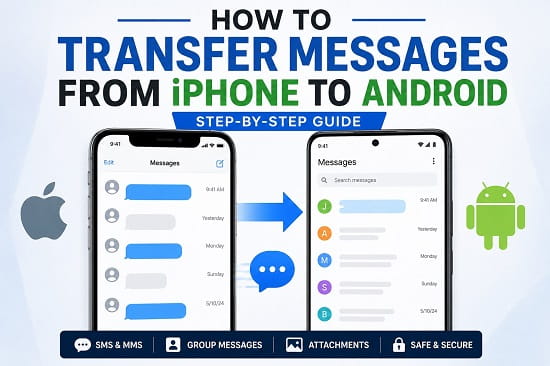
Switching from an iPhone to an Android phone doesn’t mean you have to lose your important text messages. Whether your conversations contain personal memories, business discussions, verification codes, or valuable information, transferring them to your new Android device is easier than many people think.
Modern Android phones from brands like Samsung, Google, Motorola, OnePlus, Xiaomi, and others provide several ways to move your messages from an iPhone. Depending on your devices, you can use official migration tools, manufacturer-specific apps, or cloud-based services to complete the transfer.
This guide explains the best methods to transfer messages from iPhone to Android, including SMS, MMS, and, where supported, iMessages. You’ll also learn what to do if your messages don’t transfer successfully.
Can You Transfer Messages from iPhone to Android?
Yes. You can transfer most text messages from an iPhone to an Android phone.
The exact method depends on:
- Your Android phone manufacturer.
- Your Android version.
- Your iPhone model.
- Whether you’re transferring during the initial phone setup.
- Whether your messages are stored as SMS, MMS, or iMessages.
Many modern Android phones include built-in migration tools that automatically copy your messages during setup.
What You’ll Need Before You Start
Before transferring your messages, make sure you have:
- Your iPhone.
- Your Android phone.
- A Lightning-to-USB-C cable (recommended).
- A stable Wi-Fi connection.
- Both devices fully charged.
- Your Apple ID password.
- Your Google account ready on the Android phone.
Keeping both phones connected to power during the transfer is recommended if you have thousands of messages.
Method 1: Transfer Messages Using the Android Setup Wizard (Recommended)
This is the easiest and most reliable method for most users.
When setting up your new Android phone:
- Turn on your Android device.
- Follow the setup instructions.
- When prompted, choose to copy data from another device.
- Select iPhone as the source device.
- Connect both phones using a compatible cable.
- Unlock your iPhone.
- Tap Trust This Computer if prompted.
- Choose Messages from the list of data to transfer.
- Start the transfer.
- Wait for the process to finish.
Depending on the number of messages you have, the transfer may take several minutes.
Along with your messages, you can usually transfer:
- Contacts.
- Photos.
- Videos.
- Calendars.
- Some apps.
- Documents.
If you’re also moving your contacts, How to Copy Contacts from Android to iPhone explains the reverse process and provides additional tips for keeping your contacts synchronized across devices.
Method 2: Transfer Messages Using Google Switch to Android
Google offers an official solution that helps iPhone users move their data to Android.
To use it:
- Install or open the transfer option during Android setup.
- Connect both devices using a cable or Wi-Fi (depending on your phone).
- Sign in with your Google account.
- Choose Messages.
- Begin the transfer.
- Wait until all conversations are copied.
Google’s transfer tool supports many Android devices and is one of the safest methods available.
Method 3: Use Samsung Smart Switch
If you’re moving to a Samsung Galaxy phone, Samsung Smart Switch is one of the best options.
Steps:
- Open Smart Switch on your Samsung phone.
- Select Receive Data.
- Choose iPhone/iPad.
- Connect the devices using a cable or transfer wirelessly.
- Select Messages.
- Start the migration.
- Wait until the transfer completes.
Smart Switch can also transfer:
- Contacts.
- Photos.
- Videos.
- Call history.
- Notes.
- Alarms.
- Wi-Fi settings (on supported devices).
Samsung users often find this method faster than manual transfers.
Method 4: Transfer Messages from an iCloud Backup
Some Android migration tools can restore data directly from your iCloud account.
Here’s how:
- Choose Restore from iCloud during setup (if supported).
- Sign in with your Apple ID.
- Verify your account if prompted.
- Select the latest backup.
- Choose Messages.
- Begin the import process.
The transfer time depends on your internet speed and the size of your backup.
Can You Transfer iMessages?
Yes—but with some limitations.
Messages that remain stored in iMessage may not immediately appear on your Android phone.
Before switching:
- Open Settings on your iPhone.
- Tap Messages.
- Turn iMessage off.
- Return to Settings.
- Tap FaceTime.
- Turn FaceTime off.
Disabling iMessage ensures new messages are delivered as standard SMS instead of continuing to route through Apple’s servers.
If you’re wondering how communication differs between iPhone and Android after switching, a future guide on video calling and cross-platform messaging can help you choose the best apps for staying connected.
What Types of Messages Can Be Transferred?
Depending on the transfer method, you may be able to move:
- SMS messages.
- MMS messages.
- Group conversations.
- Attachments.
- Photos.
- Videos.
- Voice messages (on supported devices).
Some message types may vary depending on your phone manufacturer and software version.
What Doesn’t Transfer from iPhone to Android?
Although modern migration tools can move most of your data, some items may not transfer automatically.
These include:
- Some iMessage reactions.
- Apple-exclusive stickers.
- Certain message effects.
- Messages stored only in iCloud without syncing.
- App-specific chat histories (unless the app supports migration).
For example, apps like WhatsApp, Signal, and Telegram each have their own methods for transferring chat history between devices.
How Long Does the Transfer Take?
The time required depends on:
- The number of messages.
- Your internet speed (for cloud transfers).
- Whether you’re using a cable or wireless connection.
- The amount of other data being transferred.
Here’s a general estimate:
| Number of Messages | Estimated Time |
|---|---|
| Up to 500 | 5–10 minutes |
| 500–2,000 | 10–20 minutes |
| 2,000–10,000 | 20–45 minutes |
| More than 10,000 | 45 minutes or longer |
Using a USB cable is generally faster and more reliable than transferring wirelessly.
What to Do If Your Messages Don’t Transfer
If your conversations don’t appear on your Android phone, try the following solutions.
Restart Both Phones
A simple restart can resolve temporary communication issues during the transfer process.
Turn off both devices, wait about 30 seconds, then turn them back on and try again.
Check the Cable Connection
If you’re using a wired transfer:
- Make sure the cable isn’t damaged.
- Use the original Apple or Android cable whenever possible.
- Try a different USB port or adapter if needed.
Update Both Devices
Install the latest available software updates.
On your iPhone:
- Open Settings.
- Tap General.
- Select Software Update.
On Android:
- Open Settings.
- Tap System or Software Update.
- Check for updates.
Running the latest software improves compatibility between transfer tools.
Sign In to the Correct Apple ID
If you’re restoring from an iCloud backup, make sure you’re using the Apple ID that contains your messages.
Using the wrong account may result in missing conversations.
Disable iMessage Before Transferring
Leaving iMessage enabled can prevent some future messages from reaching your Android phone.
Before switching:
- Turn off iMessage.
- Turn off FaceTime.
- Wait a few minutes before inserting your SIM card into the Android device.
Reset the Transfer Process
If the transfer fails repeatedly, start the migration again from the beginning instead of resuming a failed attempt.
Many transfer errors are resolved by restarting the setup process.
Tips for a Successful Transfer
To improve your chances of a smooth migration:
- Charge both phones to at least 50%.
- Use a stable Wi-Fi connection if transferring wirelessly.
- Keep both devices unlocked during the transfer.
- Don’t disconnect the cable until the process finishes.
- Avoid using either phone while the transfer is in progress.
- Back up your iPhone before starting.
Following these recommendations helps prevent interruptions and incomplete transfers.
If you’ve just switched to Android and need help finding your saved Wi-Fi passwords again, How to View Saved Wi-Fi Passwords on Android explains several simple ways to access previously connected Wi-Fi networks.
Can You Transfer Messages After Setting Up Android?
Yes, but your options may be more limited.
Some manufacturers allow you to launch their migration tool after setup, while others require you to reset the Android phone to access the full transfer wizard again.
If you’ve already completed setup, check whether your phone includes a built-in migration app such as Samsung Smart Switch or Google’s data transfer tool.
Can You Transfer WhatsApp Messages Too?
Yes, but WhatsApp uses a separate transfer process from regular SMS messages.
If you’re moving from an iPhone to an Android phone, WhatsApp provides an official migration tool that allows you to transfer:
- Chat history
- Photos
- Videos
- Voice messages
- Documents
- Account information
The transfer process varies slightly depending on your Android phone manufacturer, but most recent Android devices support official WhatsApp migration during setup.
Note: This process only transfers WhatsApp chats. Regular SMS and iMessages must be transferred using one of the methods explained earlier in this guide.
Frequently Asked Questions
Can I move everything from iPhone to Android?
Yes. Most Android manufacturers provide migration tools that can transfer contacts, messages, photos, videos, calendars, call history, and other important data. The exact items available depend on your phone model and Android version.
If you also need to troubleshoot connectivity after switching devices, How to Fix Mobile Hotspot Not Working on Android and How to Fix Wi-Fi Calling Not Working on Android provide step-by-step solutions to two of the most common Android networking issues.
Can I transfer text messages from iPhone to Android without resetting my Android phone?
Yes, in some cases. Certain manufacturers provide migration apps that work after setup, but the easiest and most reliable method is during the initial device setup.
Will my photos and contacts transfer too?
Yes. Most official transfer tools can also move:
- Contacts.
- Photos.
- Videos.
- Calendars.
- Call history.
- Some apps and documents.
If you’re planning to move more than just messages, using the official setup wizard is usually the best option.
Can I transfer iMessages to Android?
Many iMessages can be transferred if they are stored locally and supported by the migration tool. However, some Apple-specific features, such as message effects and reactions, may not transfer exactly as they appear on an iPhone.
Do I need a computer?
No. Most modern Android phones allow you to transfer messages directly from your iPhone using a USB cable or a wireless connection without needing a computer.
Why am I no longer receiving messages after switching to Android?
This often happens when iMessage is still enabled on your old iPhone. Disable iMessage and FaceTime, then restart your Android phone. New messages should begin arriving as standard SMS or RCS messages, depending on your carrier and messaging app.
Is transferring messages safe?
Yes. Using official tools from Google, Samsung, or your phone manufacturer is generally safe and doesn’t delete your original messages from the iPhone unless you choose to erase the device afterward.
Moving from an iPhone to Android doesn’t have to mean losing years of important conversations. Whether you use Google’s transfer tool, Samsung Smart Switch, or your phone’s built-in migration wizard, the process is straightforward when you prepare both devices correctly. By disabling iMessage, using the appropriate transfer method, and following the steps in this guide, you can bring your text messages to your new Android phone and continue your conversations without missing important information.
