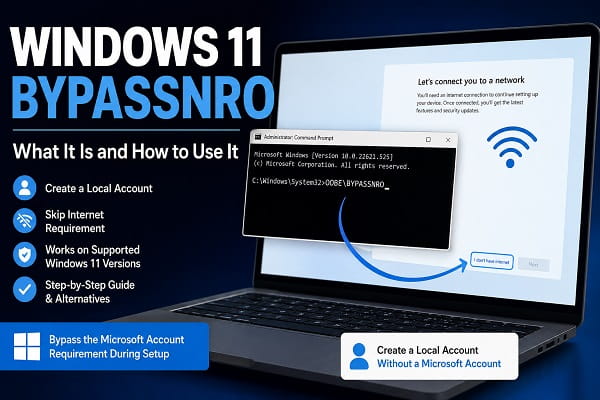
If you’ve recently installed Windows 11, you’ve probably noticed that Microsoft now requires an internet connection and a Microsoft account before you can complete the setup process. For many users, this isn’t a problem, but others prefer creating a local account, especially when setting up a secondary PC, testing Windows in a virtual machine, or installing Windows on a computer without internet access.
This is where Windows 11 BypassNRO comes in.
BypassNRO became one of the most popular methods for skipping Microsoft’s online account requirement during the Windows Out-of-Box Experience (OOBE). For several years, users could simply run a command that restarted the setup process and enabled an option to continue without connecting to the internet.
However, Microsoft has gradually changed how BypassNRO works. While it remains available in some Windows 11 versions, newer builds have removed or restricted the original command, leaving many users wondering whether it still works and what alternatives are available. Microsoft has continued tightening the Windows 11 setup process in recent releases, particularly in newer Insider and production builds.
In this guide, I’ll explain what Windows 11 BypassNRO is, whether it still works, how to use it on supported versions, and what you can do if Microsoft has removed the feature from your version of Windows.
If you’re also trying to install Windows without certain optional features, you may find my guide on Turn Off IIS on Windows 11 Home helpful.
What Is Windows 11 BypassNRO?
BypassNRO is a Windows setup command that allows users to bypass the network requirement during the Out-of-Box Experience (OOBE).
Normally, when installing Windows 11 Home or Pro, Microsoft requires you to:
- Connect to the internet.
- Sign in with a Microsoft account.
- Complete online setup before reaching the desktop.
Running the BypassNRO command modifies the setup process so Windows restarts OOBE with an additional option that lets you continue without an internet connection. This makes it possible to create a traditional local user account instead of signing in with a Microsoft account.
The feature became extremely popular among:
- PC technicians
- IT administrators
- Home users
- Virtual machine users
- Privacy-conscious users
Because of its popularity, Microsoft has gradually reduced its availability in newer Windows builds.
What Does BypassNRO Stand For?
Microsoft has never officially documented the meaning of NRO, but it is widely understood to refer to the Network Requirement Override used during Windows setup.
In simple terms, BypassNRO tells Windows setup to ignore the normal internet requirement and continue the installation using a local account.
Why Do People Use BypassNRO?
There are several legitimate reasons why someone may want to bypass Microsoft’s account requirement.
For example, you may:
- Install Windows on a computer without internet access.
- Prefer using a local account instead of a Microsoft account.
- Set up a test computer or virtual machine.
- Prepare computers before they’re connected to a network.
- Avoid syncing personal information with Microsoft’s cloud services.
- Complete installations more quickly.
For many IT professionals, creating a local account is simply part of their normal deployment workflow.
Benefits of Using a Local Account Instead of a Microsoft Account
Although Microsoft encourages users to sign in with a Microsoft account during Windows setup, many people still prefer using a traditional local account. The choice depends on how you plan to use your computer and whether you want Windows to synchronize your data with Microsoft’s online services.
Some of the benefits of using a local account include:
- Greater privacy since fewer personal details are synced to Microsoft’s servers.
- No internet connection required during the initial setup on supported Windows versions.
- Faster setup for offline computers.
- Ideal for test machines, virtual machines, and laboratory environments.
- Better control over user accounts on shared or family computers.
- Reduced background syncing with cloud services.
A local account doesn’t prevent you from using Windows normally. You can still install software, browse the web, and receive Windows updates. If you later decide to use Microsoft’s cloud services, you can sign in with a Microsoft account through Settings > Accounts without reinstalling Windows.
When You Should Not Use BypassNRO
While BypassNRO can be useful, it isn’t always the best option.
You may prefer completing the normal Windows setup if you:
- Regularly use OneDrive to back up your files.
- Purchase apps through the Microsoft Store.
- Want your passwords synchronized across multiple devices.
- Use Microsoft 365 services.
- Frequently switch between Windows devices.
- Depend on Find My Device or cloud recovery features.
For many home users, signing in with a Microsoft account provides a more seamless experience. BypassNRO is most beneficial for users who specifically want a local account or are installing Windows in environments where internet access is unavailable.
Does Windows 11 BypassNRO Still Work?
This is the question most people are searching for.
The answer depends entirely on which version of Windows 11 you’re installing.
Windows 11 22H2
On Windows 11 version 22H2, the traditional BypassNRO command generally works as expected.
Users can still restart the setup process and unlock the option to continue without an internet connection.
Windows 11 23H2
Many Windows 11 23H2 installations also continue to support the command, although availability may depend on the installation media and updates installed.
Windows 11 24H2
With Windows 11 24H2, Microsoft began tightening restrictions around local account creation during setup.
Some installations still allow BypassNRO, while others require alternative methods depending on the installation image and updates applied.
Windows 11 25H2 and Newer Builds
Microsoft has continued restricting the original OOBE\BYPASSNRO command in newer releases. Current release information and community testing indicate that the classic command is no longer consistently available across all builds, especially newer Insider and experimental versions. Alternative approaches may still exist, but they can change as Microsoft updates Windows.
Because of these changes, you should first determine which version of Windows 11 you’re installing before following older tutorials.
Before making major changes to your system, it’s useful to understand the differences between Windows editions. My comparison of Windows 11 Pro vs Pro for Workstations explains which edition is best for different users.
How to Check Your Windows 11 Version
If Windows is already installed, checking the version is simple.
- Press Windows + R.
- Type winver.
- Press Enter.
- A window will display your Windows version and build number.
Knowing the version helps determine whether the classic BypassNRO method is likely to work.
How to Use BypassNRO on Supported Windows 11 Versions
If you’re installing a Windows 11 version that still supports the feature, follow these steps:
- Start installing Windows 11 normally.
- Continue until you reach the screen asking you to connect to a network.
- Press Shift + F10 to open Command Prompt.
- Type:
OOBE\BYPASSNRO- Press Enter.
- Your computer will restart automatically.
- Continue through the setup process.
- If available, choose I don’t have Internet or the equivalent offline option.
- Create a local account and complete the installation.
If the command runs successfully, Windows should allow you to finish setup without signing in with a Microsoft account.
Common Errors When Running BypassNRO
Although the process is straightforward, some users encounter errors while attempting to use BypassNRO.
Here are some of the most common issues.
The Command Is Not Recognized
If Command Prompt reports that OOBE\BYPASSNRO is not recognized, you’re most likely using a newer Windows 11 build where Microsoft has removed the original script.
In this situation, try one of the alternative methods explained later in this guide.
Shift + F10 Doesn’t Open Command Prompt
Some laptops require you to press Shift + Fn + F10 instead of Shift + F10 because the function keys are shared with multimedia controls.
If you’re using a wireless keyboard, ensure it has been detected correctly during Windows setup.
Nothing Happens After Running the Command
If the command executes but Windows doesn’t restart, close Command Prompt and restart the computer manually. If the setup still behaves the same way, the build you’re installing may no longer support the original BypassNRO method.
What to Do If BypassNRO Doesn’t Work
If you type the OOBE\BYPASSNRO command and receive an error or nothing happens, don’t panic. This usually means you’re using a newer Windows 11 build where Microsoft has removed or disabled the original script.
Fortunately, there are still several alternatives depending on the Windows version you’re installing. Microsoft has tightened the setup process over time, but some methods continue to work on specific builds while others are intended for IT deployment scenarios.
Method 1: Use the Registry-Based Bypass
On some Windows 11 builds, manually creating the required registry value still works even though the original bypassnro.cmd file has been removed.
- At the Windows setup screen, press Shift + F10.
- Type the following command:
reg add HKLM\SOFTWARE\Microsoft\Windows\CurrentVersion\OOBE /v BypassNRO /t REG_DWORD /d 1 /f- Press Enter.
- Restart the computer by typing:
shutdown /r /t 0- Continue with the setup process.
Depending on your Windows build, the I don’t have Internet option may appear again. This method has continued to work on some patched releases even after the original script was removed.
Method 2: Use the Local Account Shortcut
Some Windows 11 builds support another shortcut that opens the local account creation window directly.
- Press Shift + F10.
- Type:
start ms-cxh:localonly- Press Enter.
If supported, Windows immediately opens the local account creation screen without requiring a Microsoft account.
This method became popular after Microsoft began removing the classic BypassNRO command, although its availability also depends on the Windows version you’re using.
Method 3: Create Installation Media with Rufus
If you’re performing a clean installation, another option is creating a customized Windows installation USB using Rufus.
Recent versions of Rufus include options that can:
- Remove the Microsoft account requirement.
- Create a local account automatically.
- Skip several Windows setup restrictions.
- Simplify the installation process.
This is one of the easiest approaches if you’re installing Windows from a USB drive.
Troubleshooting BypassNRO Problems
If none of the available methods work, consider the following troubleshooting tips.
Verify Your Windows Version
Many online tutorials were written for older Windows 11 releases. If you’re using a newer build, the instructions may no longer apply.
Checking your Windows version first helps you determine which methods are still supported.
Use Updated Installation Media
Older installation USB drives may contain outdated setup files, while newly created installation media often includes Microsoft’s latest changes.
If you’ve downloaded Windows recently, be aware that the installation experience may differ from tutorials published several months ago.
Recreate the Bootable USB
Corrupted installation media can also cause unexpected setup problems.
If Windows Setup behaves strangely or repeatedly fails, recreate your installation USB using the latest Windows ISO before trying again.
Disconnect Unnecessary Devices
External hard drives, USB accessories, printers, and docking stations can occasionally interfere with Windows Setup.
Disconnecting unnecessary hardware simplifies the installation process and reduces the chances of unexpected errors.
Why Is Microsoft Removing BypassNRO?
Many users wonder why Microsoft keeps making these workarounds more difficult.
Microsoft says requiring an internet connection and Microsoft account improves:
- Device security
- Cloud backup
- OneDrive integration
- Microsoft Store synchronization
- Device recovery
- Password recovery
- Cross-device settings
The company has stated that removing the BypassNRO script is intended to improve the security and overall user experience during Windows setup.
Although many users prefer local accounts for privacy or simplicity, Microsoft continues encouraging cloud-connected installations.
Is It Safe to Use BypassNRO?
Yes.
Using BypassNRO does not hack Windows or modify protected system files.
It simply changes how Windows completes the Out-of-Box Experience.
However, creating a local account means you won’t automatically benefit from Microsoft account features such as:
- OneDrive synchronization
- Microsoft Store purchase syncing
- Automatic settings synchronization
- Password recovery through your Microsoft account
- Find My Device
You can always sign in with a Microsoft account later if you decide you want those features.
Which Option Should You Choose?
The best method depends on your situation.
| Situation | Recommended Method |
|---|---|
| Older Windows 11 installation media | OOBE\BYPASSNRO |
| Windows 11 24H2 or newer | Registry method or local account shortcut (if supported) |
| Clean installation from USB | Rufus |
| Business deployment | Unattend.xml or enterprise deployment tools |
Advantages and Disadvantages of BypassNRO
Before deciding whether to use BypassNRO, it’s worth considering both its benefits and limitations.
Advantages
- Allows local account creation.
- Works without internet access on supported builds.
- Speeds up Windows deployment.
- Useful for virtual machines.
- Helpful for privacy-conscious users.
- Ideal for testing environments.
Disadvantages
- Doesn’t work on every Windows version.
- Microsoft may remove additional methods in future updates.
- Some Microsoft services won’t be configured during setup.
- New users may find the process confusing.
- Certain enterprise features still require Microsoft accounts.
Frequently Asked Questions
Does BypassNRO still work in Windows 11?
Yes, but not on every version. Older installation media generally support the original command, while many newer Windows 11 builds have removed or restricted it.
Can I create a local account without BypassNRO?
Yes. Depending on your Windows version, you may be able to use the registry method, the start ms-cxh:localonly shortcut, or installation media created with Rufus.
Does using BypassNRO void my Windows license?
No.
It only affects the setup process. Your Windows activation status and license remain unchanged.
Can I switch to a Microsoft account later?
Yes.
You can create a local account during setup and later sign in with a Microsoft account from Settings > Accounts.
Why does the command say it’s not recognized?
This usually means you’re installing a newer Windows 11 build where Microsoft has removed the original bypassnro.cmd script. In that case, try one of the alternative methods discussed above.
Does BypassNRO work on Windows 11 Home?
Yes, where the feature is still available. It has historically worked on both Windows 11 Home and Pro, although support depends on the specific build.
Can Microsoft disable these methods in the future?
Yes.
Microsoft has already removed or limited several bypass methods over time, so future Windows updates may change which approaches remain available.
Does BypassNRO work on Windows 11 Home?
Yes. When supported by the Windows build you’re installing, BypassNRO works on both Windows 11 Home and Windows 11 Pro.
Can I use BypassNRO in VMware or VirtualBox?
Yes. Many users use BypassNRO while installing Windows 11 in virtual machines. However, newer Windows builds may require one of the alternative methods discussed earlier.
Does using BypassNRO affect Windows Update?
No. Once Windows is installed, you’ll continue receiving Windows updates normally, regardless of whether you created a local account or signed in with a Microsoft account during setup.
Is BypassNRO legal?
Yes. BypassNRO doesn’t bypass Windows licensing or activation. It only changes part of the Windows setup experience on supported versions.
Can I switch to a Microsoft account later?
Absolutely. You can sign in with a Microsoft account at any time through the Windows Settings app without reinstalling Windows.
If you’re looking to optimize your laptop after installing Windows, you can also read How to Adjust Battery Charge Percentage Limit in Windows 11 to help extend your battery’s lifespan.
Although Microsoft continues tightening Windows 11 setup requirements, users who understand the available options can still choose the installation method that best suits their needs. Whether you’re setting up a new computer, reinstalling Windows, or preparing a test machine, understanding how BypassNRO works and knowing the available alternatives will help you complete the installation with fewer surprises.
