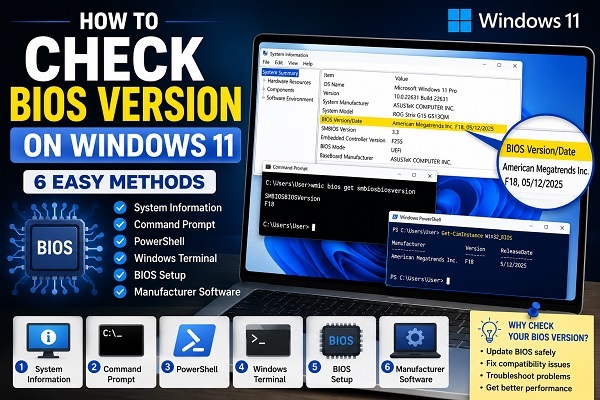
Your computer’s BIOS (or UEFI firmware) plays a critical role in starting Windows and allowing your hardware to communicate correctly. If you’re planning to update your BIOS, troubleshoot hardware compatibility issues, install a new processor, or contact your computer manufacturer for support, one of the first things you’ll need to know is your current BIOS version.
Fortunately, Windows 11 provides several easy ways to check your BIOS version without opening your computer or entering the BIOS setup. Whether you prefer using System Information, Command Prompt, PowerShell, or the BIOS menu itself, you can find the information in just a few minutes.
In this guide, I’ll show you six reliable methods to check your BIOS version on Windows 11 and explain when you might need this information.
If you’re not sure how to access your computer’s firmware settings, my guide on How to Open BIOS on Windows 11 walks you through the process step by step.
What Is a BIOS Version?
The BIOS version identifies the firmware currently installed on your computer’s motherboard.
Every BIOS update released by your motherboard or laptop manufacturer includes a unique version number, along with a release date and improvements such as:
- Better hardware compatibility
- CPU support
- Memory stability improvements
- Security patches
- Bug fixes
- Performance enhancements
Checking your BIOS version helps determine whether your system is already up to date or if a newer firmware version is available.
Why Check Your BIOS Version?
There are several situations where knowing your BIOS version is useful.
You may need it when:
- Updating your motherboard firmware.
- Installing a new processor.
- Troubleshooting hardware compatibility issues.
- Contacting technical support.
- Checking whether a BIOS update is required.
- Diagnosing startup problems.
In most cases, checking the BIOS version is the first step before deciding whether an update is necessary.
Method 1: Check BIOS Version Using System Information
System Information is the easiest method for most users.
To check your BIOS version:
- Press Windows + R.
- Type:
msinfo32- Press Enter.
The System Information window will open.
Look for:
BIOS Version/Date
You’ll see information similar to:
American Megatrends Inc. F18, 05/12/2025or
Dell Inc. 1.24.0, 03/18/2026This entry displays both the BIOS manufacturer and the installed firmware version.
Method 2: Check BIOS Version Using Command Prompt
Command Prompt can retrieve the BIOS version instantly.
Here’s how:
- Press Windows + S.
- Search for Command Prompt.
- Open it.
Run the following command:
wmic bios get smbiosbiosversionAfter pressing Enter, Windows displays the installed BIOS version.
For example:
F18or
1.24.0This method is quick and works on most Windows 11 computers.
Method 3: Check BIOS Version Using PowerShell
PowerShell provides another simple way to retrieve BIOS information.
Open PowerShell and run:
Get-CimInstance Win32_BIOSYou’ll see information including:
- Manufacturer
- BIOS Version
- Serial Number
- Release Date
This method provides more details than Command Prompt.
Method 4: Check BIOS Version Using Windows Terminal
If you prefer Windows Terminal:
- Open Windows Terminal.
- Select either PowerShell or Command Prompt.
Run either:
Get-CimInstance Win32_BIOSor
wmic bios get smbiosbiosversionThe BIOS version will appear immediately.
Windows Terminal simply provides another interface for running these commands.
Method 5: Check BIOS Version from the BIOS Menu
You can also view the BIOS version directly inside your computer’s firmware settings.
To do this:
- Restart your computer.
- Enter the BIOS or UEFI setup.
If you’re unsure how to do this, see How to Open BIOS on Windows 11.
Once inside the BIOS:
- Locate the Main tab.
- Or check the Information page.
- Find the BIOS Version entry.
Most manufacturers display it prominently on the first screen.
Method 6: Check the BIOS Version Using Your Computer Manufacturer’s Software
Many computer manufacturers provide their own diagnostic or support applications that display BIOS information.
Examples include:
- Dell SupportAssist
- HP Support Assistant
- Lenovo Vantage
- ASUS MyASUS
- MSI Center
- Acer Care Center
Open your manufacturer’s application and navigate to the system information section.
You’ll usually find details such as:
- BIOS version
- BIOS release date
- Motherboard model
- Serial number
- Current firmware status
This method is particularly useful on laptops where the manufacturer’s software can also notify you when a BIOS update becomes available.
How to Compare Your BIOS Version with the Latest Release
After checking your BIOS version, you may want to know whether a newer version is available.
To do this:
- Identify your computer or motherboard model.
- Visit the manufacturer’s official support website.
- Search for your device model.
- Open the Drivers & Downloads or Support section.
- Locate the BIOS category.
- Compare your installed BIOS version with the latest version available.
If the version numbers match, your BIOS is already up to date.
If a newer version exists, read the release notes before deciding whether to install it.
Should You Update Your BIOS?
Not always.
Unlike regular Windows updates, BIOS updates should only be installed when there’s a valid reason.
You may consider updating your BIOS if:
- You’re installing a newer processor.
- Your manufacturer recommends the update.
- The update fixes a hardware compatibility issue.
- It resolves stability problems.
- It addresses important security vulnerabilities.
If your computer is working perfectly and the update doesn’t provide any benefits relevant to your system, leaving the current BIOS version installed is often the safest option.
What Information Does the BIOS Version Show?
Depending on your manufacturer, the BIOS information may include:
- BIOS version number.
- BIOS release date.
- BIOS manufacturer.
- Motherboard manufacturer.
- SMBIOS version.
- Firmware release information.
These details help identify the exact firmware installed on your computer.
Common Mistakes to Avoid
When checking your BIOS version, users sometimes make these mistakes.
Confusing BIOS with Windows Version
Your Windows version and BIOS version are completely different.
Windows updates affect the operating system, while BIOS updates modify the motherboard firmware.
Installing the Wrong BIOS Update
Always download BIOS updates specifically designed for your computer or motherboard model.
Installing the wrong firmware can prevent your computer from starting.
Updating the BIOS Unnecessarily
If your system is stable and the update doesn’t address a problem you’re experiencing, updating the BIOS may not be necessary.
Always read the manufacturer’s release notes before proceeding.
Interrupting a BIOS Update
If you decide to update your BIOS, never:
- Turn off the computer.
- Remove the power cable.
- Force a restart.
Interrupting a BIOS update can corrupt the firmware and leave your computer unable to boot.
Frequently Asked Questions
How do I check my BIOS version in Windows 11?
The easiest method is to open System Information by running msinfo32 and looking for the BIOS Version/Date entry.
Can I check my BIOS version without entering the BIOS?
Yes.
Windows 11 allows you to check the BIOS version using:
- System Information
- Command Prompt
- PowerShell
- Windows Terminal
- Manufacturer software
You don’t need to restart your computer.
What command shows the BIOS version?
You can use either of these commands:
Command Prompt
wmic bios get smbiosbiosversionPowerShell
Get-CimInstance Win32_BIOSBoth display the currently installed BIOS version.
Is checking the BIOS version safe?
Yes.
Viewing your BIOS version doesn’t change any settings or affect your computer.
Does Windows Update automatically update the BIOS?
Sometimes.
Some computer manufacturers distribute BIOS updates through Windows Update, but many require you to install firmware updates manually using their support software or official website.
How often should I update my BIOS?
Only when necessary.
If your computer is working properly and the manufacturer hasn’t released an update that addresses a problem affecting your system, there’s usually no need to update the BIOS.
If you’re preparing to update your firmware or troubleshoot startup issues, you may also find How to Open BIOS on Windows 11 useful. Likewise, How to Boot Windows 11 in Safe Mode, How to Check CPU Temperature on Windows 11, and Active Signal Mode Windows 11 Not Changing? Ways to Fix It can help diagnose related hardware and system issues.
Checking your BIOS version on Windows 11 is quick and straightforward using tools like System Information, Command Prompt, PowerShell, Windows Terminal, or your computer manufacturer’s support application. Knowing your BIOS version helps you determine whether your firmware is up to date, verify hardware compatibility, and troubleshoot system problems more effectively. Before installing any BIOS update, always compare your current version with the latest release from your manufacturer’s official website and only update when there’s a clear benefit for your system.
