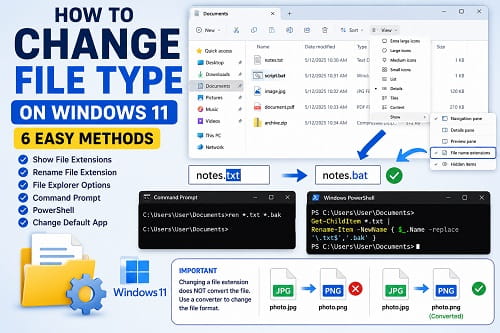
Changing a file type in Windows 11 can mean three different things. You may want to rename the extension at the end of a file name, convert the file into a genuinely different format, or change the application Windows uses to open it.
Those actions are not interchangeable.
If you rename photo.jpg to photo.png, Windows changes only the file name. It does not rebuild the image as a PNG. The file may stop opening because its extension no longer matches its internal format. A real conversion must be completed through Save As, Export, or a compatible conversion tool.
To change a file type on Windows 11 by renaming its extension, open File Explorer, select View > Show > File name extensions, then rename the file and replace the extension after the final period. Confirm the Windows warning only when you know the file contents are compatible with the new extension.
This updated article explains every safe method, including File Explorer, Command Prompt, PowerShell, Save As, default-app settings, and fixes for extensions that will not change.
What Is a File Type in Windows 11?
A file type describes the format used to store a file’s contents. Windows usually identifies that format through the file name extension.
The extension is the group of characters after the final period in the file name.
Examples include:
report.docxphoto.jpgarchive.zipvideo.mp4notes.txtscript.ps1document.pdf
In report.docx, the extension is .docx.
Windows uses extensions to decide which icon to show, which applications can open a file, and what actions appear when you right-click it.
The extension is an important label, but it is not the file’s actual contents. Two files can have different names while containing the same type of data. A file can also have the wrong extension, which may prevent compatible software from recognizing it.
Microsoft confirms that changing a file name extension does not convert the file into another format. It changes only the name. You can read more in Microsoft’s explanation of common file name extensions in Windows.
Decide What You Actually Want to Change
Before following a method, identify the intended result.
Rename the Extension
Use this when the file already contains data compatible with the new extension.
Common examples include:
- Changing
settings.txttosettings.ini - Changing
script.txttoscript.bat - Changing
page.txttopage.html - Restoring a missing or incorrect extension
- Changing a backup suffix such as
.txtto.bak - Renaming a compatible text-based configuration file
This changes the name only.
Convert the File Format
Use conversion when you need the file contents rewritten into a different structure.
Examples include:
- DOCX to PDF
- JPG to PNG
- PNG to JPG
- WAV to MP3
- MP4 to another video format
- XLSX to CSV
- PPTX to PDF
Use the file’s application, Save As, Export, or a trusted converter.
Change the Default App
Use this when the file is already in the correct format but opens with the wrong program.
Examples include:
- Opening PDF files with Adobe Acrobat instead of Microsoft Edge
- Opening JPG files with another image editor
- Opening TXT files with Notepad++ instead of Notepad
- Opening video files with VLC
Changing the default app does not rename or convert the file.
Before You Change a File Extension
A wrong extension can make a file appear damaged even when its contents are still intact.
Take these precautions first:
- Create a copy of an important file.
- Confirm the current extension.
- Verify the new extension you need.
- Close any program using the file.
- Avoid renaming Windows system files.
- Do not change executable or script extensions unless you understand the security risk.
- Scan downloaded files before opening them.
- Confirm that the file is not encrypted or protected by an organization.
- Make sure the file has finished downloading or syncing.
Never hide the original extension from yourself while experimenting. Keeping extensions visible makes it easier to restore the previous name.
Method 1: Show File Extensions in File Explorer
Windows commonly hides extensions for known file types. When extensions are hidden, renaming report.docx may appear to change only report, leaving .docx untouched.
To show extensions:
- Press Windows + E to open File Explorer.
- Click View on the toolbar.
- Point to Show.
- Click File name extensions.
A checkmark beside the option means extensions are visible.
File names should now appear as:
document.docximage.pngnotes.txtarchive.zip
Leave this option enabled if you regularly work with scripts, configuration files, downloads, or several similar file formats.
Show Extensions Through Folder Options
You can also use the older Folder Options interface:
- Open File Explorer.
- Click the three-dot menu.
- Select Options.
- Open the View tab.
- Clear Hide extensions for known file types.
- Click Apply.
- Click OK.
Both methods produce the same result.
Method 2: Rename a File Extension in File Explorer
After extensions are visible:
- Locate the file in File Explorer.
- Right-click it.
- Select Rename.
- Replace the characters after the final period.
- Press Enter.
- Select Yes when Windows warns that the file might become unusable.
You can also select the file and press F2.
For example:
notes.txt
can be renamed to:
notes.bat
This works when the contents are already valid batch commands. It does not transform ordinary written notes into a working Windows script.
Another common example is:
config.txt
to:
config.ini
Both formats are usually text-based, but the application reading the file still expects a particular structure.
Rename a File That Has No Extension
If the file appears as:
backup
you can add a known extension:
backup.zip
Do this only when you know the file is a ZIP archive. Adding .zip to an unknown file does not make it an archive.
Method 3: Use Save As to Create the Correct File Type
Save As is safer than renaming when the application supports the destination format.
The general process is:
- Open the file in the appropriate application.
- Click File.
- Select Save As or Save a copy.
- Choose a folder.
- Open the Save as type or File format menu.
- Select the required format.
- Enter a new file name.
- Click Save.
This creates a new file with contents written in the selected format.
Microsoft documents the same basic process for saving Office files in another format: select File > Save As, choose a location, and select the format from the Save as type list.
Convert a Word Document to PDF
- Open the document in Microsoft Word.
- Select File > Save As.
- Choose a folder.
- Select PDF under Save as type.
- Click Save.
Do not rename .docx to .pdf. That produces a file with a PDF label but Word document contents.
Convert an Image With Paint
- Right-click the image.
- Select Open with > Paint.
- Click File > Save as.
- Select PNG, JPEG, BMP, GIF, or another supported format.
- Save the new copy.
Paint rewrites the image in the selected format.
Convert an Excel Workbook to CSV
- Open the workbook in Excel.
- Select the worksheet you need.
- Click File > Save As.
- Select CSV UTF-8 or another required CSV format.
- Save the file.
- Read Excel’s warning about unsupported workbook features.
A CSV file cannot preserve multiple worksheets, formulas in their original form, charts, formatting, or many other workbook features.
Method 4: Change the Default App for a File Type
Sometimes the extension is correct and Windows simply opens the file with the wrong application.
Use Open With
- Right-click the file.
- Select Open with.
- Click Choose another app.
- Select the preferred program.
- Enable Always use this app if the option appears.
- Click OK.
Use Windows Settings
- Press Windows + I.
- Select Apps.
- Click Default apps.
- Type the extension into the search box, such as
.pdf,.jpg, or.txt. - Select the current application.
- Choose the new application.
- Confirm the change.
You can also select an application on the Default apps page and review every extension or protocol associated with it.
Microsoft’s current default-app instructions for Windows confirm that associations can be assigned by file type, protocol, or application.
Method 5: Change Multiple File Extensions With Command Prompt
Command Prompt can rename all matching extensions in one folder.
Create a backup or test folder first. A bulk command can rename many files immediately.
Open Command Prompt in the Folder
- Open the folder in File Explorer.
- Click the address bar.
- Type:
cmd
- Press Enter.
Command Prompt opens at that folder path.
Rename Every TXT File to BAK
Run:
ren *.txt *.bak
This changes:
file1.txt
file2.txt
notes.txt
to:
file1.bak
file2.bak
notes.bak
The command does not convert any file contents.
Rename One File
Use:
ren "oldname.txt" "newname.bak"
Quotation marks are important when a file name contains spaces.
Preview the Matching Files First
Before a bulk rename, run:
dir *.txt
Check the list carefully. Proceed only when every displayed file should be changed.
If you are unsure when to use CMD rather than PowerShell, Windows PowerShell vs Command Prompt explains the differences between the two tools.
Method 6: Change Multiple Extensions With PowerShell
PowerShell offers more control than the classic ren command.
Open PowerShell in the Folder
- Open the folder in File Explorer.
- Right-click an empty space.
- Select Open in Terminal.
- Make sure the tab is running PowerShell.
You can also type powershell in the File Explorer address bar and press Enter.
Rename TXT Files to BAK
Run:
Get-ChildItem -File -Filter *.txt | Rename-Item -NewName { $_.BaseName + '.bak' }
This:
- Finds files ending in
.txt - Keeps each file’s base name
- Replaces the extension with
.bak
Preview the Files Before Renaming
Run:
Get-ChildItem -File -Filter *.txt
Review the results before using Rename-Item.
Test With WhatIf
PowerShell can show what it would do without making the change:
Get-ChildItem -File -Filter *.txt | Rename-Item -NewName { $_.BaseName + '.bak' } -WhatIf
Remove -WhatIf only after the preview is correct.
Rename Files in Subfolders
Use:
Get-ChildItem -File -Filter *.txt -Recurse | Rename-Item -NewName { $_.BaseName + '.bak' } -WhatIf
The -Recurse parameter searches subfolders. Use it cautiously because it can affect a large number of files.
Microsoft’s Rename-Item documentation confirms that the cmdlet changes an item’s name without changing its contents.
If Windows blocks a script you created for repeated file management, use Running Scripts Is Disabled on This System to understand execution policies before changing them.
Method 7: Change a File Extension Through Windows Terminal
Windows Terminal is a host for Command Prompt, Windows PowerShell, PowerShell 7, and other shells.
It does not use a separate file-renaming system. The command depends on the active tab.
In a Command Prompt tab:
ren *.log *.old
In a PowerShell tab:
Get-ChildItem -File -Filter *.log | Rename-Item -NewName { $_.BaseName + '.old' }
Look at the tab title or command prompt style before pasting a command. PowerShell and CMD syntax can differ even when the task is the same.
How to Change a TXT File to BAT
A batch file contains commands that Command Prompt can execute.
- Open Notepad.
- Enter valid batch commands.
- Select File > Save As.
- Set Save as type to All files.
- Name the file:
example.bat
- Choose the required encoding.
- Click Save.
If you already created example.txt, show extensions and rename it to example.bat.
Do not run a BAT file downloaded from an unknown source. Batch files can modify files, change settings, download programs, or execute destructive commands.
How to Change a TXT File to PS1
A PowerShell script uses the .ps1 extension.
- Write valid PowerShell commands in Notepad or a code editor.
- Select File > Save As.
- Set Save as type to All files.
- Enter:
script.ps1
- Save the file.
A .ps1 extension does not guarantee the script is safe or valid. Read every command before running it.
How to Change a TXT File to HTML
HTML is a text-based format, so a properly written text file can be renamed.
- Open the TXT file in a text editor.
- Confirm that it contains valid HTML.
- Save a copy.
- Change
.txtto.html. - Open the file in a browser.
Changing ordinary prose to .html does not automatically create a formatted web page. The browser needs HTML markup to interpret the content correctly.
How to Change JPG to PNG on Windows 11
Do not rename .jpg to .png.
Use Paint:
- Right-click the JPG file.
- Select Open with > Paint.
- Click File > Save as > PNG picture.
- Choose a location.
- Save the new file.
The PNG version may be larger because JPEG and PNG use different compression methods. Converting to PNG cannot restore detail already lost through JPEG compression.
How to Change DOCX to PDF
Do not replace .docx with .pdf in File Explorer.
Use Word:
- Open the DOCX file.
- Select File > Save As.
- Choose a folder.
- Select PDF.
- Save the new copy.
You can also use File > Export > Create PDF/XPS in supported Word versions.
Why Windows Says the File Might Become Unusable
Windows displays a warning because an incorrect extension can cause applications to misidentify the file.
For example, renaming:
photo.jpg
to:
photo.zip
does not create an archive. When you double-click it, the archive application may report that the file is invalid.
The warning does not mean the contents are immediately erased. In many cases, restoring the original extension makes the file usable again.
File Extension Will Not Change in Windows 11
Several issues can prevent a rename.
Extensions Are Still Hidden
Open File Explorer and enable:
View > Show > File name extensions
Confirm that you are editing the characters after the final period.
The File Is Open
Close the application using the file.
Also check preview tools, media players, editors, cloud-sync applications, and background processes.
When File Explorer itself is frozen or holding the file unexpectedly, restart File Explorer on Windows 11 and try again.
You Do Not Have Permission
Move a copy of the file to Documents or Desktop and try renaming it there.
Files inside Windows, Program Files, another user’s profile, or a protected organization folder may require elevated permission.
Do not take ownership of system files merely to change an extension.
The File Is Read-Only
- Right-click the file.
- Select Properties.
- Clear Read-only if it is enabled.
- Click Apply > OK.
- Try again.
The Read-only attribute does not block every rename, but it can indicate that the file or location is controlled by another process.
OneDrive Is Syncing the File
Wait for OneDrive to finish.
A sync conflict, online-only placeholder, or organization restriction can interfere with renaming. Download the file locally or pause syncing briefly if appropriate.
The Name Contains Invalid Characters
Windows file names cannot contain:
\ / : * ? " < > |
Remove invalid characters and try again.
Another File Already Uses the New Name
Windows cannot place two files with the same full name in the same folder.
Choose a different name or move the existing file.
Windows Search Cannot Find the File
File Explorer search may show an outdated result or fail to locate the item after a rename.
Open the actual folder manually or use Windows 11 Search Bar Not Working when Search is not finding files correctly.
The File Stopped Opening After Changing the Extension
Restore the original extension first.
- Right-click the file.
- Select Rename.
- Replace the new extension with the original one.
- Press Enter.
- Confirm the warning.
If you do not remember the original extension:
- Check another copy of the file.
- Review the application that created it.
- Check email or download records.
- Look at backup history.
- Use Properties to inspect available information.
- Open a copy with a text or hex inspection tool only if you understand the format.
- Restore the file from backup.
Do not try random extensions on the only copy of an important file.
The Extension Changed but the Icon Did Not
The icon is usually based on the default application associated with the extension.
Try these steps:
- Press F5 in File Explorer.
- Close and reopen the folder.
- Restart File Explorer.
- Change the default app for the new extension.
- Restart Windows if the icon cache has not refreshed.
An unchanged icon does not necessarily mean the extension failed to change. Read the full file name and check Properties.
The File Still Opens With the Old Program
Changing an extension does not always change the selected default app, especially when both extensions are associated with the same application.
Use:
Settings > Apps > Default apps
Search for the new extension and assign the preferred program.
You can also right-click the file and use Open with > Choose another app.
Can You Change Extensions From File Properties?
The Properties window displays the current file type and the application that opens it, but it does not provide a normal field for editing the extension.
Use Properties to:
- Confirm the file type
- Check the file size
- See the file location
- Review dates
- Change the default opening application
- Remove the Read-only attribute
- Unblock certain downloaded files
- Review security permissions
Use Rename, F2, Command Prompt, or PowerShell to change the extension itself.
Is It Safe to Show File Extensions?
Yes. Showing extensions does not modify any file.
Keeping them visible can improve security because a malicious file may use a misleading name such as:
invoice.pdf.exe
When extensions are hidden, the file may appear to be named invoice.pdf, even though it is an executable program.
Visible extensions make it easier to identify scripts, installers, shortcuts, archives, and documents before opening them.
Do not assume a familiar icon proves that a downloaded file is safe. Check the full extension and scan unexpected downloads.
Can You Change a File Type Without Renaming It?
Yes, depending on what you mean.
- Use Save As or Export to convert the actual format.
- Use Default apps to change which program opens it.
- Use an application’s import or conversion feature.
- Use a trusted media or document converter.
- Use File Explorer Rename only to change the extension label.
The safest method is the one that matches the intended result.
Can You Change Multiple File Types at Once?
You can rename multiple extensions at once with Command Prompt or PowerShell.
That is still a bulk rename, not bulk conversion.
Real bulk conversion requires software that can read the original formats and write the destination formats. Examples include image editors, media encoders, document converters, and command-line conversion utilities.
Test a few copies before processing hundreds of important files.
Frequently Asked Questions
How do I change a file type in Windows 11?
Show extensions through File Explorer > View > Show > File name extensions, then select the file, press F2, replace the extension, and confirm the warning.
Why can’t I see the file extension?
Windows may be hiding known extensions. Enable File name extensions from File Explorer’s View menu or clear Hide extensions for known file types in Folder Options.
Does changing the extension convert the file?
No. It changes only the file name. Use Save As, Export, or compatible conversion software to change the actual format.
How do I change a file type from TXT to BAT?
Make extensions visible and rename .txt to .bat, or save the file from Notepad with Save as type set to All files and a .bat name. The contents must be valid batch commands.
How do I change JPG to PNG?
Open the JPG in Paint and use File > Save as > PNG picture. Renaming the extension does not convert the image.
How do I change DOCX to PDF?
Open the file in Word and use File > Save As > PDF or the Export option.
Can I rename several extensions at once?
Yes. Command Prompt and PowerShell can bulk-rename matching files, but they do not convert their contents.
Why does Windows warn me about changing the extension?
Windows warns you because applications may stop recognizing the file if the extension does not match its internal format.
Can I remove a file extension completely?
Yes, but many applications will no longer know how to open the file. Remove it only when a specific program or workflow requires an extensionless file.
How do I restore a file after changing the wrong extension?
Rename it again and put back the original extension. If you do not know it, recover another copy or identify the format before experimenting further.
Is it safe to rename a system file?
Usually not. Changing extensions in Windows or Program Files can stop applications or Windows components from working. Modify system files only when following trusted, file-specific instructions.
Does changing the default app change the file type?
No. It changes only which application opens the existing type.
Use the Method That Matches the Result You Need
Use File Explorer when a file already has compatible contents and only its extension needs correction. Use Command Prompt or PowerShell when many extensions must be renamed. Use Default apps when the format is correct but Windows opens it with the wrong program.
For a real format change, use Save As, Export, or a converter that understands both the source and destination formats. That distinction prevents corrupted-looking files, failed uploads, and documents that no longer open after a simple rename.
