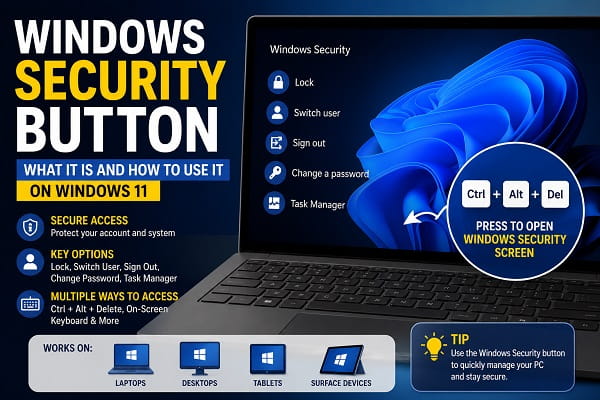
If Windows asks you to “Press Ctrl + Alt + Delete or use the Windows Security button”, you may be wondering where the button is on your laptop or desktop.
For most Windows computers, there is no separate physical Windows Security button. The Windows Security action is normally accessed by pressing Ctrl + Alt + Delete. A dedicated physical Security button is mainly associated with certain Windows tablets, older Tablet PCs, and some convertible devices.
This guide explains what the Windows Security button means, where to find it, how to use it, what happens when you press it, and what to do when the security screen does not appear.
What Is the Windows Security Button?
The Windows Security button is a hardware control or secure input method that provides access to the Windows security screen or secure sign-in process.
On a standard desktop or laptop keyboard, the equivalent action is:
Ctrl + Alt + Delete
Microsoft describes Ctrl + Alt + Delete as the Secure Attention Sequence (SAS). Windows handles this sequence specially so that ordinary applications cannot simply intercept it and imitate the protected Windows sign-in experience.
A physical Security button can provide a similar function on Windows devices that do not have a traditional keyboard.
This is why the term can be confusing. On a normal laptop, you usually do not need to search for a button labelled “Windows Security.”
What Does the Windows Security Button Do?
The action associated with the Windows Security button can take you to the Windows security screen or help start the secure sign-in process.
After pressing Ctrl + Alt + Delete while signed in, Windows may display options such as:
- Lock
- Switch user
- Sign out
- Change a password
- Task Manager
The exact options can vary depending on your Windows edition, account type, device configuration, and organization policies.
If you are looking for Task Manager specifically, you can also press Ctrl + Shift + Esc to open it directly.
Is the Windows Security Button the Same as Ctrl + Alt + Delete?
For practical purposes, yes when referring to the Windows Security hardware function.
A physical Windows Security button is intended to provide an alternative to the secure action normally initiated with Ctrl + Alt + Delete.
The important distinction is the device:
- Standard laptop: Use Ctrl + Alt + Delete.
- Desktop PC: Use Ctrl + Alt + Delete.
- Windows tablet: It may have a dedicated Security button or a manufacturer-defined hardware combination.
- Convertible or detachable PC: The method depends on the model and available hardware.
- Remote Desktop: Use Ctrl + Alt + End to send the security command to the remote Windows session.
Not every tablet uses the same hardware combination, so do not assume that Power + Volume Down or another combination will work on every device.
Where Is the Windows Security Button on a Laptop?
Most modern Windows laptops from manufacturers such as HP, Dell, Lenovo, ASUS, Acer, Samsung, and MSI do not have a physical button labelled Windows Security.
If Windows tells you to use the Windows Security button and you have a normal physical keyboard, press:
Ctrl + Alt + Delete
If the Delete key is shared with another function, you may need:
Ctrl + Alt + Fn + Delete
Whether you need the Fn key depends on the keyboard design and Fn Lock setting.
Look for Delete, Del, or a secondary Del label on the keyboard. Do not confuse the Windows Security button with the Windows logo key. The Windows logo key normally opens Start and is used in shortcuts such as Windows + L and Windows + R.
Where Is the Windows Security Button on a Desktop PC?
A standard desktop computer normally does not have a physical Windows Security button on the monitor, computer case, or keyboard.
Use:
Ctrl + Alt + Delete
Press the Ctrl and Alt keys together and then press Delete.
If nothing happens, the problem may be with the keyboard, Windows, or an organization policy rather than a missing Security button.
Where Is the Windows Security Button on a Tablet?
The term is more relevant to Windows tablets and older Tablet PCs because these devices may not have a full physical keyboard.
Depending on the hardware, a tablet may provide a dedicated button or a combination involving physical controls. Examples found on different Windows tablet designs include:
- A dedicated Windows Security button
- A Windows button on the device bezel combined with Power
- Power combined with Volume Down
- Another manufacturer-defined hardware combination
These combinations are not universal.
If your tablet specifically displays a message telling you which buttons to press, follow that instruction. Otherwise, check the manual for the exact model.
Do not repeatedly press an unlabelled recessed hole with a pin. A small opening on a tablet may be a microphone, reset opening, or another component rather than a Security button.
What Does a Physical Windows Security Button Look Like?
There is no universal design.
Depending on the device, it may look like:
- A small physical button on the edge or bezel
- A button marked with a security, key, lock, or similar symbol
- A programmable tablet button assigned to the Windows Security function
- A hardware combination involving Power, Volume, or a bezel Windows button
Because manufacturers use different designs, the exact model manual is the safest way to identify the correct control.
What Happens When You Press Ctrl + Alt + Delete?
When you are already signed in, pressing Ctrl + Alt + Delete normally opens the Windows security screen.
Depending on your PC, you may see options such as:
Lock
Locking the PC hides your current desktop and returns you to the lock screen while keeping your session open.
For a faster way to lock Windows, press:
Windows + L
Switch User
Switch User lets another account sign in without necessarily ending your current Windows session.
This option may be unavailable or hidden on some computers.
Sign Out
Sign Out ends your current Windows user session.
Save your work before selecting it because applications in your session may close.
Change a Password
On supported account configurations, this option lets you change the Windows password.
The available behavior can differ between Microsoft accounts, local accounts, work accounts, and domain accounts.
Task Manager
Task Manager lets you inspect running applications and processes, check performance, manage startup applications, and close programs that are not responding.
You can also open Task Manager directly with:
Ctrl + Shift + Esc
Why Does Windows Use Ctrl + Alt + Delete?
Ctrl + Alt + Delete is treated differently from an ordinary keyboard shortcut.
Windows registers the sequence as a Secure Attention Sequence. The purpose is to provide a trusted way to reach Windows’ security and sign-in interface rather than allowing a normal application to create an identical-looking credential prompt.
This is especially relevant on computers where secure sign-in has been configured.
For example, a work or school computer may require users to press Ctrl + Alt + Delete before entering their credentials.
Windows Security Button vs Windows Security App
These two terms are easy to confuse, but they refer to different things.
| Feature | Windows Security Button | Windows Security App |
|---|---|---|
| Main purpose | Access the secure Windows security/sign-in interface | Manage Windows security and protection features |
| Typical access | Ctrl + Alt + Delete or supported hardware button | Start > Windows Security |
| Used for | Lock, sign out, switch user, password options, Task Manager | Virus protection, firewall, account protection, device security |
| Physical button | May exist on certain tablets | No |
| Same feature? | No | No |
If you are trying to open Microsoft Defender, you do not need the Windows Security button.
Open Start, search for Windows Security, and open the Windows Security app.
What If Windows Says “Press the Windows Security Button”?
If you see a message telling you to press the Windows Security button, use this order:
- If a physical keyboard is connected, press Ctrl + Alt + Delete.
- If you have a compact laptop keyboard, try Ctrl + Alt + Fn + Delete if Delete is a secondary key function.
- If you are using a detachable tablet, reconnect the keyboard cover or connect a supported USB keyboard.
- If the device has no keyboard, check the manufacturer’s manual for its Security button or hardware combination.
- If the message recently appeared on a normal laptop, check whether secure sign-in has been enabled by an administrator or system policy.
Do not assume that the message means you need to open the Windows Security antivirus application.
How to Enable or Disable the Secure Sign-In Requirement
Some Windows configurations allow you to control whether users must press Ctrl + Alt + Delete before signing in.
If the option is available on your PC:
- Press Windows + R.
- Type
netplwiz. - Press Enter.
- Open the Advanced tab.
- Look for the Secure sign-in section.
- Select or clear Require users to press Ctrl+Alt+Delete.
- Select Apply and then OK.
The option may be unavailable or controlled by an organization on a work or school computer.
If the PC is managed by an employer or school, do not change security policies simply to remove a sign-in requirement. Contact the administrator instead.
How to Send Ctrl + Alt + Delete in Remote Desktop
When you are connected to another Windows PC through Remote Desktop, pressing Ctrl + Alt + Delete normally affects your local computer.
To send the security command to the remote Windows session, press:
Ctrl + Alt + End
Remote-control software and browser-based remote tools may use different commands, so follow the software’s documented method when necessary.
How to Use Ctrl + Alt + Delete in a Virtual Machine
Virtual machines can capture keyboard shortcuts before Windows receives them.
If you are using Hyper-V, VMware, VirtualBox, or another virtualization platform, use the virtual machine’s menu option for sending Ctrl + Alt + Delete to the guest operating system.
If the shortcut affects the host computer instead, it may never have reached the Windows installation inside the virtual machine.
Windows Security Button Not Working? Try These Fixes
If Ctrl + Alt + Delete or a physical Security button does nothing, start with the simplest checks.
1. Test the Keyboard
Try the Ctrl, Alt, and Delete keys individually.
If possible, connect another known-working USB keyboard and test Ctrl + Alt + Delete again.
If the shortcut works with another keyboard, the original keyboard, Fn mode, keyboard layout, wireless connection, or hardware may be responsible.
If you are troubleshooting a specific Ctrl + Alt + Delete failure, see our guide on Ctrl Alt Delete Not Working: How to Fix It.
2. Check Whether the Delete Key Needs Fn
On compact keyboards, Delete may share another key.
Try:
Ctrl + Alt + Fn + Delete
If that works, the keyboard’s function-key configuration was probably the reason the normal shortcut failed.
3. Restart Windows
If Windows is still responsive, restart it normally:
Start > Power > Restart
A restart can clear a temporary Windows shell or input problem.
If the entire PC is frozen, a forced shutdown may be necessary as a last resort. Be aware that a forced shutdown can cause unsaved work to be lost.
4. Check for Keyboard Remapping Software
Keyboard utilities, macro software, gaming applications, accessibility tools, and remapping programs can interfere with keyboard combinations.
If the problem started after installing or changing such software, temporarily close or disable it and test again.
5. Reinstall the Keyboard Device
If the physical keyboard itself is malfunctioning:
- Right-click Start.
- Select Device Manager.
- Expand Keyboards.
- Right-click the affected keyboard.
- Select Uninstall device.
- Restart Windows.
Windows will normally detect a standard keyboard again after the restart.
For laptop keyboards, detachable keyboard covers, programmable keyboards, and special hotkey hardware, use the manufacturer’s official driver or firmware where necessary.
6. Repair Windows System Files
If keyboard testing does not solve the problem and Windows has other signs of instability, corrupted system files may be worth investigating.
Open Terminal or Command Prompt as administrator and run:
sfc /scannowAllow the scan to finish completely, restart Windows, and test Ctrl + Alt + Delete again.
If you are seeing the specific “Failure to display security and shut down options” message after pressing Ctrl + Alt + Delete, see our dedicated guide on Failure to Display Security and Shut Down Options: How to Fix It.
7. Check Work or School Policies
Administrators can control parts of the Windows security screen, including options related to password changes, Task Manager, locking the computer, and signing out.
If the computer belongs to an organization, missing options do not necessarily mean Windows Security is broken.
What If the Security Screen Opens but an Option Is Missing?
A missing option does not automatically mean that the Windows Security button has failed.
Windows security-screen options can vary because of:
- Windows edition or build
- Microsoft, local, or work account configuration
- Organization policies
- Kiosk or assigned-access settings
- Remote-session restrictions
- Administrator controls
For example, an organization can remove or restrict access to specific options such as Task Manager or Change Password.
Useful Shortcuts Instead of Ctrl + Alt + Delete
You do not always need the Windows Security screen for common tasks.
| Task | Shortcut |
|---|---|
| Lock the PC | Windows + L |
| Open Task Manager | Ctrl + Shift + Esc |
| Open Run | Windows + R |
| Open Settings | Windows + I |
| Open Quick Link menu | Windows + X |
| Send Ctrl + Alt + Delete to Remote Desktop | Ctrl + Alt + End |
Ctrl + Alt + Delete remains useful when you need several account and security options in one place or when secure sign-in is required.
Frequently Asked Questions
Where is the Windows Security button on my keyboard?
Most keyboards do not have a key labelled Windows Security. Press Ctrl + Alt + Delete to access the Windows security screen.
Which button is the Windows Security button on a laptop?
Most laptops do not have a dedicated physical Security button. Use Ctrl + Alt + Delete. On some compact keyboards, you may need to include Fn for the Delete key.
Is the Windows Security button the Windows logo key?
No. The Windows logo key normally opens Start. Some older Windows tablets used a physical Windows-logo button as part of a Security-button combination, but pressing the Windows key alone is not the same function.
What is the Windows Security button on an HP laptop?
Most HP laptops use Ctrl + Alt + Delete and do not have a separate Windows Security button. Older HP Tablet PCs and special convertible devices can have different hardware controls.
What is the Windows Security button on a Dell laptop?
On a standard Dell laptop, press Ctrl + Alt + Delete. A specific tablet or convertible model may have a different hardware method.
Can I press Ctrl + Alt + Delete without a keyboard?
If your Windows tablet has a physical Security button or documented hardware combination, use that method. Otherwise, connect a supported keyboard.
Do not assume that every tablet uses the same Power and Volume combination.
Why does Windows ask me to press Ctrl + Alt + Delete before signing in?
Secure sign-in may have been enabled by a system administrator, organization policy, or account configuration. The sequence provides a trusted path to the Windows sign-in interface.
Can I open Task Manager without the Windows Security screen?
Yes. Press Ctrl + Shift + Esc to open Task Manager directly.
Does Ctrl + Alt + Delete work if the PC is completely frozen?
Not necessarily. If Windows has completely stopped processing keyboard input, the security sequence may not work. If the computer is totally unresponsive, a forced shutdown may be necessary as a last resort.
The Windows Security Button You Should Use
For most Windows desktop and laptop users, the answer is simple: press Ctrl + Alt + Delete.
If Windows specifically refers to a physical Security button, you are more likely to be using a tablet, older Tablet PC, or convertible device with hardware designed to provide the secure attention function without a conventional keyboard.
The exact physical method varies by device, so use the manufacturer’s instructions rather than guessing at button combinations.
The important distinction is that the Windows Security button is not the same as the Windows logo key and is not the Windows Security antivirus app. On ordinary PCs, Ctrl + Alt + Delete is the practical way to access the Windows security screen.
