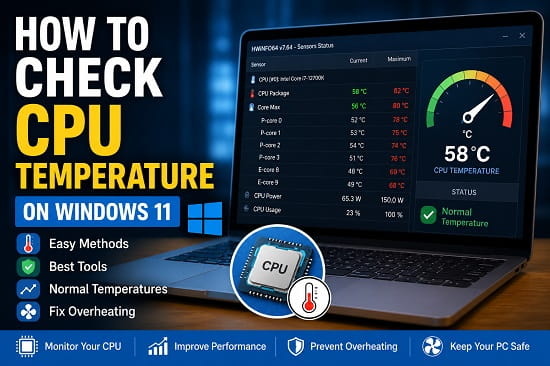
Your computer’s CPU (Central Processing Unit) works hard every time you browse the web, play games, edit videos, or run demanding software. As the processor works, it naturally generates heat. While modern CPUs are designed to operate safely at relatively high temperatures, excessive heat can reduce performance, cause unexpected shutdowns, shorten hardware lifespan, and even lead to permanent damage if left unchecked.
If your computer has become unusually slow, your cooling fans constantly run at full speed, or Windows suddenly freezes during heavy workloads, an overheating CPU could be the cause. Checking your CPU temperature is one of the first steps in diagnosing these problems.
Unlike some hardware information, Windows 11 doesn’t display CPU temperature directly in most built-in tools. Fortunately, there are several reliable ways to monitor your processor’s temperature using the BIOS, trusted third-party utilities, and manufacturer software.
In this guide, I’ll show you the easiest ways to check CPU temperature on Windows 11, explain what temperature is considered normal, and share practical tips to keep your processor running safely.
If your computer is also running slowly, you may find my guide on How to Restart File Explorer on Windows 11 useful for resolving temporary Windows interface issues.
Why You Should Monitor CPU Temperature
Your CPU constantly adjusts its operating speed based on workload and temperature.
Monitoring CPU temperature helps you:
- Detect overheating early.
- Prevent unexpected shutdowns.
- Improve gaming performance.
- Diagnose cooling problems.
- Protect your processor.
- Reduce thermal throttling.
- Extend hardware lifespan.
- Identify failing cooling components.
Checking temperatures occasionally can help you discover problems before they become expensive hardware failures.
What Is a Normal CPU Temperature?
CPU temperature varies depending on:
- Processor model
- Cooling system
- Room temperature
- Current workload
- Laptop or desktop design
As a general guide:
| CPU State | Typical Temperature |
|---|---|
| Idle | 30°C to 45°C |
| Normal everyday use | 40°C to 60°C |
| Gaming | 60°C to 80°C |
| Heavy workloads | 70°C to 85°C |
| Above 90°C | Too hot for sustained use |
Modern Intel and AMD processors can briefly reach higher temperatures, but consistently operating above 90°C usually indicates a cooling problem.
Method 1: Check CPU Temperature in BIOS or UEFI
One of the easiest ways to view your CPU temperature is through your computer’s BIOS or UEFI firmware.
To check it:
- Restart your computer.
- Enter the BIOS or UEFI setup.
- Open the Hardware Monitor, PC Health, or System Monitor section.
- Locate the CPU temperature reading.
The exact location varies depending on your motherboard manufacturer.
If you’re unsure how to access the BIOS, see How to Open BIOS on Windows 11 for detailed instructions.
Advantages
- Accurate readings.
- No software installation required.
- Works even before Windows starts.
Limitations
- Only shows the temperature while inside the BIOS.
- Cannot monitor temperatures during gaming or heavy workloads.
Method 2: Use HWiNFO
HWiNFO is one of the most trusted hardware monitoring tools available.
It displays:
- CPU temperature
- CPU package temperature
- Core temperatures
- Fan speeds
- Voltages
- Power consumption
- Memory information
- Motherboard sensors
To use it:
- Download HWiNFO.
- Install and launch the program.
- Choose Sensors Only.
- Scroll to the CPU section.
- View the current temperature readings.
Because it provides detailed sensor information, HWiNFO is widely used by enthusiasts and IT professionals.
Method 3: Check CPU Temperature Using Core Temp
Core Temp is another lightweight application designed specifically for monitoring processor temperatures.
It shows:
- Individual core temperatures
- Maximum temperature
- Current CPU load
- Thermal information
Its simple interface makes it ideal for beginners who only need CPU temperature data.
Method 4: Use HWMonitor
HWMonitor monitors nearly every hardware sensor in your computer.
Besides CPU temperatures, it displays:
- GPU temperatures
- SSD temperatures
- Hard drive temperatures
- Voltages
- Fan speeds
- Power usage
It’s an excellent all-in-one hardware monitoring solution.
Method 5: Use Manufacturer Software
Some computer manufacturers include built-in hardware monitoring software.
Examples include:
- Dell SupportAssist
- HP Support Assistant
- Lenovo Vantage
- ASUS Armoury Crate
- MSI Center
- Acer Care Center
Depending on your device, these applications may display CPU temperatures alongside fan settings and system diagnostics.
Method 6: Can You Check CPU Temperature in Task Manager?
Many users expect Task Manager to display CPU temperature, but unfortunately, Windows 11 doesn’t currently show CPU temperatures there.
Task Manager can display useful information such as:
- CPU usage
- Clock speed
- Running processes
- Memory usage
- Disk activity
- GPU usage
While it can display GPU temperature on supported systems, it does not provide CPU temperature readings.
If you need accurate CPU temperatures, you’ll need to use one of the dedicated monitoring methods discussed earlier.
Method 7: Monitor CPU Temperature While Gaming
Gaming places one of the heaviest workloads on your processor.
Monitoring temperatures during gameplay helps determine whether overheating is causing:
- FPS drops
- Game crashes
- Stuttering
- Unexpected shutdowns
- Thermal throttling
Applications like HWiNFO and HWMonitor allow you to watch temperatures in real time while playing.
If your games have recently become unstable after updating graphics drivers, you may also find How to Roll Back NVIDIA Driver on Windows 11 helpful.
Signs Your CPU Is Overheating
Overheating doesn’t always display an error message.
Instead, you may notice symptoms like:
- Loud cooling fans
- Slow system performance
- Random freezing
- Unexpected restarts
- Blue Screen of Death (BSOD)
- Applications crashing
- Games stuttering
- Laptop becoming unusually hot
- Performance suddenly dropping during heavy workloads
If several of these occur together, checking your CPU temperature should be one of your first troubleshooting steps.
Why Is My CPU Temperature So High?
Several factors can cause high processor temperatures.
The most common include:
Dust Build-Up
Dust restricts airflow inside your computer.
Cleaning your cooling system regularly helps maintain safe temperatures.
Poor Airflow
Blocked air vents or cramped PC cases can trap heat.
Ensure your computer has enough ventilation on all sides.
Old Thermal Paste
Thermal paste helps transfer heat from the CPU to the cooler.
Over time it dries out, reducing cooling efficiency.
Replacing old thermal paste can significantly lower temperatures.
Failing CPU Cooler
If the CPU fan has stopped spinning or the liquid cooler isn’t functioning correctly, temperatures can rise very quickly.
Inspect your cooling system if overheating continues.
Heavy Workloads
Activities such as:
- Video editing
- 3D rendering
- Gaming
- Virtual machines
- AI workloads
naturally generate much higher CPU temperatures than everyday web browsing.
How to Reduce CPU Temperature
If your processor is running hotter than expected, these steps often help.
Clean Your Computer
Remove dust from:
- CPU cooler
- Case fans
- Air vents
- Radiators
- Power supply vents
Improved airflow often reduces temperatures immediately.
Improve Airflow
Ensure your PC has adequate airflow by:
- Keeping vents unobstructed.
- Adding additional case fans.
- Improving cable management.
- Using your laptop on a hard surface instead of a bed or couch.
Close Unnecessary Applications
Too many background programs increase CPU usage.
Open Task Manager and close applications you don’t currently need.
If Windows itself feels sluggish, restarting Explorer can sometimes help. My guide on How to Restart File Explorer on Windows 11 explains how to refresh the Windows interface without restarting your entire computer.
Update Device Drivers
Outdated chipset and graphics drivers may contribute to abnormal CPU usage.
Keep your drivers up to date to improve overall system stability.
Check for Malware
Some malicious software continuously uses processor resources.
Run Windows Security or another trusted antivirus solution to scan your system.
Does High CPU Temperature Always Mean Something Is Wrong?
Not necessarily.
Modern processors are designed to handle demanding workloads.
For example:
- During gaming, temperatures between 70°C and 80°C are often perfectly normal.
- Short spikes into the mid-80s under heavy workloads are also common.
The real concern is when temperatures remain above 90°C for extended periods or your computer begins showing symptoms such as shutdowns, severe throttling, or instability.
Frequently Asked Questions
What is the best CPU temperature for Windows 11?
For most systems:
- Idle: 30°C to 45°C
- Normal use: 40°C to 60°C
- Gaming: 60°C to 80°C
Exact values vary depending on your processor and cooling system.
Can Windows 11 display CPU temperature?
Not directly.
Windows 11 doesn’t include a built-in CPU temperature monitor, so you’ll need BIOS/UEFI or third-party monitoring software.
Is 90°C too hot for a CPU?
Yes.
While modern CPUs can briefly reach 90°C or higher, sustained temperatures above this level usually indicate inadequate cooling.
Which program is best for checking CPU temperature?
Popular options include:
- HWiNFO
- HWMonitor
- Core Temp
Each provides reliable real-time temperature readings.
Does CPU temperature affect gaming performance?
Yes.
If your CPU overheats, it may reduce its operating speed through thermal throttling, leading to lower FPS, stuttering, and reduced performance.
Can overheating damage my CPU?
Modern processors include safety mechanisms that reduce clock speeds or shut down the computer before permanent damage occurs.
However, consistently high temperatures can shorten the lifespan of your hardware and affect long-term reliability.
Monitoring your CPU temperature is one of the simplest ways to keep your Windows 11 computer running reliably. Whether you’re troubleshooting slow performance, frequent crashes, or excessive fan noise, regularly checking your processor’s temperature can help you identify cooling problems before they become serious. By using the BIOS or a trusted monitoring tool and following the preventive tips in this guide, you can keep your CPU operating within safe temperature ranges and maintain stable performance for everyday tasks, gaming, and demanding workloads.
