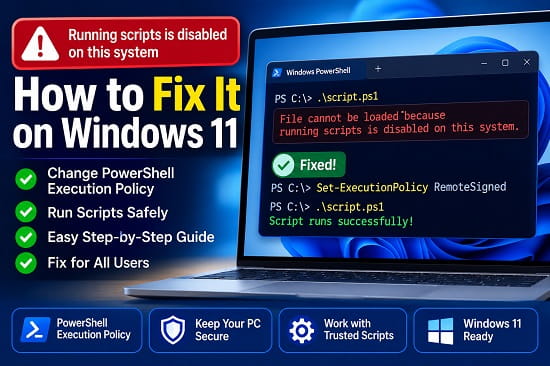
The PowerShell error “running scripts is disabled on this system” appears when Windows blocks a .ps1 script under the execution policy currently active for your session. It commonly appears while running a script directly, activating a Python virtual environment, using npm in Visual Studio Code, installing a developer tool, or loading a PowerShell profile.
A typical error looks like this:
File C:\Path\script.ps1 cannot be loaded because running scripts is disabled on this system.
For most personal Windows 11 computers, the safest practical fix is to open PowerShell and run:
Set-ExecutionPolicy -ExecutionPolicy RemoteSigned -Scope CurrentUser
Press Y, then Enter when prompted. Close and reopen PowerShell, Windows Terminal, or Visual Studio Code before trying the command again.
Using the CurrentUser scope changes the policy only for your Windows account and does not require administrator permission. RemoteSigned allows scripts created locally to run while requiring downloaded scripts to be signed or manually unblocked.
Do not immediately set the policy to Unrestricted or Bypass for the entire computer. The correct solution depends on whether you need to run scripts regularly, run one trusted script once, unblock a downloaded file, or work on a computer controlled by an organization.
Quick Fix for Running Scripts Is Disabled
Follow these steps on a personal Windows 11 PC:
- Press Windows + X.
- Select Terminal.
- Make sure the tab is running PowerShell.
- Check the active policies:
Get-ExecutionPolicy -List
- Set a policy for your account:
Set-ExecutionPolicy -ExecutionPolicy RemoteSigned -Scope CurrentUser
- Press Y, then Enter.
- Close the terminal completely.
- Reopen it and run the script again.
To confirm the effective policy, run:
Get-ExecutionPolicy
The result should normally be:
RemoteSigned
If it still shows Restricted, AllSigned, or another value, a higher-priority scope may be overriding the change. The troubleshooting sections below explain how to identify it.
What Does “Running Scripts Is Disabled on This System” Mean?
PowerShell uses an execution policy to determine the conditions under which it loads configuration files and runs scripts.
A script may be blocked when:
- The effective policy is
Restricted. - The effective policy is
AllSignedand the script is unsigned. - The policy is
RemoteSignedand Windows marks the downloaded script as coming from the internet. - A company or school applies a policy through Group Policy.
- The policy was changed at a lower-priority scope that is being overridden.
- Visual Studio Code or Windows Terminal is still using an older session.
- A PowerShell profile is blocked during startup.
- A package manager is trying to run a PowerShell shim such as
npm.ps1.
The message does not prove that the script is malicious. It means the script does not meet the conditions of the current policy.
However, execution policy is not antivirus protection and should not be treated as proof that an allowed script is safe. A trusted-looking script can still delete files, download malware, change security settings, or expose credentials.
Check the Effective Execution Policy First
Do not change settings blindly. Start by checking the effective policy:
Get-ExecutionPolicy
This returns the policy currently controlling the PowerShell session.
Possible results include:
RestrictedRemoteSignedAllSignedUnrestrictedBypassUndefined
Next, display every scope:
Get-ExecutionPolicy -List
A typical result looks like this:
        Scope ExecutionPolicy
        ----- ---------------
MachinePolicy       Undefined
   UserPolicy       Undefined
      Process       Undefined
  CurrentUser    RemoteSigned
 LocalMachine       Undefined
PowerShell evaluates scopes in this priority order:
MachinePolicyUserPolicyProcessCurrentUserLocalMachine
The first defined policy in that order becomes effective.
For example, setting CurrentUser to RemoteSigned will not help when MachinePolicy is set to AllSigned or Restricted.
Which Execution Policy Should You Use?
The best choice depends on the computer and what you are trying to run.
Restricted
Restricted prevents PowerShell script files and profiles from running. Individual commands can still be entered interactively.
This is commonly the effective default when no policy has been configured on a Windows client computer.
RemoteSigned
RemoteSigned allows locally created scripts to run. Scripts marked as downloaded from the internet must be signed by a trusted publisher or manually unblocked.
This is usually the most practical long-term option for a personal development computer.
AllSigned
AllSigned requires every script and configuration file to be signed by a trusted publisher, including scripts created locally.
It is more controlled but can be inconvenient for users who write their own unsigned scripts.
Unrestricted
Unrestricted allows unsigned scripts to run but warns about scripts identified as coming from outside the local computer.
It is less restrictive than most home users need.
Bypass
Bypass applies no execution-policy restrictions or warnings.
It is useful for a controlled process or temporary session, but it should not normally be configured permanently for the whole computer.
Undefined
Undefined means no policy is configured at that particular scope.
If all scopes are Undefined, Windows clients normally use Restricted as the effective policy.
Fix 1: Set RemoteSigned for the Current User
This is the preferred fix for most personal Windows computers.
Open PowerShell and run:
Set-ExecutionPolicy -ExecutionPolicy RemoteSigned -Scope CurrentUser
Confirm the warning.
Then verify it:
Get-ExecutionPolicy -List
Close and reopen all PowerShell sessions before testing the script.
Why CurrentUser Is Usually Better
The CurrentUser scope:
- Affects only your account.
- Does not require PowerShell to run as administrator.
- Does not change the experience for other users.
- Is easier to reverse.
- Is less broad than changing
LocalMachine.
If the computer is shared, this avoids granting script access to every local account.
Fix 2: Temporarily Change the Policy for One Session
You may not want to make a lasting change when you need to run only one trusted script.
In the current PowerShell window, run:
Set-ExecutionPolicy -ExecutionPolicy Bypass -Scope Process
The Process scope applies only to the current PowerShell process. It disappears when that window is closed.
Run the script:
.\script.ps1
Close the PowerShell window when finished.
This is safer than setting Bypass at CurrentUser or LocalMachine, but it still removes execution-policy checks for everything run inside that session. Do not paste unreviewed commands into it.
Fix 3: Launch One Trusted Script With a Temporary Policy
You can start a separate PowerShell process that uses Bypass only for that process.
For Windows PowerShell:
powershell.exe -NoProfile -ExecutionPolicy Bypass -File "C:\Scripts\script.ps1"
For PowerShell 7:
pwsh.exe -NoProfile -ExecutionPolicy Bypass -File "C:\Scripts\script.ps1"
Replace the path with the real script location.
-NoProfile prevents the new process from loading a PowerShell profile that could cause a separate startup error.
This method does not permanently change CurrentUser or LocalMachine. It also does not override a policy enforced through Group Policy.
Fix 4: Unblock a Trusted Downloaded Script
A script can still be blocked under RemoteSigned when Windows has attached Mark of the Web information showing that it came from the internet.
Only unblock a script after reading it and confirming that the source is trustworthy.
Unblock Through File Properties
- Locate the
.ps1file in File Explorer. - Right-click it.
- Select Properties.
- Stay on the General tab.
- Look for Unblock near the bottom.
- Check the box.
- Click Apply.
- Click OK.
Try the script again.
The Unblock option appears only when Windows has marked the file as downloaded.
Use Unblock-File
Run:
Unblock-File -Path "C:\Scripts\script.ps1"
Then start the script:
& "C:\Scripts\script.ps1"
Unblock-File removes the internet-zone marker. It does not change the execution policy.
Microsoft recommends reviewing the file and its source before unblocking it.
Fix 5: Unblock a Trusted ZIP File Before Extracting It
Scripts downloaded inside a ZIP archive may inherit the archive’s internet security marker after extraction.
A safer workflow is:
- Download the archive.
- Scan it with Microsoft Defender or another trusted security tool.
- Right-click the ZIP file.
- Select Properties.
- Check Unblock if available.
- Click Apply.
- Extract it afterward.
- Review the script before running it.
If you already extracted a trusted project and verified every relevant file, you can unblock scripts in a specific folder:
Get-ChildItem -Path "C:\TrustedProject" -Recurse -File -Filter *.ps1 |
    Unblock-File
Do not run a recursive unblock command against Downloads, the entire user profile, or an unknown software package.
Fix 6: Run the Script With the Correct Path
After resolving the policy, PowerShell may report that the script name is not recognized.
PowerShell does not automatically search the current folder for commands. Use .\ before a script in the current directory:
.\script.ps1
For a path containing spaces:
& "C:\My Scripts\script.ps1"
The call operator & tells PowerShell to execute the quoted path.
When the file does not yet have a .ps1 extension, how to change file type on Windows 11 explains how to show file extensions and rename a script safely.
Do not rename an ordinary text document to .ps1 unless it contains valid PowerShell commands.
Fix 7: Fix npm.ps1 Cannot Be Loaded
This error often appears after installing Node.js and running commands such as:
npm install
The full message may say:
npm.ps1 cannot be loaded because running scripts is disabled on this system.
The standard fix is:
Set-ExecutionPolicy -ExecutionPolicy RemoteSigned -Scope CurrentUser
Close and reopen Windows Terminal or Visual Studio Code, then run:
npm --version
If you do not want to change the execution policy, PowerShell can often call the Command Prompt shim directly:
npm.cmd --version
and:
npm.cmd install
This workaround avoids the npm.ps1 shim for that command. It does not fix other PowerShell scripts that need to run.
Do not delete npm.ps1 from the Node.js installation folder. Removing package-manager files can create new problems after updates or reinstalls.
Fix 8: Fix Activate.ps1 for a Python Virtual Environment
A Python virtual environment commonly produces this error when you run:
.\.venv\Scripts\Activate.ps1
For regular development, set:
Set-ExecutionPolicy -ExecutionPolicy RemoteSigned -Scope CurrentUser
Close and reopen the terminal, then activate the environment again:
.\.venv\Scripts\Activate.ps1
For one PowerShell session only:
Set-ExecutionPolicy -ExecutionPolicy Bypass -Scope Process
.\.venv\Scripts\Activate.ps1
You can also activate through Command Prompt using the appropriate batch file:
.venv\Scripts\activate.bat
That is a different shell and does not rely on the PowerShell activation script.
Fix 9: Restart the Visual Studio Code Terminal
Changing the execution policy while an integrated terminal remains open may not update the existing PowerShell process.
In Visual Studio Code:
- Save your work.
- Click the trash icon in the Terminal panel to terminate the current terminal.
- Open Terminal > New Terminal.
- Confirm that the new terminal is PowerShell.
- Run:
Get-ExecutionPolicy
- Retry the command.
When the whole app continues using stale account or environment information, close every Visual Studio Code window and reopen it.
You can also switch the terminal profile temporarily:
- Open the Terminal dropdown.
- Select Select Default Profile.
- Choose Command Prompt.
- Open a new terminal.
This can help with tools that provide .cmd launchers, but it does not repair PowerShell script permissions.
Fix 10: Change LocalMachine Only When Necessary
Running this command without a scope uses LocalMachine by default:
Set-ExecutionPolicy RemoteSigned
LocalMachine affects every account on the computer and requires an elevated PowerShell window.
When you genuinely need a machine-wide policy:
- Search for Windows Terminal.
- Right-click it.
- Select Run as administrator.
- Run:
Set-ExecutionPolicy -ExecutionPolicy RemoteSigned -Scope LocalMachine
- Confirm the warning.
- Check the result:
Get-ExecutionPolicy -List
Do not use a machine-wide change merely because a tutorial omits the -Scope parameter. CurrentUser is enough for many personal development tasks.
Fix 11: Resolve “Access to the Registry Key Is Denied”
The error may change to:
Access to the registry key is denied.
This usually happens when you try to change LocalMachine without administrator rights.
Choose one of these options:
Set the Policy Only for Your Account
Set-ExecutionPolicy -ExecutionPolicy RemoteSigned -Scope CurrentUser
This does not require elevation.
Open PowerShell as Administrator
Use this only when you intend to modify LocalMachine.
Do not disable User Account Control or grant broad folder permissions to fix an execution-policy registry error.
Fix 12: Check for Group Policy Restrictions
On a work or school computer, MachinePolicy or UserPolicy may control script execution.
Run:
Get-ExecutionPolicy -List
If either of these shows a defined value:
MachinePolicy
UserPolicy
it has higher priority than Process, CurrentUser, and LocalMachine.
A local Set-ExecutionPolicy command may complete while warning that the effective policy is still controlled by Group Policy.
Do not attempt to bypass an organization’s security configuration. Contact the administrator and provide:
- The complete error message
- The script name and source
- The output of
Get-ExecutionPolicy -List - The business or school reason the script is required
On Windows Pro, Enterprise, and Education, administrators can manage this through the Turn on Script Execution Group Policy setting. Windows Home normally does not include the Local Group Policy Editor.
Fix 13: Check Whether the Script Requires a Signature
Under AllSigned, every script must be signed by a trusted publisher, including scripts created locally.
Check a script’s signature:
Get-AuthenticodeSignature -FilePath "C:\Scripts\script.ps1"
Look at the Status value.
Possible results include:
ValidNotSignedUnknownErrorHashMismatchNotTrusted
Do not change to a less restrictive policy simply to run an unknown unsigned script.
For an organization that requires signed scripts, ask the script owner to provide a properly signed copy or follow the company’s code-signing process.
Fix 14: Check and Review the Script Before Running It
Open the script in a text editor or display it in PowerShell:
Get-Content -Path "C:\Scripts\script.ps1"
For a large script, open it in Notepad or Visual Studio Code.
Be cautious when you see commands that:
- Download and execute remote content
- Disable Microsoft Defender
- Add antivirus exclusions
- Modify boot settings
- Delete folders recursively
- Change firewall rules
- Create scheduled tasks
- Add startup entries
- Decode long Base64 strings
- Invoke hidden PowerShell windows
- Request account tokens or credentials
- Use
Invoke-Expressionon downloaded text
A script can be technically valid and still unsafe.
If you are learning which Windows shell a tutorial expects, Windows PowerShell vs Command Prompt explains how PowerShell, CMD, and Windows Terminal differ.
Fix 15: Repair PowerShell Only When Commands Are Also Failing
Execution policy affects scripts and profiles. It does not normally prevent ordinary commands such as these from running interactively:
Get-Date
Get-Process
Get-ExecutionPolicy
When basic cmdlets also fail, the issue may involve:
- Damaged PowerShell installation files
- A broken profile
- A missing module
- Corrupted Windows components
- An incorrect
PATH - Security software interference
- A damaged user profile
Start PowerShell without loading profiles:
powershell.exe -NoProfile
or:
pwsh.exe -NoProfile
If that works, inspect the profile path:
$PROFILE
Check whether the profile itself contains a failing script or command.
For broader Windows corruption, Windows Resource Protection error explains how to troubleshoot SFC, DISM, disk errors, and protected system files.
The Error Appears Every Time PowerShell Opens
PowerShell profiles are scripts that load automatically when a shell starts.
Under Restricted, the profile can be blocked, producing the execution-policy message before you enter a command.
Start without a profile:
powershell.exe -NoProfile
Then check:
Get-ExecutionPolicy -List
For a personal computer, set:
Set-ExecutionPolicy -ExecutionPolicy RemoteSigned -Scope CurrentUser
If the profile was downloaded or copied from another computer, review it and unblock it only when trusted:
Unblock-File -Path $PROFILE
Do not delete the profile before inspecting its contents.
The Policy Changed but the Error Still Appears
Use this checklist.
Confirm the Effective Policy
Get-ExecutionPolicy
Do not assume that the value shown under CurrentUser is effective.
Check Every Scope
Get-ExecutionPolicy -List
A higher-priority policy may be winning.
Restart the Shell
Close Windows Terminal, PowerShell, Visual Studio Code, and any development application that owns an integrated terminal.
Check the Exact PowerShell Edition
Run:
$PSVersionTable
You may be using Windows PowerShell 5.1 in one app and PowerShell 7 in another. They can load different profiles and executable paths, although Windows execution-policy settings are closely related.
Unblock the File
Under RemoteSigned, a downloaded script may still need:
Unblock-File -Path "C:\Path\script.ps1"
Check the Script’s Signature
Under AllSigned, unblocking alone does not replace the signature requirement.
Check Organization Policy
A MachinePolicy or UserPolicy value cannot be defeated by a lower local scope.
Confirm the Script Path
Use:
.\script.ps1
when the file is in the current folder.
How to Restore the Previous Execution Policy
Before changing anything, save the output of:
Get-ExecutionPolicy -List
To remove the policy you set for the current user:
Set-ExecutionPolicy -ExecutionPolicy Undefined -Scope CurrentUser
To remove a locally configured machine-wide policy, open PowerShell as administrator and run:
Set-ExecutionPolicy -ExecutionPolicy Undefined -Scope LocalMachine
Setting a scope to Undefined removes the policy from that scope. It does not override a policy configured at another scope.
When every scope is Undefined, the effective default on a Windows client is normally Restricted.
You can also explicitly set the current account to Restricted:
Set-ExecutionPolicy -ExecutionPolicy Restricted -Scope CurrentUser
Use this only when you intentionally want to block script files and PowerShell profiles for that account.
Is RemoteSigned Safe?
RemoteSigned is a reasonable balance for many personal Windows development systems, but it is not a guarantee of safety.
It allows unsigned local scripts to run. A malicious program or attacker with access to your account could create a local script that is not marked as downloaded.
Continue using normal security practices:
- Install Windows and security updates.
- Keep Microsoft Defender enabled.
- Review scripts before running them.
- Use a standard user account for ordinary work.
- Avoid running scripts as administrator unless required.
- Download tools from official sources.
- Verify checksums or signatures where provided.
- Back up important files.
Execution policy helps prevent accidental script execution. It does not replace antivirus, application control, least privilege, or careful review.
Should You Use Unrestricted or Bypass Permanently?
Usually not.
Commands such as these are broader than most users need:
Set-ExecutionPolicy Unrestricted -Scope LocalMachine
Set-ExecutionPolicy Bypass -Scope CurrentUser
They reduce warnings and restrictions for future scripts.
Prefer one of these approaches:
RemoteSignedatCurrentUserfor regular personal scriptingBypassatProcessfor one temporary sessionUnblock-Filefor one trusted downloaded script- A signed script under
AllSigned - Administrator approval on a managed computer
Using the least permissive option reduces unnecessary exposure.
PowerShell Execution Policy vs Driver Signature Enforcement
These Windows security controls are unrelated.
PowerShell execution policy controls PowerShell scripts and profiles.
Driver Signature Enforcement controls kernel-level device drivers.
Changing one does not fix an error caused by the other. Use disable Driver Signature Enforcement in Windows 11 only when Windows blocks a trusted hardware driver, not when a .ps1 file is disabled.
Does This Fix Work on Windows 10?
Yes. The same PowerShell execution-policy commands apply to Windows 10 and Windows 11.
The interface for opening Terminal or PowerShell may differ, but these commands remain relevant:
Get-ExecutionPolicy -List
Set-ExecutionPolicy -ExecutionPolicy RemoteSigned -Scope CurrentUser
Always check for Group Policy on an organization-managed PC.
Frequently Asked Questions
Why does PowerShell say running scripts is disabled?
The effective execution policy does not permit the script to run, or the script does not meet the signature or origin requirements of the active policy.
What is the safest command to fix it?
For many personal computers:
Set-ExecutionPolicy -ExecutionPolicy RemoteSigned -Scope CurrentUser
Review the script before running it.
Do I need to run PowerShell as administrator?
Not when changing the CurrentUser scope. Administrator permission is normally required for LocalMachine.
Why is Set-ExecutionPolicy not working?
A higher-priority MachinePolicy or UserPolicy may override the local setting. Run Get-ExecutionPolicy -List.
Why does npm.ps1 still fail after changing the policy?
Close and reopen the terminal. Confirm the effective policy, then try npm.cmd to bypass the PowerShell shim for that command.
Can I run one script without changing the permanent policy?
Yes. Use a Process-scoped policy or launch a new PowerShell process with -ExecutionPolicy Bypass -File.
Is Bypass safe for one session?
It removes execution-policy checks in that process. Use it only for a script you have reviewed and trust, then close the session.
Why is the script not digitally signed?
The active policy may be AllSigned, or RemoteSigned may identify the file as downloaded. Check the policy, signature, and file origin before deciding what to change.
Does Unblock-File make a script safe?
No. It removes the internet-zone marker. You must still review the script and trust its source.
Can I disable execution policy permanently?
You can configure Bypass or Unrestricted, but doing so is unnecessarily broad for most users and is not recommended as the default fix.
Does changing execution policy disable Microsoft Defender?
No. Execution policy and antivirus protection are separate.
Will changing the policy damage Windows?
Changing the policy itself does not modify personal files or Windows components. The scripts you allow to run can make significant changes, so their contents and privileges matter.
How do I undo RemoteSigned?
Run:
Set-ExecutionPolicy -ExecutionPolicy Undefined -Scope CurrentUser
Then use Get-ExecutionPolicy -List to confirm the remaining scopes.
Why does the error return in Visual Studio Code?
The existing integrated terminal may still be using the old process. Terminate it and open a new terminal.
Why is Activate.ps1 blocked?
PowerShell is blocking the Python virtual-environment activation script. Use RemoteSigned for the current user or a temporary Process-scoped policy.
Use the Narrowest Fix That Solves the Error
For regular personal scripting, RemoteSigned at the CurrentUser scope is usually the practical choice. For one trusted script, use a temporary Process policy or unblock only that file. On a work or school computer, check MachinePolicy and UserPolicy before attempting local changes.
Avoid copying commands that permanently set Bypass or Unrestricted without explaining the scope. The goal is not simply to remove the error. It is to run the required script while preserving as much protection as possible.
Microsoft’s current PowerShell execution-policy documentation explains the available policies, scopes, and precedence. Its Unblock-File documentation explains how Windows removes the internet-zone marker from a file that you have reviewed and trust.
