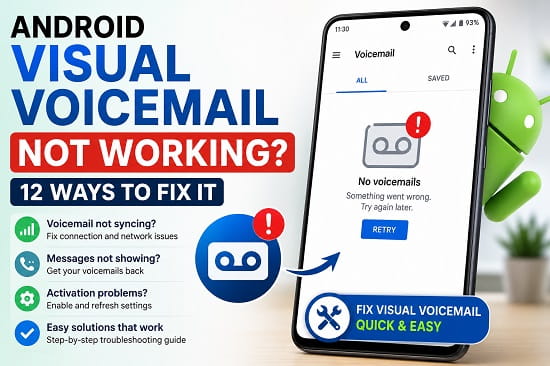
Visual Voicemail makes it much easier to manage your voicemail messages without calling your voicemail inbox. Instead of listening to every message in order, you can view a list of voicemails, select the ones you want to hear, delete unwanted messages, and even read voicemail transcriptions on supported devices.
However, when Visual Voicemail stops working, it can become frustrating very quickly. You may notice that new voicemail messages don’t appear, the app refuses to open, voicemail transcription stops working, or the service displays activation or synchronization errors.
The good news is that most Visual Voicemail problems are caused by network settings, app issues, carrier configuration, or temporary software glitches rather than hardware failure.
In this guide, I’ll explain why Android Visual Voicemail isn’t working and show you the most effective solutions to restore the service.
If you’re also experiencing calling or network issues, you may find my guide on Wi-Fi Calling Not Working on Android helpful, as both services rely on your carrier’s network configuration.
What Is Visual Voicemail?
Unlike traditional voicemail, Visual Voicemail allows you to see all your voicemail messages in a list directly on your phone.
Instead of dialing your voicemail number and listening to every message one after another, you can:
- View voicemail messages.
- Play messages individually.
- Delete unwanted voicemails.
- Save important messages.
- Read voicemail transcriptions on supported devices.
- Manage voicemail more efficiently.
Many Android phones include Visual Voicemail through the Phone app or a dedicated carrier application.
Why Is Android Visual Voicemail Not Working?
Several issues can prevent Visual Voicemail from working properly.
The most common causes include:
- Weak mobile network signal.
- Mobile data is disabled.
- Carrier service outage.
- Incorrect voicemail settings.
- Outdated Phone or Visual Voicemail app.
- Corrupted app cache.
- Software bugs.
- SIM card problems.
- Unsupported carrier features.
- Pending Android updates.
Fortunately, most of these issues are easy to fix.
Before You Start Troubleshooting
Before trying advanced solutions, check these basic requirements.
Make sure:
- Your carrier supports Visual Voicemail.
- Your mobile plan includes Visual Voicemail.
- Mobile data is turned on.
- Airplane Mode is disabled.
- Your phone has a stable cellular signal.
If any of these requirements aren’t met, Visual Voicemail may not function correctly.
Fix 1: Restart Your Android Phone
A simple restart often resolves temporary network and software issues.
To restart your phone:
- Press and hold the Power button.
- Tap Restart.
- Wait for the phone to reboot.
- Open the Phone or Visual Voicemail app again.
Many temporary glitches disappear after restarting.
Fix 2: Make Sure Mobile Data Is Enabled
Unlike regular voicemail, Visual Voicemail often requires a mobile data connection to download voicemail information.
To enable mobile data:
- Open Settings.
- Tap Network & Internet or Connections.
- Select Mobile Network.
- Turn on Mobile Data.
If mobile data isn’t working correctly, my guide on Mobile Data Not Working on Android provides additional troubleshooting steps.
Fix 3: Check Your Cellular Signal
Visual Voicemail depends on your carrier’s network.
If your signal is weak:
- Move to another location.
- Go outdoors if you’re inside a building.
- Wait until signal strength improves.
Poor reception may delay voicemail synchronization.
Fix 4: Refresh Visual Voicemail
Some Android phones allow you to manually refresh Visual Voicemail.
Open the Phone app.
Go to:
Voicemail > Settings > Refresh (if available).
Wait a few minutes to see whether new voicemail messages appear.
Fix 5: Force Stop the Visual Voicemail App
Sometimes the application simply becomes stuck.
To force stop it:
- Open Settings.
- Tap Apps.
- Locate Phone or Visual Voicemail.
- Tap Force Stop.
- Reopen the app.
This refreshes the application without deleting your data.
Fix 6: Clear the App Cache
Corrupted cache files frequently cause Visual Voicemail problems.
To clear them:
- Open Settings.
- Tap Apps.
- Select Phone or Visual Voicemail.
- Tap Storage.
- Select Clear Cache.
Avoid selecting Clear Data unless necessary, as this may reset certain voicemail settings.
Fix 7: Update the Phone or Visual Voicemail App
Outdated applications can cause compatibility problems.
To update:
- Open the Google Play Store.
- Search for your Phone or Visual Voicemail app.
- Tap Update if available.
Restart your phone after installing the update.
Fix 8: Install Android Updates
Google regularly fixes bugs affecting system applications.
To check for updates:
- Open Settings.
- Tap System.
- Select Software Update.
- Install available updates.
- Restart your device.
Keeping Android updated improves overall stability and compatibility with carrier services.
Fix 9: Reset Network Settings
Incorrect network settings can prevent your phone from communicating properly with your carrier’s voicemail servers.
Resetting your network settings restores the default configuration without deleting your personal files.
To reset network settings:
- Open Settings.
- Tap System or General Management.
- Select Reset.
- Tap Reset Network Settings.
- Confirm the reset.
- Restart your phone.
After reconnecting to your mobile network, open Visual Voicemail again.
If you’re using a Samsung Galaxy device, my guide on Reset Network Settings on Samsung walks through the process in greater detail.
Fix 10: Check App Permissions
The Phone or Visual Voicemail app requires certain permissions to function correctly.
To verify them:
- Open Settings.
- Tap Apps.
- Select Phone or Visual Voicemail.
- Tap Permissions.
Ensure the app has permission to access:
- Phone
- Contacts
- Notifications
- Storage (if required)
If important permissions are disabled, Visual Voicemail may fail to sync or display new messages.
Fix 11: Remove and Reinsert Your SIM Card
A loose or improperly detected SIM card can interfere with carrier services, including Visual Voicemail.
To reseat the SIM card:
- Turn off your phone.
- Remove the SIM tray.
- Carefully take out the SIM card.
- Check for dust or visible damage.
- Reinsert the SIM card securely.
- Power your phone back on.
Once your carrier signal returns, check whether Visual Voicemail begins working again.
Fix 12: Contact Your Mobile Carrier
If none of the previous solutions work, the issue may be with your carrier.
Some carriers require Visual Voicemail to be activated on your account before it can be used.
Contact your carrier and ask them to verify:
- Visual Voicemail is enabled.
- Your account supports the service.
- There are no outages affecting voicemail.
- Your SIM card is correctly provisioned.
- Your voicemail service is properly configured.
In many cases, the carrier can refresh your voicemail settings remotely.
Visual Voicemail App Keeps Crashing
If the app opens and immediately closes:
- Restart your phone.
- Clear the app cache.
- Update the Phone or Visual Voicemail app.
- Install Android updates.
- Restart the device again.
If the problem continues, uninstall any available updates for the Phone app and reinstall the latest version through the Google Play Store.
Visual Voicemail Isn’t Downloading Messages
If new voicemail messages never appear:
- Make sure mobile data is enabled.
- Check your cellular signal.
- Refresh the voicemail inbox.
- Restart the phone.
- Verify your carrier supports Visual Voicemail.
- Contact your carrier if messages still don’t sync.
Visual Voicemail Transcription Isn’t Working
Voicemail transcription depends on:
- Carrier support.
- Phone compatibility.
- Language support.
- Internet or mobile data connection.
If transcription stops working:
- Update the Phone app.
- Confirm transcription is enabled in voicemail settings.
- Restart your phone.
- Wait a few minutes after receiving new voicemail messages.
Some carriers don’t support voicemail transcription on every Android device.
Tips to Prevent Future Visual Voicemail Problems
Although occasional issues can happen, these practices help keep Visual Voicemail working reliably.
Keep Android Updated
Install Android security patches and system updates regularly.
Update the Phone App
Google frequently releases improvements and bug fixes through the Play Store.
Maintain a Strong Mobile Signal
Visual Voicemail works best when your phone has reliable cellular coverage.
Don’t Disable Carrier Services
Some users disable system apps to save battery.
Avoid disabling carrier-related applications, as they may be required for voicemail synchronization.
Restart Your Phone Occasionally
Restarting your phone every few days refreshes network connections and clears temporary software glitches.
Frequently Asked Questions
Why is my Android Visual Voicemail not working?
The most common causes include poor mobile signal, disabled mobile data, outdated apps, incorrect carrier settings, software bugs, or Visual Voicemail not being activated on your account.
Does Visual Voicemail require mobile data?
Yes.
Most Android phones use mobile data to download and synchronize Visual Voicemail messages.
Why did my Visual Voicemail disappear?
It may disappear after a software update, app update, SIM card change, or carrier configuration change.
Restarting your phone and updating the Phone app often restores the feature.
Can I use Visual Voicemail over Wi-Fi?
Some carriers support Wi-Fi access, but many still require a mobile data connection for proper synchronization.
If you’re having Wi-Fi-related calling issues as well, see Wi-Fi Calling Not Working on Android for additional troubleshooting.
Will resetting network settings delete my photos?
No.
Resetting network settings only removes saved Wi-Fi networks, Bluetooth connections, and mobile network settings.
Your personal files, apps, and photos remain safe.
Why does Visual Voicemail keep asking me to activate it?
This usually indicates that your carrier hasn’t fully provisioned the service or there’s a temporary communication problem between your phone and your carrier’s voicemail server.
Is Visual Voicemail available on every Android phone?
No.
Availability depends on your mobile carrier, Android device, and service plan.
Android Visual Voicemail problems are usually caused by network issues, app glitches, outdated software, or carrier configuration rather than hardware faults. In most cases, restarting your phone, enabling mobile data, clearing the app cache, updating your Phone app, or resetting your network settings will restore the service. If the issue persists after trying every solution in this guide, your carrier can usually verify your account settings and reactivate Visual Voicemail if necessary.
