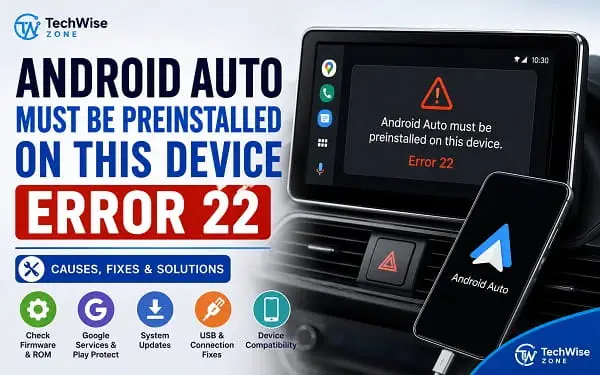
The “Android Auto must be preinstalled on this device” message is not a normal Android Auto connection error. It points to something different: Android Auto is installed on the phone, but the phone’s software does not recognize it as a system-integrated component that can provide Android Auto on the car display.
The full message usually appears as:
Communication error 22 – Android Auto was not preinstalled on this device. Android Auto must be bundled with your operating system to work correctly. Please contact your phone manufacturer for assistance.
Google’s own Android Auto documentation confirms that Android Auto is integrated into compatible Android phones rather than being a separate app you normally need to install for car-display use.
That distinction explains why installing Android Auto from the Play Store may not solve Error 22. On some phones, especially devices running regional firmware, modified software, custom ROMs, or builds without the expected Google system components, the Play Store installation does not change how Android Auto is integrated into the operating system.
Here are the steps I recommend before considering a firmware change or replacing the phone.
What Does Android Auto Error 22 Mean?
Android Auto Error 22 means the phone is not presenting Android Auto to the vehicle as a properly integrated system component.
This is different from problems such as a bad USB cable, Bluetooth failure, or an incompatible car.
Google’s current Android Auto guidance says Android Auto is built into compatible phones and does not need to be downloaded as a separate app for use on a car display.
The Error 22 message therefore usually points toward the phone’s software configuration.
Possible causes include:
- A regional firmware build that does not include Android Auto correctly
- A China-market firmware or ROM
- A custom ROM or modified Android build
- Missing Google Mobile Services
- An Android build that is not properly certified for the required Google services
- Android Auto being present as an ordinary installed application rather than an integrated system component
- A system update that changed or removed required components
- A device configuration that is not supported for Android Auto
One documented example in Google’s Android Auto community involves a Xiaomi device running China firmware that displayed the same Communication Error 22 message after Android Auto was installed from the Play Store.
Why Installing Android Auto From the Play Store May Not Fix Error 22
This is where many troubleshooting attempts go wrong.
You may search for Android Auto in Google Play, install it, and then connect your phone to the car only to receive the same Error 22 message.
That does not necessarily mean the installation failed.
The problem is that Android Auto’s role on the phone is more than simply being a normal app. Google states that Android Auto is integrated into compatible phones and does not need a separate Play Store installation for car-display use.
So if your phone’s firmware does not contain the required integration, installing the application alone may not turn an unsupported software build into a supported one.
This is especially important with imported phones.
1. Check Your Android Version
Start by checking which Android version your phone is running.
Open:
Settings > About phone > Android version
The exact location depends on your manufacturer.
Google currently states that Android Auto on the car display requires Android 9.0 or later for wired connections, while wireless Android Auto has additional device and Android-version requirements.
An old Android version is not the only possible cause of Error 22, but checking it helps establish whether the phone meets the basic requirements.
If your phone is running an old version of Android and an official system update is available, install it and test Android Auto again.
2. Check Whether Android Auto Is Already Built Into the Phone
Do not assume that Android Auto must appear as a normal app icon.
On newer Android phones, Android Auto can be integrated into the operating system and may not appear on the home screen or app drawer.
Search your phone’s Settings for:
Android Auto
You can also check:
Settings > Apps > See all apps
Then search for Android Auto.
If you find Android Auto in the system app list, that is useful information.
If you cannot find it anywhere and your phone is supposed to support Android Auto, the software build deserves closer attention.
Google specifically notes that Android Auto is built into compatible phones and that users may not need to install a separate app from the Play Store.
3. Check Whether Google Play Services Is Installed
Google Play services provides device-connection functionality used by Android Auto.
Google’s Android documentation specifically identifies Android Auto as one of the services that can use Google Play services for device connections.
Open your app list and search for:
Google Play services
You should also have the Google Play Store and other normal Google components if your phone is intended to run Google’s Android ecosystem.
If Google Play services is missing, disabled, or heavily modified, Android Auto may not function as expected.
Do not download random copies of Google Play services from third-party websites. The safest approach is to use the software supplied by the phone manufacturer or Google-supported distribution.
4. Check Whether Your Phone Uses China or Regional Firmware
This is one of the most important checks when you see Error 22.
Two phones can have the same model name and hardware but use different firmware depending on the market where they were sold.
An imported device may be running:
- China firmware
- A regional firmware build
- Carrier-specific software
- A modified ROM
- A custom ROM
The phone may otherwise look completely normal.
Check:
Settings > About phone > Model
Also look for:
- Software version
- Build number
- Region
- ROM information
- Firmware version
Search the exact model and firmware combination on the manufacturer’s official support resources.
A documented Android Auto community case involving a Xiaomi K70 Pro with China firmware showed the same “Android Auto must be preinstalled” Communication Error 22 message.
That does not mean every China-market phone will produce Error 22, but it demonstrates why firmware region matters.
5. Check Whether Your Phone Has Google Mobile Services
Google Mobile Services, commonly called GMS, includes Google’s core services used by many Android applications and features.
If your phone was designed for a market where Google services are not normally included, it may not have the same software configuration as an international model.
Look for:
- Google Play Store
- Google Play services
- Google Services Framework
- Google account support
The presence of the Play Store alone does not necessarily prove that the phone has the exact firmware integration required by Android Auto.
If the phone originally shipped without Google services and you later added them manually, Error 22 may continue because the underlying system integration has not changed.
6. Update the Phone’s Official System Software
If an official system update is available, install it before making any major changes.
Go to:
Settings > System update
or the equivalent option on your phone.
Install updates from the phone manufacturer.
Then restart the phone and test Android Auto again.
This is particularly worthwhile if:
- Android Auto worked before
- Error 22 started after a system update
- Your manufacturer released a newer regional firmware
- The phone is several updates behind
Do not install an unofficial firmware package simply because a forum recommends it.
7. Update Android Auto and Google Play Services
Although installing Android Auto alone may not solve Error 22, keeping the relevant Google components current is still worthwhile.
Open Google Play Store and check for updates to:
- Android Auto
- Google Play services
- Google app
- Other pending Google system components
After updating, restart the phone.
Then try connecting it to the car again.
Google’s current troubleshooting guidance also recommends keeping the phone software current and checking Android Auto compatibility when connection problems occur.
8. Clear Android Auto Cache
If Android Auto is present on your phone, clear its temporary cache.
Go to:
Settings > Apps > Android Auto > Storage
Then tap:
Clear cache
The menu names can differ between Samsung, Xiaomi, Google Pixel, OnePlus, Motorola, Tecno, Infinix, and other Android phones.
Clearing the cache is worth trying when Android Auto previously worked or when a recent update caused unusual behavior.
However, there is an important limitation here.
If the actual problem is that your firmware does not bundle Android Auto correctly, clearing the cache will not convert an unsupported system build into a supported one.
For broader Android maintenance, see How to Clear Cache on Android Without Losing Data.
9. Forget the Car and Reconnect
Error 22 is primarily a phone software issue, but rebuilding the car connection is still worth trying after you have checked the software.
Open Android Auto settings and find:
Previously connected cars
Then forget the affected vehicle.
Restart your phone and reconnect it.
For wired Android Auto, use a reliable USB data cable and connect directly to the vehicle’s supported USB port.
For wireless Android Auto, Bluetooth, Wi-Fi, and Location should be enabled during setup. Google’s current setup instructions recommend keeping these services turned on while completing wireless Android Auto setup.
10. Try a Different USB Cable
If you are connecting through USB, test another high-quality data cable.
A poor cable can cause Android Auto connection problems, although it is important not to confuse this with the underlying Error 22 message.
Google recommends a high-quality USB cable and suggests using one shorter than 1 metre, without USB hubs or extensions.
If the phone immediately displays Error 22 before Android Auto can establish a connection, the cable is less likely to be the root cause than the phone’s software configuration.
Still, testing another cable removes one variable from the diagnosis.
If you are dealing with a different Android Auto connection problem, see Android Auto Communication Error 8 for troubleshooting USB, Bluetooth, Wi-Fi, pairing, and vehicle-side connection problems.
11. Check the Car’s Android Auto Compatibility
Make sure the vehicle actually supports Android Auto.
A USB port does not automatically mean the vehicle supports Android Auto.
Google recommends confirming that the car or aftermarket receiver is compatible with Android Auto.
If the vehicle is compatible and another Android phone connects successfully, the car becomes less likely to be the source of Error 22.
That comparison is useful because it helps separate a phone-side problem from a vehicle-side problem.
12. Test Another Android Phone
This is one of the best diagnostic tests.
Use another compatible Android phone with the same car and USB cable.
If the second phone connects normally, your car and cable are probably working.
The problem is then more likely to be related to the original phone.
Pay particular attention to:
- Firmware region
- Android version
- Google Play services
- Google Mobile Services
- Android Auto system integration
- Custom ROM status
- Device certification
If the second phone also fails with the same error, investigate the vehicle and cable before changing your phone’s firmware.
13. Check Whether Your Phone Is Running a Custom ROM
If you have unlocked the bootloader, flashed a custom ROM, installed a GApps package, or changed the system partition, that information is important.
Android Auto may depend on system-level integration that is not preserved by every custom ROM.
A phone can boot normally, install Google applications, access the Play Store, and still fail Android Auto because its operating system does not contain the expected integration.
If Android Auto worked before you changed the ROM and stopped immediately afterward, the ROM change is a strong clue.
The safest solution may be returning to the manufacturer’s official firmware.
Before doing that, back up your data and follow the exact firmware instructions for your model.
14. Consider Returning to Official Firmware
If Error 22 started after installing a custom ROM or changing the device’s regional firmware, returning to official manufacturer firmware may be necessary.
This is a significantly more advanced step.
Do not flash firmware simply because it is labelled “global” or “international.” The firmware must match the exact model and hardware variant.
An incorrect firmware package can cause serious problems, including loss of functionality or an unusable device.
Before flashing anything:
- Confirm the exact model number.
- Confirm the hardware variant.
- Confirm the correct region.
- Back up important data.
- Use the manufacturer’s official firmware where possible.
- Follow the manufacturer’s installation instructions.
If you are not comfortable with firmware flashing, contacting the manufacturer or an authorized service center is safer.
15. Do Not Keep Reinstalling Android Auto
If you have already installed Android Auto several times and Error 22 keeps returning, stop repeating the same installation.
The error itself tells you why.
The phone is reporting that Android Auto was not preinstalled or bundled with the operating system in the way it expects.
Installing the same application again does not necessarily change the system image.
Instead, investigate the firmware and Google-services configuration.
This is especially important for imported devices and phones running modified Android builds.
16. Check Device Certification
If your phone’s software has been modified, device certification can become relevant.
Open the Google Play Store and check:
Profile picture > Settings > About
Look for the Play Protect certification status.
A certified device is generally in a better position to use Google’s supported ecosystem than an uncertified or heavily modified build.
Certification alone does not guarantee that Error 22 will disappear, but it provides another useful clue about the phone’s software environment.
If the device is not certified, investigate why before making major changes.
17. Check for Work Profiles or Device Management
A work profile or device-management policy can restrict certain device features.
If the phone belongs to an organization or has a management profile installed, check whether the problem occurs only inside the managed environment.
You can inspect:
Settings > Passwords & accounts
or search Settings for:
Work profile
The exact location varies by Android version.
If the device is managed by an employer, school, or organization, do not remove management controls without authorization.
18. Try Android Auto After a Clean Restart
Once you have updated the software and checked the configuration, perform a clean test.
Restart the phone.
Restart the vehicle’s infotainment system.
Keep the vehicle parked.
For wired Android Auto:
- Unlock the phone.
- Start the vehicle.
- Turn on the infotainment system.
- Connect a known-good USB data cable.
- Follow the prompts on the phone and car display.
For wireless Android Auto:
- Turn on Bluetooth.
- Turn on Wi-Fi.
- Turn on Location.
- Pair the phone with the car through Bluetooth.
- Follow the Android Auto setup prompts.
Google recommends keeping Bluetooth, Wi-Fi, and Location Services enabled during wireless Android Auto setup.
Android Auto Error 22 vs Other Android Auto Errors
It is useful to distinguish Error 22 from other Android Auto problems.
Error 22 specifically points toward Android Auto not being properly bundled with the phone’s operating system.
Communication Error 8, by comparison, can involve the communication between the phone and vehicle. For that issue, cable, Bluetooth, Wi-Fi, pairing, software, and vehicle-side troubleshooting are more directly relevant.
That difference matters because you should not treat every Android Auto error as a USB problem.
If your phone displays the exact message about Android Auto needing to be preinstalled, investigate the phone’s system software first.
Why Does Android Auto Work on Another Phone?
If another phone works perfectly with the same car, cable, and connection method, that is strong evidence that the vehicle is not the primary problem.
Compare the two phones.
Look at:
- Android version
- Manufacturer
- Firmware region
- Google Play services
- Play Protect certification
- Android Auto integration
- Custom ROM status
- Google Mobile Services
If the working phone is an official global model while the affected phone uses regional or modified firmware, the software difference becomes especially significant.
Can You Fix Error 22 Without Changing Firmware?
Sometimes.
Start with official system updates, Google Play services, Android Auto settings, device certification, pairing, and connection checks.
However, if the phone’s firmware genuinely does not include the required Android Auto integration, there may not be a simple app-level fix.
Google’s own Android Auto documentation states that Android Auto is integrated into compatible phones.
That means some cases ultimately require a supported firmware build or a compatible phone.
Do not assume that a third-party APK can solve a system-integration problem.
Should You Download Android Auto From a Third-Party Website?
I would avoid this as a primary solution.
Installing an APK from another source may give you a newer or older application package, but it does not necessarily add Android Auto to the phone’s system image.
It can also introduce another variable into an already complicated troubleshooting process.
Use the Google Play Store and official manufacturer software whenever possible.
Should You Factory Reset the Phone?
A factory reset should not be your first response to Error 22.
A reset removes your personal data and settings, but it does not necessarily replace the phone’s firmware with a different regional build or add system components that were never included.
Before considering a factory reset, check the firmware, Google services, Android version, certification status, and whether the device is running a custom ROM.
If the problem began after flashing or modifying the firmware, a factory reset alone is unlikely to be the correct solution.
When You Should Contact the Phone Manufacturer
Contact the manufacturer when:
- The phone is supposed to officially support Android Auto
- It is running official firmware
- Google Play services is present and updated
- The phone meets Android Auto requirements
- Another phone works with the same car
- Error 22 continues after normal troubleshooting
Give the manufacturer the exact error message:
“Android Auto was not preinstalled on this device. Android Auto must be bundled with your operating system to work correctly.”
Also provide the exact model number and firmware version.
This gives the support team much more useful information than simply saying that Android Auto does not work.
Android Auto Must Be Preinstalled on This Device Error 22 FAQs
What does Android Auto Error 22 mean?
Error 22 means Android Auto is not being recognized as properly bundled with the phone’s operating system. It is commonly associated with the phone’s firmware or system configuration rather than a simple USB connection problem.
Why does Android Auto say it must be preinstalled?
Android Auto is integrated into compatible phones for use on the car display. If the phone’s software does not provide that integration correctly, Android Auto can display the preinstalled-system-component message.
Can installing Android Auto from Google Play fix Error 22?
Not always. If the phone’s firmware does not properly integrate Android Auto, installing the app does not necessarily change the system-level configuration.
Is Error 22 caused by a bad USB cable?
Usually, the exact Error 22 message points more strongly toward the phone’s software configuration. However, testing another high-quality cable is still useful when troubleshooting the complete Android Auto connection.
Can China firmware cause Android Auto Error 22?
It can. A documented Xiaomi device running China firmware showed the same Communication Error 22 message in the Android Auto Help Community.
Can a custom ROM cause Error 22?
Yes. A modified Android build can change or remove system components that Android Auto expects. If the error started after installing a custom ROM, investigate the ROM and consider returning to official manufacturer firmware.
Does Android Auto work on Android Go?
Google states that Android Auto is not available on devices running Android Go edition.
Should I factory reset my phone?
Not as an initial fix. A factory reset does not necessarily change the phone’s firmware or add missing system integration. Check the software build and Google components first.
Can I fix Error 22 by installing an APK?
An APK may install the application but cannot necessarily add the required system-level integration. If the firmware is the problem, a supported system build may be required.
What if another phone works with my car?
Focus on the affected phone. Compare its firmware, Android version, Google services, certification status, and ROM configuration with the working phone.
Fixing Android Auto Error 22 Starts With the Phone’s Software
The most important thing to understand about Android Auto must be preinstalled on this device Error 22 is that it is not simply another Android Auto connection problem.
If the exact message says Android Auto was not preinstalled or must be bundled with the operating system, investigate how Android Auto is integrated into the phone.
Start by checking the Android version, Android Auto system component, Google Play services, Google Mobile Services, Play Protect certification, and firmware region. Update the phone using official software, clear Android Auto’s cache if it is present, forget the vehicle, and test another phone with the same car.
If the affected phone uses China firmware, a custom ROM, or another modified software build, the firmware itself may be the reason the error keeps returning. In that situation, repeatedly installing Android Auto is unlikely to solve the underlying problem.
The safest path is to identify the phone’s exact software configuration first. If the device is supposed to support Android Auto but the official firmware does not provide the required integration, contact the manufacturer before attempting a risky firmware change.
