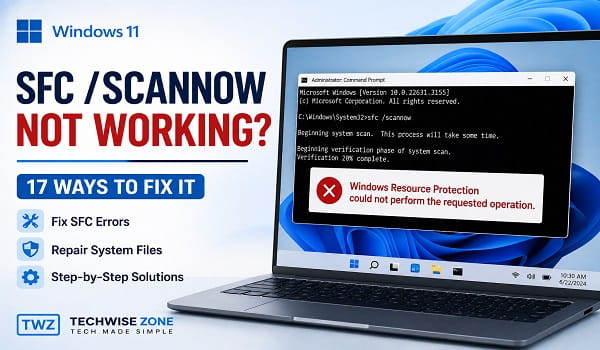
The sfc /scannow command is one of the most useful built-in tools for repairing Windows system files, but it does not always run normally. You may see an error as soon as you press Enter, the scan may get stuck at a percentage, or Windows may report that it found corrupted files but could not repair them.
The problem can also look different from one PC to another. SFC may refuse to start because Command Prompt is not running with administrator privileges, fail because Windows component files are damaged, or stop because another system process is preventing the repair from completing.
Microsoft recommends running DISM before SFC when repairing corrupted Windows components. DISM repairs the Windows component store that SFC relies on, after which sfc /scannow can scan protected system files and replace corrupted copies when possible.
This guide focuses specifically on situations where SFC /scannow is not working, including scans that will not start, scans that get stuck, and scans that finish with an error.
What Does SFC /Scannow Do?
System File Checker, commonly called SFC, is a Windows command-line utility that checks protected system files for corruption. The sfc /scannow command scans the protected files immediately and attempts to replace damaged files with a cached copy.
SFC can be useful when Windows features stop working, system components behave unexpectedly, or Windows becomes unstable because of damaged system files.
However, SFC is not a universal repair tool. It depends on Windows components and system resources being available and healthy enough for the repair process to work.
That is why running SFC repeatedly without addressing the underlying problem is often ineffective.
Why Is SFC /Scannow Not Working?
Several different problems can cause SFC to fail.
Common causes include:
- Command Prompt was not opened as administrator
- The Windows component store is corrupted
- Windows system files are severely damaged
- SFC gets stuck during the verification phase
- Windows cannot access the files required for the repair
- The Windows Modules Installer service has a problem
- The system has pending repairs or updates
- File-system errors are interfering with the scan
- A third-party application or security program is causing a conflict
- The SFC scan is being run from the wrong Windows environment
The exact error message matters. If SFC reports that Windows Resource Protection could not perform the requested operation, for example, the recommended troubleshooting path is different from a situation where SFC says it found corrupted files but could not fix some of them.
1. Make Sure You Are Running SFC as Administrator
One of the simplest reasons sfc /scannow does not work is that Command Prompt does not have elevated permissions.
Open an elevated Command Prompt before running the command.
- Press Windows + S.
- Type Command Prompt.
- Right-click Command Prompt in the search results.
- Select Run as administrator.
- Select Yes if User Account Control appears.
- Enter:
sfc /scannow- Press Enter.
Wait for the verification to reach 100 percent.
Do not close the Command Prompt window while the scan is running.
If the command works after opening Command Prompt as administrator, no further repair may be necessary.
2. Run DISM Before SFC
If SFC still does not work, this is the most important repair step to try.
Microsoft recommends running DISM before SFC because DISM can repair the Windows component store that SFC uses when repairing protected system files.
Open Command Prompt as administrator and run:
DISM.exe /Online /Cleanup-image /RestorehealthPress Enter and allow the operation to finish.
The command may take several minutes. The progress percentage can also remain at one value for a while. Do not close Command Prompt simply because the percentage does not appear to change immediately.
When DISM completes successfully, restart Windows.
Then open an elevated Command Prompt again and run:
sfc /scannowThis DISM-then-SFC sequence is the standard repair order recommended by Microsoft.
3. Restart Windows and Run SFC Again
A pending repair, update, or Windows process can occasionally interfere with system-file repair.
After DISM finishes, restart your computer.
Then run:
sfc /scannowagain from an elevated Command Prompt.
If SFC works after the restart, the earlier failure was likely temporary or related to a pending system operation.
If it still fails, continue with the next steps rather than repeatedly running the same command.
4. Check the Exact SFC Error Message
The message displayed at the end of the scan can tell you which direction to take.
Windows Resource Protection did not find any integrity violations
This means SFC did not find missing or corrupted protected system files.
If Windows is still malfunctioning, the cause may be something other than corrupted system files.
Windows Resource Protection found corrupt files and successfully repaired them
This means SFC found damaged files and successfully replaced them.
Restart Windows and check whether the original problem has been resolved.
Windows Resource Protection found corrupt files but was unable to fix some of them
SFC found corruption but could not repair everything.
Run DISM first if you have not already done so, then run SFC again.
If SFC still cannot repair the files, you can inspect the CBS log to identify the affected files.
Windows Resource Protection could not perform the requested operation
This is a different problem. Microsoft recommends running the SFC scan in Safe Mode for this condition and checking that the PendingDeletes and PendingRenames folders exist under the Windows component store.
If this is the error you are seeing, our guide on Windows Resource Protection Error covers additional troubleshooting steps for this specific problem.
5. Run SFC in Safe Mode
If sfc /scannow will not complete in normal Windows, Safe Mode can help because Windows starts with a more limited set of drivers and services.
To enter Safe Mode in Windows 11:
- Open Settings.
- Go to System > Recovery.
- Under Recovery options, find Advanced startup.
- Select Restart now.
- After Windows restarts, select Troubleshoot.
- Select Advanced options.
- Select Startup Settings.
- Select Restart.
- Press the number associated with Safe Mode.
Once Windows starts in Safe Mode, open Command Prompt as administrator and run:
sfc /scannowWait for the scan to reach 100 percent.
Safe Mode is particularly relevant if SFC reports that Windows Resource Protection could not perform the requested operation.
6. Check the Windows Modules Installer Service
The Windows Modules Installer service, also known as TrustedInstaller, is responsible for enabling installation, modification, and removal of Windows updates and optional components.
If the service is disabled or experiencing a problem, Windows repair operations can be affected.
To check it:
- Press Windows + R.
- Type:
services.msc- Press Enter.
- Find Windows Modules Installer.
- Double-click it.
- Check its current status and startup configuration.
Do not randomly disable or change Windows services while troubleshooting. If the service is already configured normally, leave it alone and continue with the other repair steps.
7. Check for Pending Windows Updates
A pending Windows update can sometimes complicate system repair operations.
Go to:
Settings > Windows Update
Select Check for updates and install available updates.
Restart the computer if Windows requests it.
After Windows has completed the update process, open an elevated Command Prompt and try:
DISM.exe /Online /Cleanup-image /Restorehealthfollowed by:
sfc /scannowIf Windows Update itself is failing because of corrupted system files, repairing the Windows image and system files may also help resolve the update problem.
8. Check Your Drive for File-System Errors
SFC checks Windows system files, but it is not designed to repair every type of disk or file-system problem.
If Windows has file-system errors, run CHKDSK.
Open Command Prompt as administrator and enter:
chkdsk C: /fIf Windows reports that the drive is currently in use and asks whether you want to schedule the check for the next restart, type:
YPress Enter, then restart the computer.
Allow CHKDSK to finish.
After Windows starts again, run:
sfc /scannowDo not interrupt CHKDSK while it is repairing the file system.
9. Check Whether SFC Is Actually Stuck
SFC can appear to stop moving even when the scan is still running.
For example, you might see the verification percentage remain at 20 percent, 40 percent, or another value for an extended period.
Avoid immediately closing Command Prompt.
Depending on the condition of the system and the amount of corruption being processed, the scan can take time.
If the percentage remains unchanged for a long period and the computer shows no signs that the process is progressing, allow the system some additional time before deciding that the scan has genuinely stalled.
If SFC repeatedly gets stuck at the same point after multiple attempts, move to DISM, Safe Mode, and disk checks instead of repeatedly interrupting the scan.
10. Run SFC After DISM Reports a Successful Repair
If DISM reports that the restore operation completed successfully, restart Windows and run SFC again.
Use:
sfc /scannowThe important part is to allow the SFC scan to reach 100 percent.
If SFC now completes successfully, review its final message.
If it reports that corrupted files were repaired, restart Windows and test the feature or application that originally caused the problem.
If SFC still reports that some files could not be repaired, continue to the CBS log.
11. Check the SFC CBS Log
When SFC cannot repair some files, Windows records detailed information in the CBS log.
You do not need to read the entire log manually.
Open an elevated Command Prompt and run:
findstr /c:"[SR]" %windir%\Logs\CBS\CBS.log >"%userprofile%\Desktop\sfcdetails.txt"Press Enter.
Windows will create a file called:
sfcdetails.txton your desktop.
Open that file to review details from SFC scans.
The file can contain results from multiple SFC runs, so pay attention to the date and time of the entries when identifying the files involved in the latest scan.
If the same system file repeatedly appears as unable to be repaired, that information can help determine the next repair step.
12. Run DISM With a Different Repair Source
The normal DISM command is:
DISM.exe /Online /Cleanup-image /RestorehealthBy default, DISM can use Windows Update as a source for the files it needs.
If Windows Update itself is damaged or unavailable, DISM may not be able to obtain the required repair files.
In that situation, an appropriate Windows installation or other valid repair source can be used instead.
The syntax Microsoft provides for a repair source is:
DISM.exe /Online /Cleanup-Image /RestoreHealth /Source:C:\RepairSource\Windows /LimitAccessReplace the example repair-source path with the actual location of a compatible Windows repair source.
Do not copy a random Windows folder from another PC and use it as a repair source. The source should correspond appropriately to the Windows installation you are repairing.
This is an advanced repair method. If you are not sure which source to use, stick with the standard DISM command or use Microsoft’s Windows image repair documentation.
13. Try a Clean Boot
If SFC works in some situations but fails during normal Windows operation, a third-party service or startup program may be interfering with the repair process.
A clean boot starts Windows with a minimal set of drivers and startup programs.
To perform one:
- Press Windows + R.
- Type:
msconfig- Press Enter.
- Open the Services tab.
- Select Hide all Microsoft services.
- Select Disable all.
- Open the Startup tab.
- Select Open Task Manager.
- Disable enabled third-party startup applications.
- Close Task Manager.
- Select OK in System Configuration.
- Restart Windows.
Once Windows starts, open an elevated Command Prompt and run:
sfc /scannowIf SFC works in a clean boot, a third-party service or startup application may be interfering.
After troubleshooting, restore your normal startup configuration rather than leaving Windows in a diagnostic state permanently.
14. Make Sure You Have Enough Free Storage
Windows repair operations need working space.
If your system drive is almost full, free some storage before attempting additional repairs.
Open Settings > System > Storage and review your available space.
Remove only files you know you no longer need.
You can also use Windows’ built-in Storage recommendations or Disk Cleanup to remove unnecessary temporary files.
After freeing space, restart Windows and run DISM followed by SFC again.
15. Check Whether a Security Program Is Interfering
Some third-party security applications can interfere with Windows system operations.
If the SFC problem started after installing or updating third-party security software, consider whether the timing is related.
Do not permanently disable security protection just to run SFC.
Instead, use a clean boot to determine whether a third-party service is involved, and check the security software manufacturer’s documentation for compatibility issues with your Windows version.
Windows’ built-in security features should not be disabled unnecessarily during system repair.
16. Run SFC From Windows Recovery Environment
If Windows cannot start normally or SFC will not run correctly inside Windows, you may need to use the Windows Recovery Environment.
This is an advanced option because the Windows installation may have a different drive letter when you are working from recovery.
From Windows Recovery, open:
Troubleshoot > Advanced options > Command Prompt
Before running an offline SFC command, determine which drive contains your Windows installation.
You can check available drives with:
diskpartthen:
list volumeExit DiskPart with:
exitOnce you know the correct Windows drive letter, an offline SFC command can be constructed for that installation.
For example:
sfc /scannow /offbootdir=C:\ /offwindir=C:\WindowsDo not assume C: is always the Windows drive inside the recovery environment. Verify the drive letter first.
Offline SFC is most useful when Windows cannot boot normally or when normal-mode repairs cannot complete.
17. Restart After Completing the Repairs
Once DISM, SFC, CHKDSK, or another system repair has completed, restart Windows before judging the result.
This gives Windows an opportunity to reload repaired components and complete pending operations.
After restarting, check the original problem that led you to run SFC.
For example, if the Start menu was not working, test it again. If File Explorer was crashing, open it several times. If Windows Update was failing, check for updates again.
The purpose of SFC is to repair system-file problems, so always verify whether the original Windows problem has actually been resolved.
Common SFC Messages and What They Mean
“Windows Resource Protection did not find any integrity violations”
SFC did not find corruption in the protected system files it checked.
If your original problem remains, investigate other causes instead of repeatedly running SFC.
“Windows Resource Protection found corrupt files and successfully repaired them”
SFC found corruption and repaired it.
Restart Windows and test the system again.
“Windows Resource Protection found corrupt files but was unable to fix some of them”
Some corrupted files could not be repaired.
Run DISM, then run SFC again. If the problem remains, inspect the SFC details from the CBS log.
“Windows Resource Protection could not perform the requested operation”
Microsoft recommends running SFC in Safe Mode for this error and checking the relevant Windows component-store folders.
Our Windows Resource Protection Error guide provides additional troubleshooting for this specific message.
SFC /Scannow Not Working After a Windows Update
If SFC stopped working after a Windows update, do not immediately assume the update caused the problem.
First restart Windows and check for additional updates.
Then run:
DISM.exe /Online /Cleanup-image /Restorehealthfollowed by:
sfc /scannowIf Windows Update is also failing, repairing the Windows image and system files can be especially useful.
If the problem began immediately after a particular update and other Windows features also stopped working, review Settings > Windows Update > Update history and investigate the specific update before removing anything.
SFC /Scannow Not Working on Windows 11
The same general repair sequence applies to Windows 11:
- Open Command Prompt as administrator.
- Run DISM.
- Restart Windows.
- Run SFC.
- Check the SFC result.
- Use Safe Mode if SFC cannot perform the requested operation.
- Use CHKDSK if file-system errors are suspected.
- Use the CBS log if SFC cannot repair specific files.
- Use Windows Recovery for advanced offline repairs.
Windows 11 also provides recovery options if normal repair methods do not resolve the underlying problem.
Avoid downloading unofficial SFC replacements or third-party “system repair” utilities. SFC, DISM, CHKDSK, Safe Mode, and Windows Recovery are already built into Windows.
Frequently Asked Questions
Why is SFC scannow not working?
SFC can fail because Command Prompt is not running as administrator, Windows component files are damaged, the system has pending repairs, file-system errors exist, or another process is interfering with the scan.
What should I do if SFC /scannow does nothing?
First make sure Command Prompt is running as administrator. If the command still fails, run DISM.exe /Online /Cleanup-image /Restorehealth, restart Windows, and then run sfc /scannow again.
Why is SFC scannow stuck?
SFC can take time to complete, especially when Windows is processing corrupted files. If it repeatedly stops at the same percentage for an unusually long period, run DISM, check the disk with CHKDSK, and try SFC in Safe Mode.
Should I run DISM before SFC?
Yes. Microsoft recommends running DISM before SFC because DISM can repair the Windows component store that SFC relies on.
How do I fix “Windows Resource Protection could not perform the requested operation”?
Try running SFC in Safe Mode. Also check the relevant Windows component-store folders and run DISM before trying SFC again.
Can CHKDSK fix SFC problems?
CHKDSK is not an SFC replacement, but it can help when file-system errors on the drive are interfering with Windows operations. After CHKDSK finishes, you can run SFC again.
Can I run SFC without administrator access?
You should run SFC from an elevated Command Prompt. Without the required permissions, the command may fail or be unable to perform the repair.
How long does SFC /scannow take?
There is no fixed time for every PC. The scan can take several minutes or longer depending on system condition and the amount of work required. Do not close Command Prompt before verification reaches 100 percent.
Can SFC repair every Windows problem?
No. SFC repairs protected Windows system files, but many Windows problems are caused by drivers, applications, updates, user profiles, disk problems, or other components that SFC does not repair.
When SFC /Scannow Still Does Not Work
When sfc /scannow does not work, repeatedly running the same command is usually not the best approach. Start by making sure you are using an elevated Command Prompt, then run DISM to repair the Windows component store before trying SFC again.
If SFC still fails, pay attention to the exact message it produces. A scan that cannot start, a scan that gets stuck, a scan that cannot perform the requested operation, and a scan that finds corruption but cannot repair it all require slightly different troubleshooting.
For most Windows 11 systems, the most useful sequence is DISM, restart, SFC, check the result, then move to Safe Mode, CHKDSK, CBS log analysis, or Windows Recovery if necessary.
That approach gives you a structured way to troubleshoot SFC without jumping straight to a Windows reset or reinstall.
