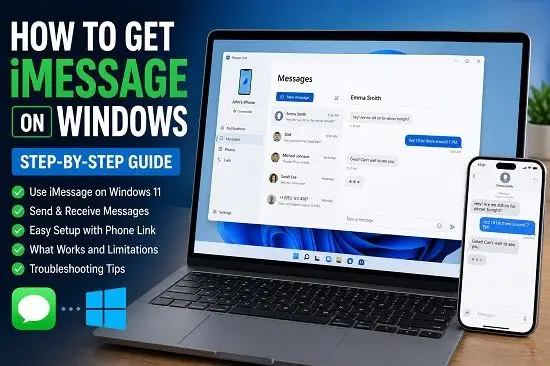
If you use an iPhone but work on a Windows PC, you may have wondered how to get iMessage on Windows without constantly reaching for your phone to read and reply to messages.
The good news is that Windows has an official way to connect an iPhone to a PC through Microsoft’s Phone Link app. With a compatible Windows PC and iPhone, you can pair the devices over Bluetooth and use Phone Link to send and receive supported messages, including iMessage conversations, from your computer.
There is an important catch: Phone Link is not a full native iMessage application for Windows. Apple does not provide a standalone iMessage app for Windows. Instead, Microsoft’s Phone Link provides limited messaging functionality through the iPhone connection. That means you can access supported individual conversations and reply from your PC, but several features available in Apple’s Messages app are unavailable.
Microsoft’s current support documentation confirms that Phone Link for iPhone supports messaging, calls, and notifications, while also documenting limitations around message history, group conversations, and media attachments.
Can You Get iMessage on Windows?
Yes, but with an important distinction.
You cannot install an official Apple iMessage application on Windows because Apple does not offer one.
Instead, Windows users can use Microsoft Phone Link to connect an iPhone and access supported messaging features from the PC.
Microsoft says Phone Link can connect an iPhone to a Windows PC and allow you to send and receive messages, make and receive calls, and manage notifications. The iPhone connects to the PC using Bluetooth.
So if your goal is to read and reply to iPhone messages from your Windows computer, Phone Link is currently the simplest official option.
If your goal is to have the complete Apple Messages experience, including full history, group chats, media, effects, and other iMessage features, Phone Link does not provide that.
What You Need to Get iMessage on Windows
Before setting up Phone Link, make sure you have:
- A Windows PC with Windows 11
- A compatible iPhone
- Bluetooth support on the Windows PC
- Bluetooth enabled on the iPhone
- A Microsoft account
- An up-to-date version of Windows and Phone Link
- The Link to Windows app on the iPhone if prompted during setup
Microsoft’s current Phone Link support documentation lists Windows 11 and an iPhone running iOS 16 or later for the current iOS setup instructions. Microsoft’s App Store listing for Link to Windows also currently lists iOS 16 or later and Bluetooth Low Energy support.
Requirements can change as Microsoft updates Phone Link, so follow the requirements shown by the current app if they differ from older guides.
How to Get iMessage on Windows Using Phone Link
For most people, this is the method to try first.
Step 1: Update Windows
Open:
Settings > Windows UpdateSelect Check for updates and install available updates. Restart the computer if Windows asks you to.
Keeping Windows current is useful because Phone Link receives updates and compatibility improvements through Microsoft’s Windows ecosystem.
If Windows Update itself is giving you problems, see our guide on how to clear the Windows Update cache.
Step 2: Open Phone Link
Open Start and search for:
Phone LinkSelect the Phone Link app.
Phone Link is available on most modern Windows installations. If it is missing, Microsoft provides installation options through Windows settings and the Microsoft Store.
Step 3: Choose iPhone
When Phone Link opens, select iPhone.
The app will display instructions for connecting your iPhone.
If the iPhone option is unavailable, check that Bluetooth is enabled and that your Windows and Phone Link versions meet Microsoft’s current requirements.
Step 4: Sign In
Phone Link may ask you to sign in with a Microsoft account. Use the account associated with your Windows PC and follow the prompts.
Step 5: Scan the QR Code
Phone Link will display a QR code during the pairing process. Use your iPhone’s camera to scan it.
The QR code helps initiate the pairing process between the iPhone and PC.
Step 6: Confirm Bluetooth Pairing
Your iPhone and PC will display a pairing code. Confirm that the codes match and approve the Bluetooth pairing on both devices.
Phone Link for iPhone relies on the Bluetooth connection to exchange supported information between the phone and computer.
Step 7: Allow Permissions
Your iPhone may ask for permissions related to notifications, contacts, and messages.
Allow the permissions required by Phone Link if you want to use its messaging features.
On the iPhone, open:
Settings > BluetoothFind the connected Windows PC and tap the information button next to it. Check the available options for Show Notifications and Sync Contacts.
If you skip the required permissions, Phone Link may connect successfully but still fail to display messages.
How to Enable Messages in Phone Link
You do not need to install a separate iMessage program on Windows.
Once your iPhone is paired with Phone Link, messaging is available through the Phone Link app.
On your iPhone, open:
Settings > BluetoothFind your Windows PC and tap the information button. Make sure the relevant notification and contact synchronization permissions are enabled.
On Windows, open:
Phone Link > Settings > FeaturesCheck the available messaging options.
Microsoft’s current instructions say that when pairing an iPhone, you may be prompted to allow access to messages, and these permissions can also be managed through the iPhone’s Bluetooth settings.
How to Send an iMessage From Windows
After your iPhone and Windows PC are paired:
- Open Phone Link.
- Select Messages.
- Choose an existing conversation or select New Message.
- Select the contact.
- Type your message.
- Send it from the PC.
Microsoft supports sending and receiving supported messages through Phone Link for iPhone.
The limitation is that Phone Link does not provide the complete Messages app experience found on the iPhone.
Does Phone Link Really Support iMessage?
Yes. Microsoft’s Windows documentation says the Phone Link experience can handle messages from an iPhone, including iMessage.
However, it is more accurate to think of Phone Link as a limited bridge between your iPhone and Windows rather than an independent iMessage client.
The actual experience is constrained by how iOS allows third-party devices and applications to interact with the Messages system. This is why some iMessage features are missing.
What iMessage Features Work on Windows?
Phone Link provides the core messaging functions Microsoft supports for iPhone users.
Depending on your current Windows and iPhone configuration, you can:
- View supported individual conversations
- Send messages
- Receive messages
- Receive message notifications
- Start individual conversations
- Make and receive phone calls
- Manage supported iPhone notifications
Microsoft confirms that Phone Link supports messages, calls, and notifications when an iPhone is connected.
However, the limitations are important.
What Does Not Work With iMessage on Windows?
Phone Link for iPhone does not provide every feature available in Apple’s Messages app.
Group messaging is not supported
You cannot use Phone Link to properly create and send group messages from an iPhone. If you receive a group message, it may appear as a notification, but you may need to use the iPhone to respond to the group conversation.
Images, GIFs, and Memojis are not supported
Microsoft’s current documentation says Phone Link for iOS does not support sending or receiving images, GIFs, and Memojis through its messaging feature.
Therefore, do not expect Phone Link to behave like the Messages app on your iPhone when someone sends a photo or other media.
Full message history is not available
Phone Link does not provide your complete iMessage history.
Microsoft says the messages visible in Phone Link are those sent or received while the iPhone and PC are connected through Bluetooth. If the Bluetooth connection ends, that message history can disappear from Phone Link.
This is different from Apple’s Messages app, where conversation history can remain available across supported Apple devices.
You cannot manage or delete messages from the PC
Microsoft says you cannot manage or delete messages from the PC through Phone Link. If you need to permanently manage a conversation, use the Messages app on the iPhone.
Advanced iMessage features are unavailable
Features such as Apple’s message effects and other advanced iMessage functions are not reproduced as a full iMessage experience inside Phone Link.
Phone Link is designed for basic communication rather than recreating the entire Apple Messages application on Windows.
Why Are My iPhone Messages Not Showing in Phone Link?
If Phone Link connects successfully but messages are missing, check the Bluetooth permissions first.
On your iPhone, open:
Settings > BluetoothFind your Windows PC and tap the information button.
Make sure the relevant notification and contact synchronization options are enabled.
Also check that Bluetooth remains enabled on both devices.
Microsoft notes that only messages sent and received while the iPhone and PC are paired and connected are available in Phone Link. Messages sent directly from the iPhone outside the active Phone Link connection may not appear in the PC’s message view.
Fix: Phone Link Is Connected but Messages Are Missing
Try these fixes in order.
1. Check Bluetooth
Make sure Bluetooth is enabled on both devices.
2. Check iPhone permissions
Go to:
Settings > BluetoothTap the connected Windows PC and check the available permissions. Enable the required notification and contact synchronization options.
3. Restart Phone Link
Close Phone Link completely and open it again.
4. Restart the iPhone
Restarting the iPhone can refresh the Bluetooth connection and background communication.
5. Restart Windows
Restart your PC and open Phone Link again.
6. Update Phone Link
Open the Microsoft Store and check for Phone Link updates. Microsoft recommends keeping Phone Link updated when troubleshooting missing messages.
7. Re-pair the devices
If the connection remains unreliable, remove the Bluetooth pairing from both devices and pair them again.
On Windows, remove the iPhone from Bluetooth settings. On the iPhone, forget the Windows PC under Bluetooth. Then turn Bluetooth off and back on and start the Phone Link pairing process again.
How to Reconnect an iPhone to Windows Phone Link
If you previously connected the iPhone but removed it, clear the old Bluetooth pairing.
On Windows:
Settings > Bluetooth & devicesFind the iPhone and remove it.
On the iPhone:
Settings > BluetoothFind the Windows PC and select Forget This Device.
Turn Bluetooth off on both devices, wait a few seconds, turn it back on, and then open Phone Link to start pairing again.
Microsoft recommends removing the device from both sides when completely unpairing Phone Link.
Can You Get iMessage on Windows 10?
Phone Link has supported iPhone connections on certain Windows 10 versions as well as Windows 11, but Windows 11 is the better choice for a current setup.
Microsoft’s Phone Link documentation lists supported Windows 10 and Windows 11 versions, while its current Windows guidance focuses heavily on Windows 11.
If you are still using Windows 10, check the current Phone Link requirements before troubleshooting the connection.
Windows 10 reached the end of Microsoft support in October 2025. If your PC supports Windows 11, upgrading is the better long-term option.
If you are preparing to upgrade, see our guide on things to do before upgrading to Windows 11.
Is There a Native iMessage App for Windows?
No.
Apple does not provide a native iMessage application for Windows.
Phone Link is Microsoft’s official solution for connecting an iPhone to a Windows PC and accessing supported messages and other phone features.
Be cautious when you see websites offering a supposed official “iMessage for Windows” download. There is no reason to download an unofficial executable claiming to be Apple’s Windows iMessage client.
Should You Use Third-Party iMessage Apps?
You may find third-party projects that attempt to bring iMessage to Windows using a Mac, remote connection, server, or other workaround.
Some can be technically interesting, but they are much more complicated than Phone Link. They may require a Mac, an always-on computer, additional software, network configuration, Apple account access, and ongoing maintenance.
For the average Windows user who simply wants to read and reply to individual iPhone messages, Phone Link is the better starting point.
If you need the complete iMessage experience, using Apple’s Messages app on a Mac remains the more straightforward option.
Is Phone Link Safe to Use With iMessage?
Phone Link is Microsoft’s official Windows solution for connecting supported iPhones to Windows PCs.
However, you should understand the permissions you are granting.
Microsoft warns that when message access is enabled, sensitive information such as two-factor authentication SMS messages may become visible through Phone Link.
For that reason:
- Only pair your iPhone with a PC you trust.
- Do not enable phone access on a public computer.
- Be careful when using a shared Windows PC.
- Review permissions if you stop using Phone Link.
- Remove the pairing if the PC no longer belongs to you.
How to Stop Using iMessage on Windows
If you no longer want your iPhone connected to the PC, remove the pairing.
On Windows:
Phone Link > Settings > My DevicesSelect the iPhone and remove it.
Then open Bluetooth settings on the iPhone and forget the Windows PC.
Microsoft recommends removing the device from both sides when completely unpairing Phone Link.
Can You Use iMessage in a Web Browser on Windows?
There is no official Apple web version of iMessage comparable to services such as WhatsApp Web.
You should therefore be skeptical of websites claiming that you can simply sign in to iCloud and open your complete iMessage inbox in a browser.
For Windows users, the official practical option is Phone Link.
If you need full iMessage functionality, Apple devices remain the appropriate environment for the complete Messages experience.
Phone Link vs. Full iMessage
The easiest way to understand the difference is to compare the two experiences.
Phone Link on Windows
You get:
- Individual messaging
- Supported iMessage conversations
- Notifications
- Calls
- Basic text communication
- Bluetooth-based connection
You do not get:
- Full message history
- Group messaging from the PC
- Image and GIF messaging
- Memojis
- Complete iMessage effects
- Full message management
Apple Messages
On supported Apple devices, Messages provides the complete iMessage experience, including Apple’s broader messaging features and ecosystem integration.
If you simply want to reply to iPhone messages while using a Windows laptop, Phone Link is a useful solution.
If you want Apple’s complete Messages application on Windows, Phone Link is not a replacement for that.
Frequently Asked Questions
Can I get iMessage on Windows?
Yes. Windows users can access supported iPhone messages through Microsoft’s Phone Link app. It is not a native Apple iMessage application and has several limitations.
What is the easiest way to get iMessage on Windows 11?
Use Microsoft Phone Link. Open Phone Link on Windows 11, select iPhone, pair the iPhone through Bluetooth, scan the QR code when prompted, and approve the required permissions.
Does Phone Link support iMessage?
Yes. Microsoft’s Windows documentation says Phone Link can send and receive messages from a connected iPhone, including iMessage.
Can I send group iMessages from Windows?
No. Phone Link currently does not support group messaging from an iPhone. Use the iPhone’s Messages app for group conversations.
Can I send pictures through iMessage on Windows?
Phone Link for iOS currently does not support sending or receiving images, GIFs, or Memojis through its messaging feature.
Can I see my entire iMessage history on Windows?
No. Phone Link only shows supported messages sent or received while the iPhone and PC are connected. Disconnecting Bluetooth can remove that message history from Phone Link.
Do I need a Mac to use iMessage on Windows?
Not if your goal is basic iPhone messaging through Phone Link. You can connect a compatible iPhone directly to a Windows PC. A Mac is relevant only if you are considering more advanced third-party workarounds for the full iMessage experience.
Does Phone Link work with Windows 10?
Microsoft supports Phone Link on certain Windows 10 versions as well as Windows 11, but Windows 11 is the recommended current platform. Windows 10 reached the end of support in October 2025.
Why isn’t my iMessage showing in Phone Link?
Check Bluetooth, iPhone notification and contact permissions, Phone Link updates, and the connection itself. Messages sent or received while the iPhone is disconnected may not appear in Phone Link.
Is there an official iMessage app for Windows?
No. Apple does not provide a native iMessage application for Windows. Phone Link is Microsoft’s official way to access supported iPhone messaging features from Windows.
The Best Way to Get iMessage on Windows
If you have an iPhone and Windows PC, the easiest current solution is Microsoft Phone Link.
You do not need to download a suspicious “iMessage for Windows” program or install an unofficial application.
Connect your iPhone to Phone Link using Bluetooth, approve the required permissions, and you can access supported individual messages directly from your Windows computer.
Just keep the limitations in mind.
Phone Link is not a complete replacement for Apple’s Messages app. It does not provide full message history, group messaging, image and GIF messaging, or the complete collection of iMessage features. Microsoft confirms that messages are primarily available while the iPhone and PC remain paired and connected, and that group messaging and media messaging are not currently supported for iPhone.
For someone who simply wants to stop reaching for an iPhone every time a message arrives while working on a Windows PC, Phone Link is currently the most straightforward option.
If the connection does not work, start with Bluetooth and permissions before trying more complicated solutions. In most cases, the basic pairing process is all you need.
