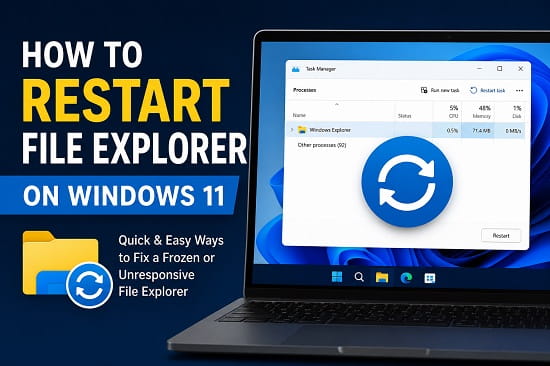
File Explorer can freeze, stop opening folders, lose the taskbar, or leave the desktop unresponsive even though Windows itself is still running. In many cases, you do not need to restart the entire computer. Restarting the explorer.exe process reloads the Windows shell and can restore File Explorer, the desktop, taskbar, Start menu, notification area, and related interface elements within seconds.
If you are searching for how to reset File Explorer in Windows 11 using PowerShell, the quickest command pair is:
Stop-Process -Name explorer -Force
Start-Process explorer.exe
The first command stops the current Explorer process. The second launches a fresh explorer.exe process. Microsoft documents Stop-Process as the PowerShell cmdlet for stopping a process by name or ID and Start-Process as the cmdlet for starting a new local process.
In this context, many people use the word reset when they actually mean restart File Explorer. Restarting explorer.exe does not erase files or restore all File Explorer preferences to their defaults.
If your taskbar is also frozen after Explorer restarts, see Windows 11 Taskbar Not Working.
How to Reset File Explorer in Windows 11 Using PowerShell
To reset or restart File Explorer with PowerShell:
- Right-click Start.
- Select Terminal (Admin) or PowerShell (Admin).
- Run:
Stop-Process -Name explorer -ForceYour taskbar, desktop icons, and open File Explorer windows may disappear temporarily.
- Then run:
Start-Process explorer.exeThe desktop and taskbar should return within a few seconds.
You can confirm Explorer is running with:
Get-Process explorerIf PowerShell returns one or more explorer processes, Explorer is running.
One-line PowerShell version
Stop-Process -Name explorer -Force; Start-Process explorer.exeThis stops Explorer and immediately launches it again.
What Is File Explorer?
File Explorer, also known as Windows Explorer or explorer.exe, is the Windows process responsible for displaying and managing the graphical user interface.
It controls features such as:
- Desktop icons
- Taskbar
- Start menu
- File browsing
- Quick Access
- Navigation pane
- Context menus
- Notification area
- File management
If this process encounters a problem, Windows may appear broken even though the operating system is still running normally.
Restarting File Explorer refreshes the interface without requiring a full reboot.
When Should You Restart File Explorer?
Restarting File Explorer is useful in many situations.
Some of the most common include:
- File Explorer stops responding.
- Desktop icons disappear.
- The taskbar freezes.
- The Start menu won’t open.
- Right-click menus stop working.
- Windows animations become sluggish.
- Explorer crashes repeatedly.
- File windows refuse to open.
- Changes to Windows settings don’t appear immediately.
Because restarting Explorer only refreshes the Windows shell, it is usually much faster than restarting your entire PC.
Method 1: Restart File Explorer Using Task Manager
This is the easiest and most commonly used method.
To restart File Explorer:
- Press Ctrl + Shift +Esc to open Task Manager.
- If Task Manager opens in compact mode, click More details.
- Under the Processes tab, locate Windows Explorer.
- Select it.
- Click Restart.
Windows will briefly refresh the desktop.
The taskbar may disappear for a second before returning.
This is completely normal.
Once Explorer restarts, check whether your issue has been resolved.
Method 2: Restart Explorer.exe Using Command Prompt
If Task Manager isn’t working, you can restart Explorer using Command Prompt.
To do this:
- Press Windows + S.
- Search for Command Prompt.
- Select Run as administrator.
Enter the following command:
taskkill /f /im explorer.exeThis closes File Explorer.
Next, restart it by entering:
start explorer.exeWithin a few seconds, your desktop and taskbar should reappear.
Method 3: Restart File Explorer Using PowerShell
PowerShell is one of the fastest ways to restart explorer.exe, especially when Task Manager is not responding.
Right-click Start and choose Terminal (Admin).
Run:
Stop-Process -Name explorer -ForceYou may temporarily lose the taskbar, desktop icons, File Explorer windows, Start menu, and notification area. This is expected.
Then run:
Start-Process explorer.exeWindows should reload the desktop and taskbar.
Check whether Explorer restarted successfully
Run:
Get-Process explorerIf Explorer is running, PowerShell will display process information.
Restart Explorer with one PowerShell line
Stop-Process -Name explorer -Force; Start-Process explorer.exeMethod 4: Restart File Explorer Using Windows Terminal
Windows Terminal combines Command Prompt and PowerShell into one application.
You can restart Explorer from either environment.
- Open Windows Terminal.
- Choose either Command Prompt or PowerShell.
- Use one of the command sets shown above.
- Wait for Explorer to restart.
This method is useful for users who regularly manage Windows through Terminal.
Method 5: Restart File Explorer Using a Batch File
If you frequently restart Explorer, creating a batch file can save time.
Open Notepad and enter:
taskkill /f /im explorer.exe
start explorer.exe
Save the file as:
Restart-Explorer.batWhenever Explorer freezes, simply double-click the batch file.
Windows will automatically restart Explorer within seconds.
This method is especially useful for IT professionals and power users.
Why Restarting File Explorer Works
Many Windows problems are caused by temporary issues within the Explorer process rather than Windows itself.
Restarting Explorer clears:
- Temporary interface glitches
- Frozen desktop elements
- Broken taskbar processes
- Stuck context menus
- Unresponsive File Explorer windows
- Minor graphical issues
Because Windows reloads Explorer from scratch, many problems disappear immediately.
Method 6: Create a Desktop Shortcut to Restart File Explorer
If you frequently experience File Explorer freezes, creating a desktop shortcut allows you to restart Explorer with a single double-click.
Here’s how:
- Right-click an empty area on your desktop.
- Select New > Shortcut.
- Enter the following command:
C:\Windows\System32\cmd.exe /c taskkill /f /im explorer.exe && start explorer.exe- Click Next.
- Name the shortcut Restart File Explorer.
- Click Finish.
You can now restart Explorer anytime without opening Task Manager or Command Prompt.
Method 7: Sign Out and Sign Back In
Sometimes the Explorer process becomes unstable because of your current Windows session.
Instead of restarting the entire PC:
- Press Ctrl + Alt + Delete.
- Select Sign out.
- Log back into Windows.
This reloads Explorer and your user profile, often resolving temporary interface problems.
Method 8: Restart Your Computer
If Explorer refuses to restart or immediately crashes again, restarting Windows is the simplest solution.
Although restarting Explorer is faster, rebooting your computer also reloads:
- Windows services
- Device drivers
- Background applications
- System processes
Many Explorer-related issues disappear after a normal restart.
Reset File Explorer vs Restart File Explorer
The word reset can mean two different things.
Restart Explorer.exe
Use this when:
- File Explorer is frozen
- The taskbar is not responding
- Desktop icons disappeared
- The Start menu stopped responding
- Explorer windows refuse to open
- Right-click menus are stuck
PowerShell:
Stop-Process -Name explorer -Force
Start-Process explorer.exe
This reloads the Explorer process.
Reset File Explorer Settings
Use this when File Explorer opens but preferences or folder behavior are wrong.
Examples:
- File Explorer opens to the wrong location
- Folder views behave incorrectly
- Navigation preferences changed
- Home or Quick Access behavior is not what you expect
Microsoft’s current File Explorer documentation confirms that Windows 11 uses File Explorer Home as the default landing page on current versions, and users can switch File Explorer to open to This PC instead.
Restarting explorer.exe does not automatically restore those settings.
What If File Explorer Won’t Restart?
If Explorer doesn’t restart after using the methods above, another Windows component may be causing the problem.
Try the following solutions.
PowerShell says it cannot find a process named explorer
If:
Stop-Process -Name explorer -Forcereturns an error saying no explorer process can be found, Explorer may already have crashed or stopped.
Run:
Start-Process explorer.exeThen verify:
Get-Process explorerIf Explorer still refuses to launch, continue with SFC, DISM, Safe Mode, and the repair steps already covered on the page.
For deeper troubleshooting, How to Boot Windows 11 in Safe Mode can help isolate third-party software and shell extensions.
Run System File Checker (SFC)
Corrupted Windows files frequently cause Explorer crashes.
To repair them:
- Open Terminal (Admin).
- Run:
sfc /scannowWait for Windows to complete the scan.
Restart your PC after the repair finishes.
Run DISM
If SFC cannot repair all damaged files, use the DISM tool.
Run:
DISM /Online /Cleanup-Image /RestoreHealthOnce complete:
- Restart Windows.
- Test File Explorer again.
Install Windows Updates
Microsoft regularly fixes Explorer bugs through Windows Update.
To check:
- Open Settings.
- Select Windows Update.
- Click Check for updates.
- Install available updates.
- Restart your PC.
Keeping Windows updated improves Explorer stability.
Why Does File Explorer Keep Crashing?
Explorer can repeatedly crash for many reasons.
Common causes include:
- Corrupted system files.
- Faulty Windows updates.
- Damaged user profiles.
- Graphics driver problems.
- Corrupted shell extensions.
- Third-party software conflicts.
- Malware infections.
- Failing storage drives.
- Low system memory.
If Explorer crashes every few minutes, simply restarting it won’t permanently solve the issue.
You’ll need to identify the underlying cause.
Common File Explorer Problems
Desktop Icons Disappear
This usually happens because Explorer has stopped running.
Restarting Explorer normally restores all desktop icons immediately.
Taskbar Stops Responding
A frozen taskbar is one of the most common signs that Explorer needs restarting.
If restarting Explorer doesn’t help, you should also read Windows 11 Taskbar Not Working, where I cover additional solutions for persistent taskbar problems.
File Explorer Keeps Freezing
If Explorer freezes every time you browse folders:
- Check Windows Updates.
- Scan for corrupted files.
- Remove recently installed software.
- Disable unnecessary shell extensions.
File Explorer Closes Unexpectedly
Unexpected crashes are commonly caused by:
- Corrupted Windows files.
- Faulty graphics drivers.
- Storage errors.
- Third-party context menu extensions.
Running SFC and DISM often resolves these issues.
When Restarting File Explorer Isn’t Enough
Restarting Explorer only refreshes the Windows interface.
If your problem is caused by:
- Damaged Windows installation
- Driver conflicts
- Corrupted registry entries
- Malware
- Hardware failure
additional troubleshooting will be necessary.
For example:
- If Windows behaves abnormally after installing drivers, Disable Driver Signature Enforcement in Windows 11 explains how driver-related issues can affect system stability.
- If you’re troubleshooting graphics-related problems alongside Explorer crashes, NVIDIA Control Panel Not Opening? Ways to Fix It may also help.
- If Windows becomes unstable after installing graphics drivers, How to Roll Back NVIDIA Driver on Windows 11 explains how reverting to a previous driver version can restore stability.
- If Windows fails to boot properly, How to Boot Windows 11 in Safe Mode is useful for diagnosing deeper system problems.
Tips to Prevent File Explorer Problems
Although occasional Explorer crashes are normal, you can reduce their frequency by following a few best practices.
Keep Windows Updated
Install Windows updates regularly to receive bug fixes and stability improvements.
Update Device Drivers
Graphics drivers, storage drivers, and chipset drivers all affect Windows stability.
Keeping them current reduces compatibility issues.
Avoid Installing Unnecessary Shell Extensions
Many third-party applications add options to the right-click menu.
Poorly written shell extensions are a common cause of Explorer crashes.
Restart Your Computer Occasionally
Leaving Windows running for weeks without restarting can lead to temporary software issues.
Restarting periodically refreshes system processes and improves stability.
Scan for Malware
Malicious software can interfere with Explorer and other Windows components.
Run Windows Security or another trusted antivirus solution regularly.
Frequently Asked Questions
Is File Explorer the same as Windows Explorer?
Yes.
Windows Explorer was renamed File Explorer starting with Windows 8, although the process is still called explorer.exe.
Does restarting File Explorer close my programs?
No.
Restarting Explorer refreshes the Windows interface without closing most running applications.
However, open File Explorer windows will close.
Why does my desktop disappear briefly?
When Explorer restarts, Windows temporarily unloads the desktop before loading it again.
This is completely normal.
Can I restart File Explorer without Task Manager?
Yes.
You can use:
- Command Prompt
- PowerShell
- Windows Terminal
- A batch file
- Signing out and back in
Is restarting Explorer safe?
Yes.
Restarting Explorer is one of the safest troubleshooting steps available and doesn’t affect your personal files or installed applications.
How do I reset File Explorer in Windows 11 using PowerShell?
Run:
Stop-Process -Name explorer -Force
Start-Process explorer.exe
This restarts explorer.exe and reloads File Explorer and the Windows shell.
Is resetting File Explorer in PowerShell safe?
Restarting your own explorer.exe process is generally a low-risk troubleshooting step. Open File Explorer windows will close, and the taskbar and desktop may disappear briefly, but your personal files are not deleted.
Does restarting Explorer.exe reset File Explorer settings?
No. Restarting explorer.exe reloads the Windows shell. It does not restore File Explorer preferences, folder views, or the Home/This PC selection to default.
Can I restart File Explorer with one PowerShell command?
Yes:
Stop-Process -Name explorer -Force; Start-Process explorer.exeHow do I check whether Explorer.exe is running in PowerShell?
Run:
Get-Process explorerWhy did my desktop disappear after Stop-Process explorer?
The desktop and taskbar are part of the Windows shell managed by explorer.exe. Run:
Start-Process explorer.exeto launch the shell again.
Why does Explorer keep crashing after restarting?
Repeated crashes usually indicate another issue, such as corrupted system files, outdated drivers, faulty Windows updates, or problematic third-party software.
Restarting File Explorer is one of the quickest ways to recover from a frozen desktop, missing taskbar, unresponsive folders, or a stuck Windows shell without rebooting the entire PC.
For anyone specifically looking for how to reset File Explorer in Windows 11 in PowerShell, use:
Stop-Process -Name explorer -Force
Start-Process explorer.exe
If Explorer immediately freezes or crashes again, continue with SFC, DISM, Windows updates, Safe Mode, driver checks, and shell-extension troubleshooting rather than repeatedly restarting Explorer.
Restarting explorer.exe is also different from resetting File Explorer preferences. Use PowerShell for a frozen Windows shell, and use File Explorer settings when the issue is only how folders or the interface are configured.
