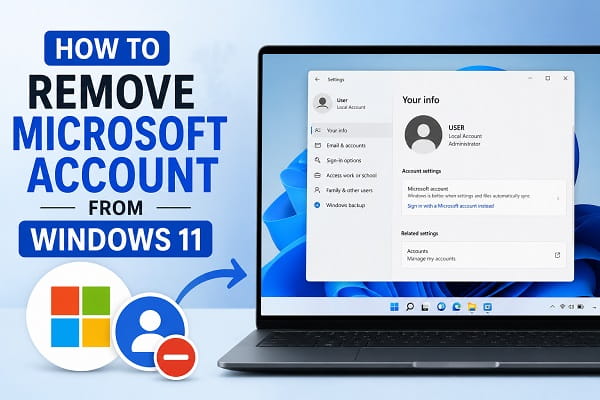
A Microsoft account gives you access to many Windows 11 features, including OneDrive, Microsoft Store, Outlook, Microsoft 365, device synchronization, and cloud backups. While these services are convenient, there are times when you may want to remove your Microsoft account from your PC.
For example, you might be selling your computer, switching to a local account, removing an old work or school account, troubleshooting sign-in issues, or simply wanting more privacy. Whatever the reason, Windows 11 provides several safe ways to remove a Microsoft account without affecting the operating system.
However, removing an account incorrectly can cause you to lose access to files, purchased apps, synchronized settings, or OneDrive data. That’s why it’s important to understand what happens before making any changes.
This guide explains the safest methods to remove a Microsoft account from Windows 11, when you should remove it, what happens afterward, and how to avoid losing important data.
Note: Removing a Microsoft account from your Windows 11 PC does not permanently delete the Microsoft account itself. It only disconnects the account from the device. If you want to permanently close your Microsoft account, you’ll need to complete Microsoft’s account closure process separately.
Why Would You Want to Remove a Microsoft Account from Windows 11?
There are many legitimate reasons why someone might want to remove a Microsoft account from a Windows 11 computer. While Microsoft encourages users to sign in with an online account to access features like OneDrive, Microsoft Store, Outlook, and Microsoft 365, not everyone needs these services.
For example, you may be preparing your PC for sale and want to remove all personal information before handing it over to someone else. Others prefer using a local account because it offers greater privacy and doesn’t synchronize settings or files with Microsoft’s cloud services.
Business users may also need to disconnect an old work account after changing jobs, while students often remove school accounts after graduation. In some cases, removing the account can also help resolve sign-in errors, synchronization problems, or issues with Microsoft Store apps.
Understanding your reason for removing the account helps you choose the safest method. For some users, switching to a local account is the best solution, while others may simply need to disconnect a secondary Microsoft account without affecting their primary Windows profile.
Things to Know Before Removing a Microsoft Account
Before removing your Microsoft account, keep these points in mind:
- Back up important files stored in OneDrive.
- Make sure you know the password for any remaining administrator account.
- Save passwords stored in Microsoft Edge if they aren’t synced elsewhere.
- Check whether your Microsoft account is used for Microsoft 365 or other subscriptions.
- If this is the only administrator account on the computer, create another administrator account first.
Taking these precautions helps prevent accidental data loss or account lockouts.
Remove a Microsoft Account vs Switch to a Local Account
Many people assume that removing a Microsoft account and switching to a local account are the same thing. Although the two actions are related, they serve different purposes.
Switching to a local account changes the way you sign in to Windows while allowing you to continue using the same user profile and personal files. Your Microsoft account itself remains active and can still be used to access services such as Outlook, OneDrive, and Microsoft Store on other devices.
Removing a Microsoft account, on the other hand, disconnects that account from the computer. Depending on the method you choose, Windows may remove the account completely from the device or simply stop using it for sign-in.
Here’s a simple comparison:
| Switch to a Local Account | Remove a Microsoft Account |
|---|---|
| Changes your Windows sign-in method | Removes the account from the device |
| Keeps your existing user profile | May remove the user profile depending on the method |
| Microsoft account remains active online | Microsoft account still exists online |
| Recommended for primary users | Best for removing unused or secondary accounts |
For most home users, switching to a local account is the safest option because it allows them to continue using Windows without losing access to their files.
Method 1: Switch to a Local Account (Recommended)
If you’re currently signed in with a Microsoft account but still want to use the computer, switching to a local account is usually the best option.
To switch to a local account:
- Press Windows + I to open Settings.
- Select Accounts.
- Click Your info.
- Under Account settings, choose Sign in with a local account instead.
- Click Next.
- Enter your Microsoft account password.
- Create a local username and password.
- Click Next.
- Select Sign out and finish.
After signing back in, your Microsoft account will no longer be used to log into Windows.
Method 2: Remove an Additional Microsoft Account
If the Microsoft account isn’t your primary sign-in account, removing it is straightforward.
Follow these steps:
- Open Settings.
- Select Accounts.
- Click Email & accounts.
- Locate the Microsoft account you want to remove.
- Click the account.
- Select Remove.
- Confirm the action.
Windows will remove the account from your device while leaving your primary account unchanged.
Method 3: Remove a Work or School Account
Many users connect work or school accounts to Windows for Microsoft 365, Teams, or organizational access.
To disconnect one:
- Open Settings.
- Click Accounts.
- Select Access work or school.
- Choose the connected account.
- Click Disconnect.
- Confirm your choice.
This removes organizational access without affecting your personal Microsoft account.
Method 4: Remove the Account Through Control Panel
Although Windows 11 emphasizes the Settings app, you can still remove user accounts through the Control Panel in certain situations.
To do this:
- Open the Control Panel.
- Select User Accounts.
- Click Manage another account.
- Choose the Microsoft account.
- Select Delete the account.
- Decide whether to keep or delete the user’s files.
- Confirm the deletion.
This method permanently removes the user account from the computer.
Method 5: Remove the Account Using Computer Management (Windows Pro)
Windows 11 Pro users can also manage user accounts through Computer Management.
Steps:
- Right-click the Start button.
- Select Computer Management.
- Expand Local Users and Groups.
- Open Users.
- Right-click the account.
- Select Delete.
This option is unavailable in Windows 11 Home.
How to Check Which Microsoft Account Is Connected
Before removing any Microsoft account, it’s important to verify which account is currently connected to Windows. Many users have more than one Microsoft account, such as a personal account, a work account, or a school account, and removing the wrong one can interrupt access to important services.
To check the account connected to your PC:
- Press Windows + I to open Settings.
- Select Accounts.
- Click Your info.
- Review the email address displayed under your profile.
You can also visit Settings > Accounts > Email & accounts to see all Microsoft accounts associated with your device. If you use Microsoft 365 or a work account, check Access work or school as well.
Taking a moment to identify the correct account helps prevent accidental removal of the wrong profile.
What Happens After Removing a Microsoft Account?
Removing a Microsoft account affects only that Windows device unless you permanently close the account through Microsoft’s website.
After removing it:
- Windows stops syncing settings.
- OneDrive signs out.
- Microsoft Store purchases may require signing in again.
- Outlook and other Microsoft apps may need to be reconfigured.
- The account no longer appears on the sign-in screen.
Your Microsoft account itself still exists and can be used on another device.
If you’re also planning to reinstall Windows or start with a clean setup, How to Reinstall Windows 11 (Step-by-Step Guide) explains the safest ways to reinstall Windows while protecting your personal files.
Remove a Microsoft Account Using Command Prompt
Advanced users can also remove certain user accounts using Command Prompt. This method is generally intended for experienced users who are comfortable working with Windows command-line tools.
To view all user accounts on your computer:
- Open Command Prompt as an administrator.
- Run the following command:
net userWindows will display all local user accounts currently available on the device.
To remove a local user account, you can use:
net user "Username" /deleteReplace Username with the actual account name.
Keep in mind that this command removes a local Windows user account. If the account is linked to Microsoft services, you should first switch it to a local account or disconnect it through the Windows Settings app before deleting it.
If you’re unfamiliar with Command Prompt, using the graphical methods described earlier in this guide is generally the safer option.
Can You Remove the Only Microsoft Account on Windows 11?
Yes, but not directly.
If your Microsoft account is the only account with administrator privileges, Windows won’t let you simply delete it because doing so could leave the computer without an administrator.
Instead, you should first switch to a local administrator account or create another administrator account before removing the Microsoft account.
To create another administrator account:
- Open Settings.
- Select Accounts.
- Click Other users.
- Choose Add account.
- Select I don’t have this person’s sign-in information.
- Click Add a user without a Microsoft account.
- Create the new account.
- Change its account type to Administrator.
Once the new administrator account is ready, you can safely remove the old Microsoft account.
How to Remove a Microsoft Account Without Losing Files
Many users worry that removing a Microsoft account will erase everything on their computer.
In most cases, it doesn’t.
If you switch to a local account, your files remain on the device. However, before removing the account, you should:
- Back up documents.
- Copy important Desktop files.
- Save Downloads if necessary.
- Sync OneDrive files you want to keep offline.
- Export browser passwords if needed.
Taking a few minutes to back up your data can prevent unnecessary headaches later.
What Happens to OneDrive?
When you remove your Microsoft account:
- OneDrive signs out automatically.
- Files already stored locally remain on your PC.
- Online-only files may no longer be accessible until you sign in again.
- Automatic cloud syncing stops.
If OneDrive is important to your workflow, make sure all files have finished syncing before removing the account.
What Happens to Microsoft Store Apps?
Most installed apps remain on your computer.
However:
- Some purchased apps may ask you to sign in again.
- Microsoft Store purchases are still tied to your Microsoft account.
- You can download purchased apps again by signing back into the Microsoft Store.
Removing the account from Windows doesn’t delete your purchase history.
What Happens to Microsoft 365, Outlook, and OneDrive?
Removing a Microsoft account affects more than just your Windows sign-in. Several Microsoft services rely on the account to synchronize data across devices.
For example, Outlook may stop syncing emails until you sign in again with a Microsoft account. Microsoft 365 applications such as Word, Excel, and PowerPoint may request that you verify your subscription if it’s associated with the removed account.
OneDrive automatically signs out, preventing new files from syncing to the cloud. Files that have already been downloaded to your computer remain available, but online-only files may no longer be accessible until you reconnect your account.
Microsoft Edge may also stop syncing bookmarks, browsing history, passwords, and extensions between your devices.
If you use Xbox services on Windows, you’ll need to sign in again to access your game library, achievements, and cloud saves.
Understanding these changes helps you prepare before removing your Microsoft account and reduces the likelihood of unexpected interruptions.
Can You Add the Microsoft Account Again Later?
Yes.
If you change your mind, you can reconnect the same Microsoft account at any time.
To do this:
- Open Settings.
- Select Accounts.
- Click Your info.
- Choose Sign in with a Microsoft account instead.
- Enter your Microsoft account credentials.
- Complete the verification process.
Windows will restore account synchronization, OneDrive access, and Microsoft services.
When You Should Not Remove a Microsoft Account
Although removing a Microsoft account is safe in most situations, there are times when keeping the account connected is the better option.
For example, if your Microsoft account stores your BitLocker recovery key, removing the account without first saving the recovery key could make it more difficult to regain access to your encrypted drive if you ever forget your password or experience a hardware issue.
Similarly, users with active Microsoft 365 subscriptions, Family Safety features, or extensive OneDrive storage may prefer to keep their account connected to ensure uninterrupted access to these services.
Business and school computers are another important consideration. If your device is managed by an organization, removing the connected Microsoft account could prevent access to company resources, email, Microsoft Teams, or other work-related applications.
Before removing any account, consider whether you rely on Microsoft’s cloud services and create backups of any important data stored online.
Common Problems When Removing a Microsoft Account
Windows Won’t Let Me Remove the Account
This usually happens because:
- It’s the only administrator account.
- You’re currently signed into that account.
- The account is being used by Microsoft services.
Create another administrator account first, then try again.
Remove Button Is Missing
If the Remove option isn’t available:
- Sign out of the account first.
- Check whether it’s a work or school account.
- Ensure you’re using an administrator account.
- Restart the computer and try again.
Still Seeing the Microsoft Account After Removal
Sometimes Windows caches account information temporarily.
Try:
- Restarting your PC.
- Signing out and back in.
- Checking Email & Accounts again.
- Disconnecting OneDrive separately if necessary.
How to Completely Close a Microsoft Account
Removing the account from Windows is not the same as deleting the Microsoft account itself.
If you want to permanently close your Microsoft account:
- Sign in to your Microsoft account online.
- Review your subscriptions and services.
- Back up important emails and files.
- Follow Microsoft’s account closure process.
- Complete the verification steps.
Once closed, the account can’t be recovered after Microsoft’s waiting period expires.
My Microsoft Account Keeps Coming Back
If your Microsoft account continues appearing after you remove it, Windows may still be using it for Microsoft Store, OneDrive, Outlook, or other Microsoft services.
Try signing out of these apps individually before removing the account again. Restart your computer afterward and check whether the account has been removed successfully.
I Can’t Switch to a Local Account
If Windows won’t let you switch to a local account, make sure your computer is connected to the internet and that you’ve entered the correct Microsoft account password. Installing the latest Windows updates can also resolve temporary account management issues.
My PIN Stopped Working After Removing My Microsoft Account
Windows Hello PINs are often associated with the account used to sign in. After switching accounts, you may need to create a new PIN through Settings > Accounts > Sign-in options.
Frequently Asked Questions
Will removing a Microsoft account delete my files?
No. Switching to a local account keeps your personal files on the computer. However, files stored only in OneDrive should be backed up before removing the account.
Can I remove a Microsoft account without a password?
No. Windows usually requires you to verify your identity before switching away from a Microsoft account.
Can I use Windows 11 without a Microsoft account?
Yes. Windows 11 supports local accounts, although some Microsoft services such as OneDrive and Microsoft Store synchronization won’t be available until you sign in.
Will removing my Microsoft account uninstall Microsoft Office?
No. Microsoft Office remains installed. However, you may need to sign in again to verify your license if your subscription is linked to that Microsoft account.
Can I remove a work or school account without affecting my personal account?
Yes. Work and school accounts are managed separately from your personal Microsoft account and can usually be disconnected without affecting your personal data.
Is switching to a local account the same as deleting my Microsoft account?
No. Switching to a local account only changes how you sign in to Windows. Your Microsoft account remains active and can still be used on other devices or Microsoft services.
Will Windows Update still work after removing my Microsoft account?
Yes. Windows Update continues working normally even if you switch to a local account.
Can I remove my Microsoft account without an internet connection?
In many cases, yes. However, Windows may ask you to verify your identity before allowing certain account changes.
Does removing my Microsoft account affect Windows activation?
No. Your Windows license remains valid because activation is tied to your device or digital license rather than your everyday sign-in account.
Will my Microsoft Edge bookmarks be deleted?
If your bookmarks have been synchronized with your Microsoft account, you’ll need to sign in again to continue syncing them. Bookmarks already stored locally generally remain available.
Can I remove my Microsoft account if it’s my administrator account?
Yes, but you should first create another administrator account or switch to a local administrator account. Windows won’t allow you to leave the computer without an administrator account.
If you’re removing a Microsoft account because you’re selling your computer, giving it to someone else, or troubleshooting account issues, take a few minutes to back up your important data first. In most cases, switching to a local account is the safest option because it lets you continue using Windows 11 without losing your personal files, while still giving you the flexibility to sign back into your Microsoft account whenever you need it.
